
This tutorial guides you through a feature to easily manage links in blocks and elements with the Maileon Editor.
1. Introduction
You will also update the privacy policy URL to maintain compliance with data regulations.
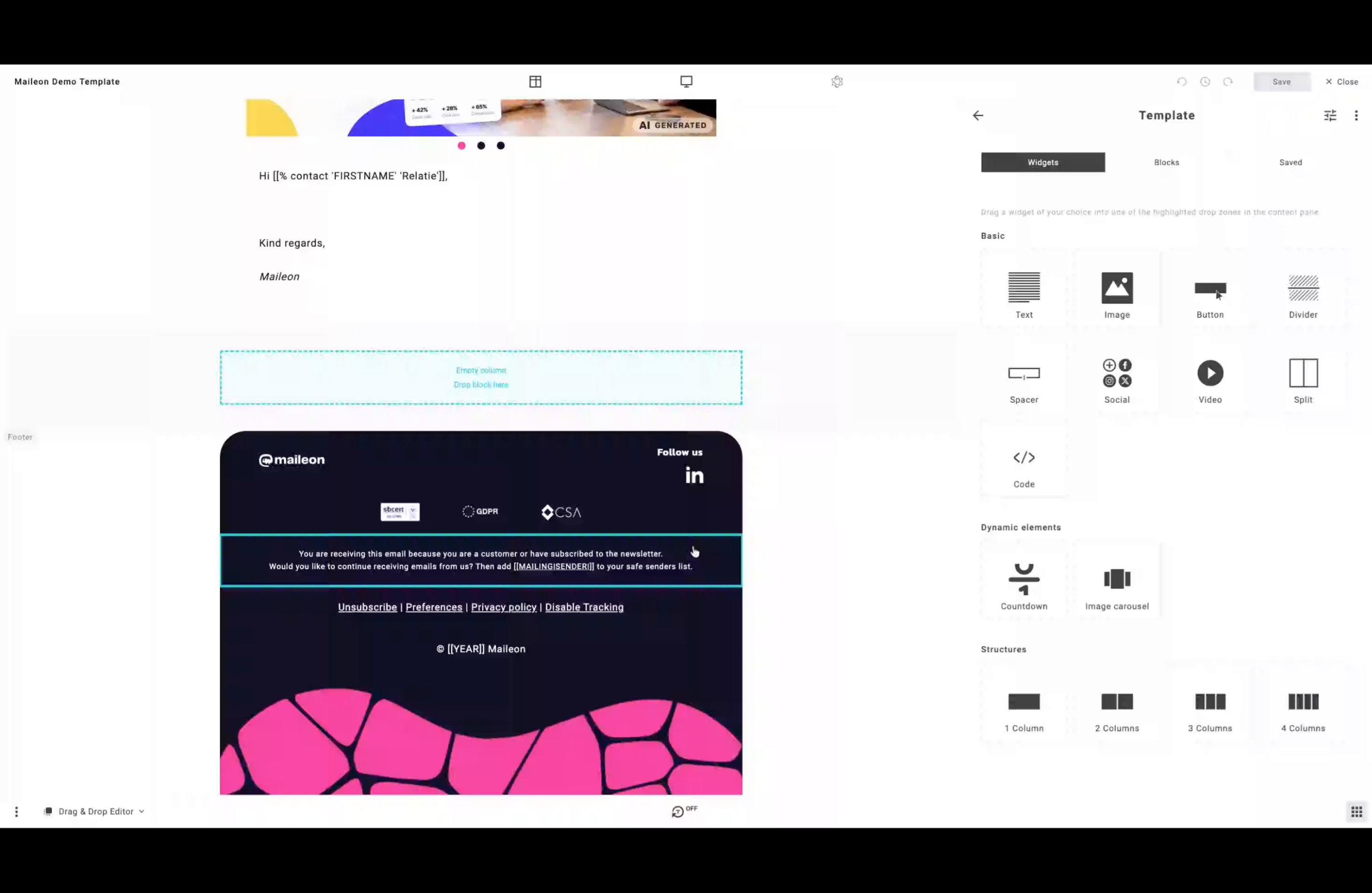
2. Select a block or element with multiple links
Begin by opening the privacy settings to manage your unsubscribe preferences and tracking options.
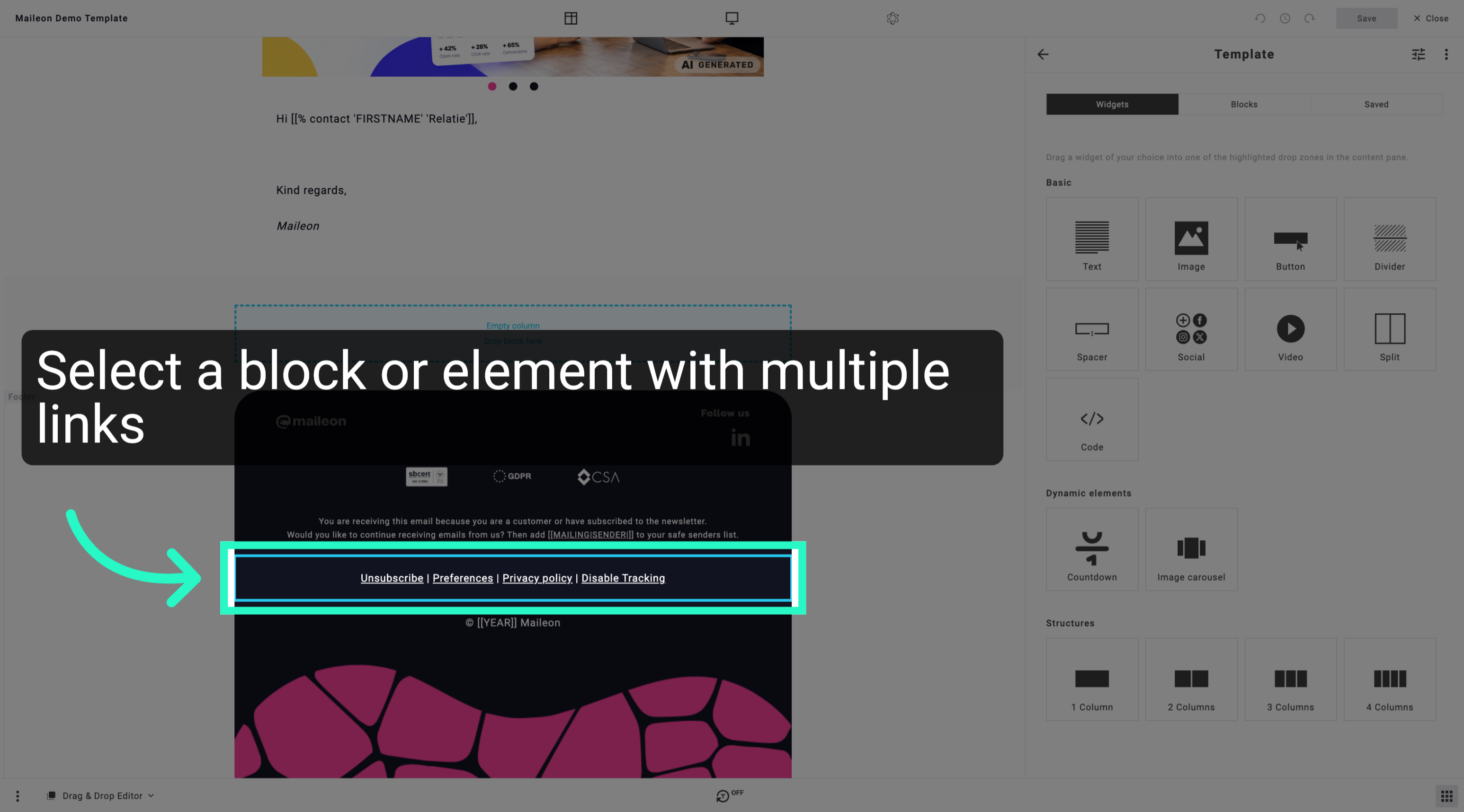
3. Navigate to the top right and click 'Links'
Navigate to the Links section where you can manage link-related settings and configurations.
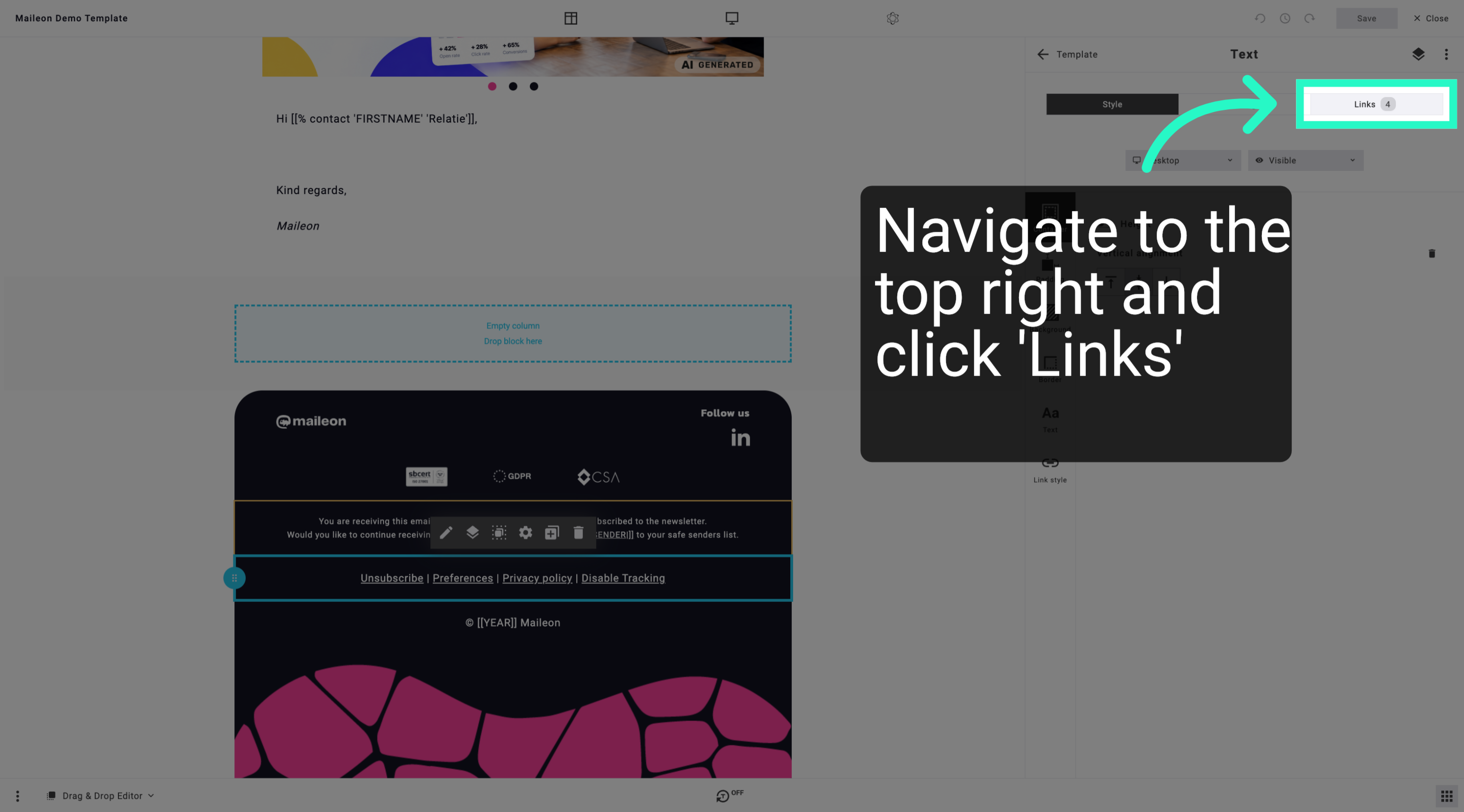
4. View Privacy Policy Details
Access the privacy policy details to review the current terms and conditions related to data handling.
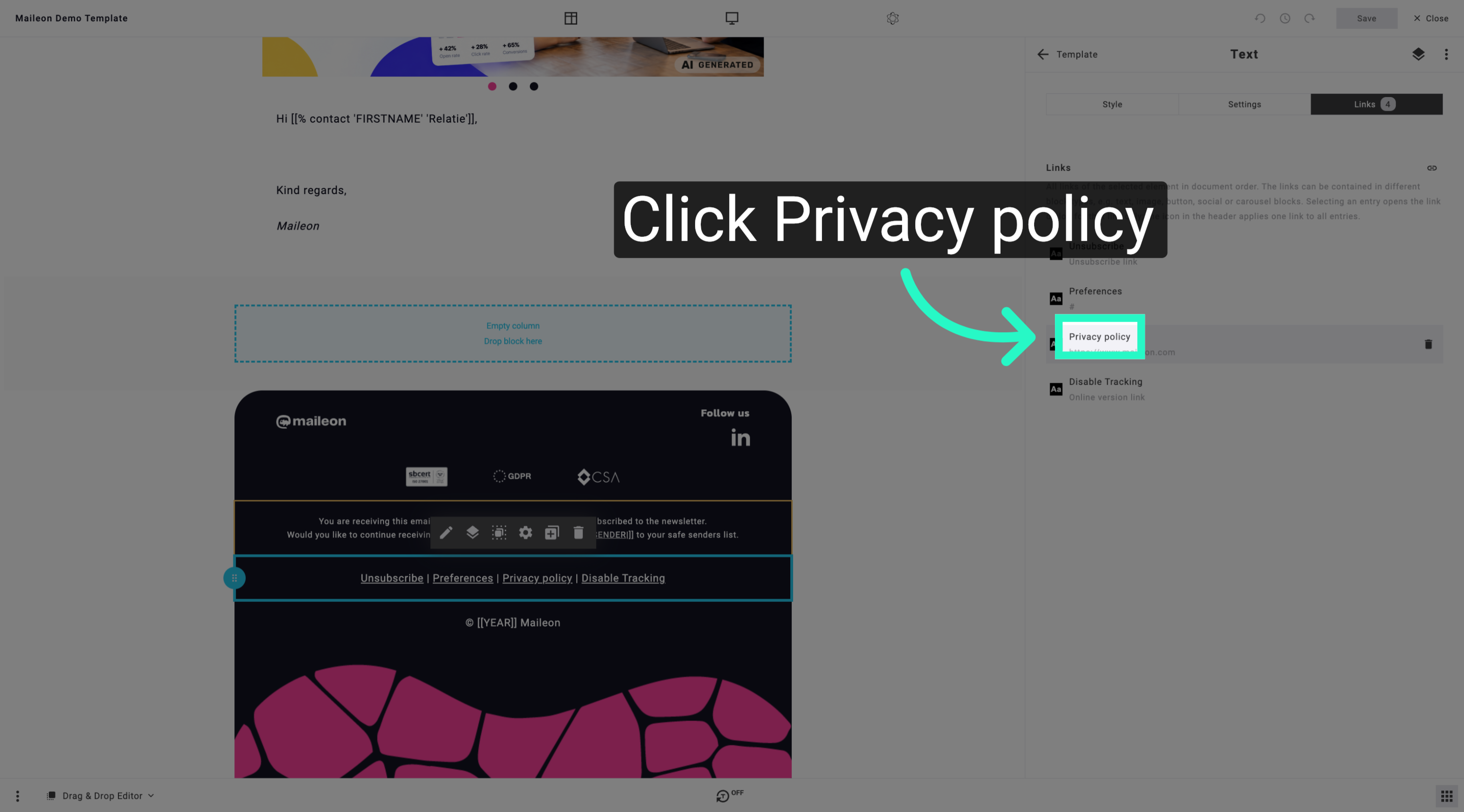
5. Save Tag Configuration
Save the new tag settings to apply the changes and enable tracking for the specified website.
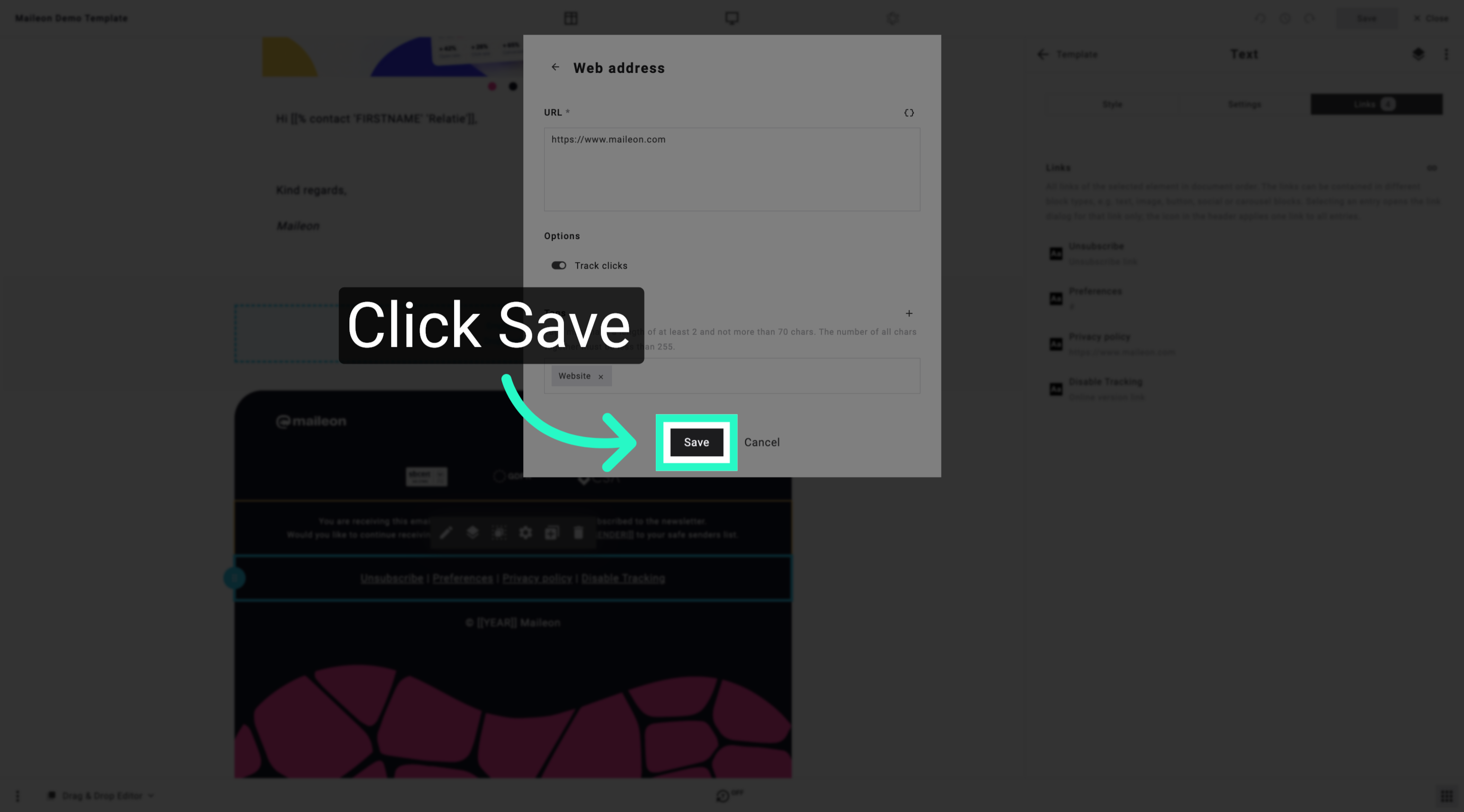
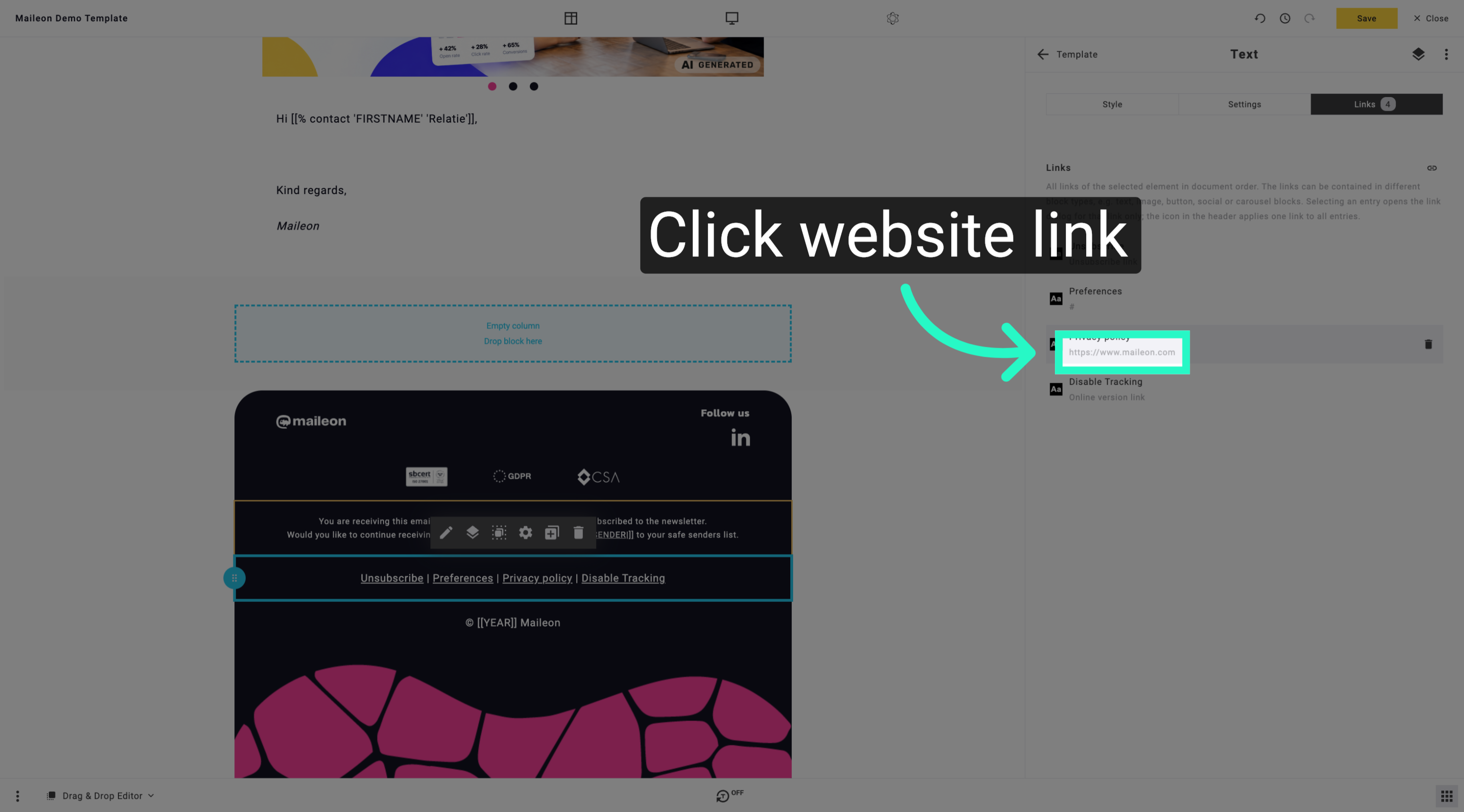
6. Select Website Link
Select the website link to review or edit its associated tracking and tag settings.
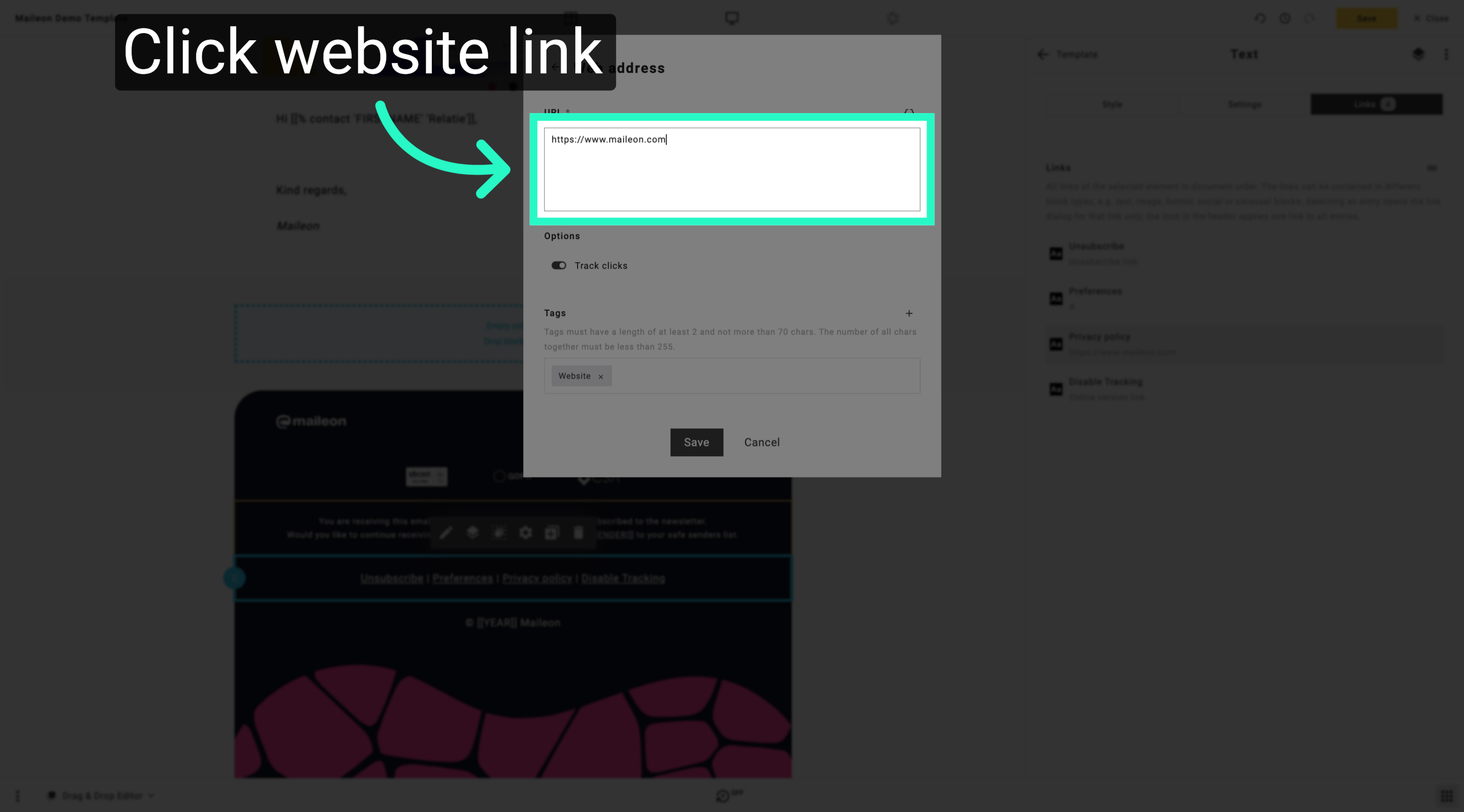
7. Reconfirm Website Selection
Reconfirm the selection of the website link to ensure the correct settings are being modified.
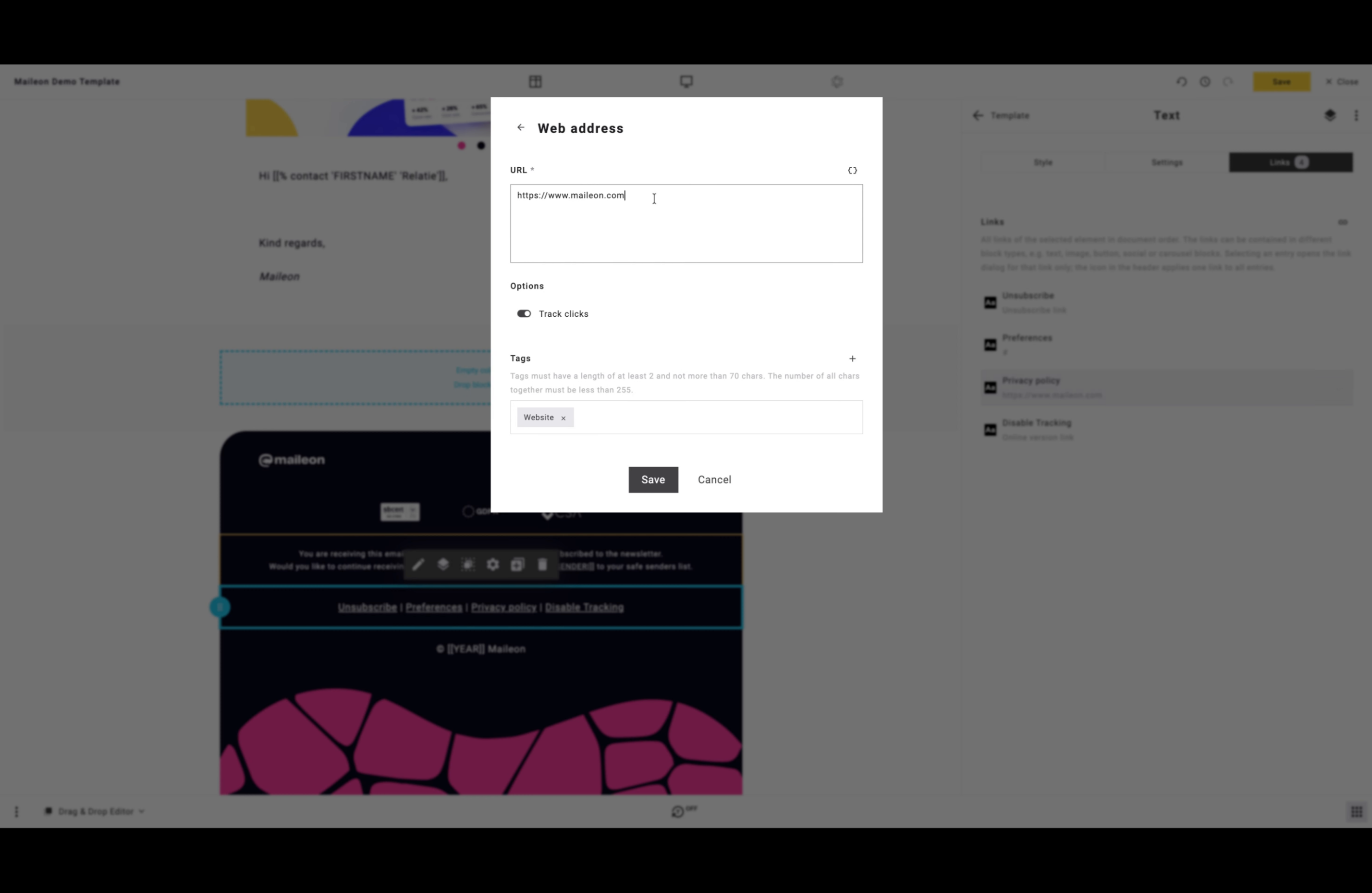
8. Update Privacy Policy URL
Update the privacy policy URL to reflect the current address for user reference and compliance.
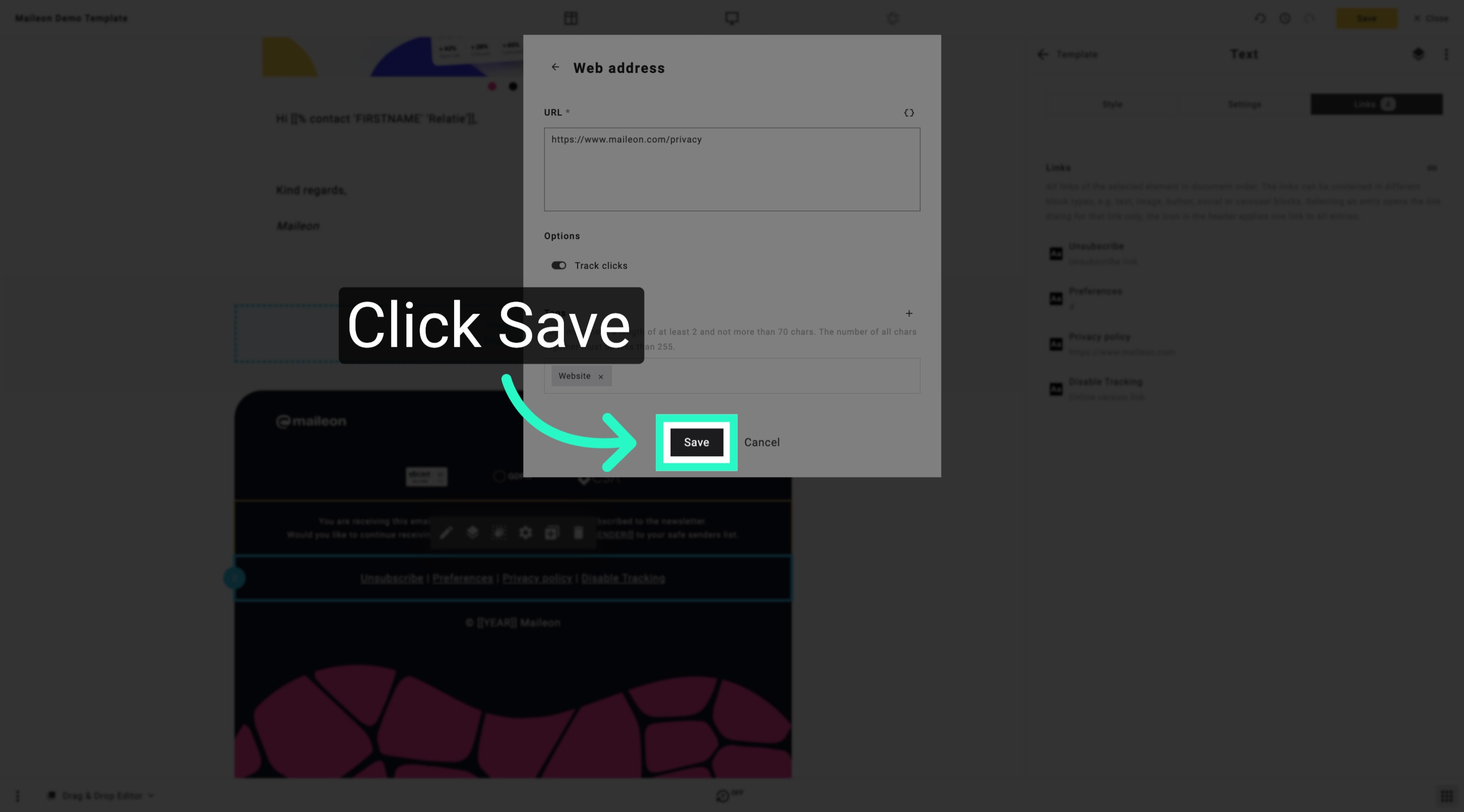
9. Save Privacy Policy Changes
Save the updated privacy policy settings to finalise the changes and maintain compliance.
You have successfully configured unsubscribe preferences, link tracking tags, and updated the privacy policy URL within the Maileon application. These changes ensure accurate tracking and compliance with privacy standards.