
This tutorial guides you through accessing and selecting a campaign calendar event within the Maileon platform.
1. Introduction
You will learn how to navigate to the Campaigns section and open specific campaign schedules for management.
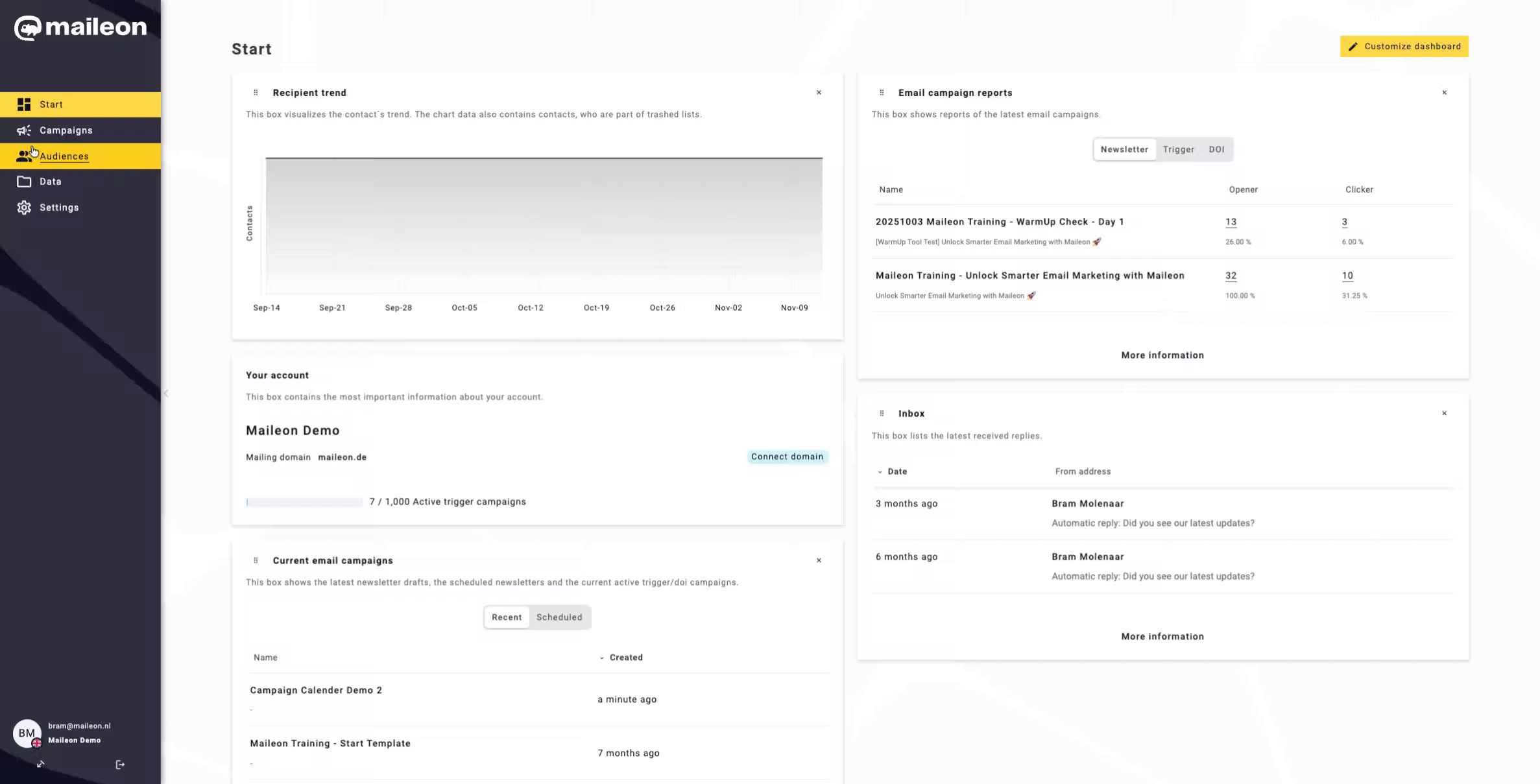
2. Access Campaigns Section
Click the Campaigns tab to access the campaigns management area where you can view and manage your marketing campaigns.
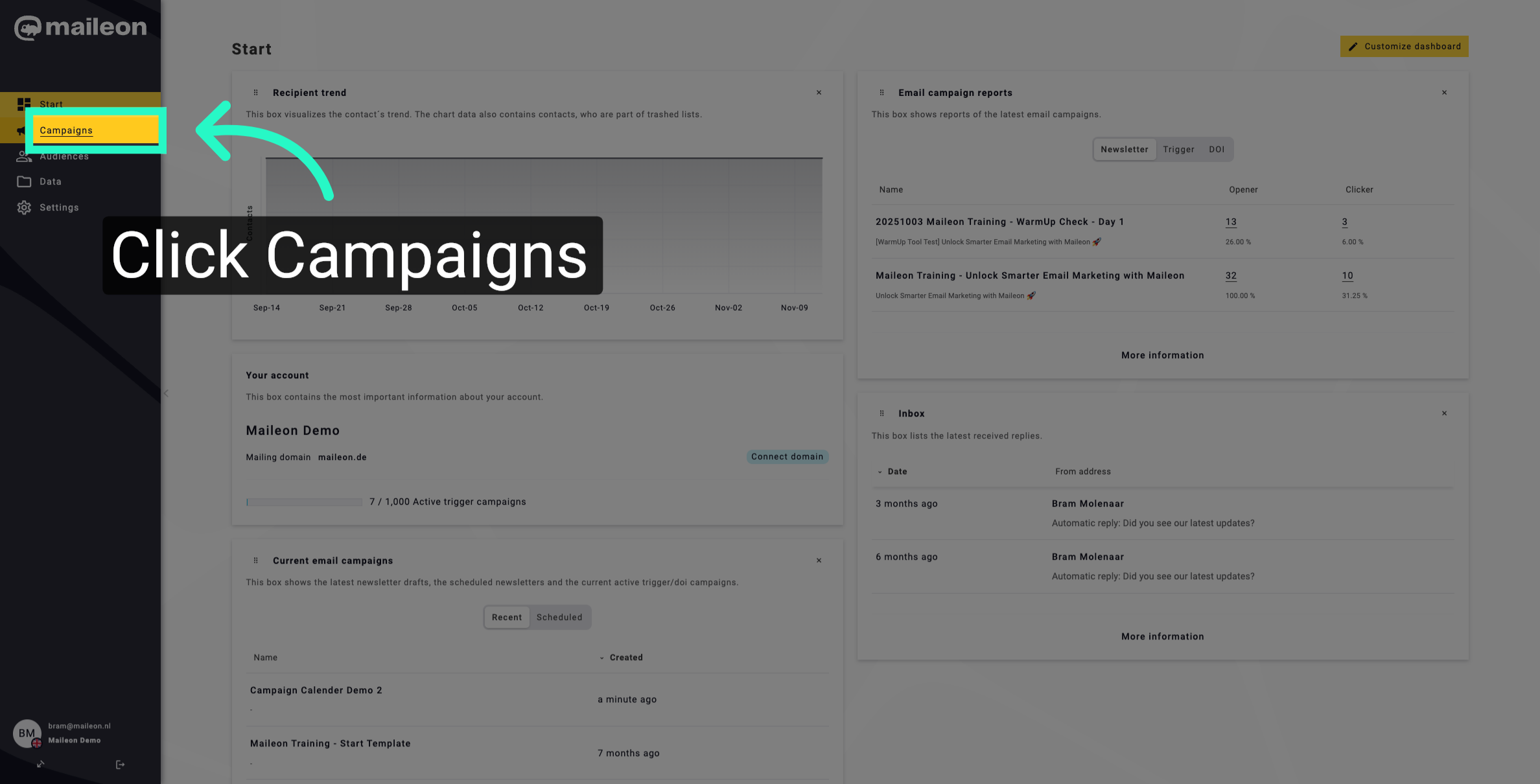
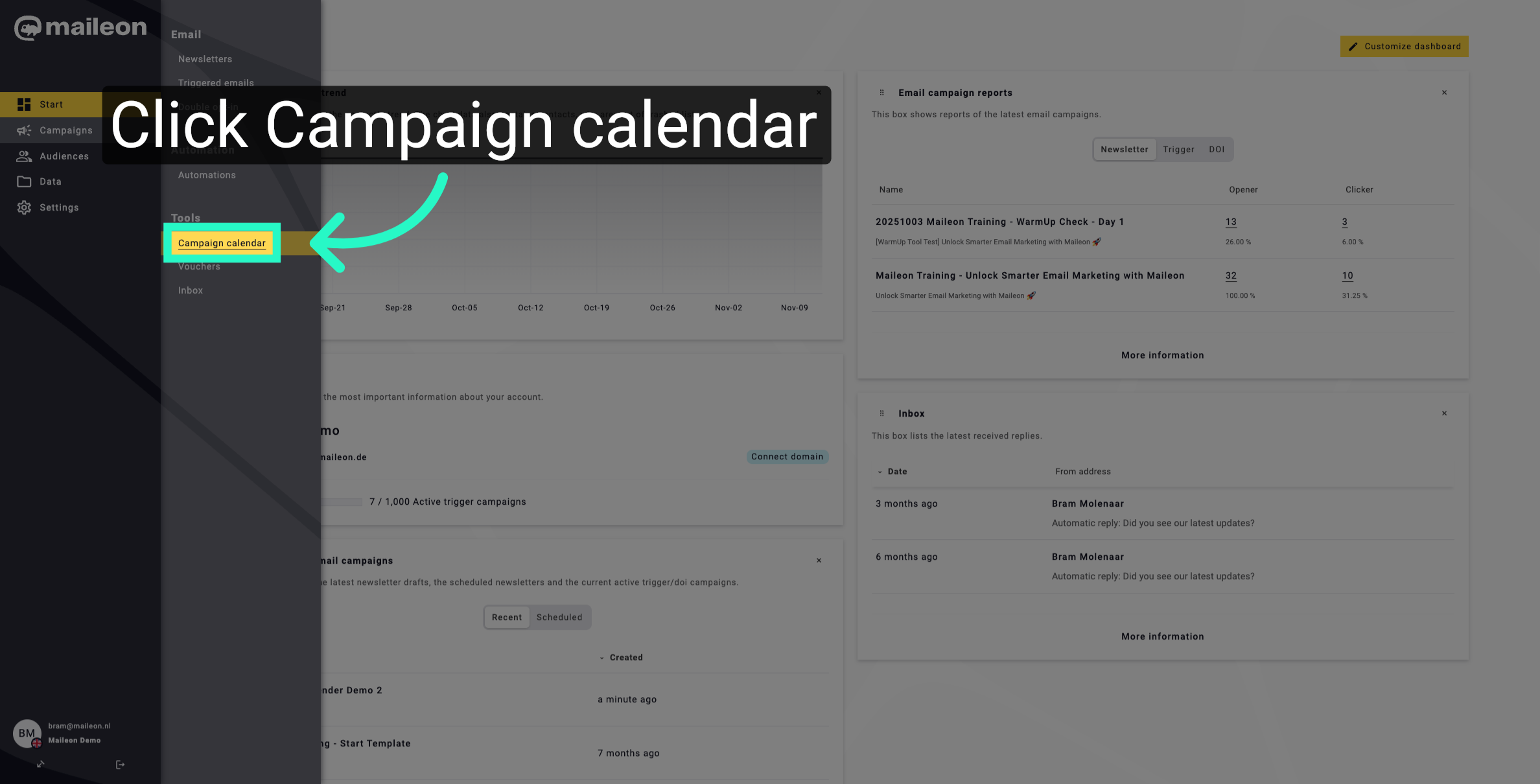
3. Open Campaign Calendar
Click the Campaign calendar option to view the schedule of all upcoming campaigns and their timelines.
4. Select Specific Campaign Event
Click the scheduled campaign event to open its detailed calendar view and review its settings and status.
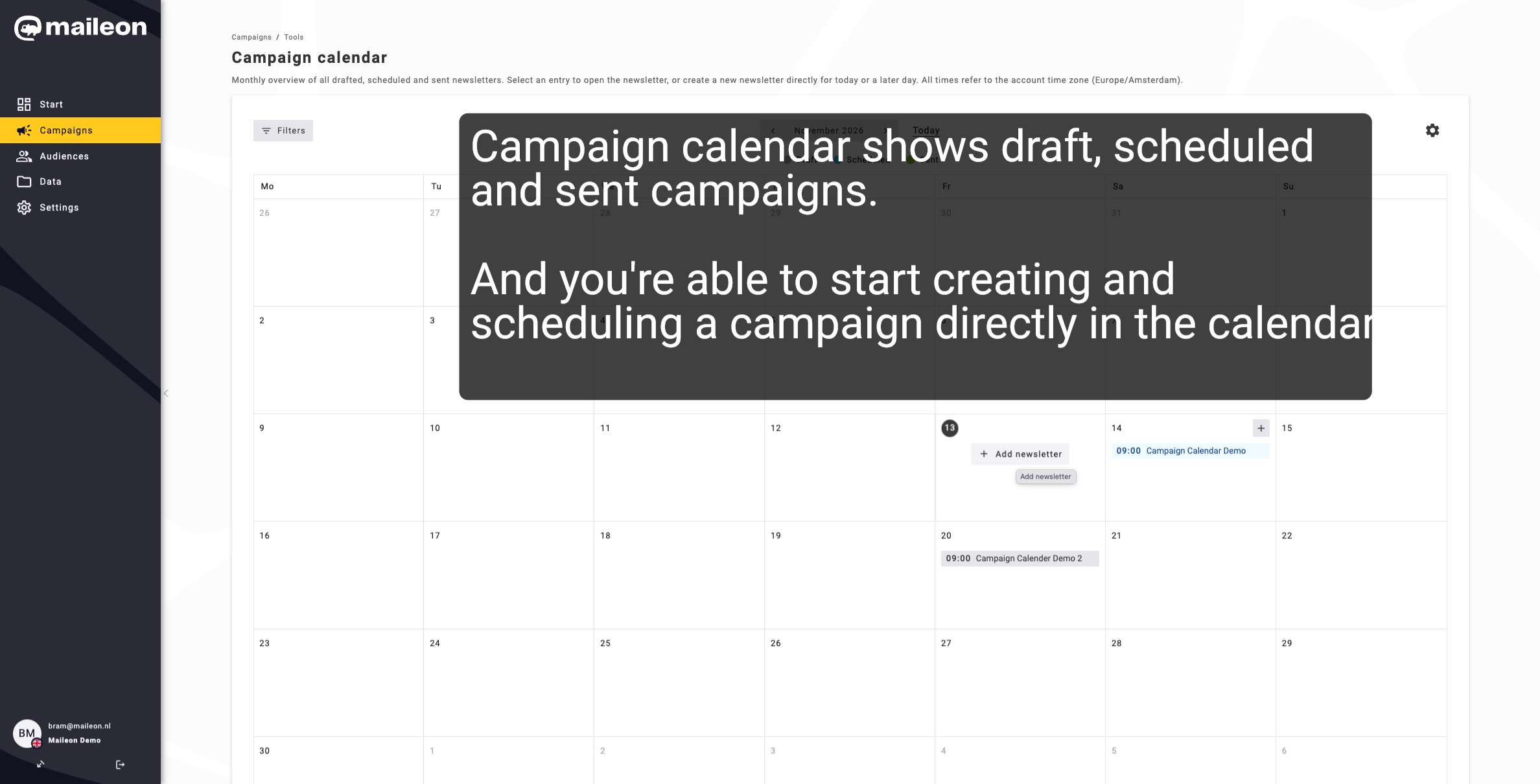
5. Select Specific Campaign Event
Click the scheduled campaign event to open its detailed calendar view and review its settings and status.
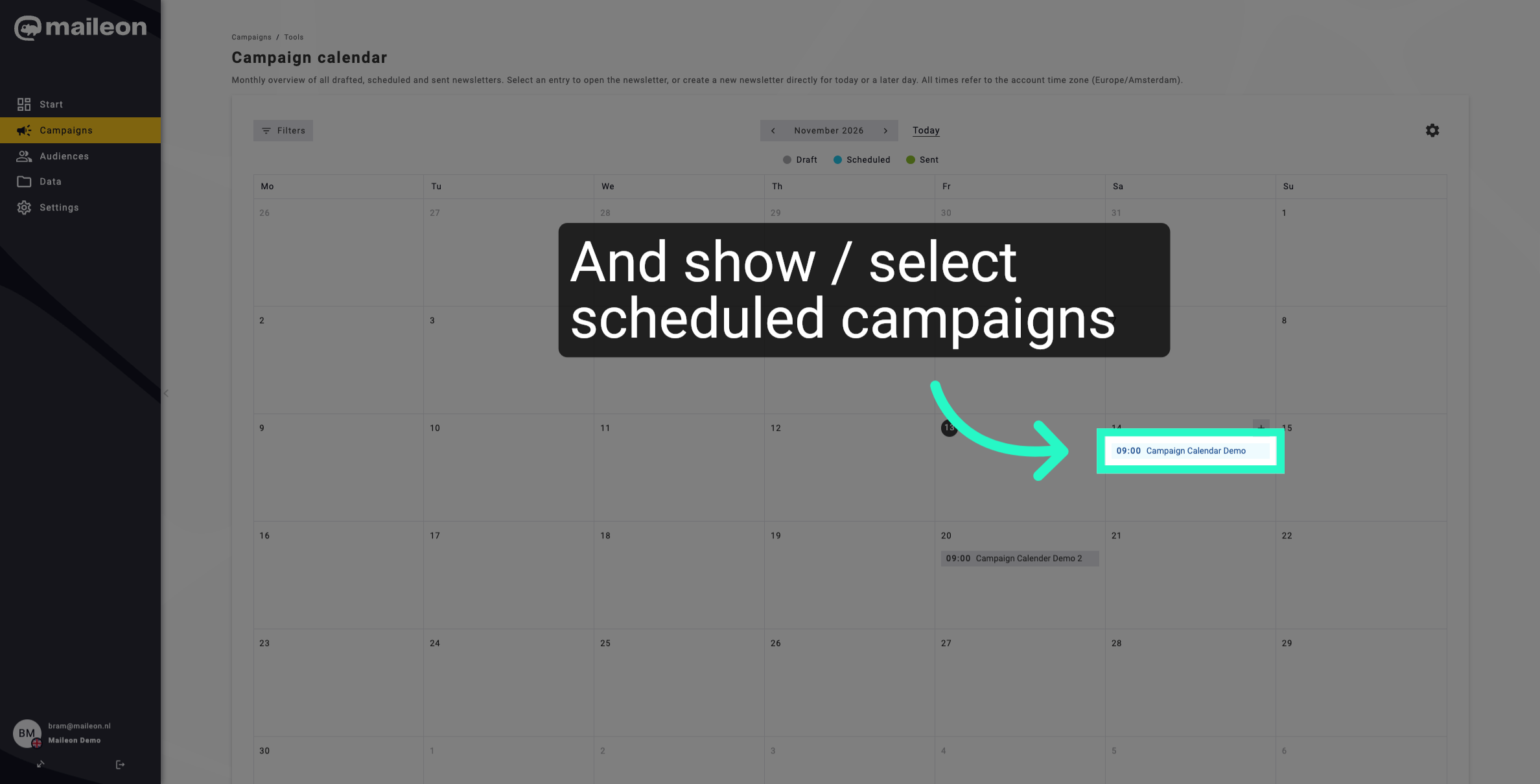
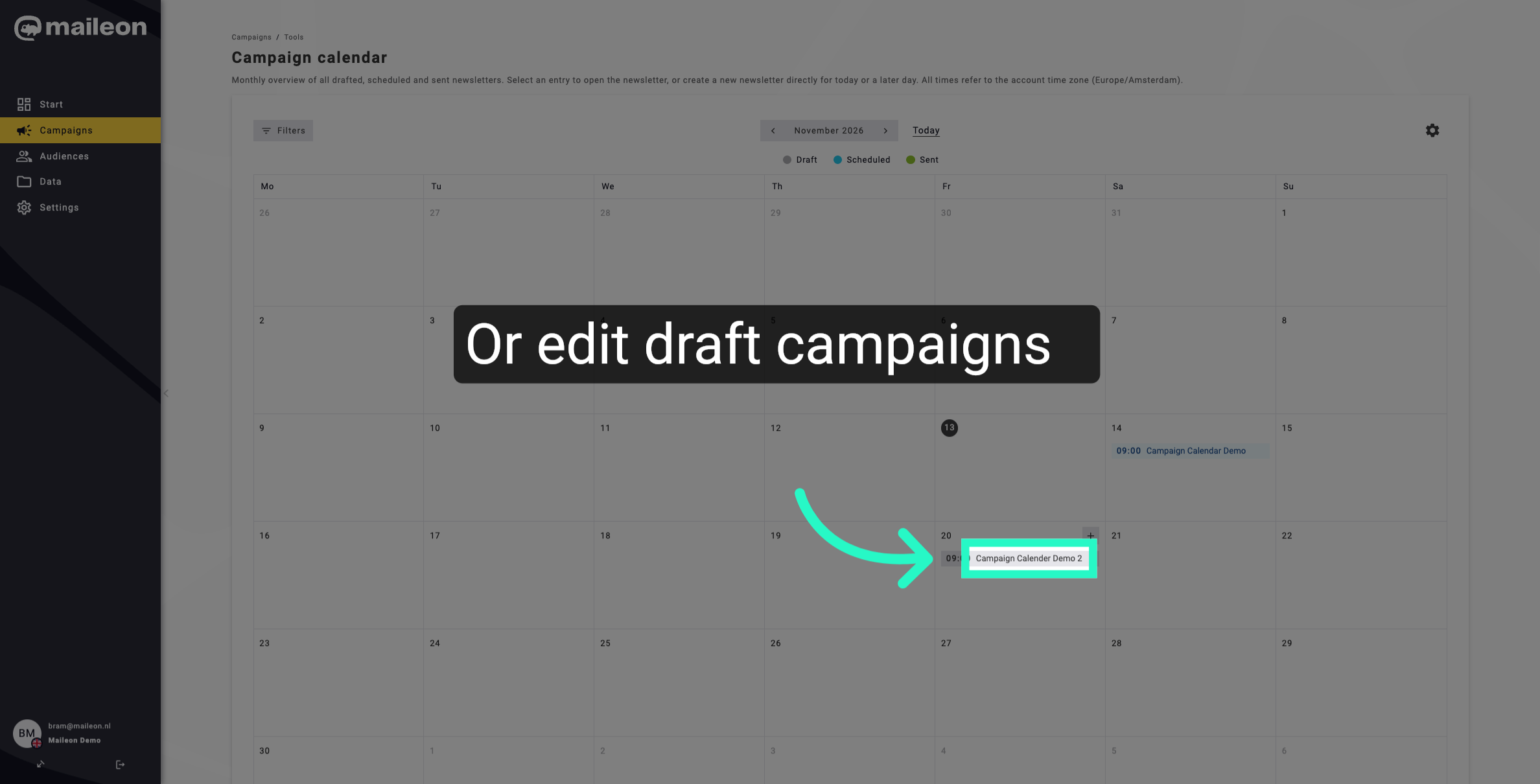
6. Choose Campaign Calendar Demo 2
First, click the link to open the campaign calendar page. Then, select the Campaign Calendar Demo 2 to view its details and manage its settings.
You have successfully navigated through the Campaigns section to access and select a specific campaign calendar event. This allows you to manage and review campaign schedules effectively. For further management, explore editing campaign details or creating new campaigns.