
This tutorial guides you through customising the style and layout of your email campaign in Maileon.
1. Introduction
You will learn how to adjust desktop and mobile views.
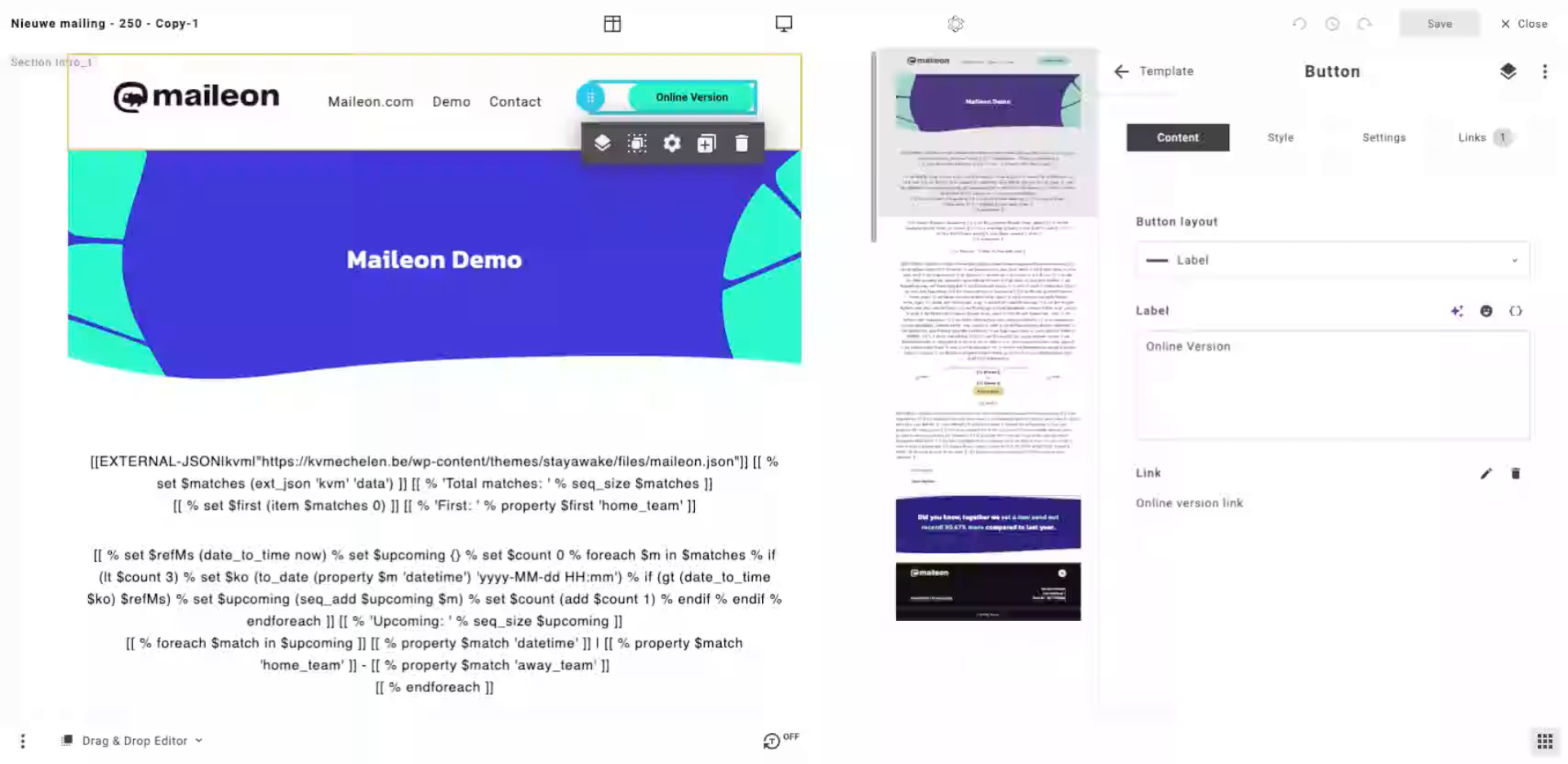
2. Access Style Settings
Open the style settings to customise the appearance of your email campaign elements.
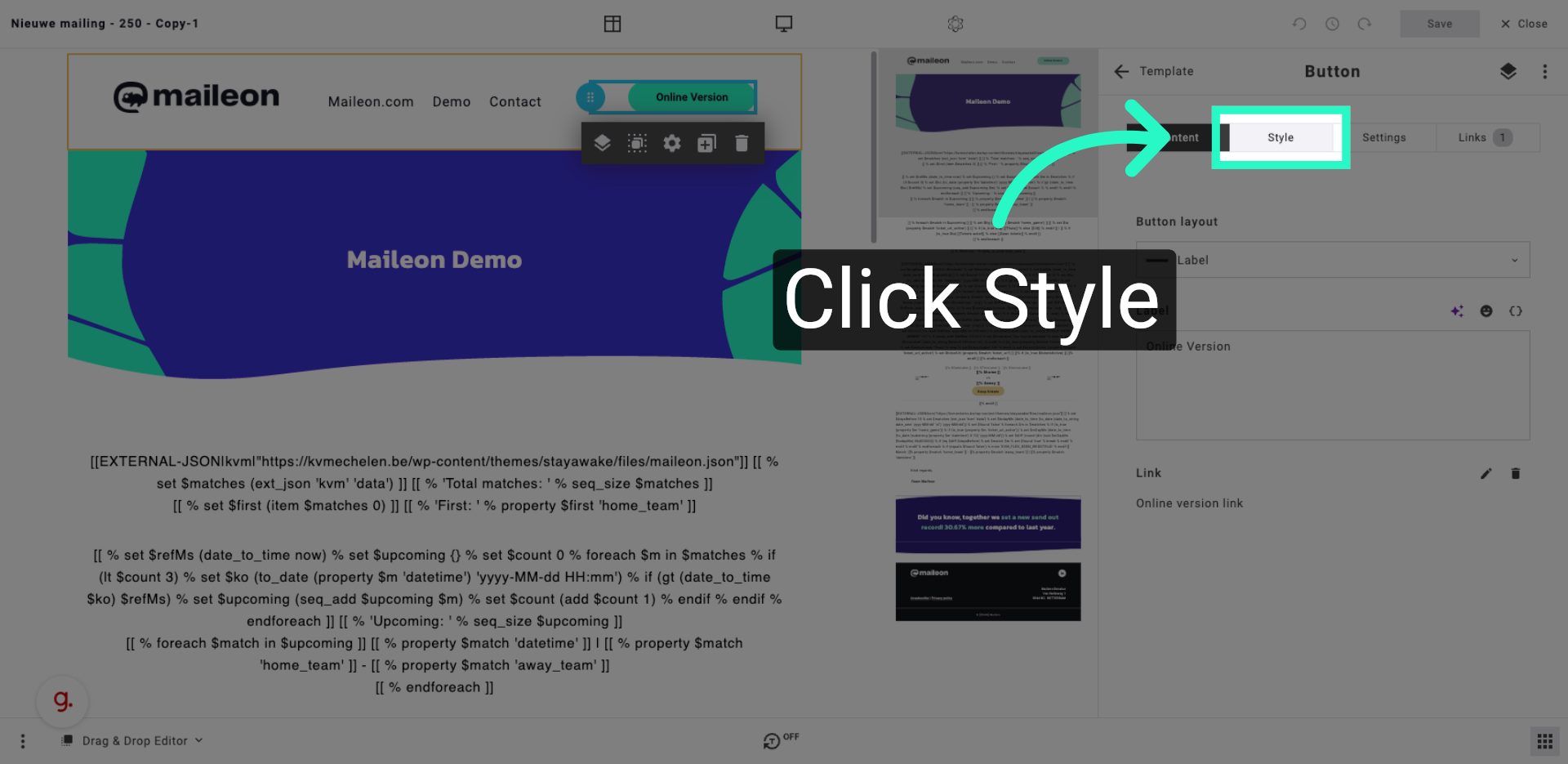
3. View Desktop Layout
Switch to the desktop view to adjust how your campaign appears on larger screens.
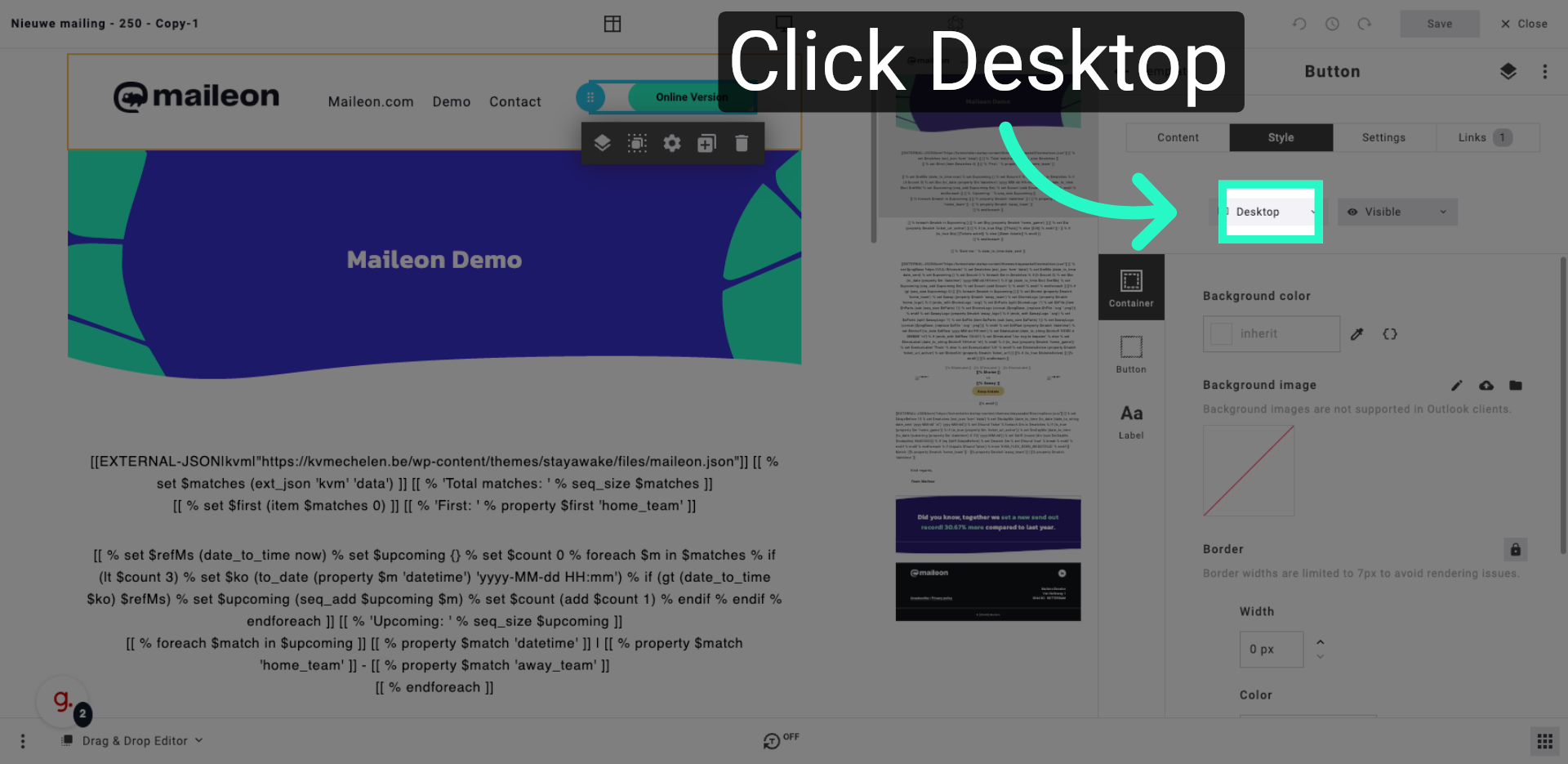
4. Switch to Mobile Layout
Change to the mobile view to optimise your campaign for mobile devices.
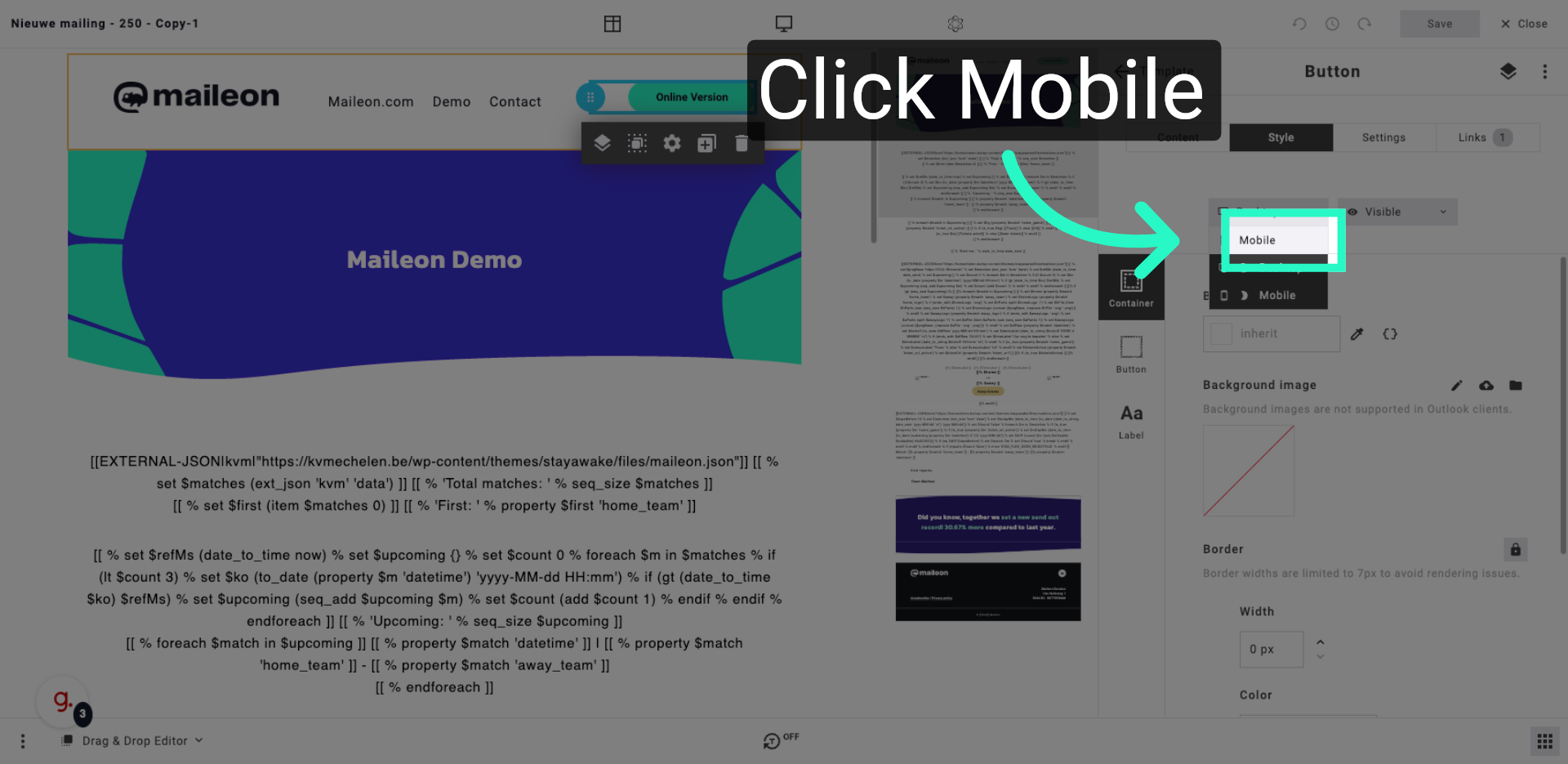
5. Edit Button Appearance
Access the button styling options to modify the look and feel of buttons in your campaign.
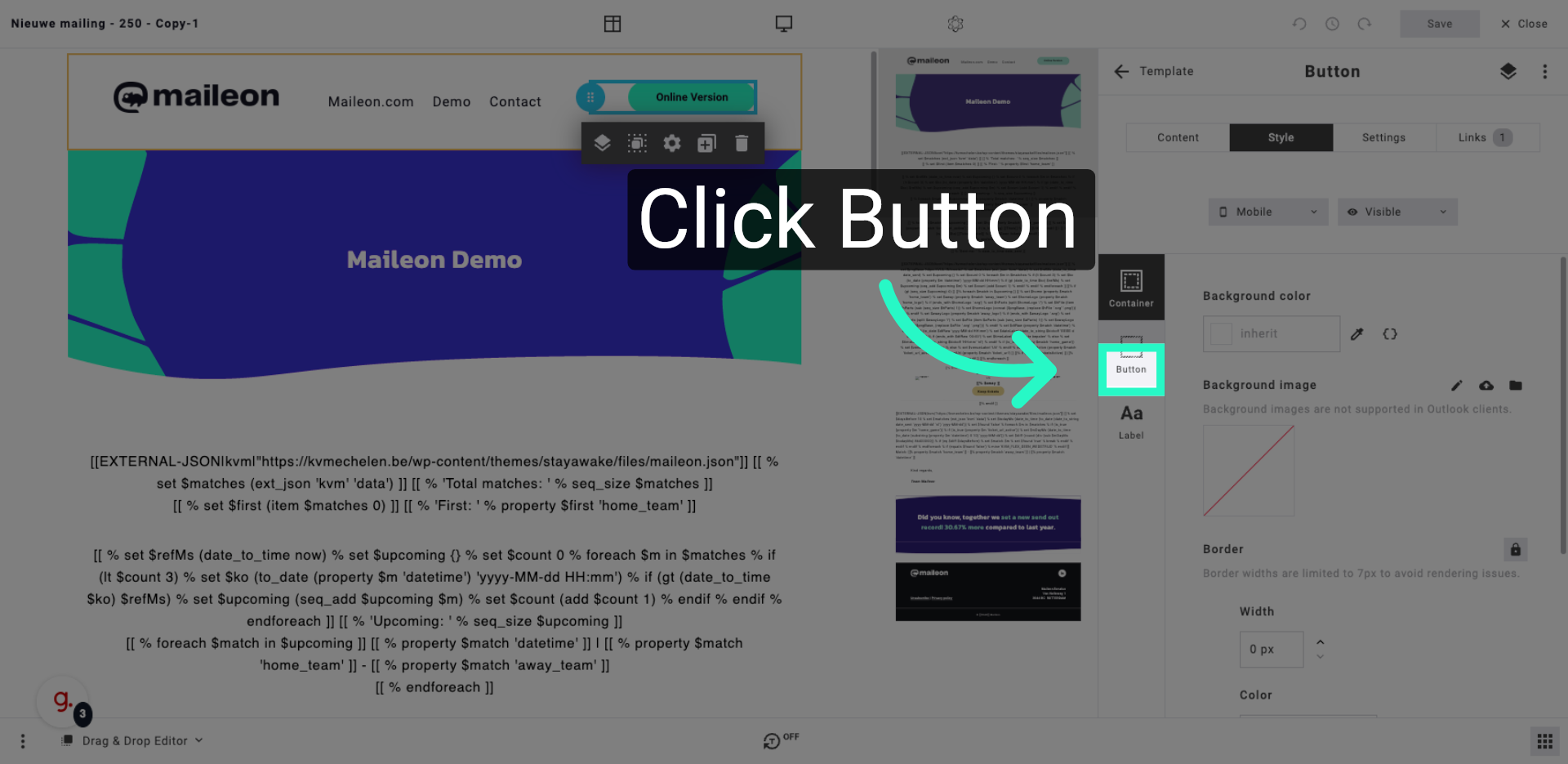
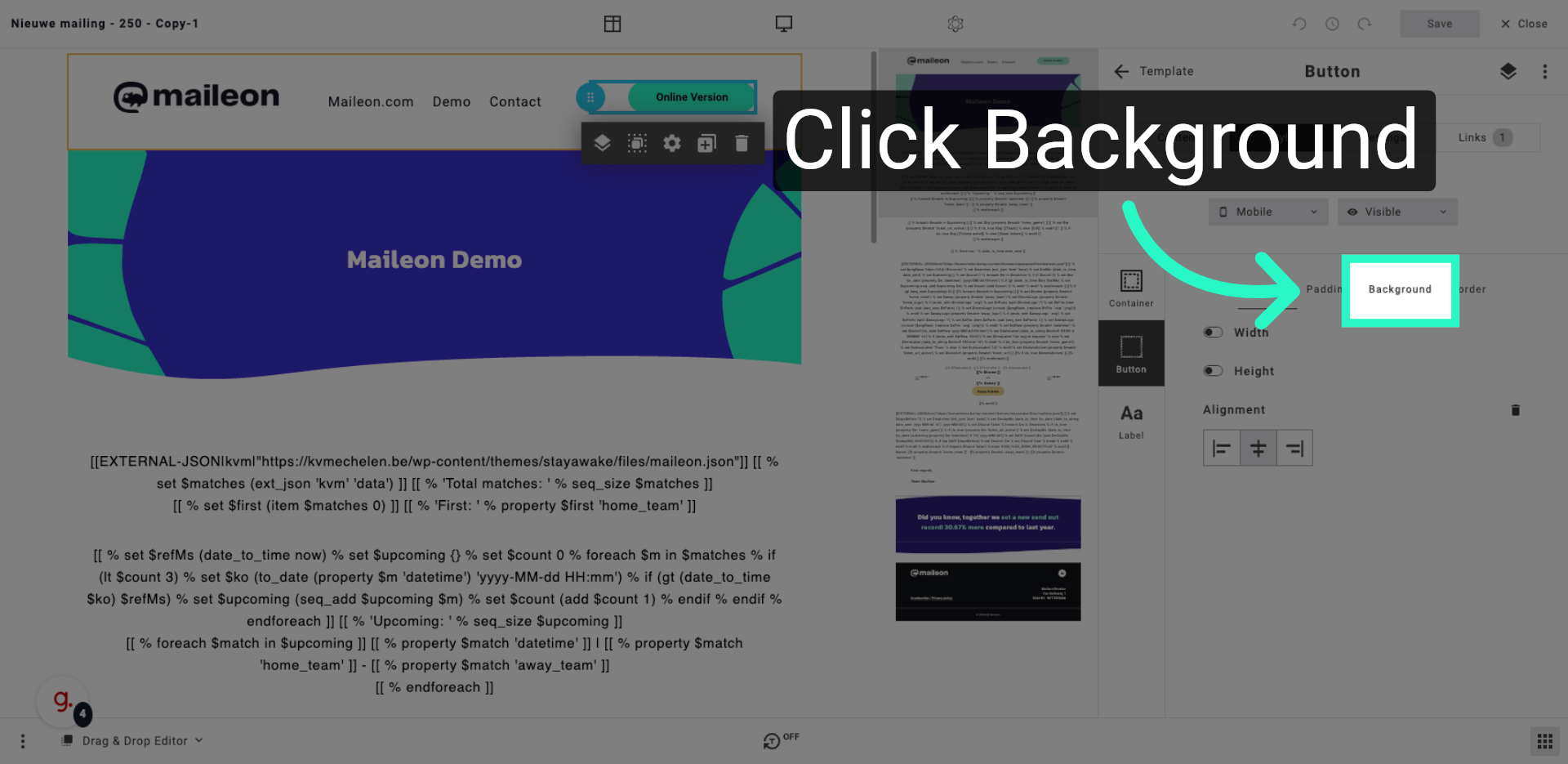
6. Modify Background Settings
Open the background settings to change the colours or images behind your campaign content.
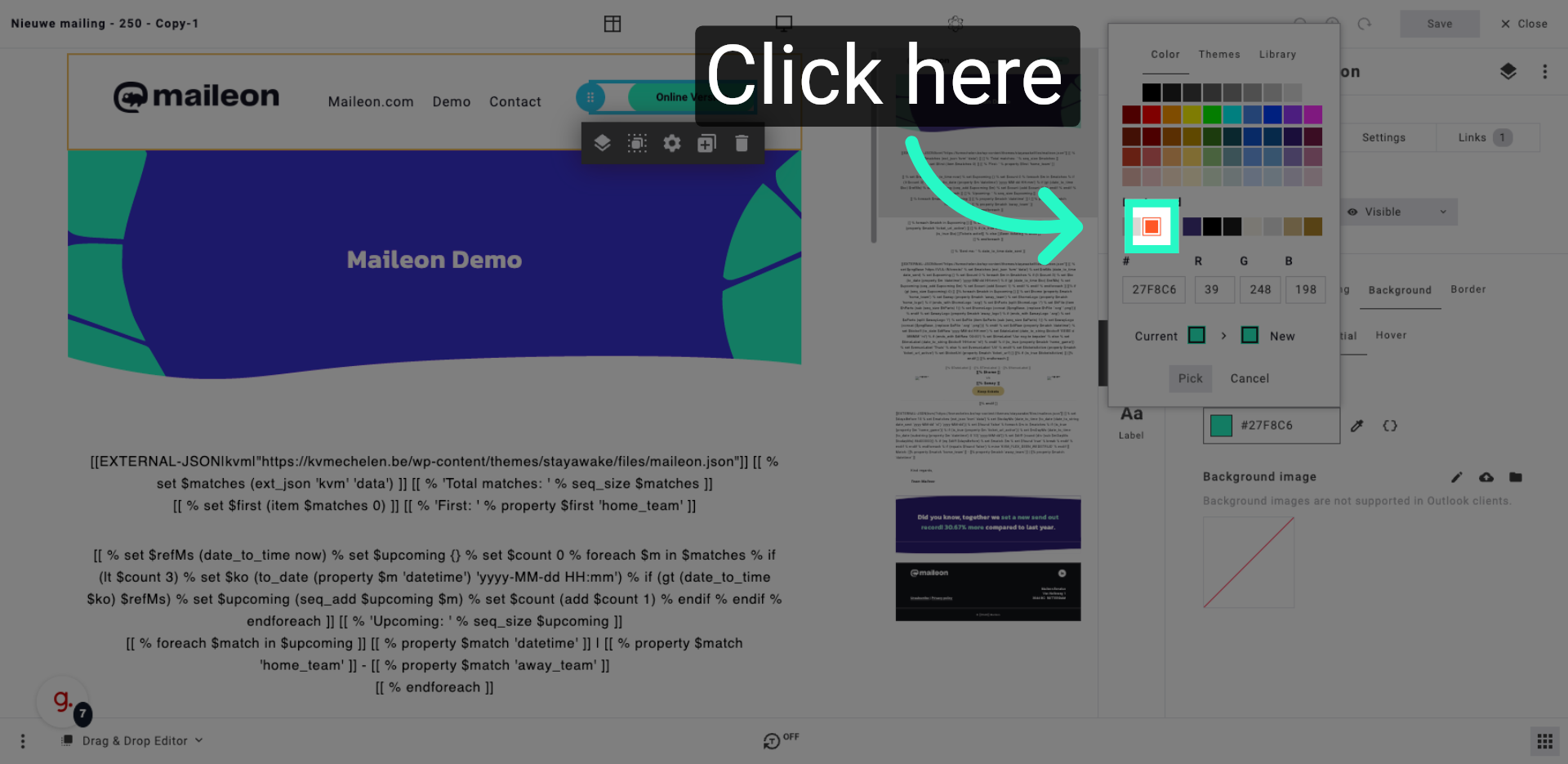
7. Open Colour Picker
Use the colour picker to select a custom background colour for your campaign elements.
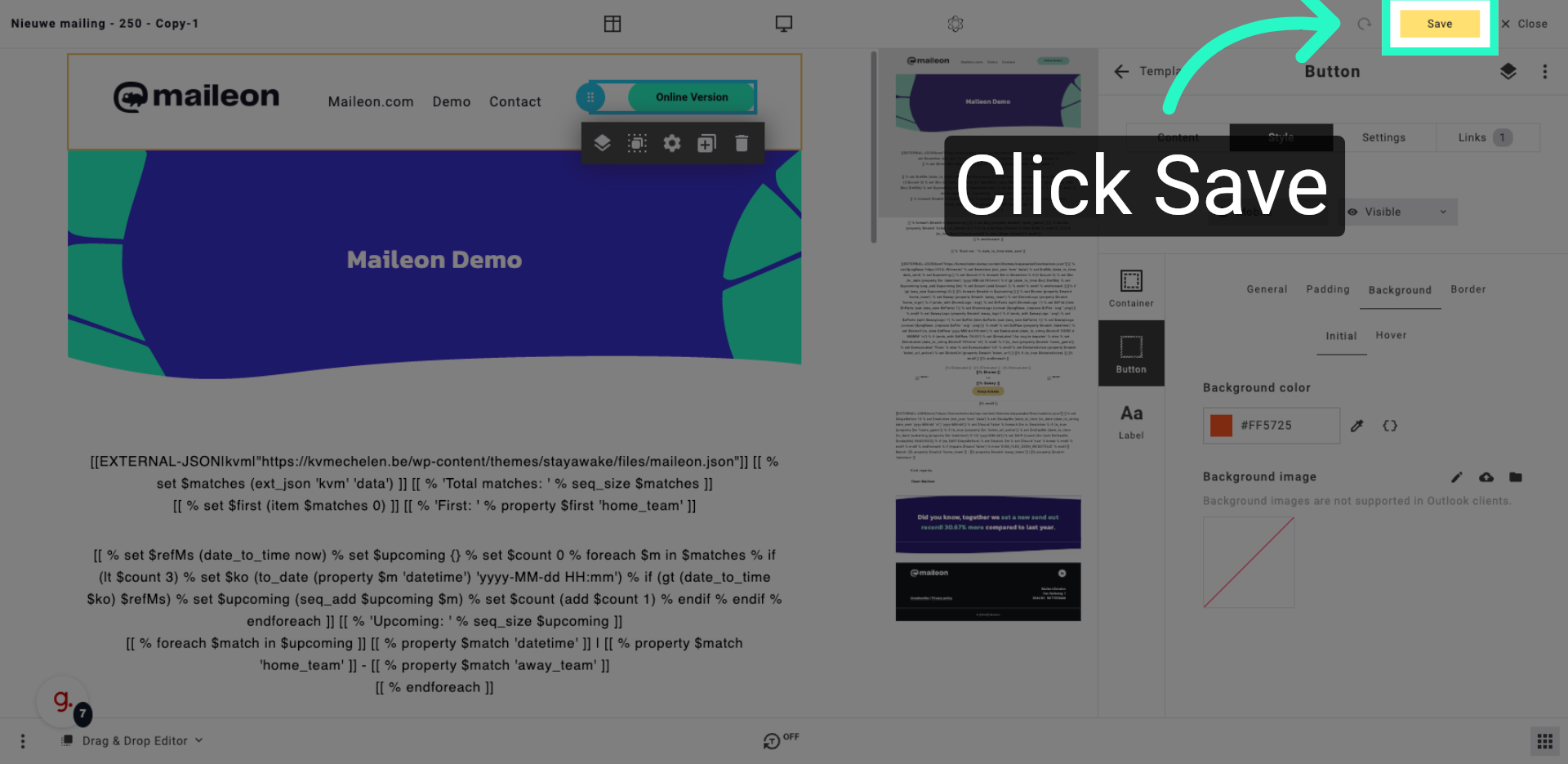
8. Save Style Changes
Save your style customisations to apply the changes to your email campaign design.
You have customised the style and layout of your email campaign, managed background and button settings, and integrated external data. Next, review your campaign to ensure all changes are applied correctly.