
This tutorial guides you through managing and editing email content within Maileon.
1. Introduction
You will learn how to access global content and modify email templates to enhance your campaigns.
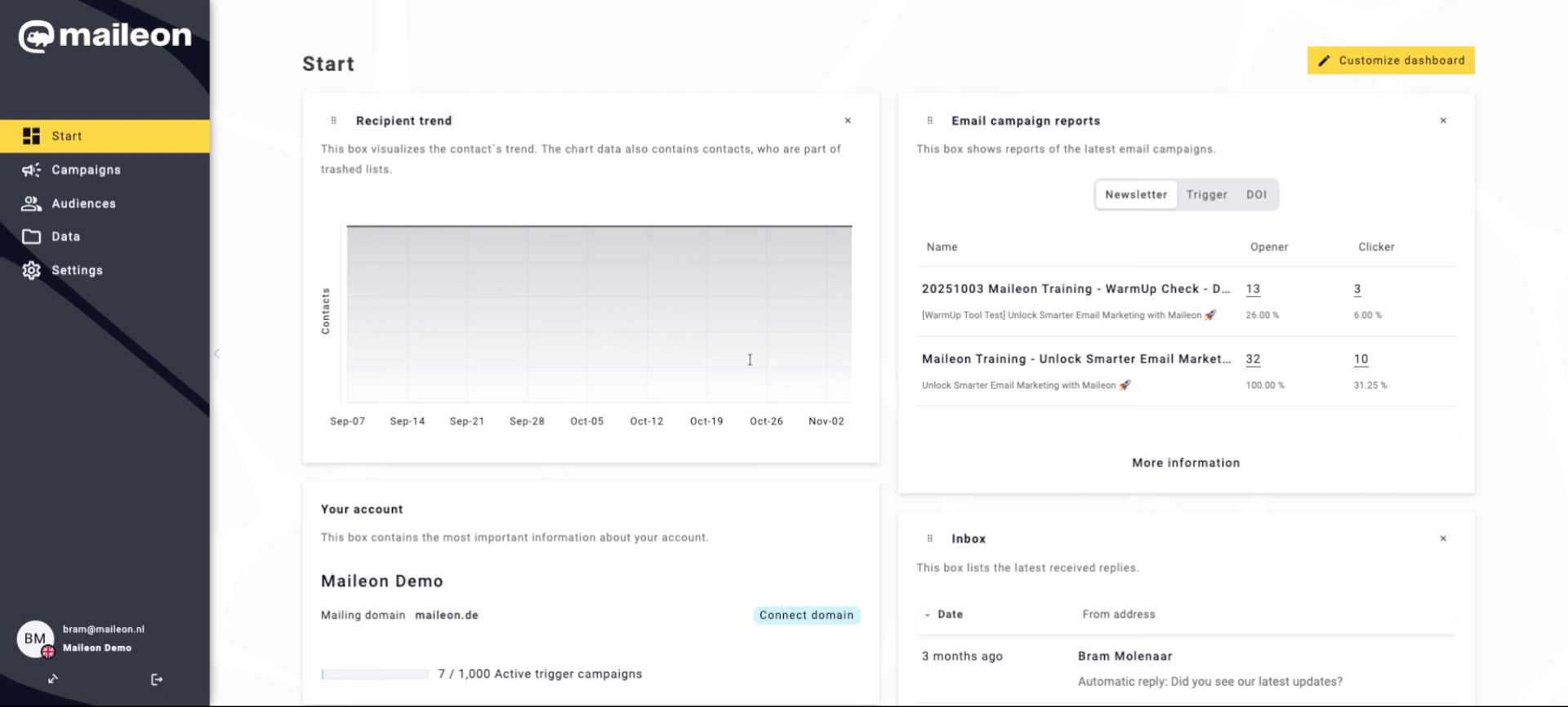
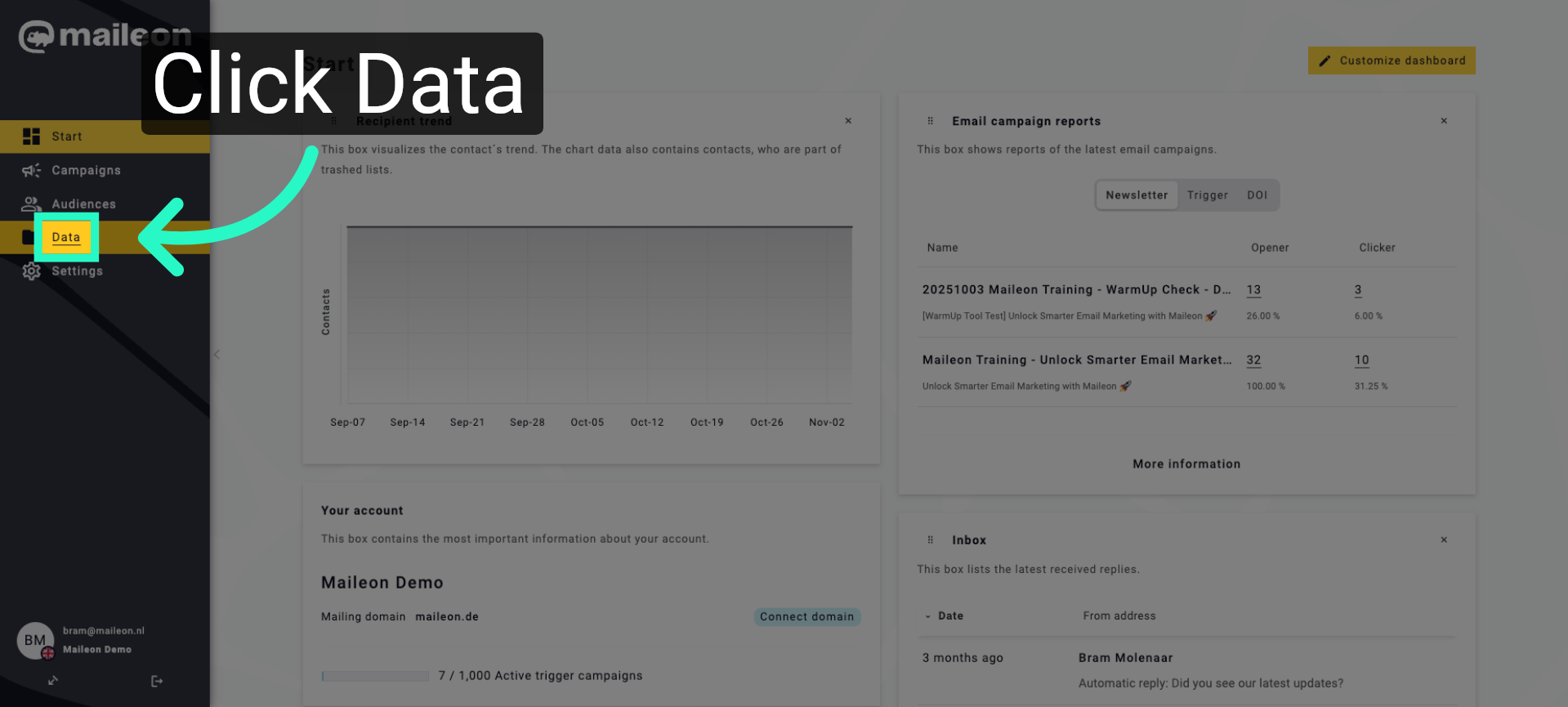
2. Access Data Section
Navigate to the Data section to manage your email content and settings within Maileon.
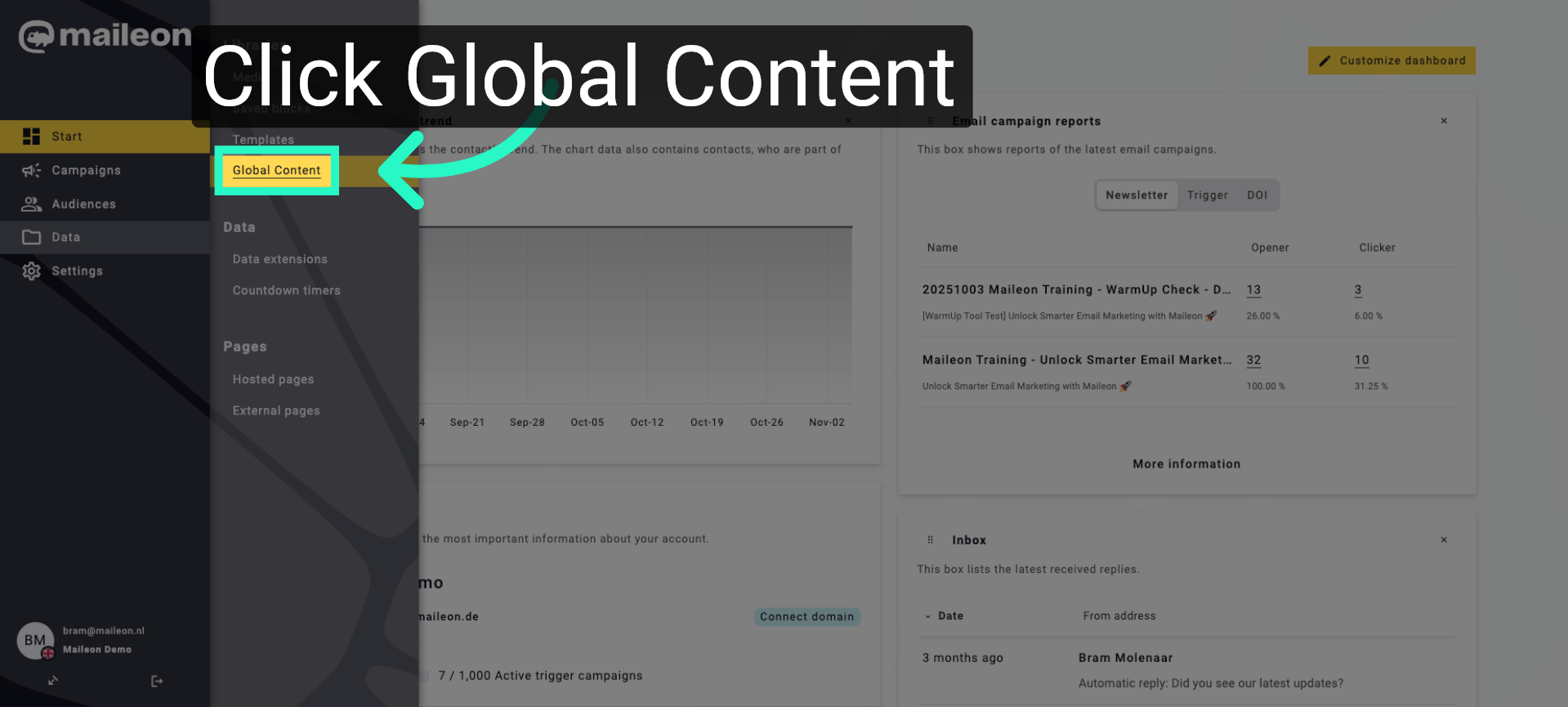
3. Open Global Content Area
Open the Global Content area to view and edit shared content elements used across campaigns.
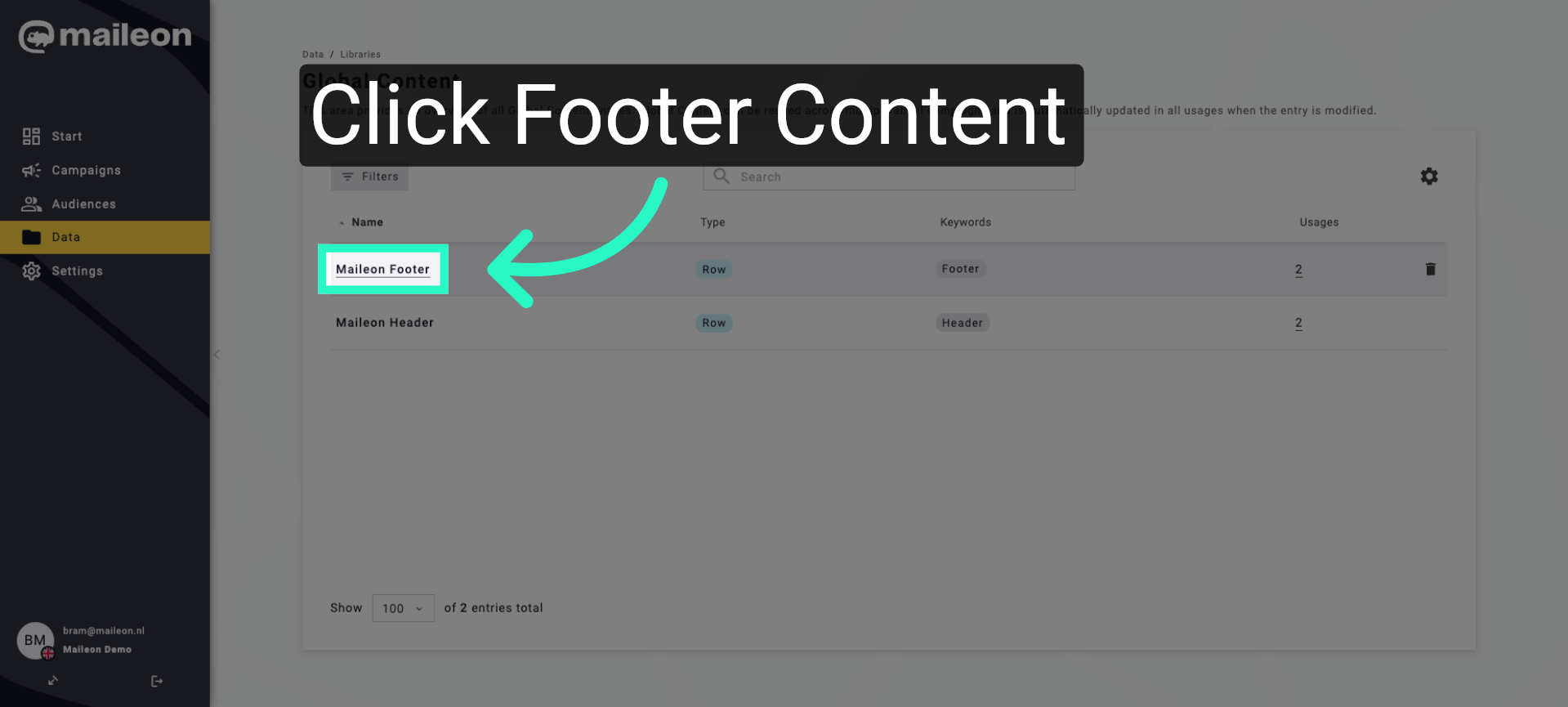
4. Select Footer Content
Choose the footer content to modify the standard email footer applied to your messages.
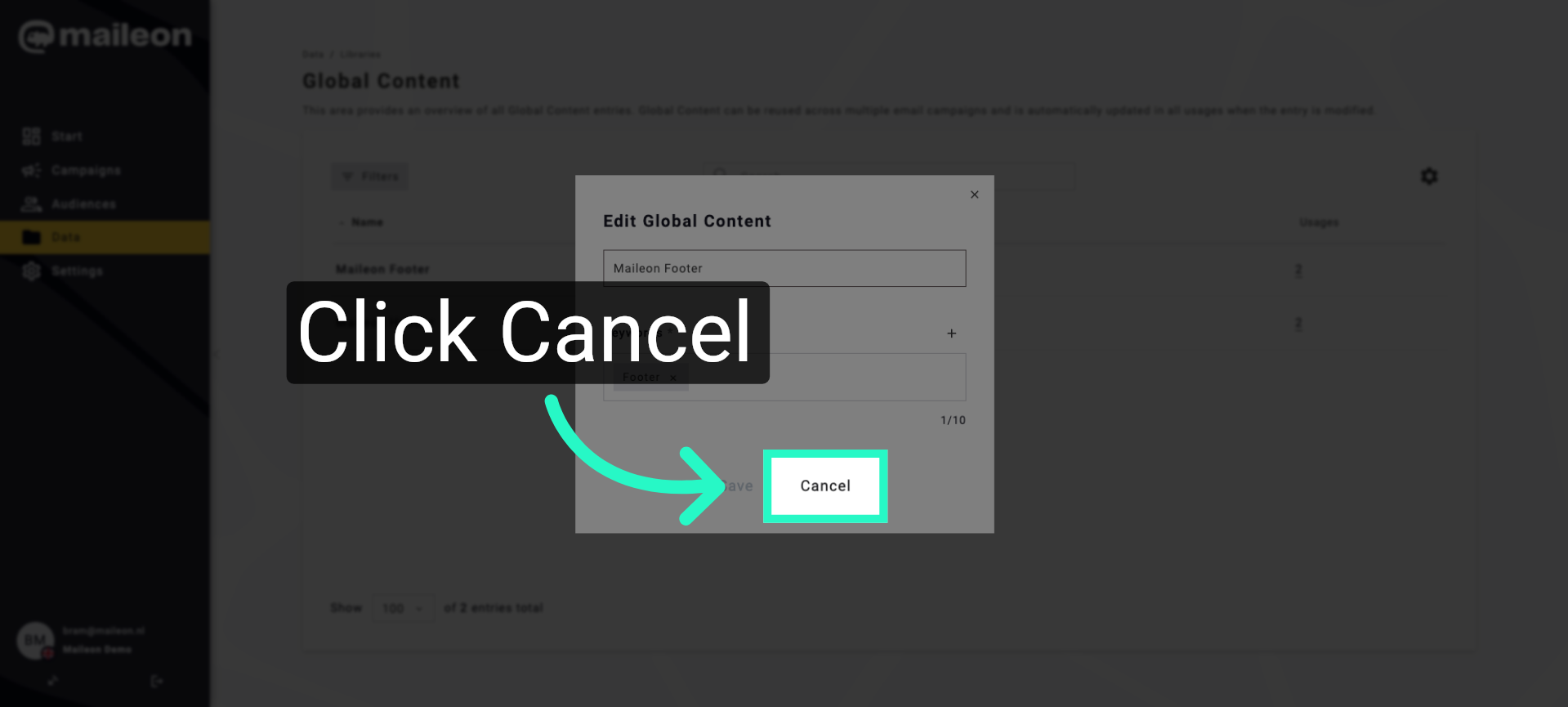
5. Exit Footer Editing
Cancel the current footer editing to return to the previous content overview without saving changes.
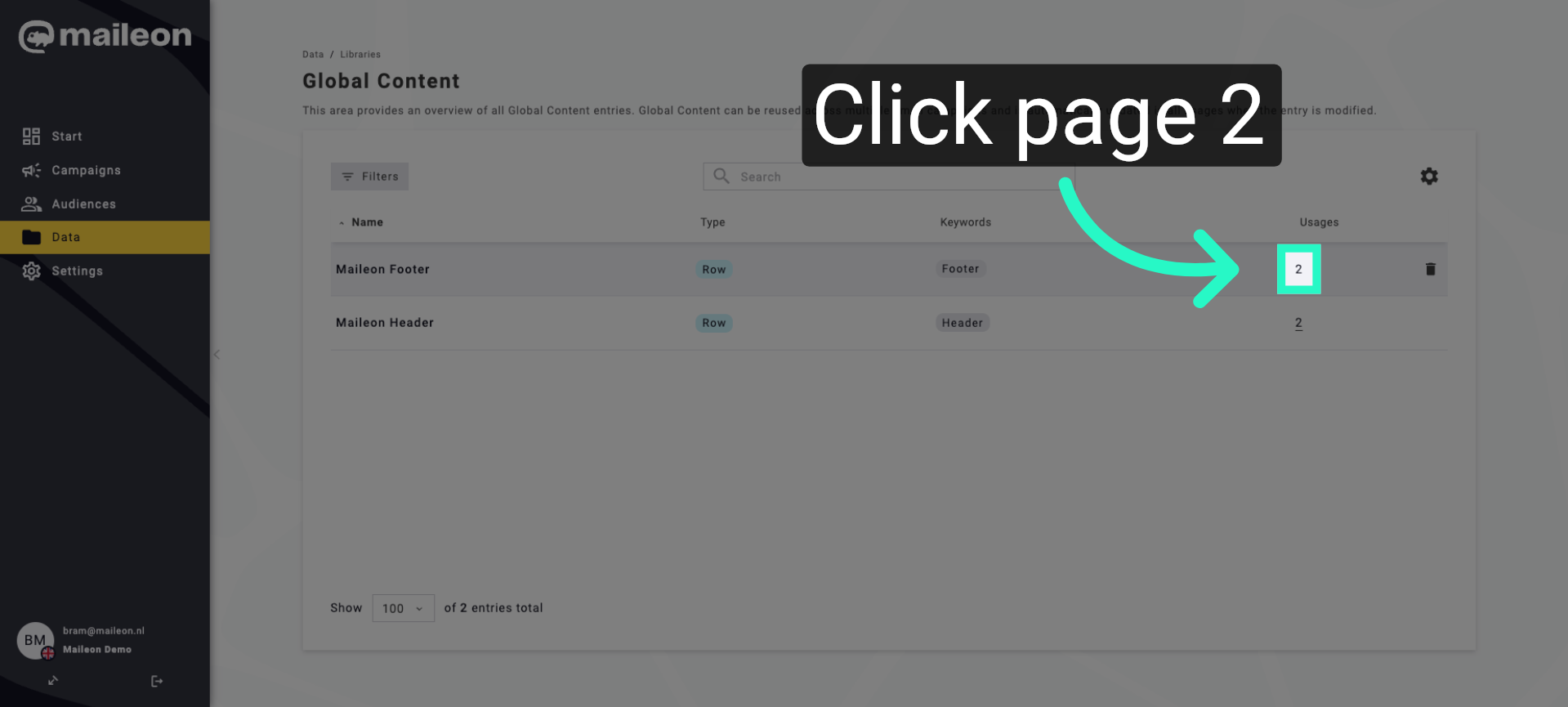
6. Navigate to Page Two
Go to the second page of the content list to find additional email templates or content items.
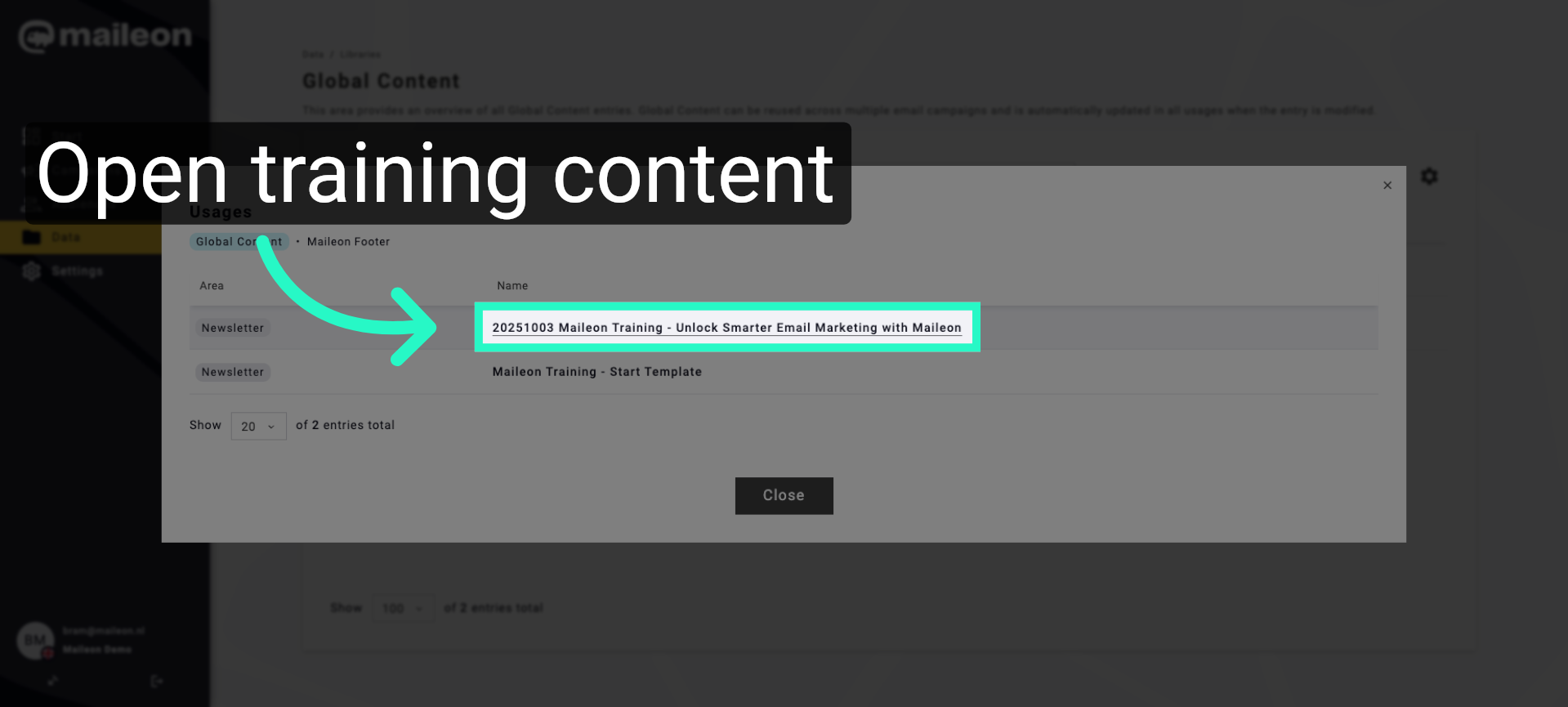
7. Open Training Email Content
Access the training email content to review or update the material used for smarter email marketing.
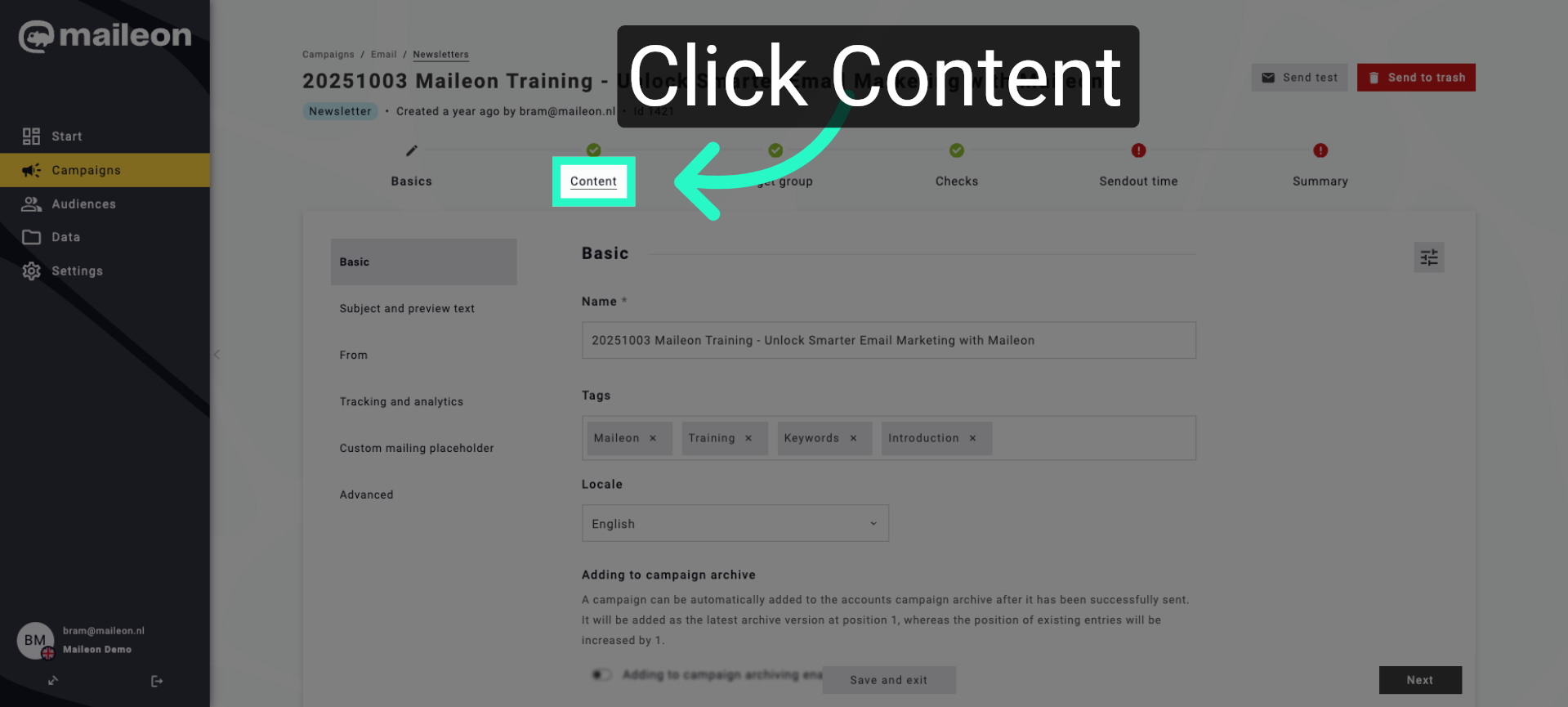
8. Access Content Tab
Open the Content tab to view detailed elements and components of the selected email template.
9. Edit Email Content
Begin editing the email content to customise the message according to your campaign requirements.
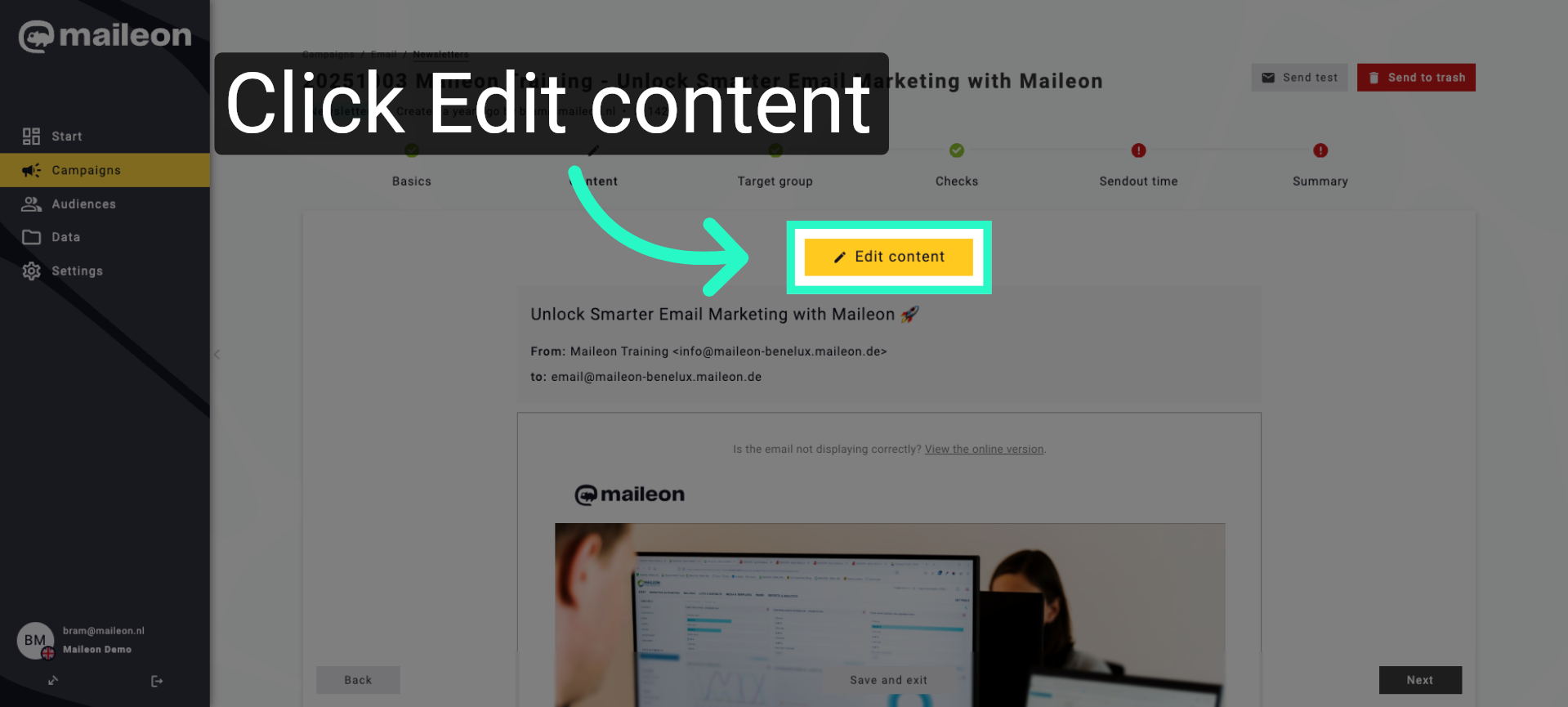
10. Open Editing Interface
Open the editing interface to make changes to the selected email content within Maileon.
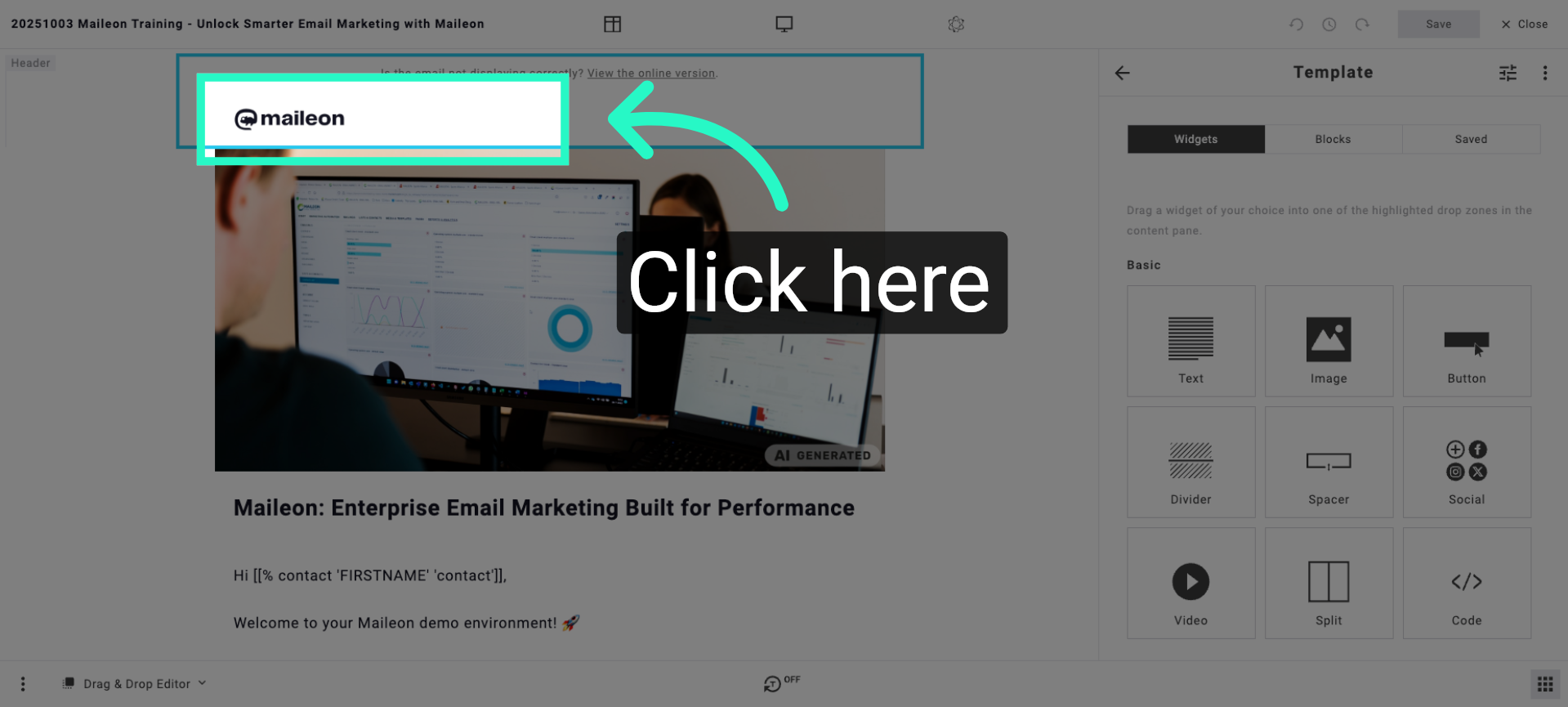
You have successfully navigated through Maileon's content management to access and edit email templates. This process enables you to customise your email marketing materials effectively.