
This tutorial guides you through updating a Global Content element in your Maileon email content.
1. Introduction
You will learn how to unlink, edit, save, and verify the message to improve email display and tracking.
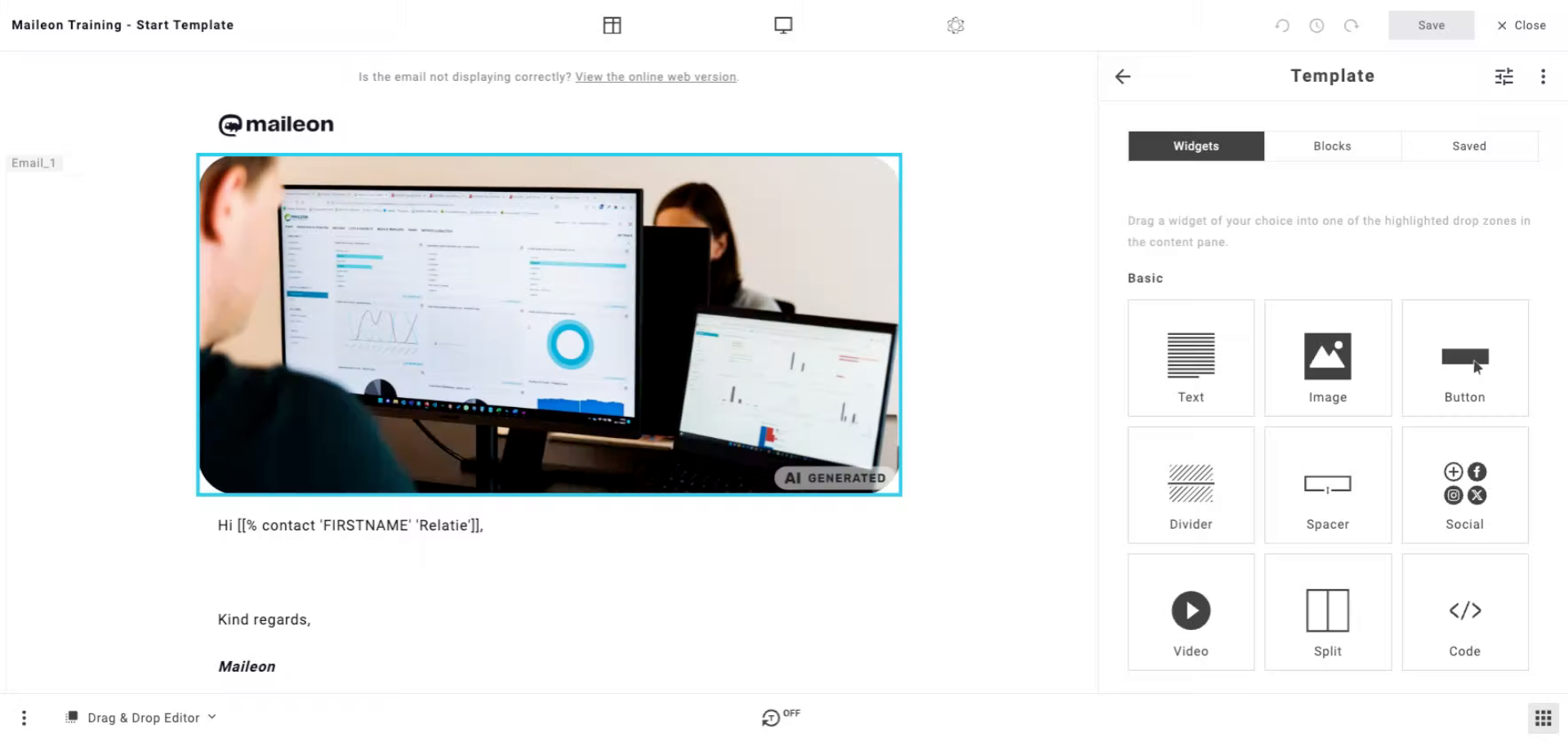
2. Open Maileon Editing Interface
Open the Maileon interface to begin editing your email content for customization.
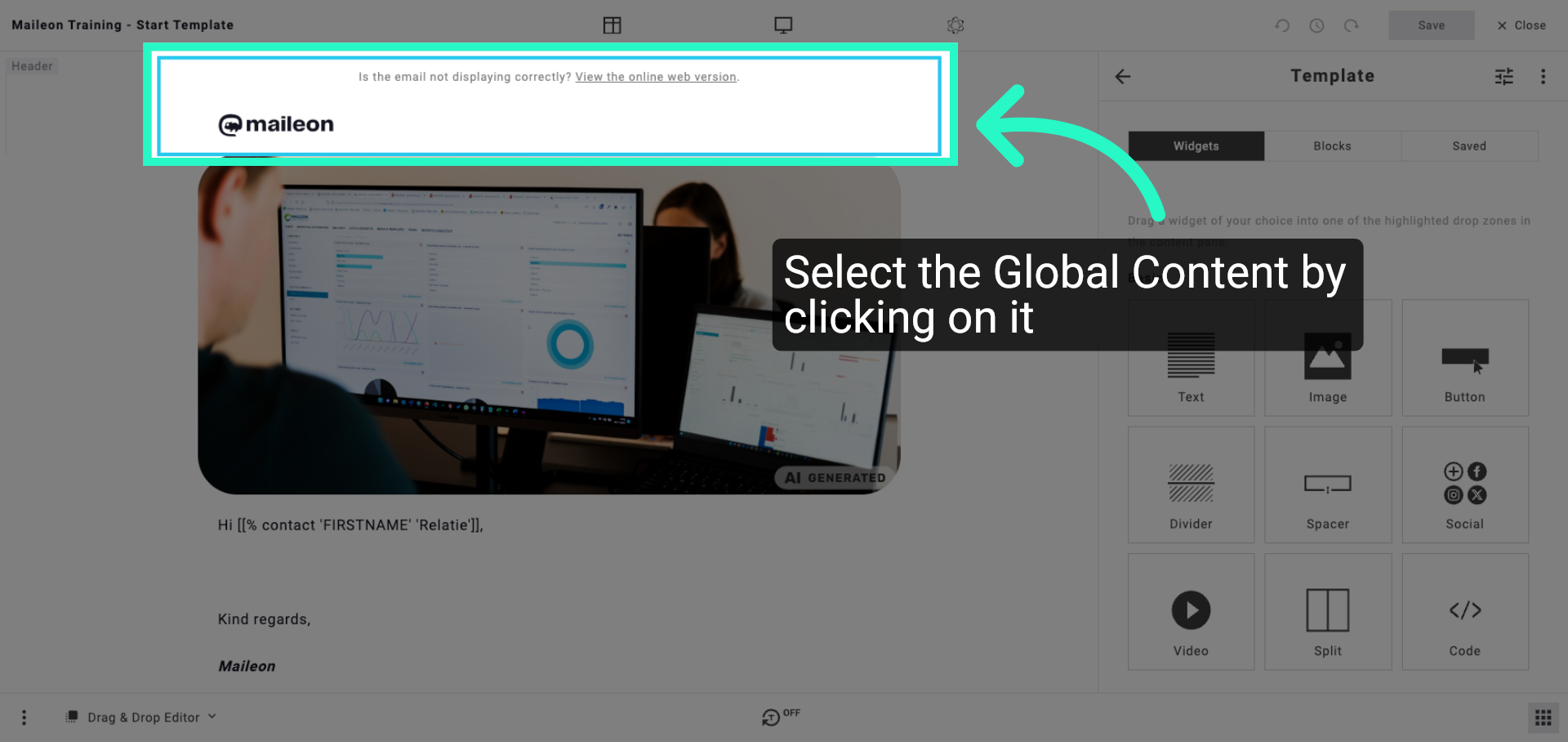
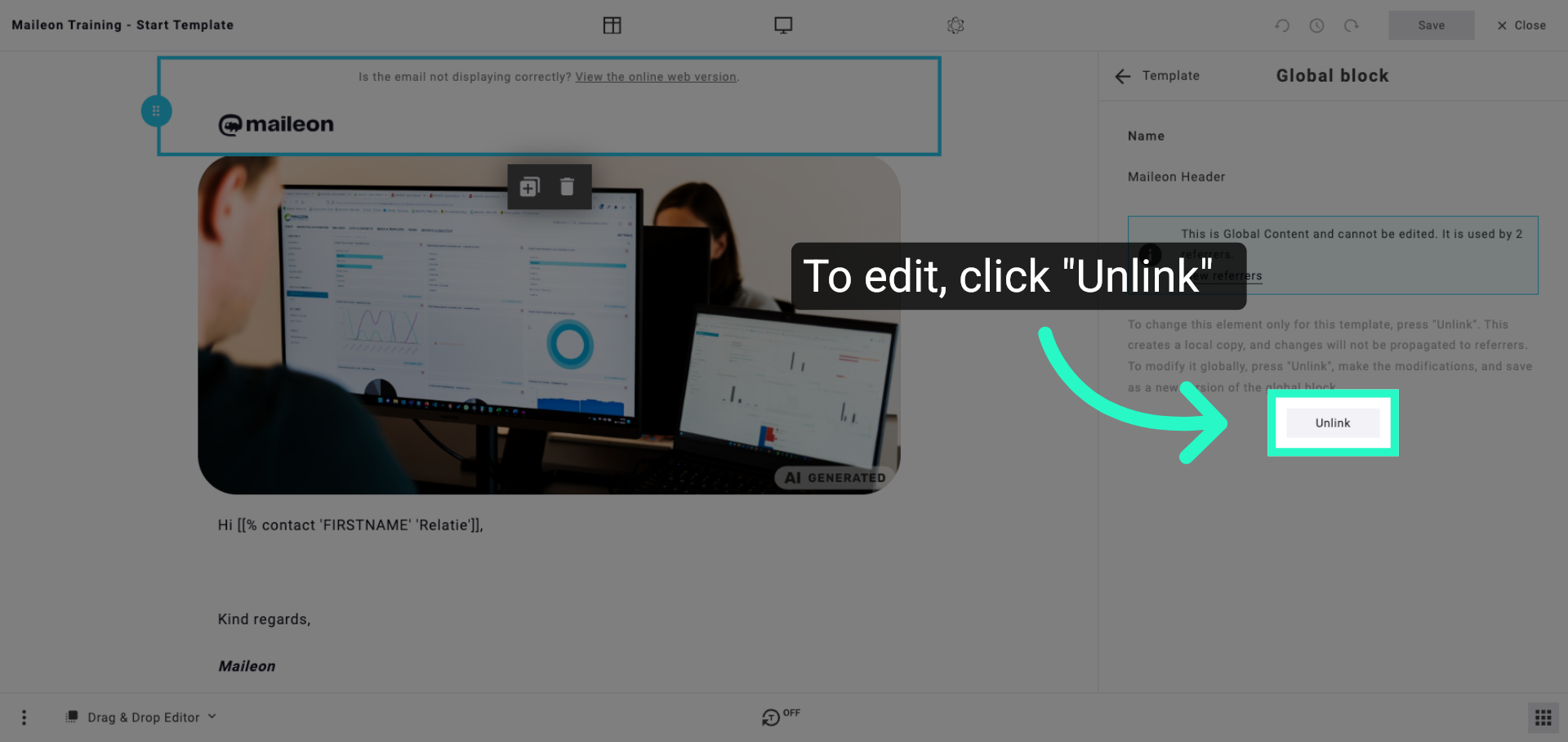
3. Unlink Existing Content Block
Unlink the current content block to prepare for inserting updated or new content.
4. Access Online Web Version Link
Navigate to the option that allows viewing the online web version of the email for verification.
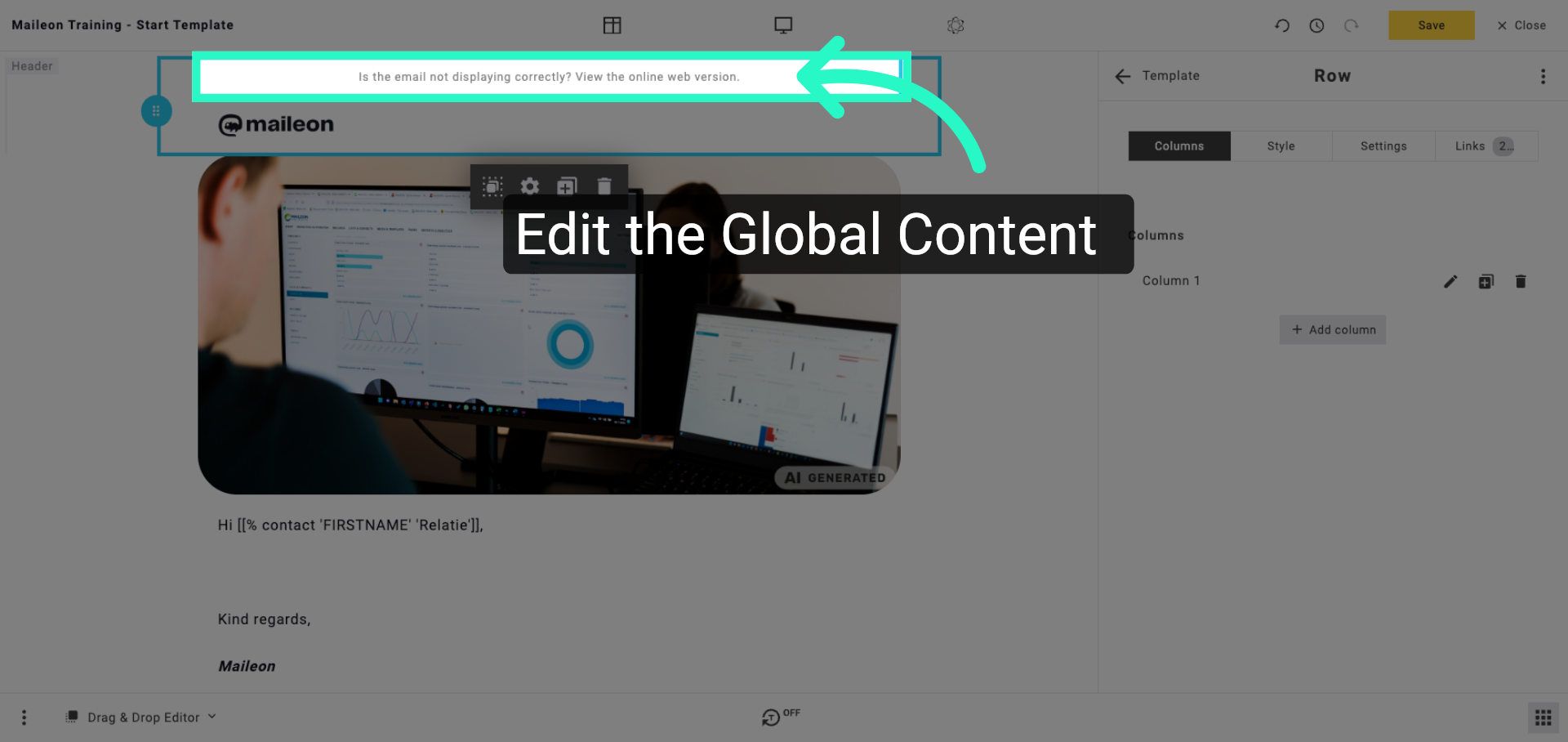
5. Enter Online Version Message
Enter the message prompting recipients to view the online version if the email does not display correctly.
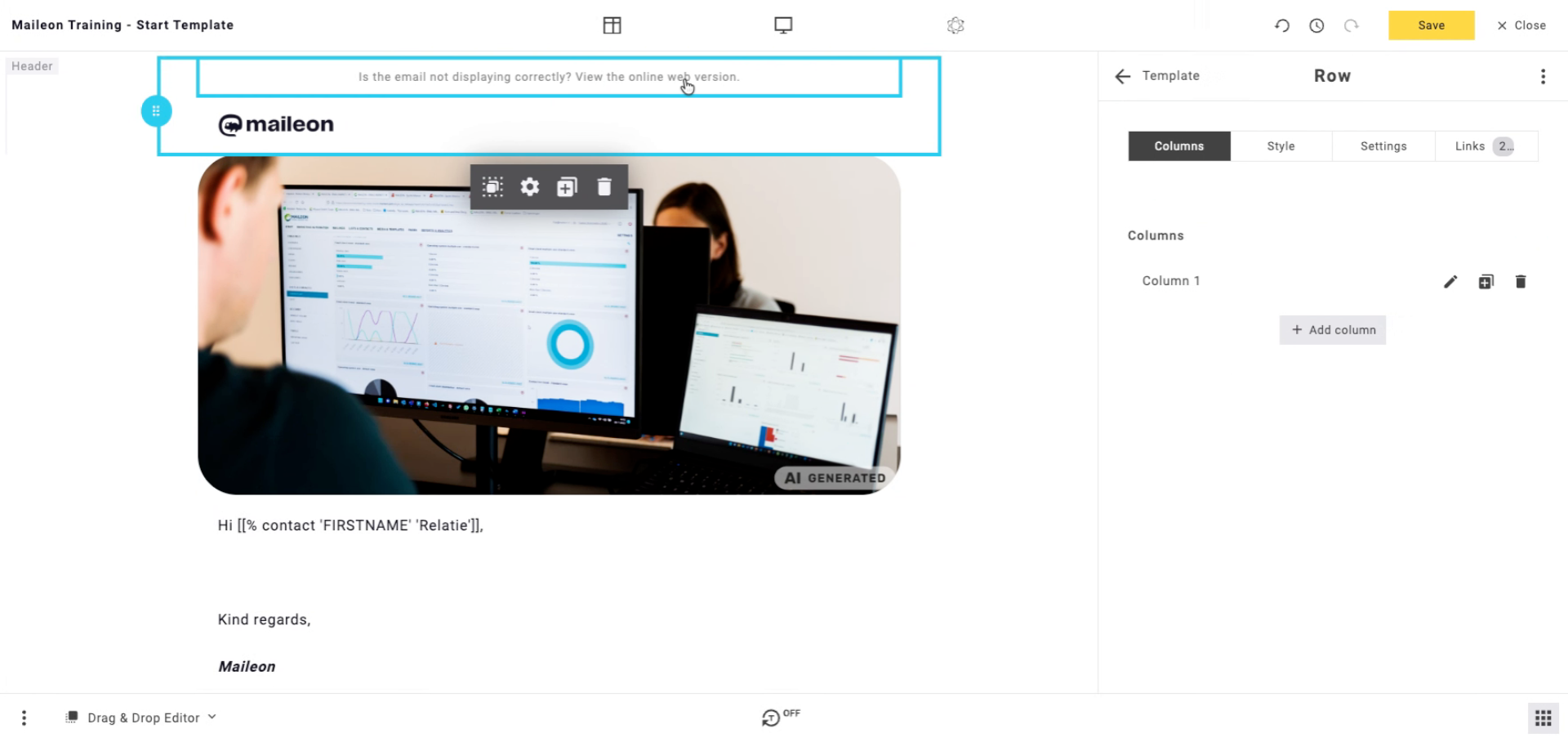
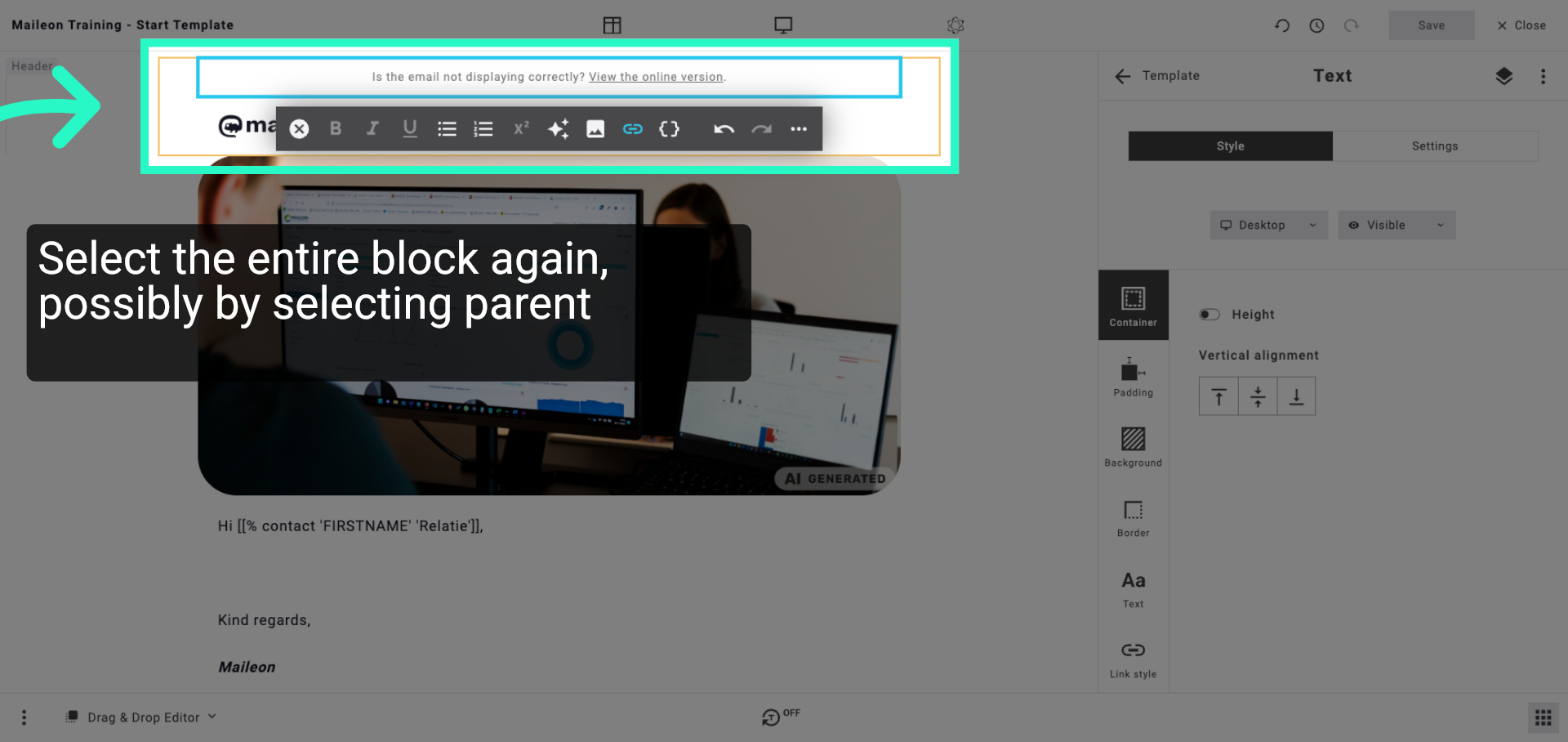
6. Select the entire block again, possibly by selecting parent element
Select the content block area where the online version message will be placed within the email layout.
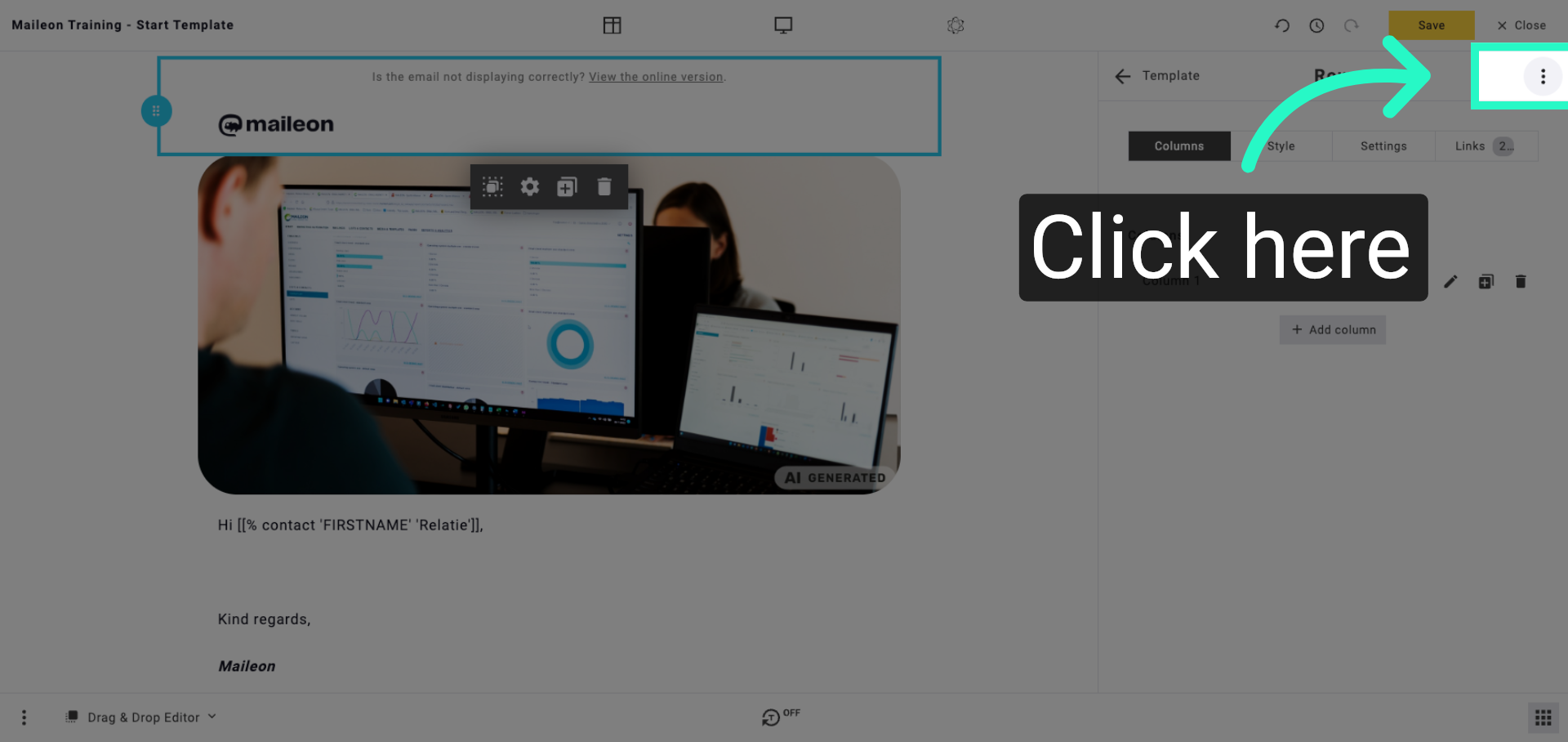
7. Open Content Editing Options
Open the editing options to manage the content block and prepare for saving changes globally.
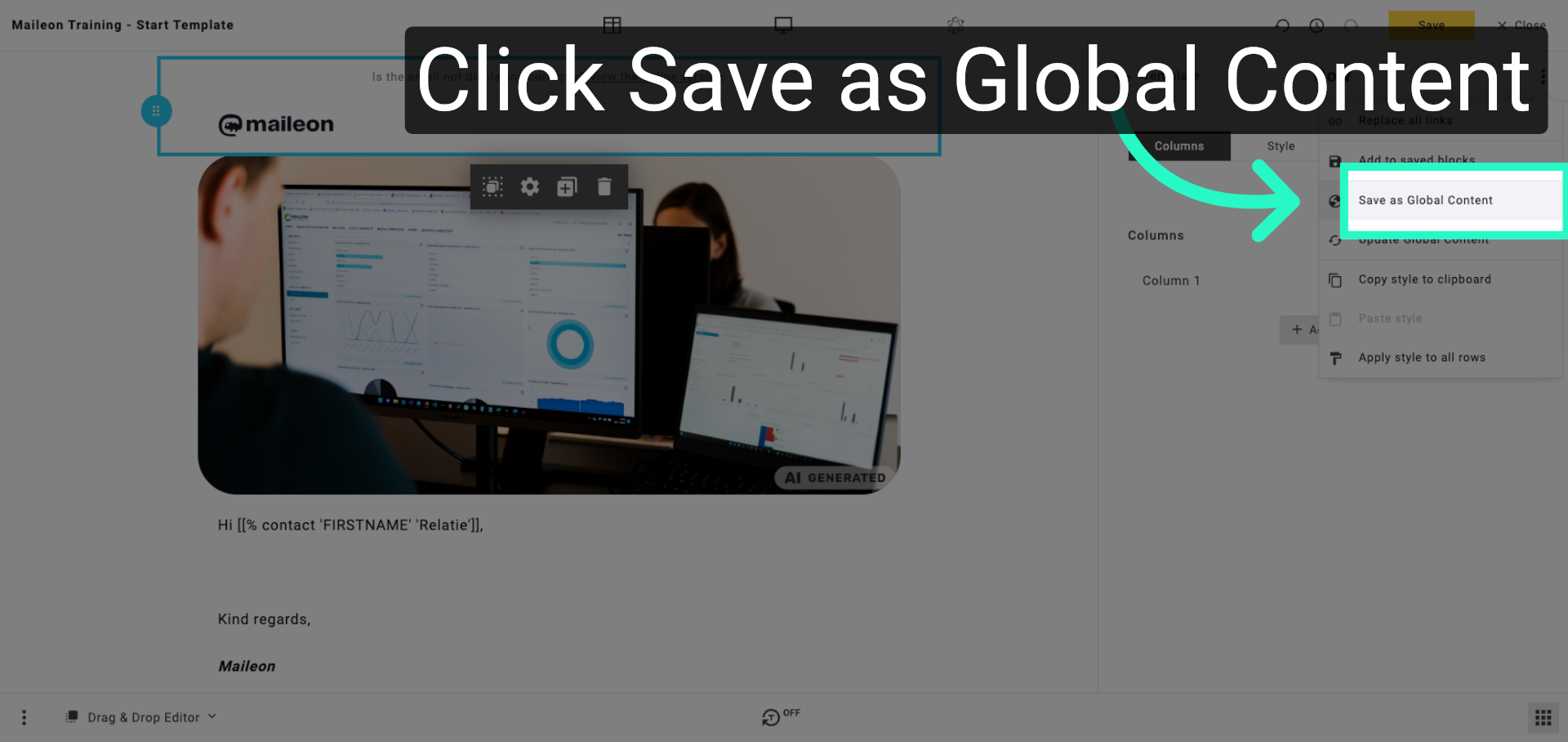
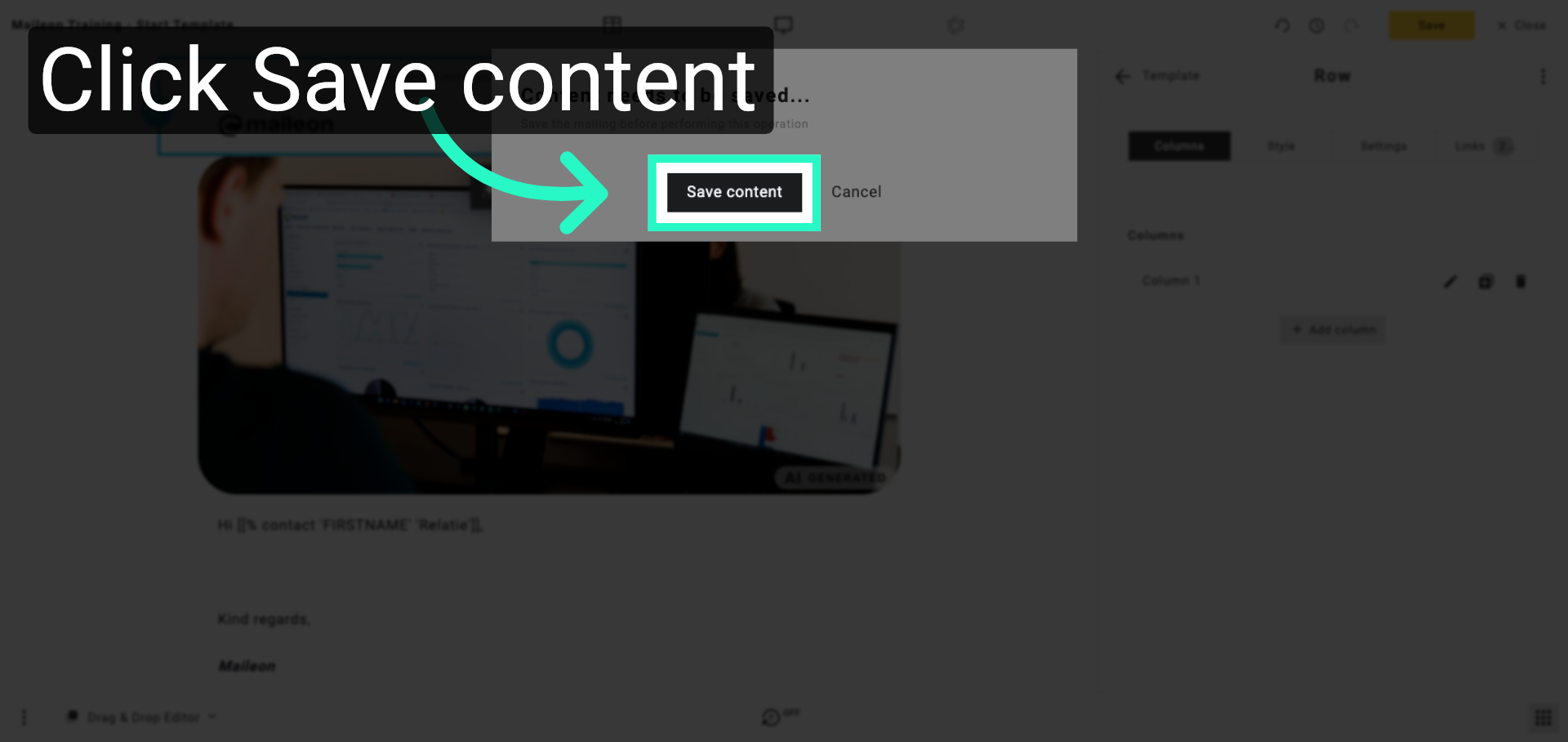
8. Save Content as Global Template
Save the current content as global content to reuse it across multiple emails or campaigns.
9. Confirm Content Save Action
Confirm saving the content to ensure all changes are stored properly in the global content library.
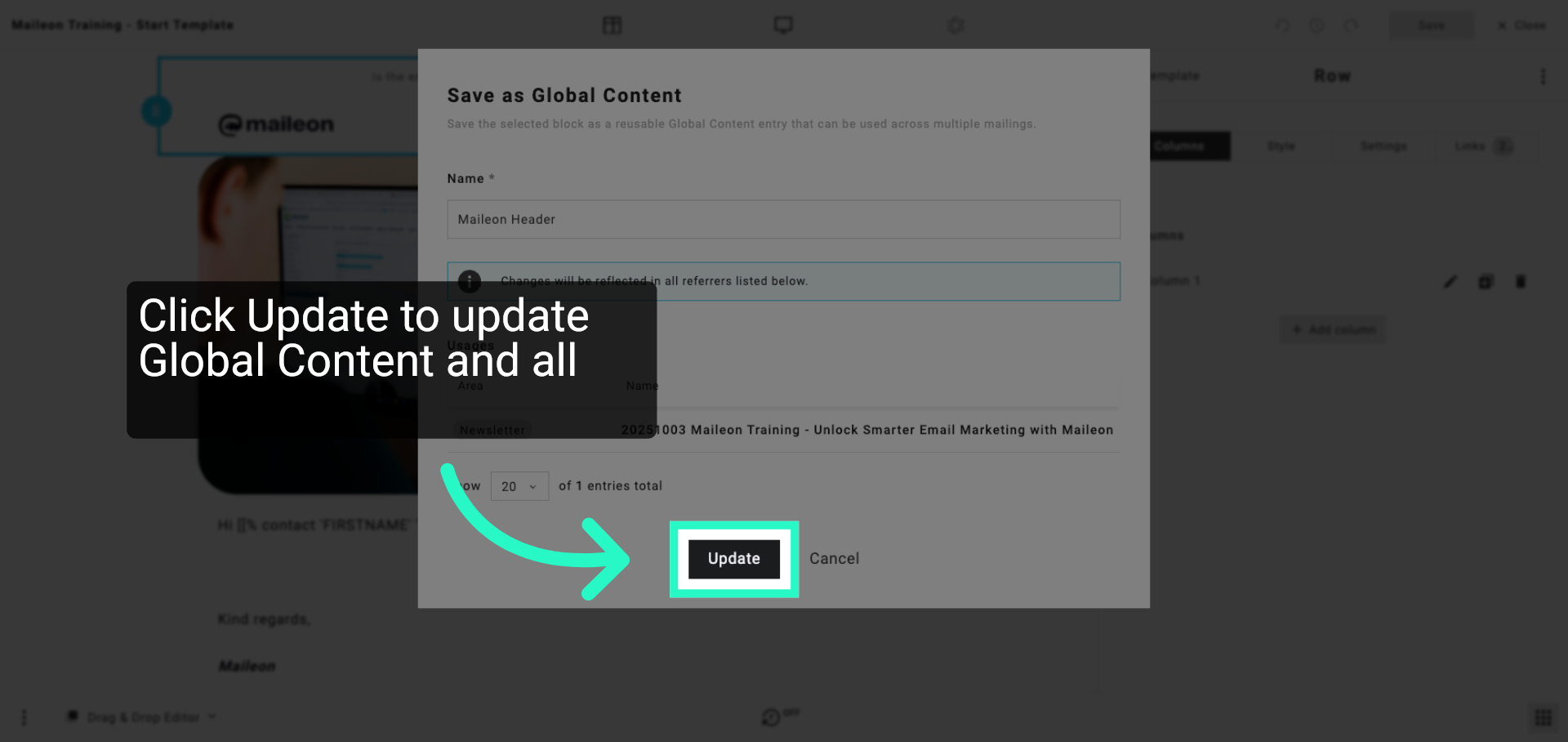
10. Click Update to update Global Content and all attached mailings
Update the email content to apply the latest changes and ensure the message is current.
11. Save Email Changes
Save all changes made to the email to finalise the editing process and prepare for sending.
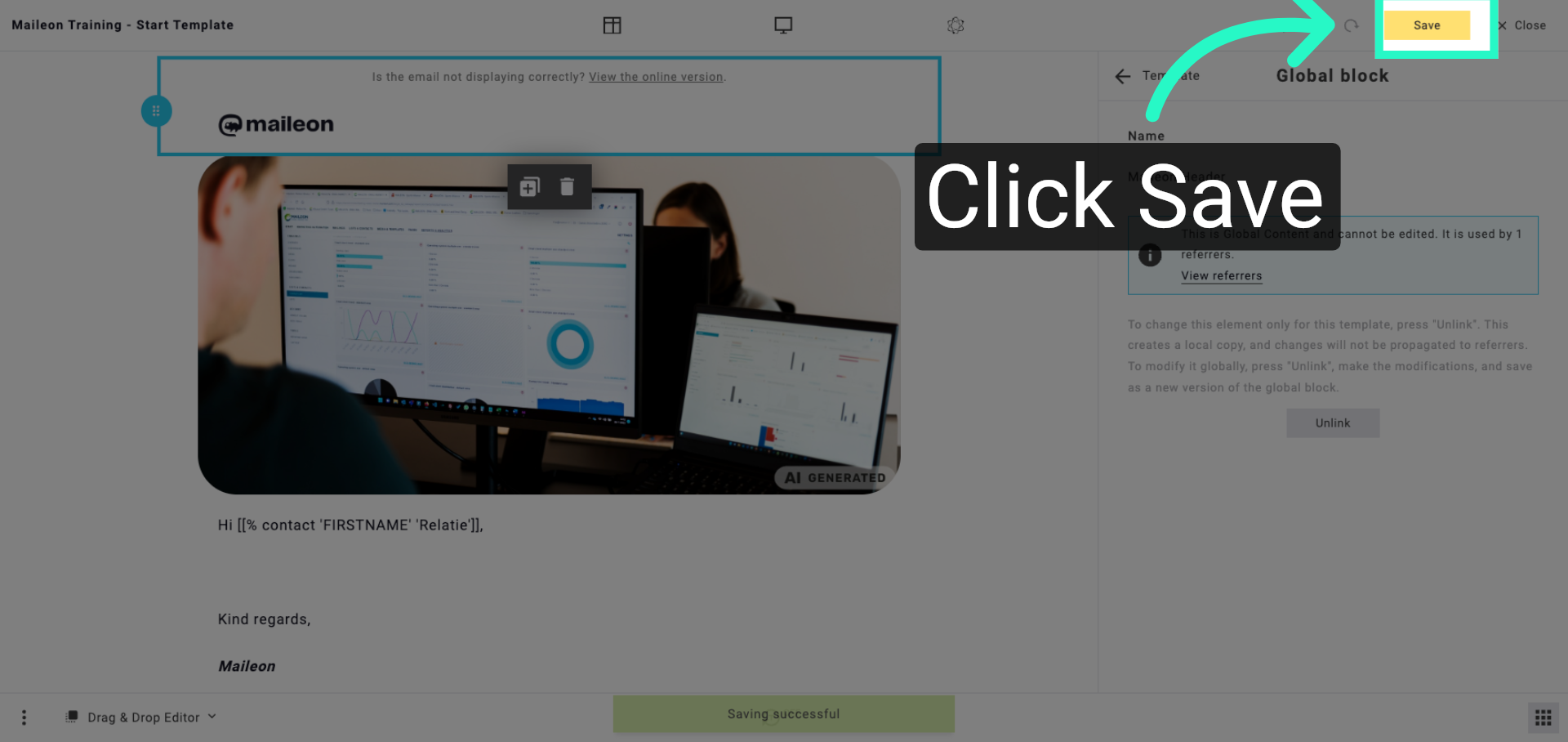
You have successfully updated and saved the online version message within your Maileon email content. This ensures recipients can access the email correctly and allows you to monitor referrer data for campaign insights.