
This tutorial explains how to configure optimized sendout times in Maileon.
1. Introduction
You will learn to set specific time slots and delays to improve campaign delivery effectiveness.
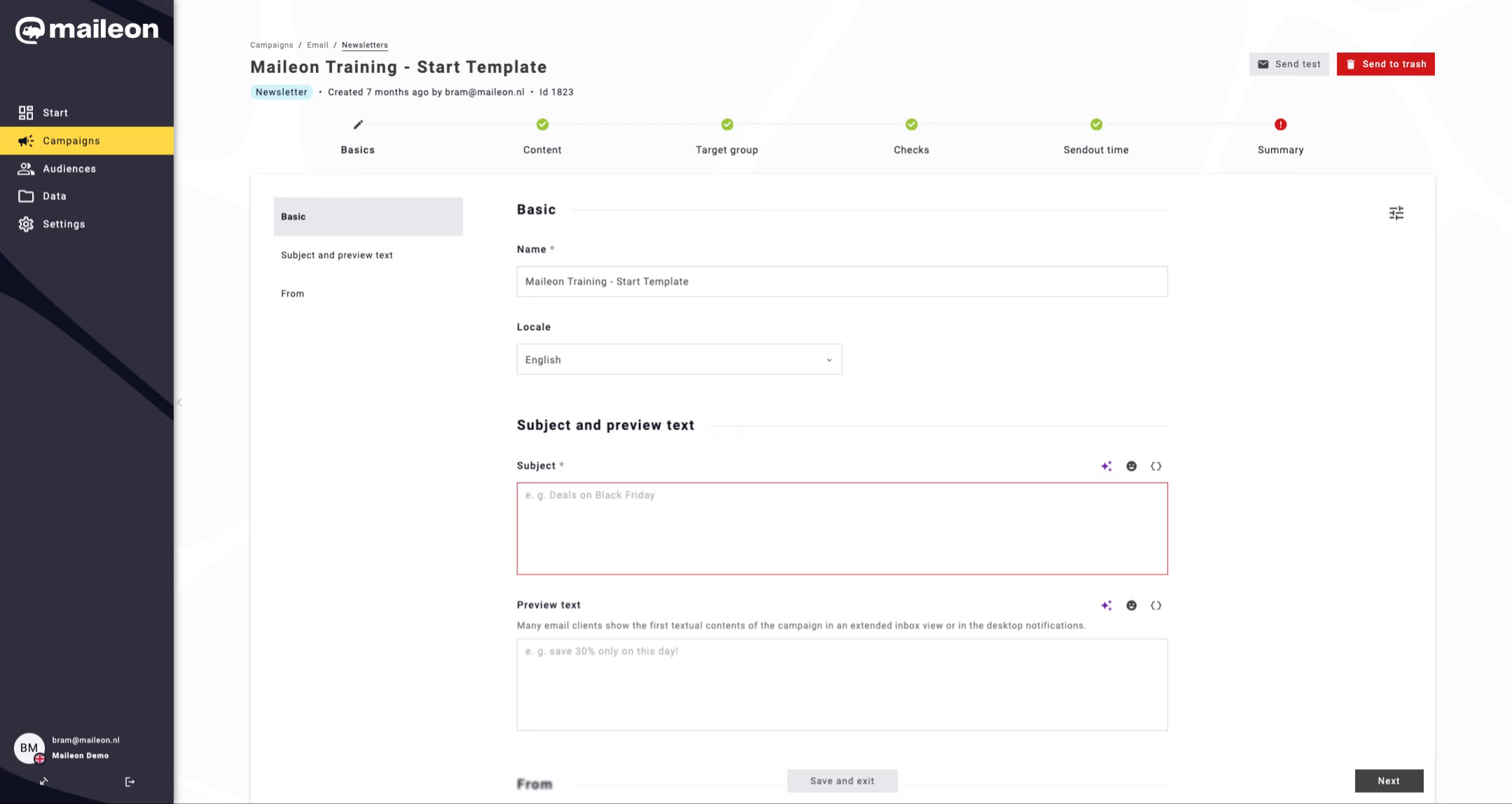
2. Access Sendout Time Settings
Begin by accessing the sendout time settings to configure when your campaign will be sent to contacts.
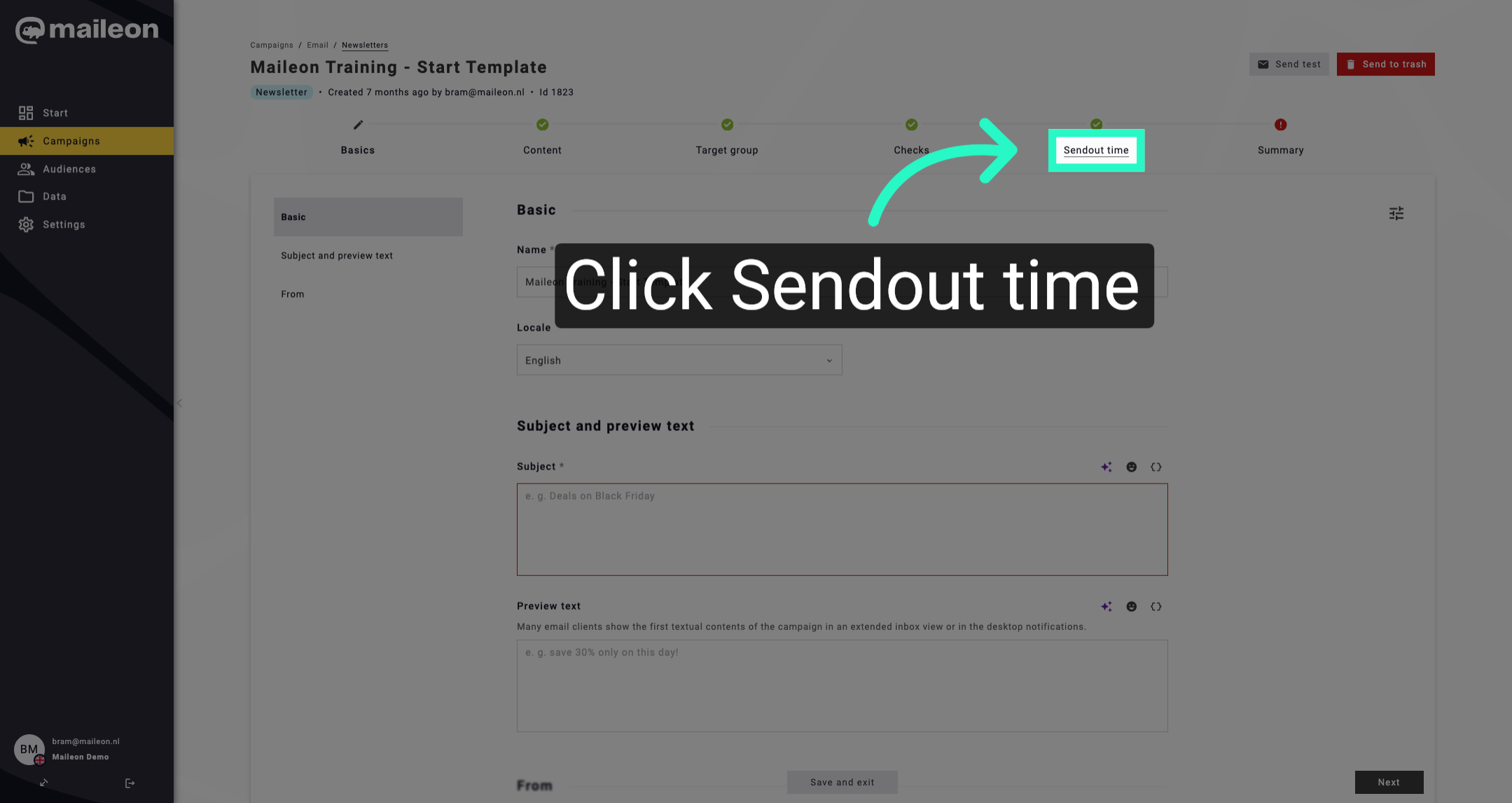
3. Open expert view
Open the options for optimized sendout to customise how send times are determined for each contact.
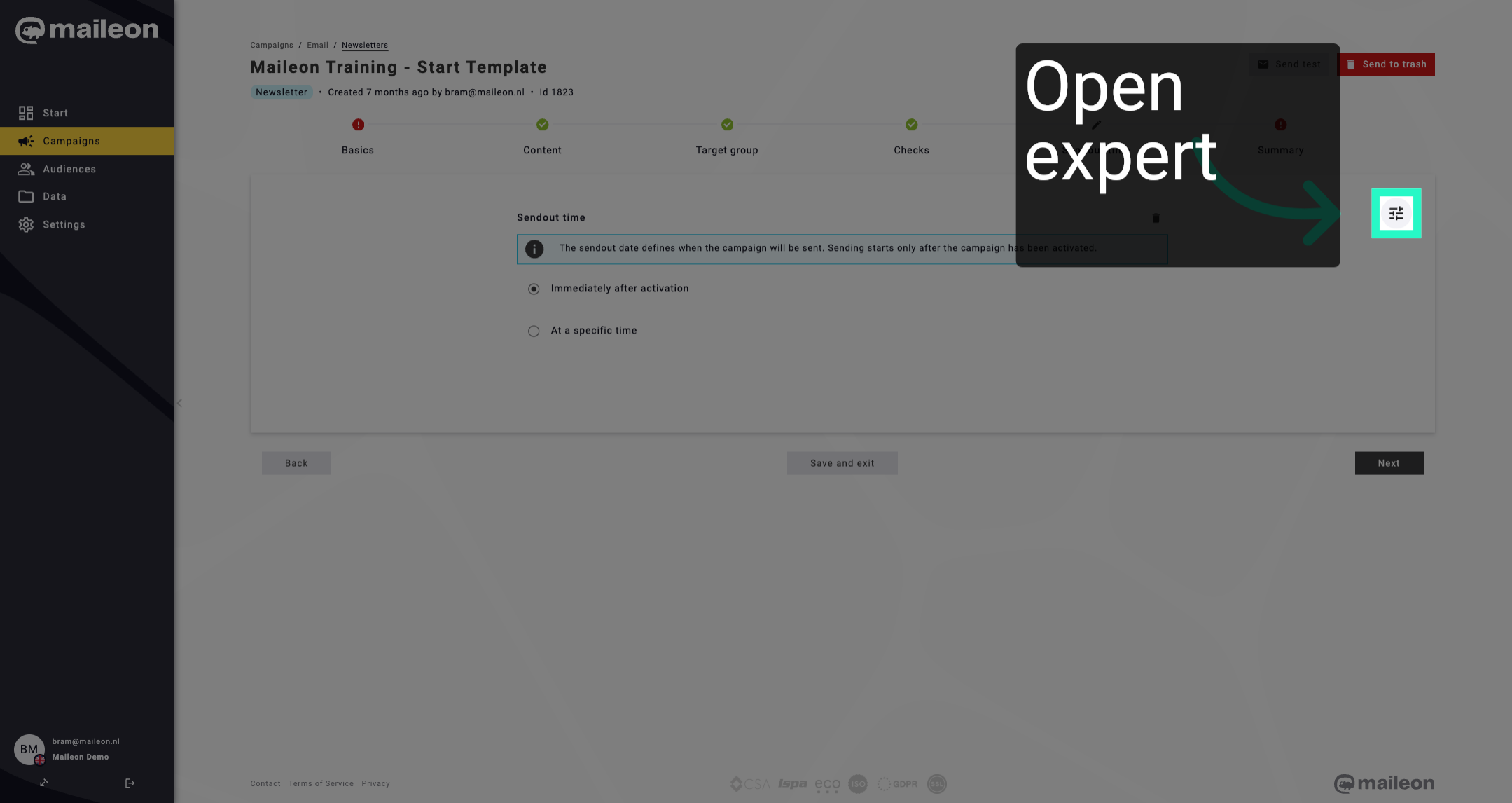
4. Enable Optimized Sendout Feature
Enable the optimized sendout feature to allow the system to select the best sendout time based on contact history.
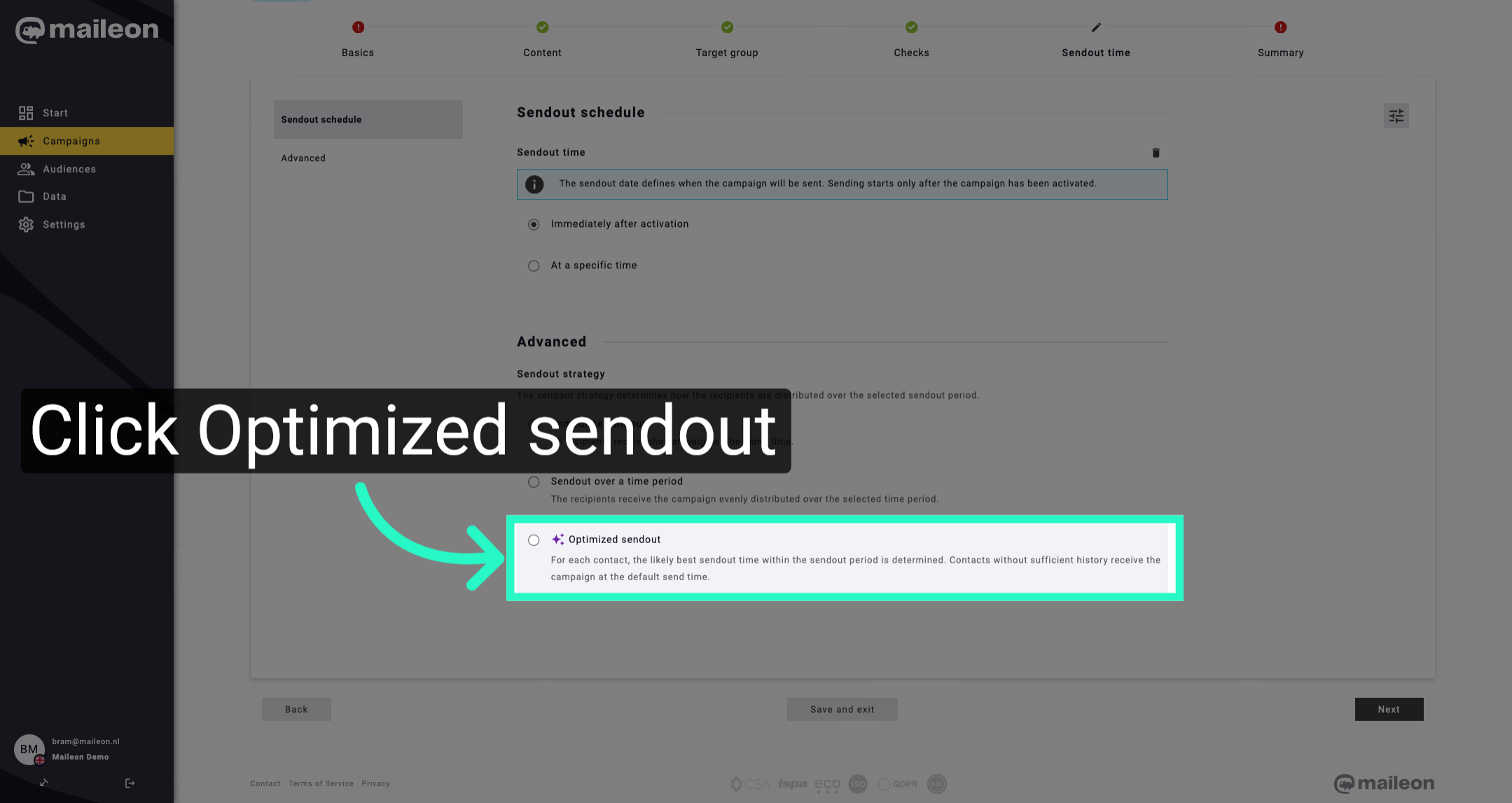
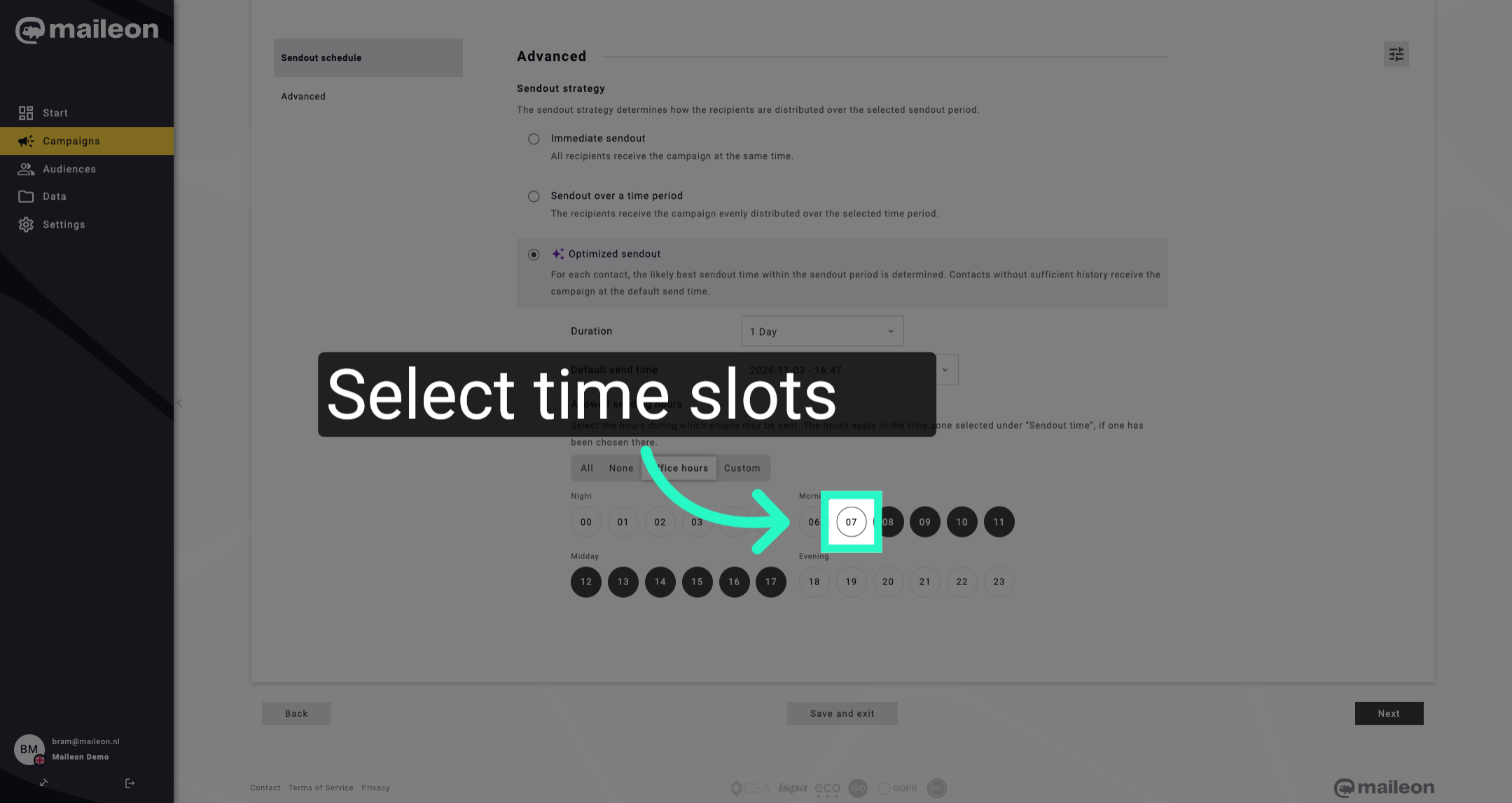
5. Select time slots
Choose the morning time slot between 07:00 and 08:00 to schedule campaign delivery during early hours.
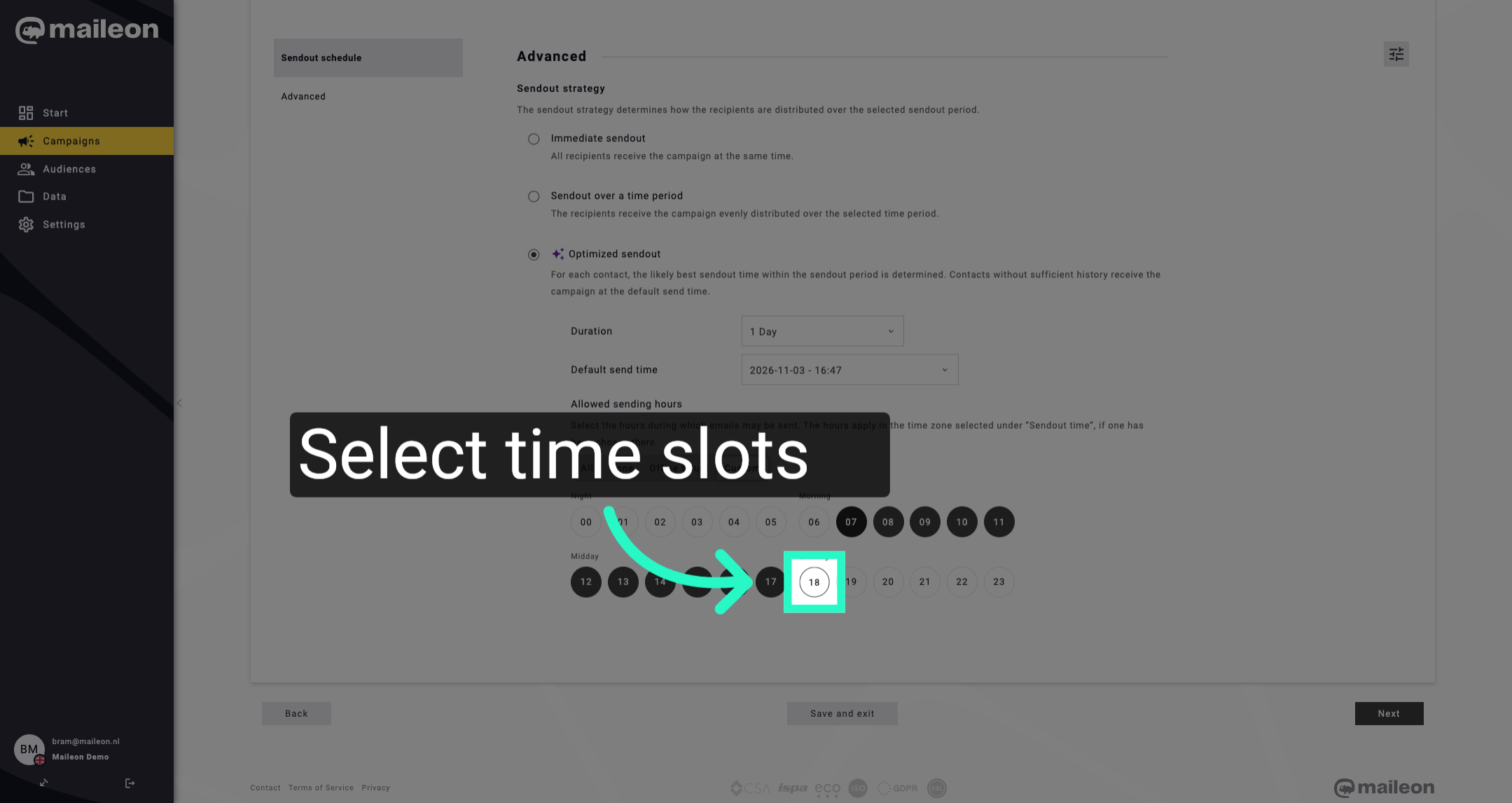
6. Select time slots
Select the evening time slot between 18:00 and 19:00 to target contacts during later hours of the day.
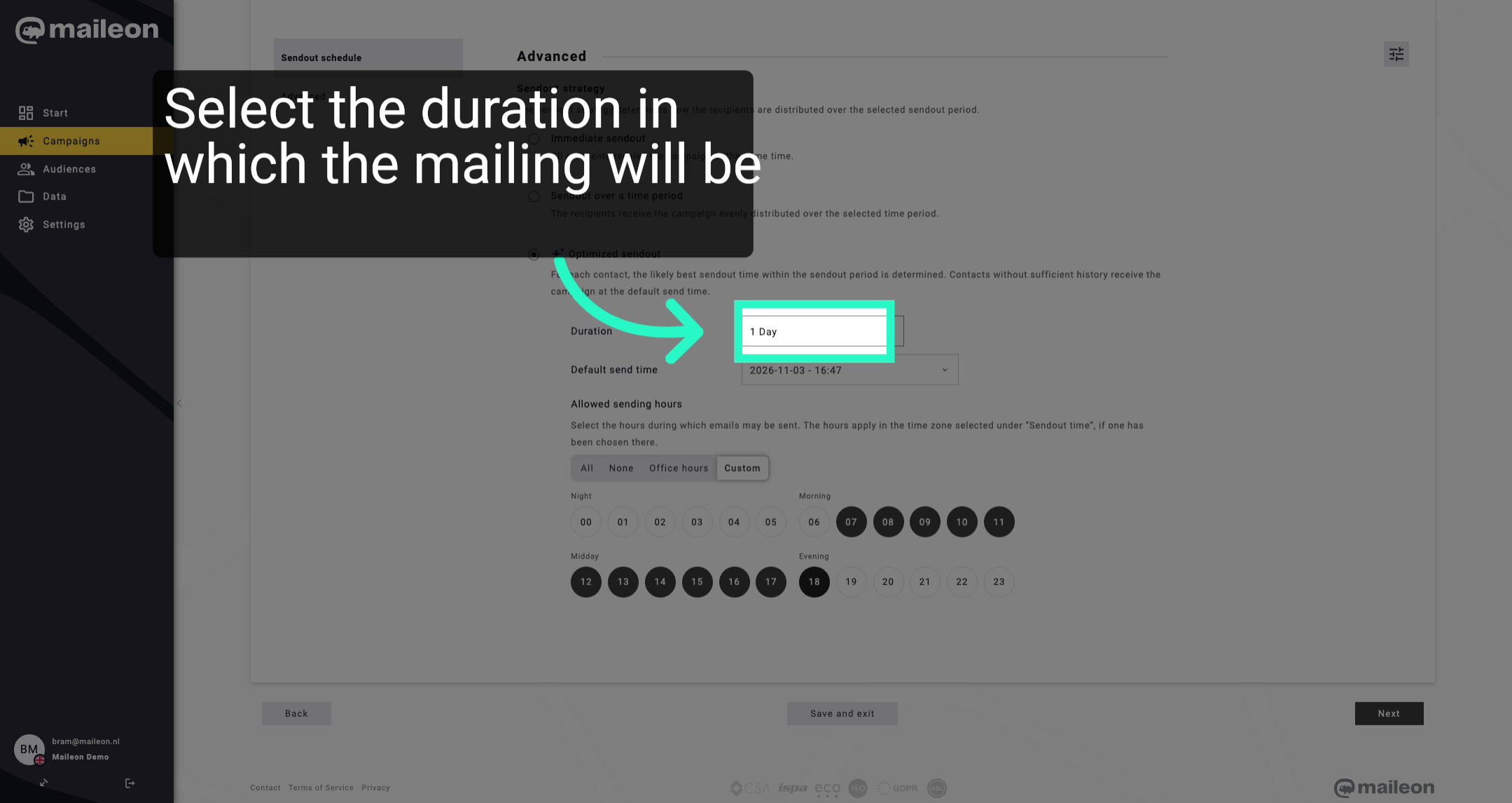
7. Set Sendout Delay to One Day
Configure the sendout delay to one day to postpone campaign delivery accordingly.
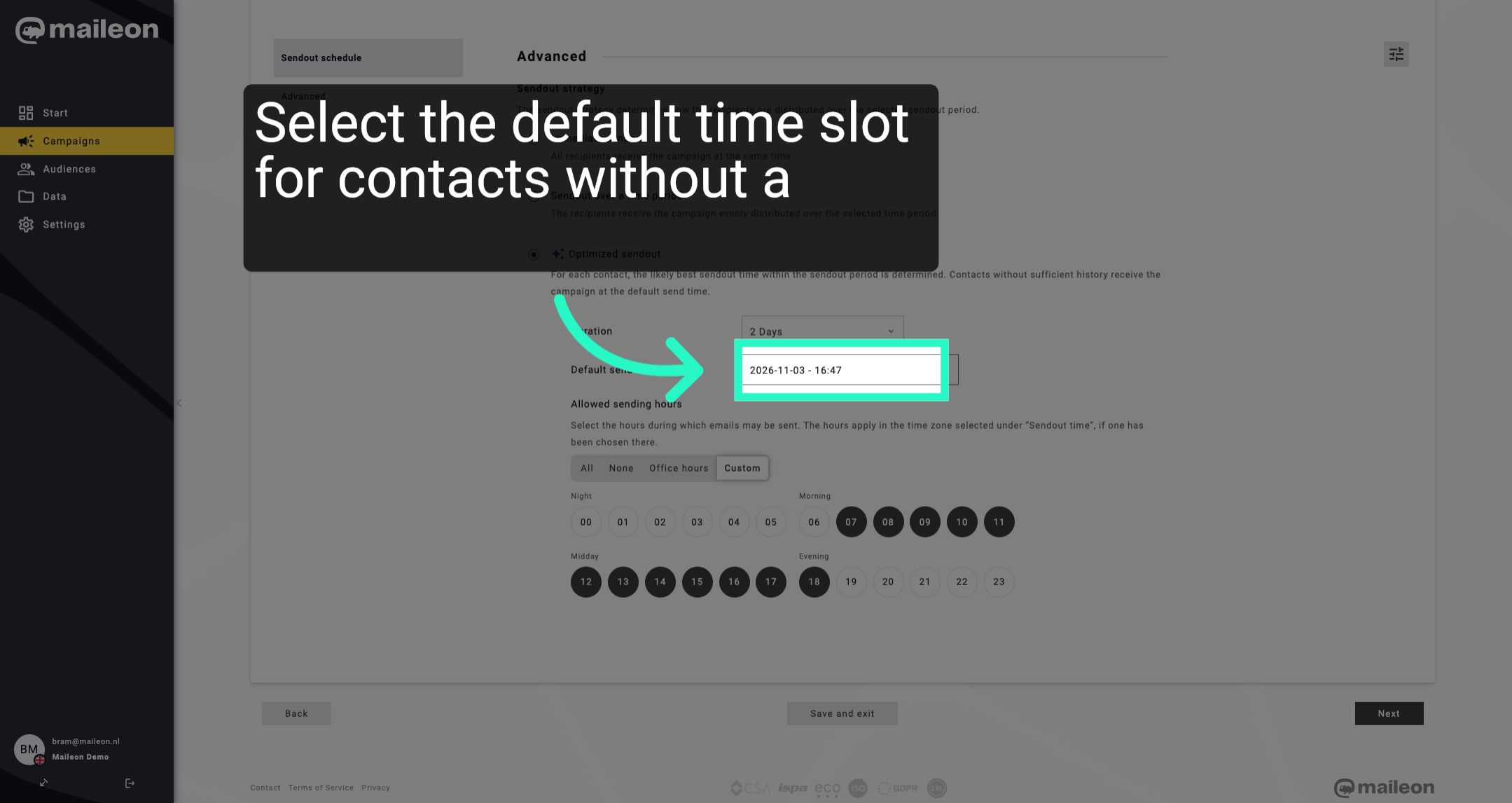
8. Review Scheduled Sendout Start Time
Review the scheduled start time for the sendout to ensure it aligns with your campaign plan.
9. Proceed to Next Configuration Step
Click next to continue with the subsequent configuration steps for your campaign setup.
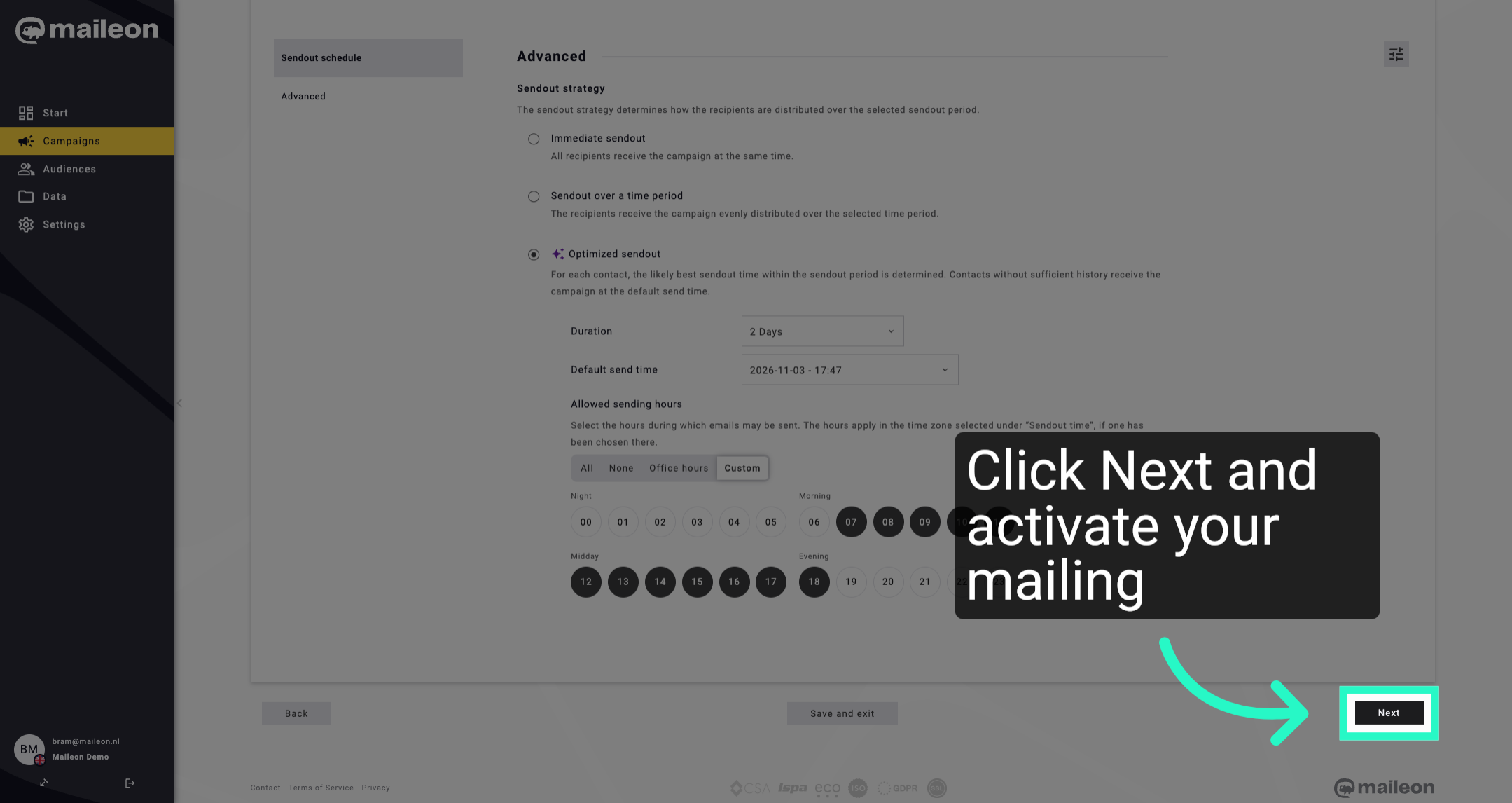
You have configured the optimized sendout times and delays to tailor campaign delivery for each contact. Next, proceed with further campaign settings to finalise your mailing.