
This tutorial explains how to adjust font weights in the Maileon application.
Note: This only works with Web Fonts that are added to the template. Please check https://support.maileon.nl/en/support/search/solutions?term=fonts for more FAQ articles about adding Web Fonts.
1. Introduction
You will learn to select different font weights to customise your text styling efficiently.
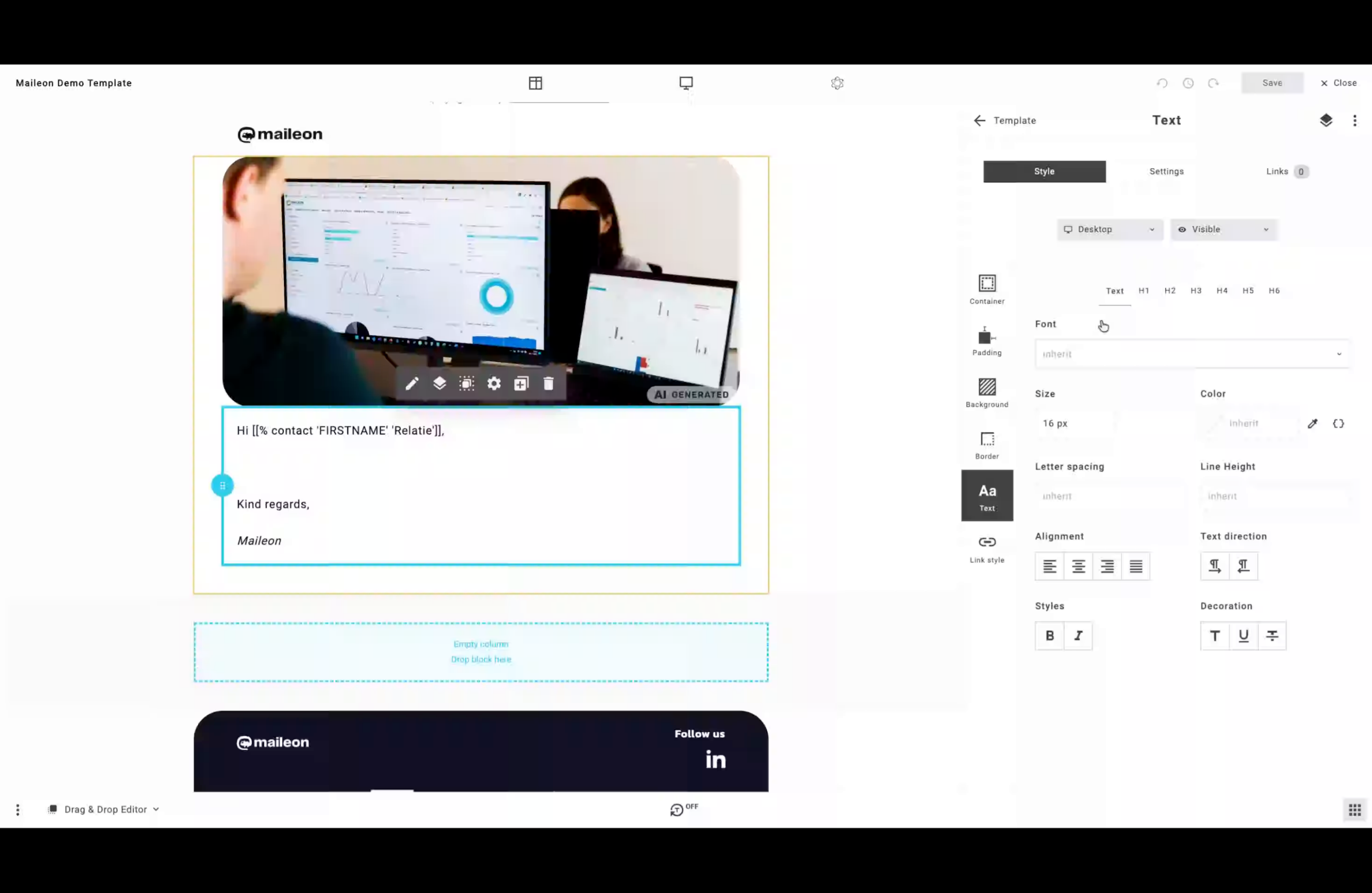
2. Access Font Selection Menu
Open the font selection menu to choose the desired font family for your content.
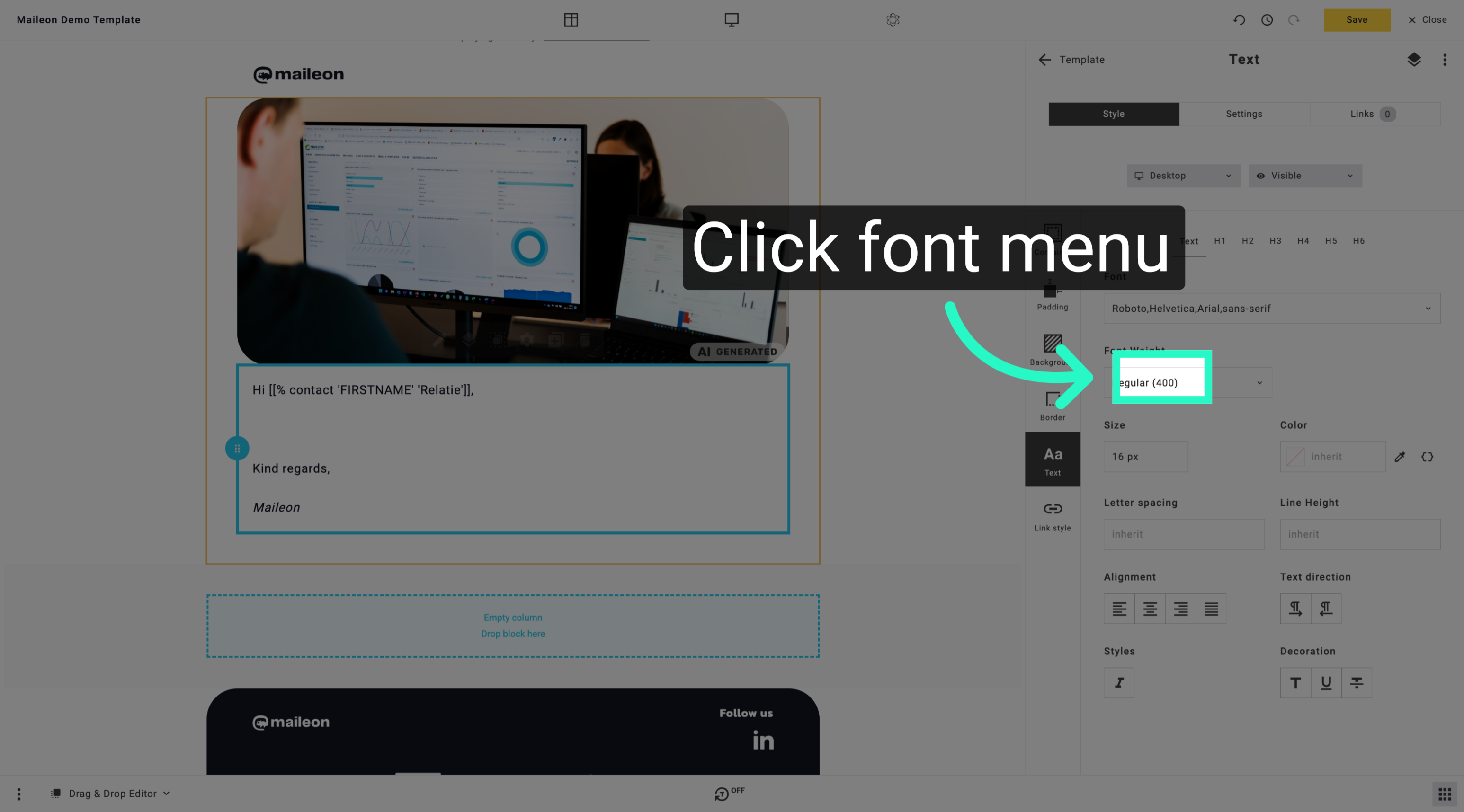
3. Choose Regular Font Weight
Select the regular font weight to apply a standard text appearance in your design.
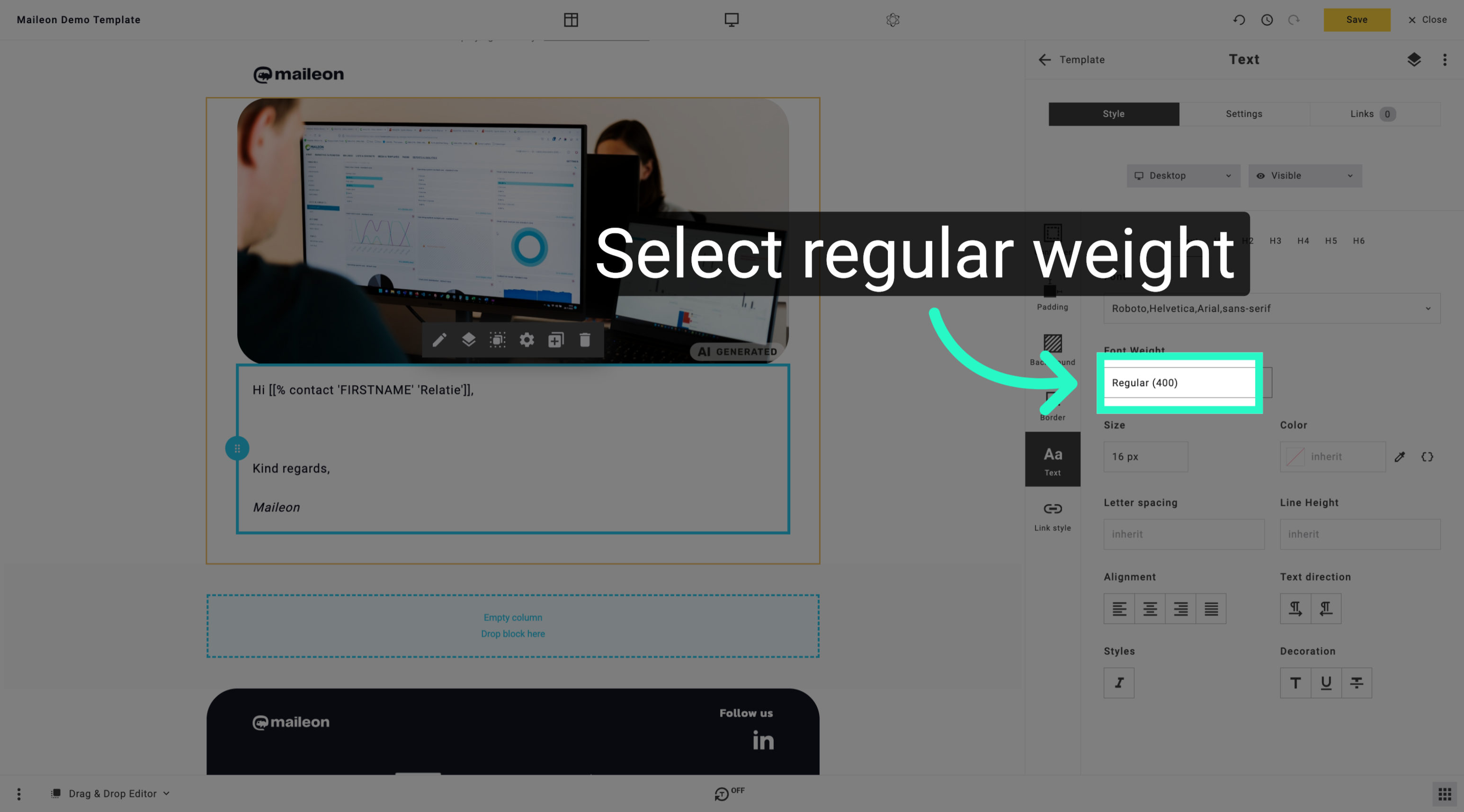
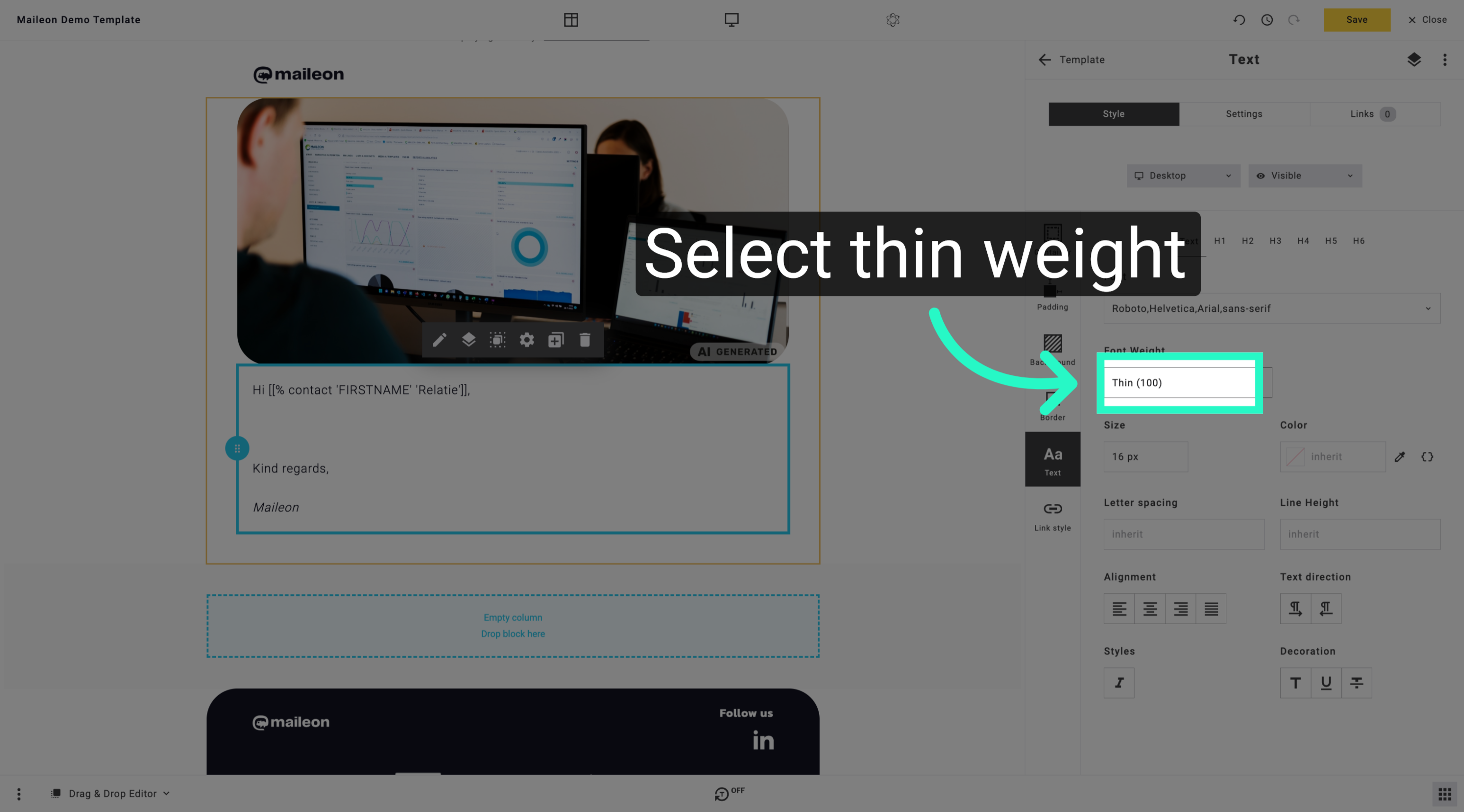
4. Apply Thin Font Weight
Choose the thin font weight to give your text a lighter and more delicate look.
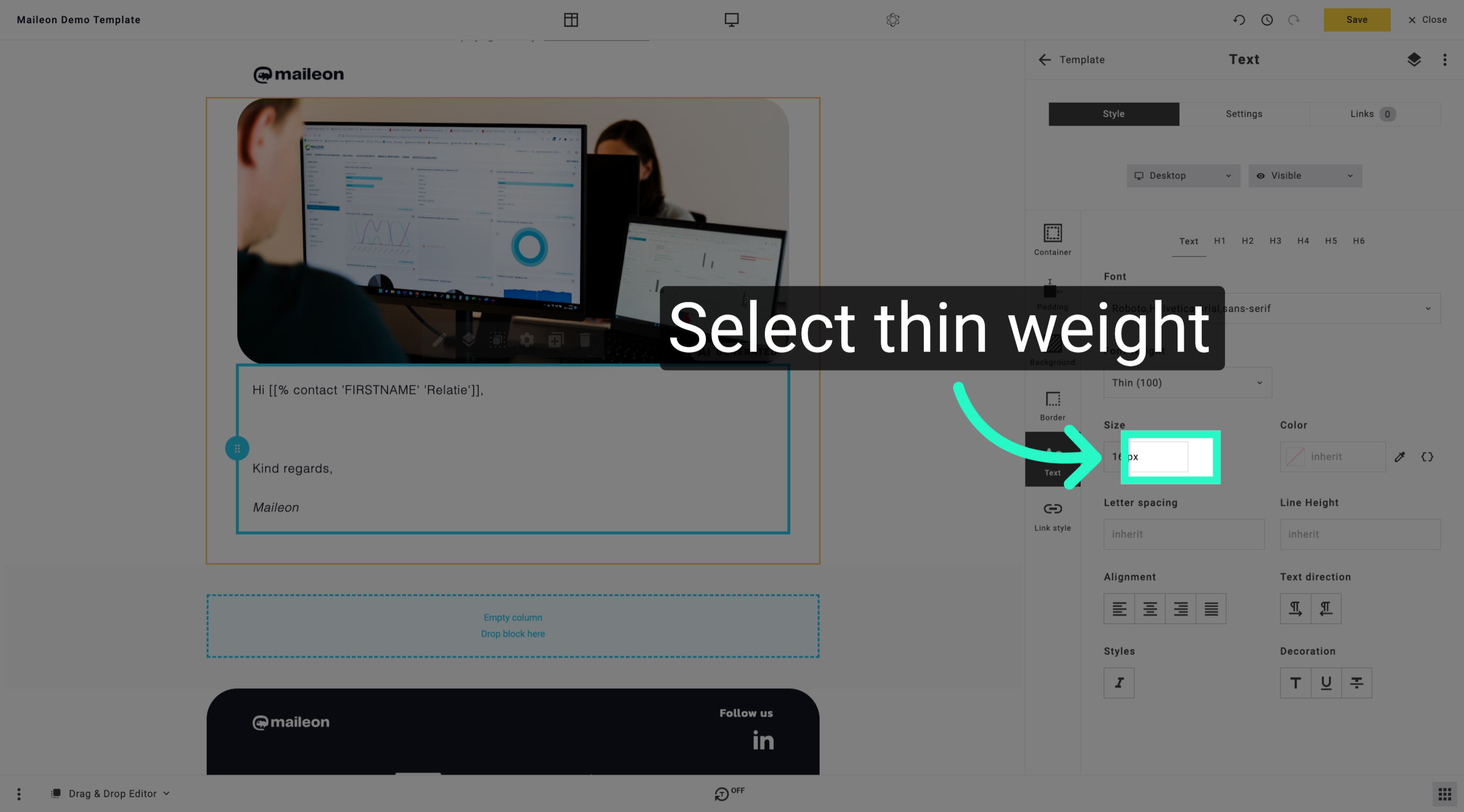
5. Confirm Thin Font Weight
Confirm the selection of the thin font weight to ensure consistent styling across your content.
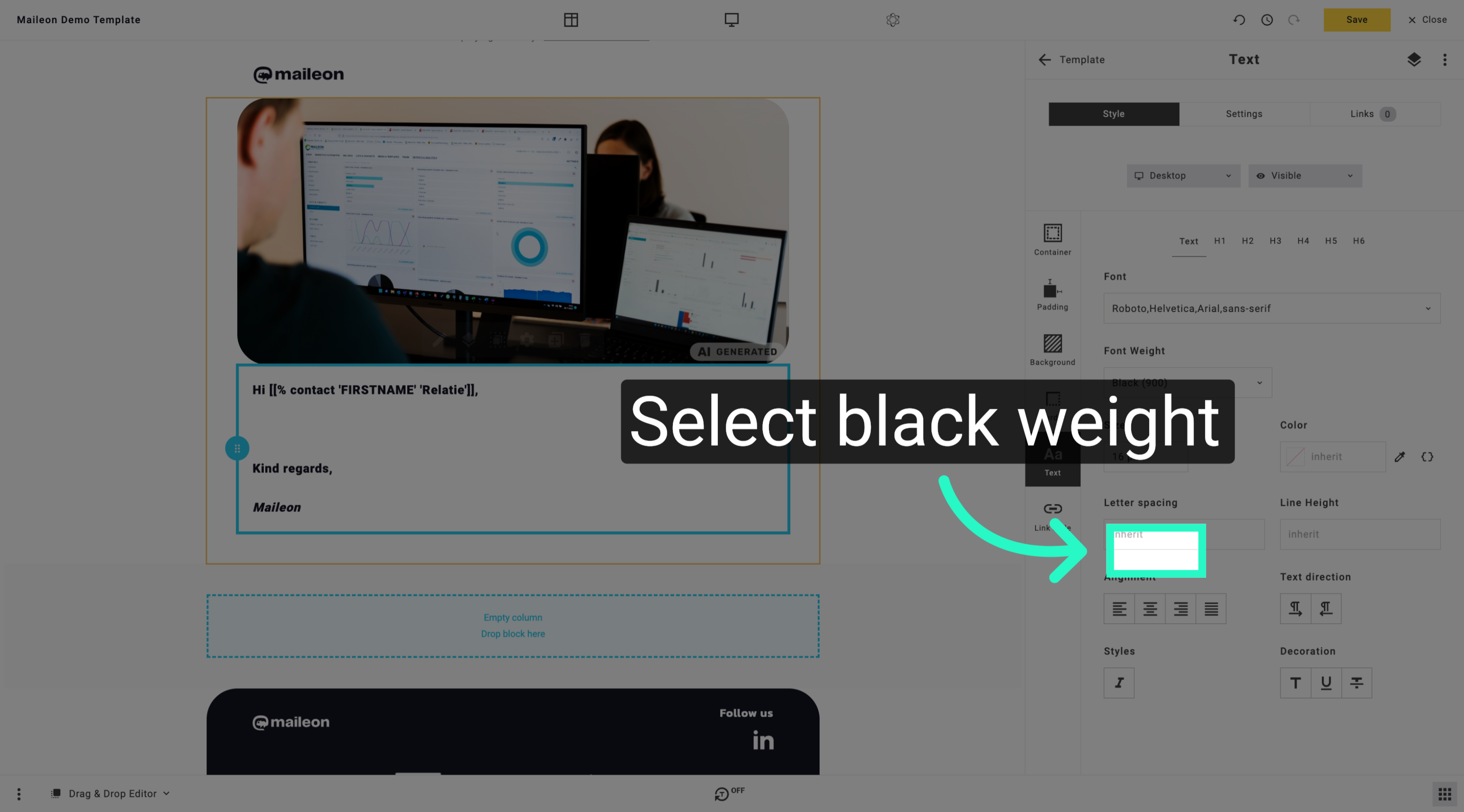
6. Select Black Font Weight
Pick the black font weight to make your text appear bold and prominent in the layout.
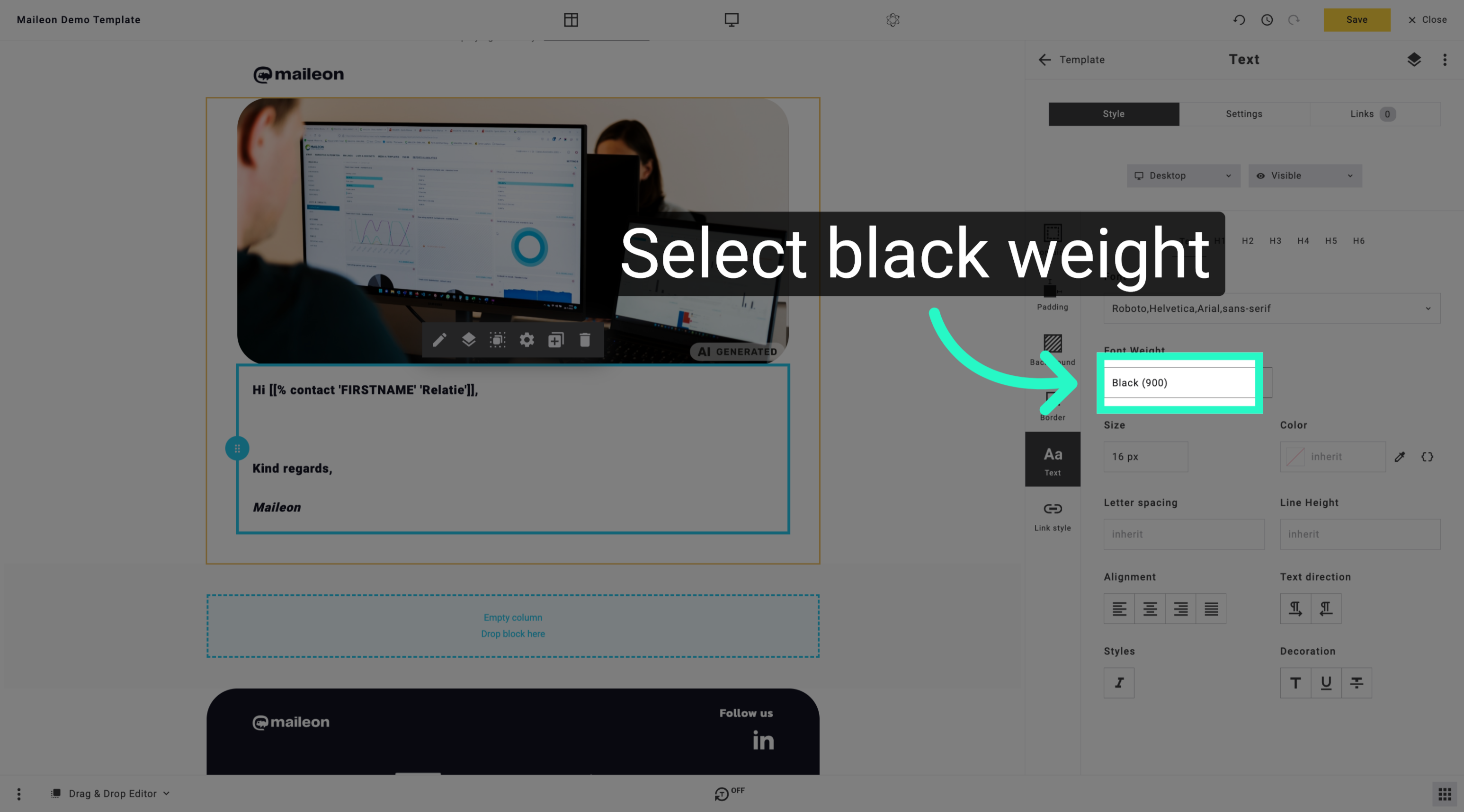
7. Reapply Black Font Weight
Reapply the black font weight to maintain the bold styling for your text elements.
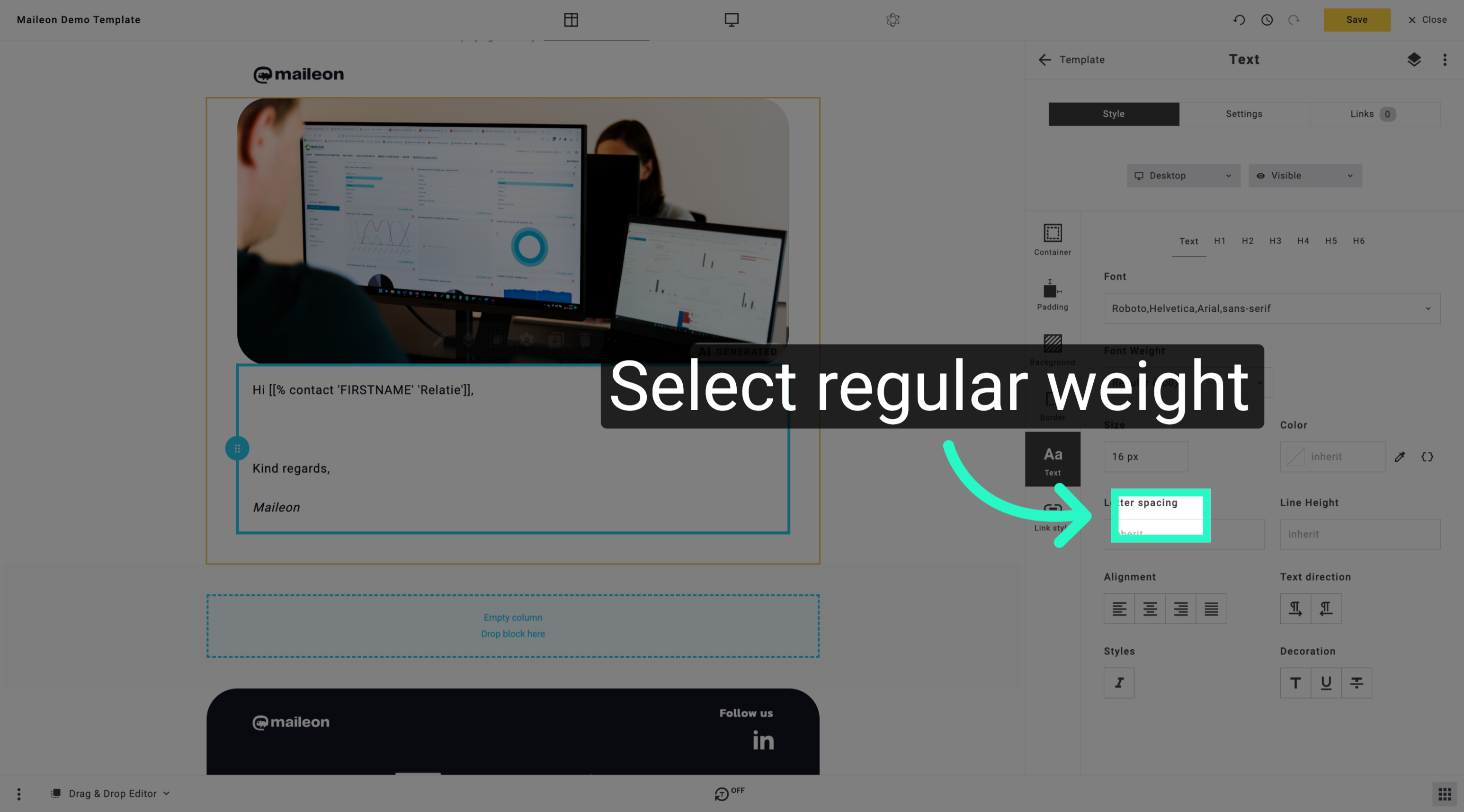
8. Switch Back to Regular Weight
Switch back to the regular font weight to balance readability and emphasis in your text.
You have successfully adjusted font weights to customise text appearance within the Maileon application. This process allows you to control the visual emphasis of your content effectively.