
This tutorial explains how to manage and delete media files within Maileon.
1. Introduction
You will learn to sort, select, and remove media elements efficiently to keep your library organised.
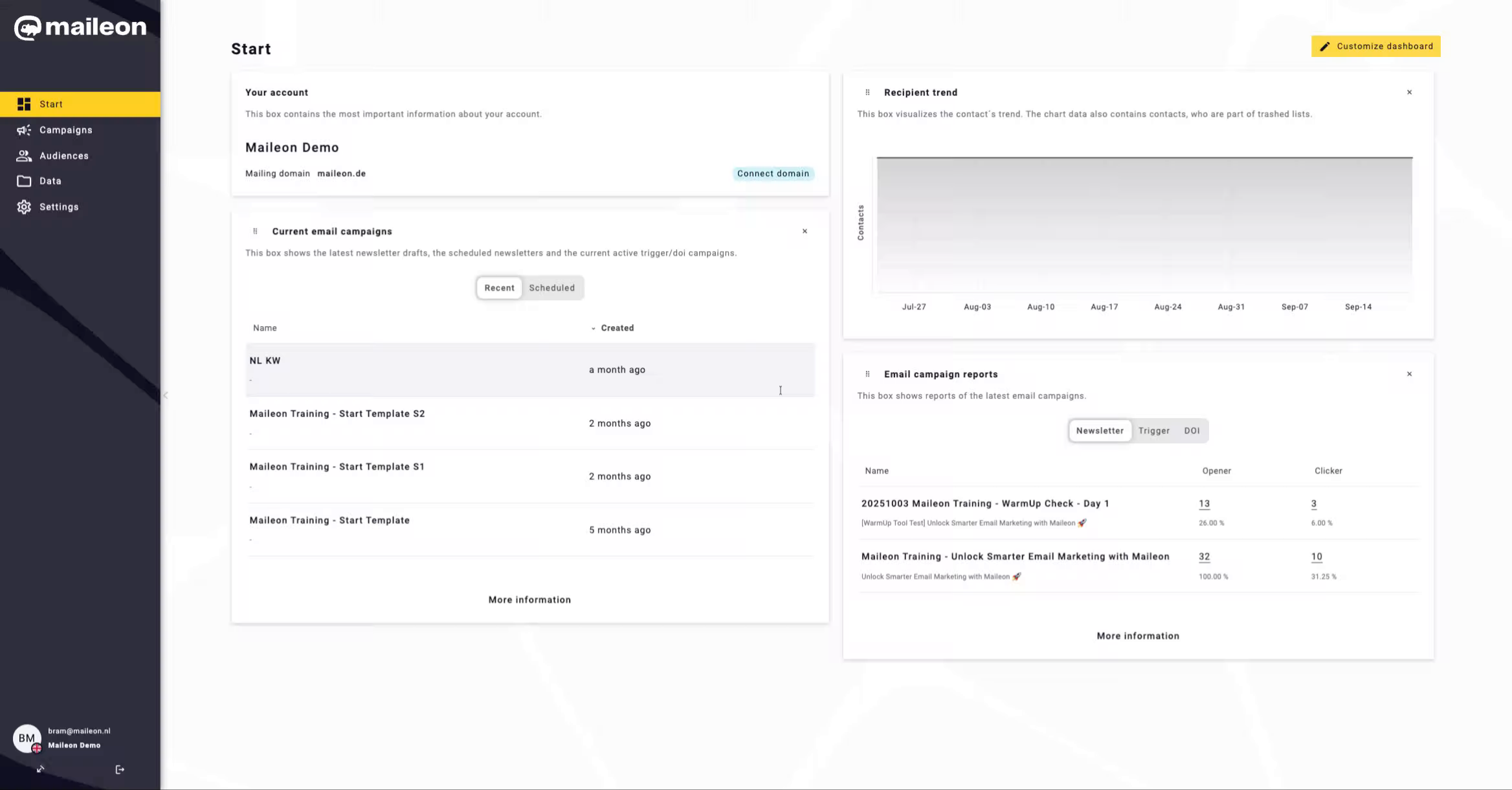
2. Access Data Section
Open the Data section to manage your media files and related settings within Maileon.
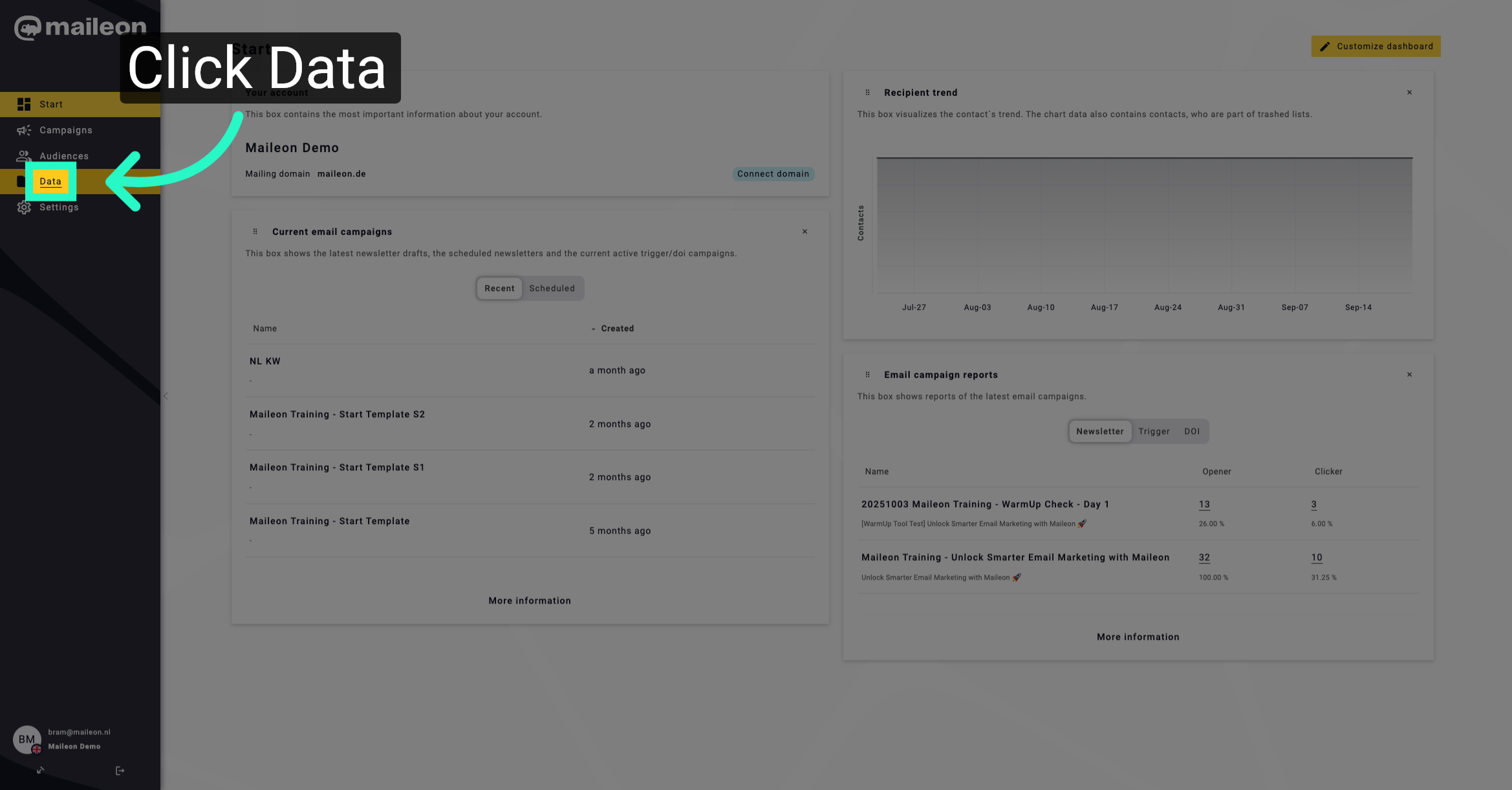
3. Navigate to Media Tab
Go to the Media tab to view and organise your media assets effectively.
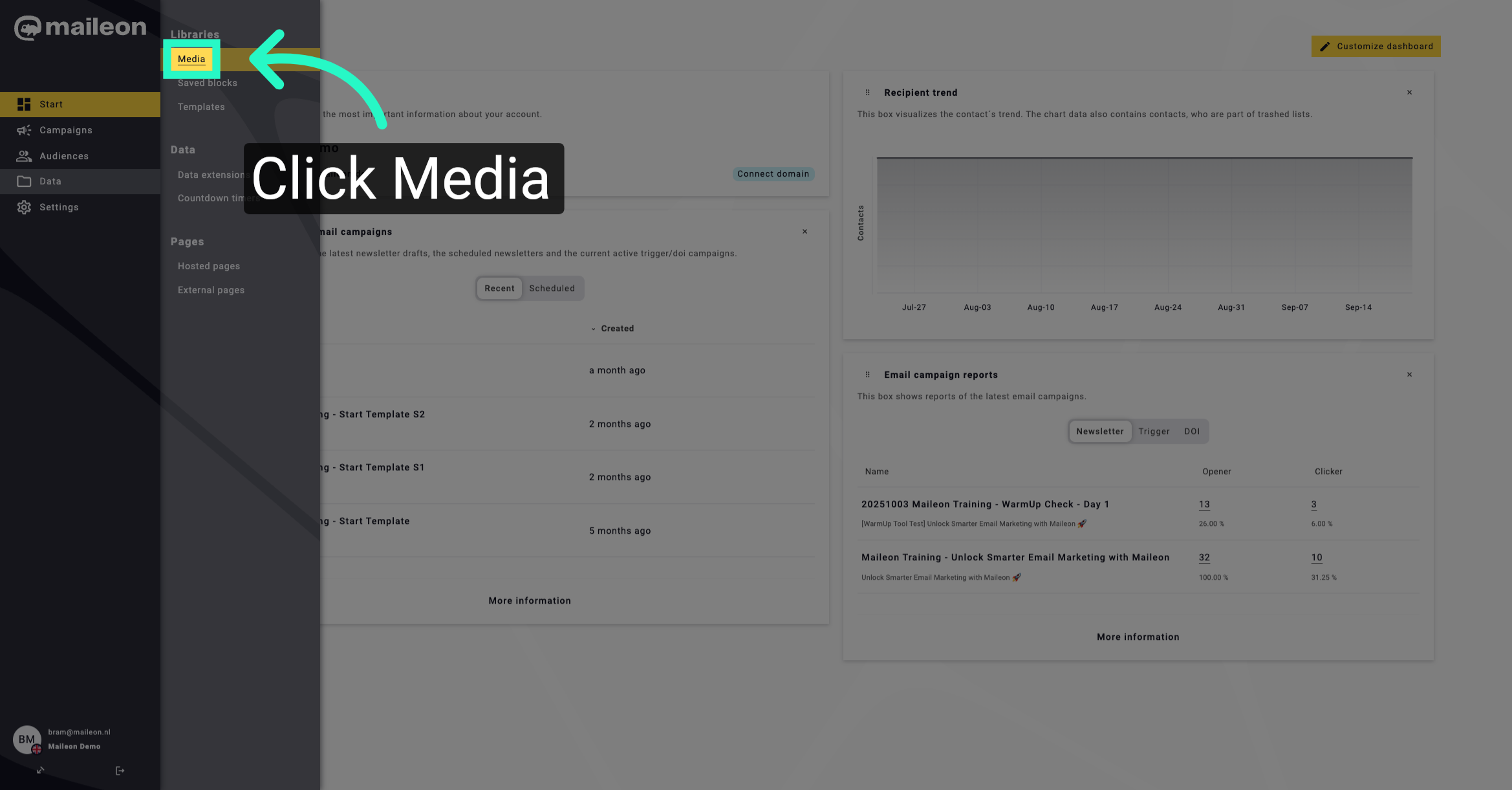
4. Sort Media Alphabetically
Sort the media items alphabetically from A to Z to locate files more easily.
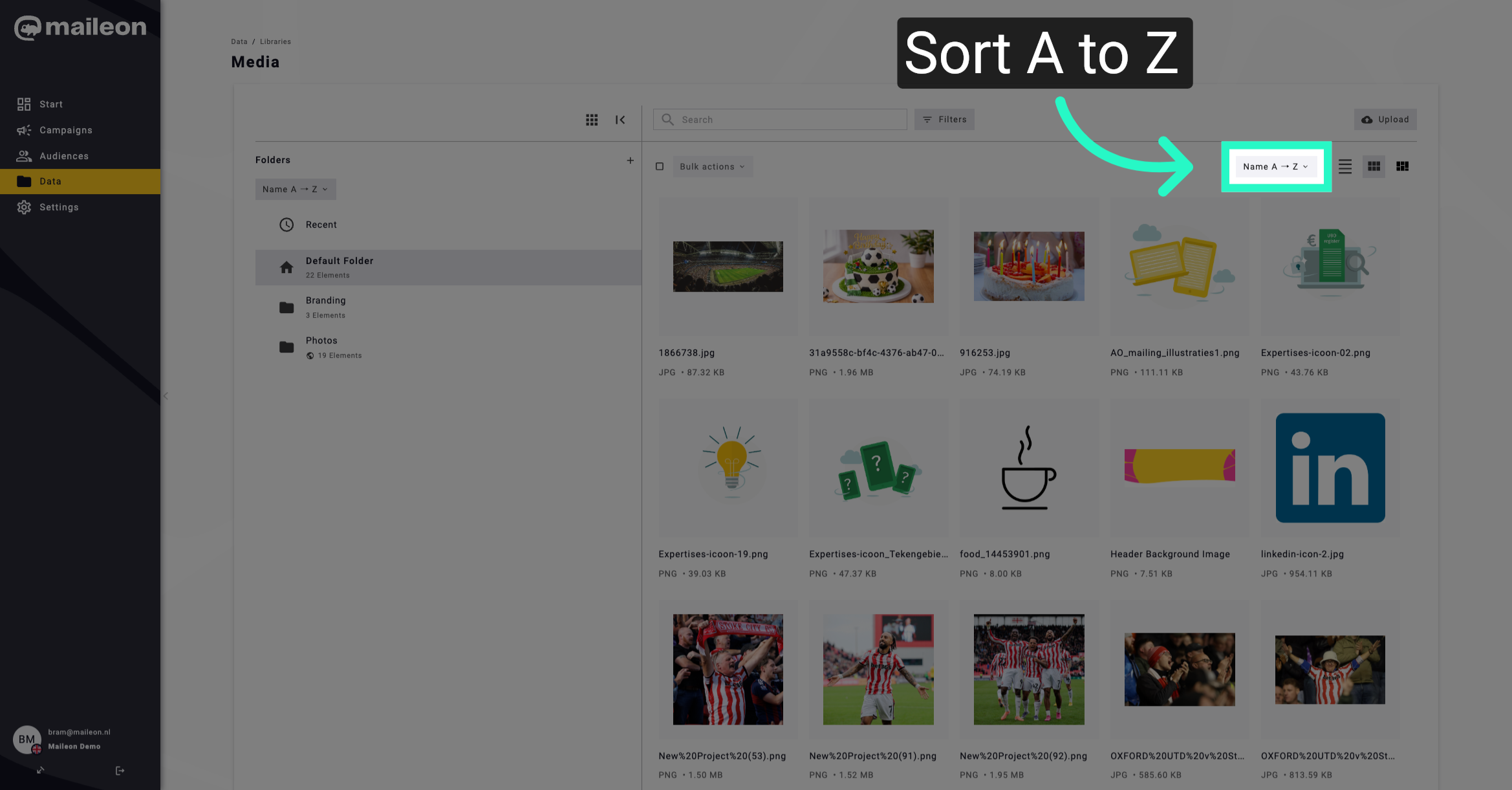
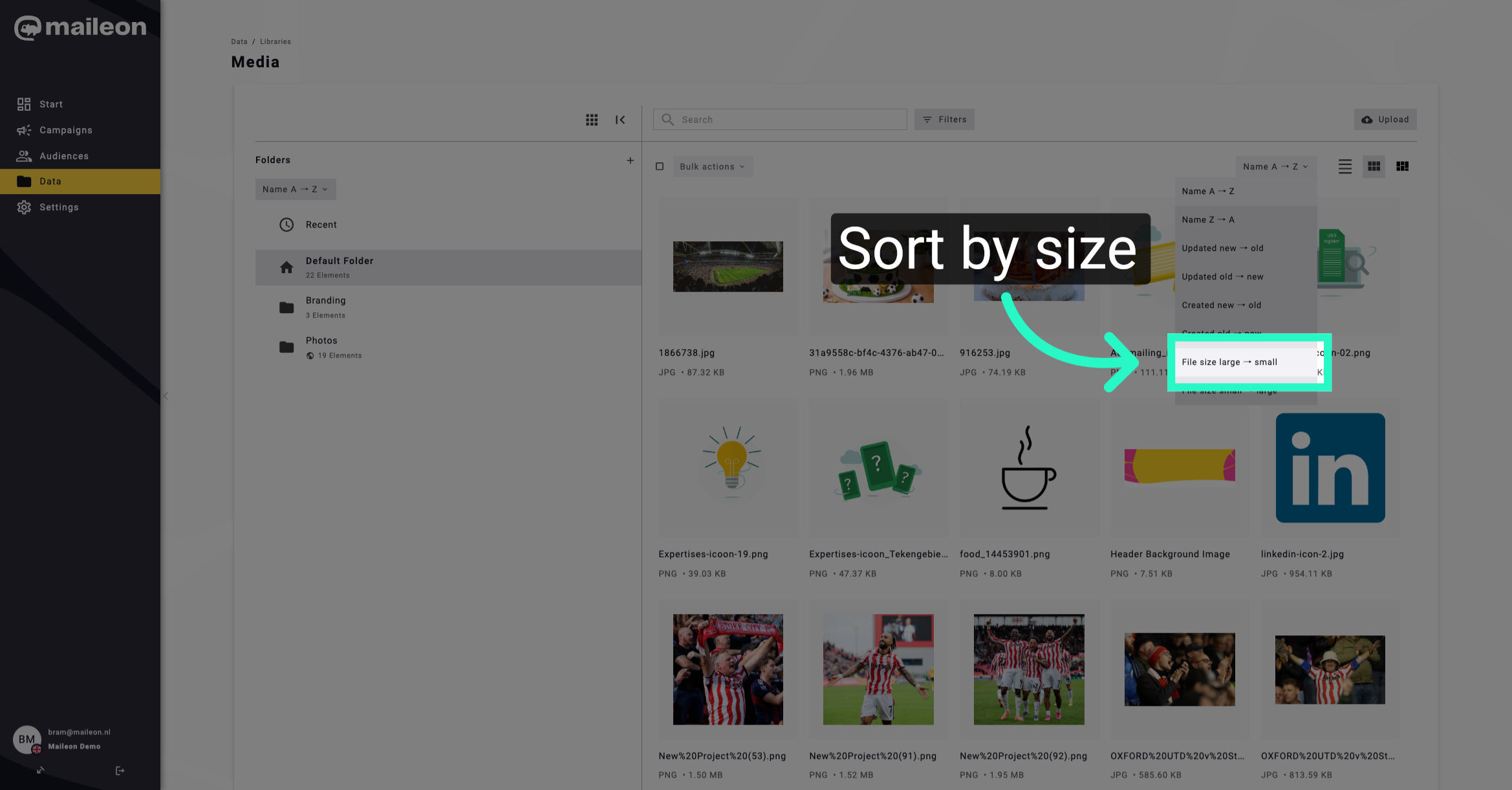
5. Sort Media by File Size
Arrange the media files by size from largest to smallest to identify large assets.
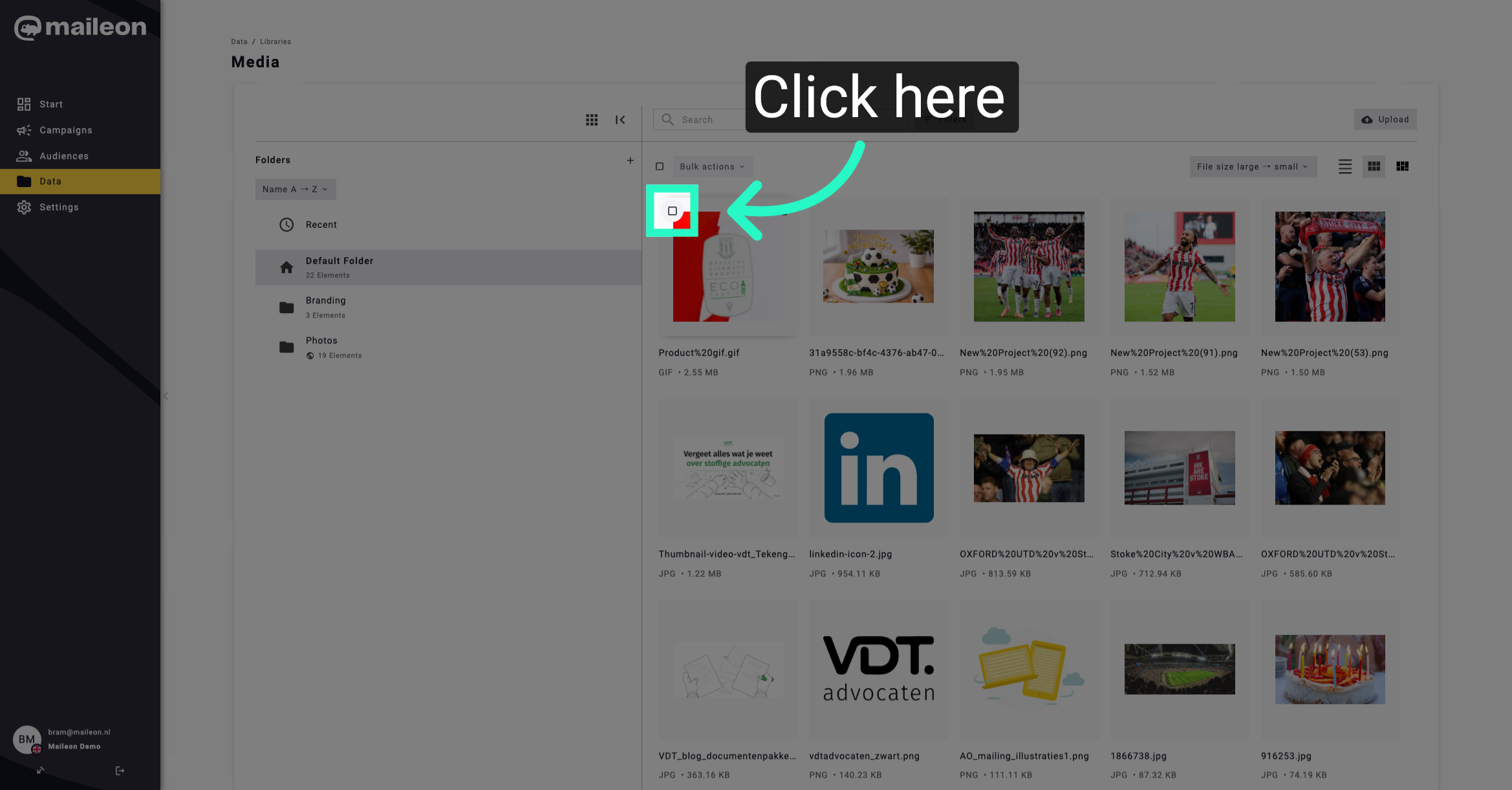
6. Select Media Item(s)
Select a media item to prepare it for bulk actions or further management.
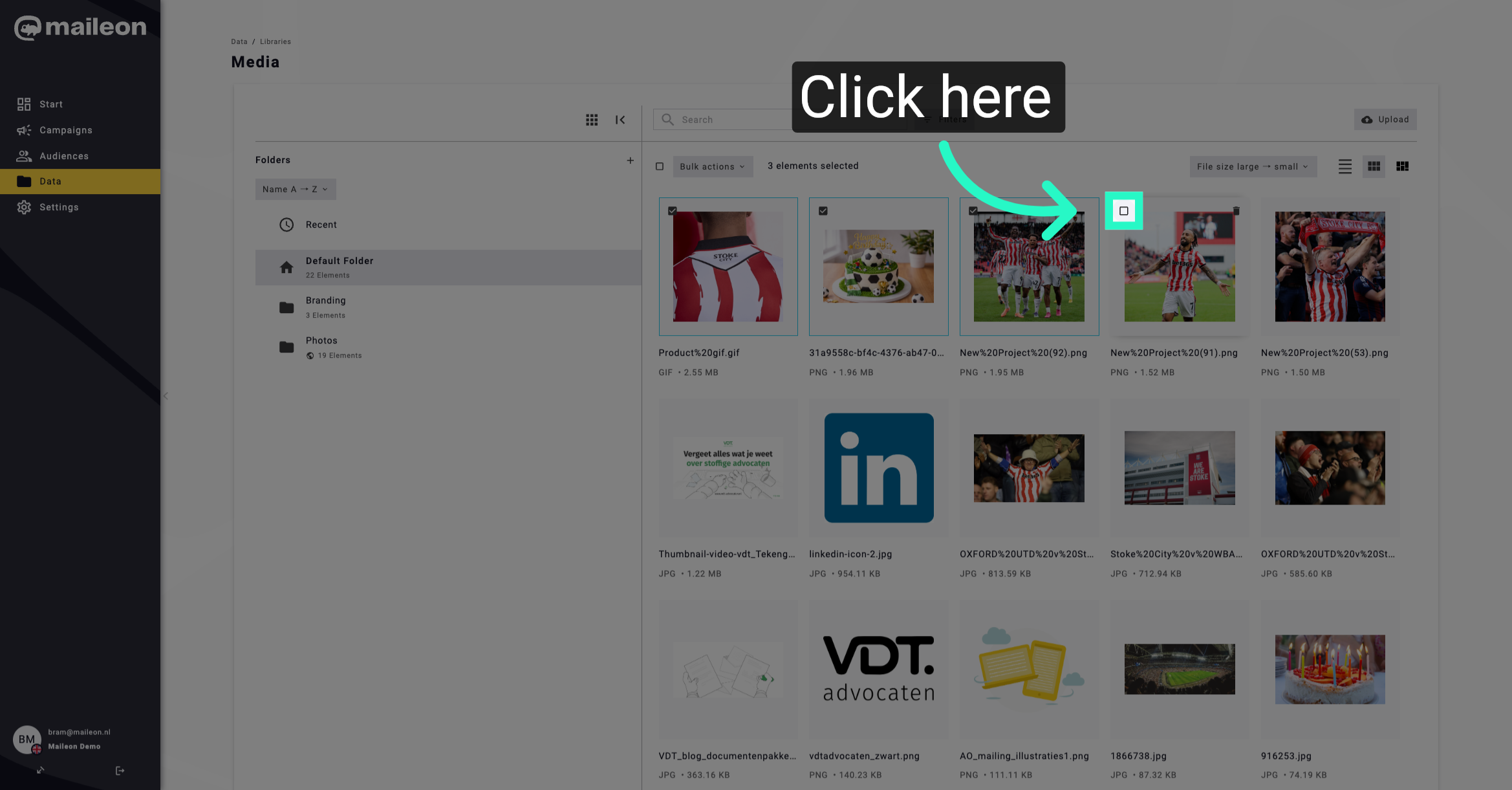
7. Select Media Item(s)
Finalise your selection of media items before applying bulk operations.
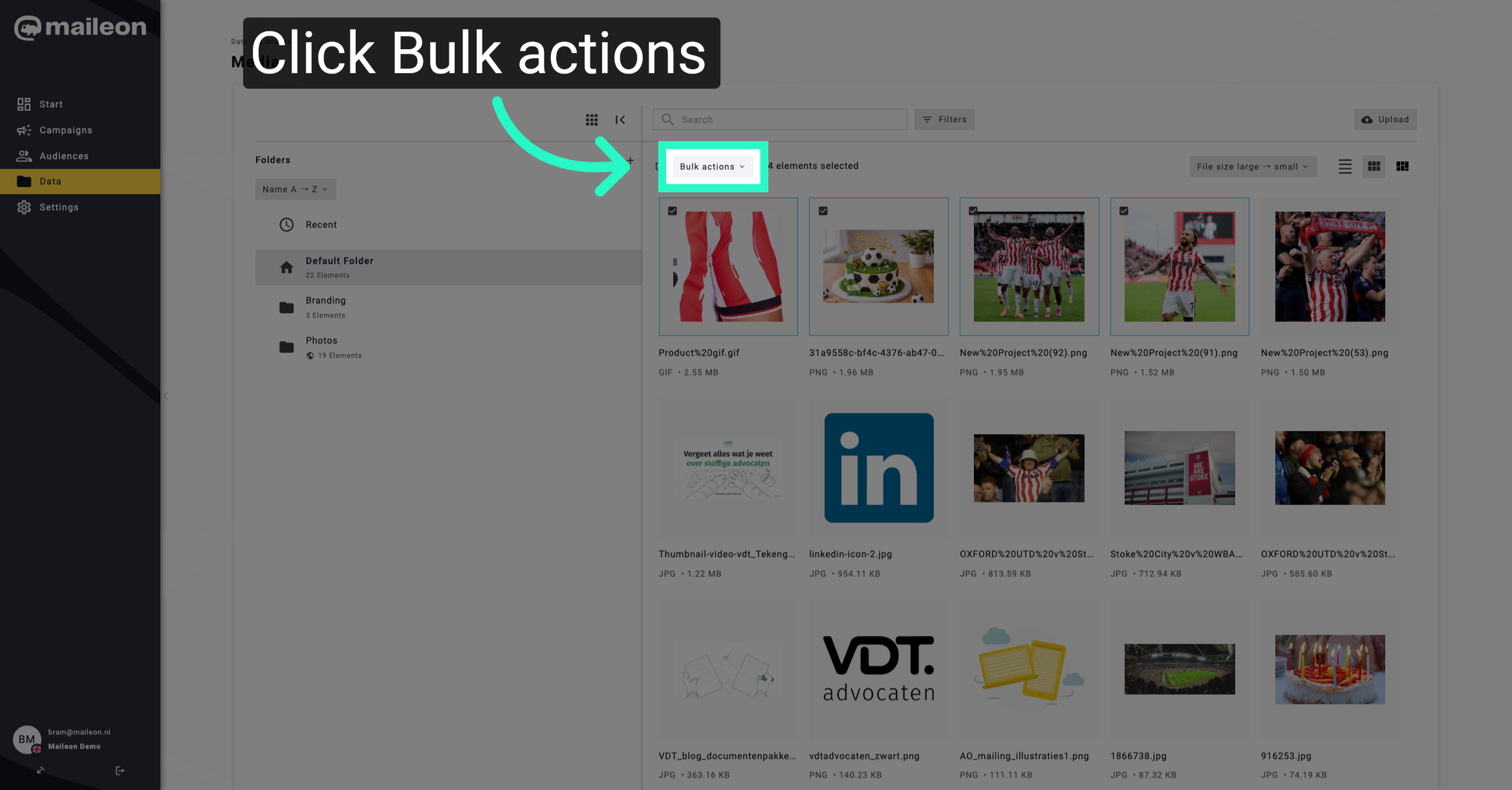
8. Open Bulk Actions Menu
Access the Bulk actions menu to perform operations on multiple selected media files.
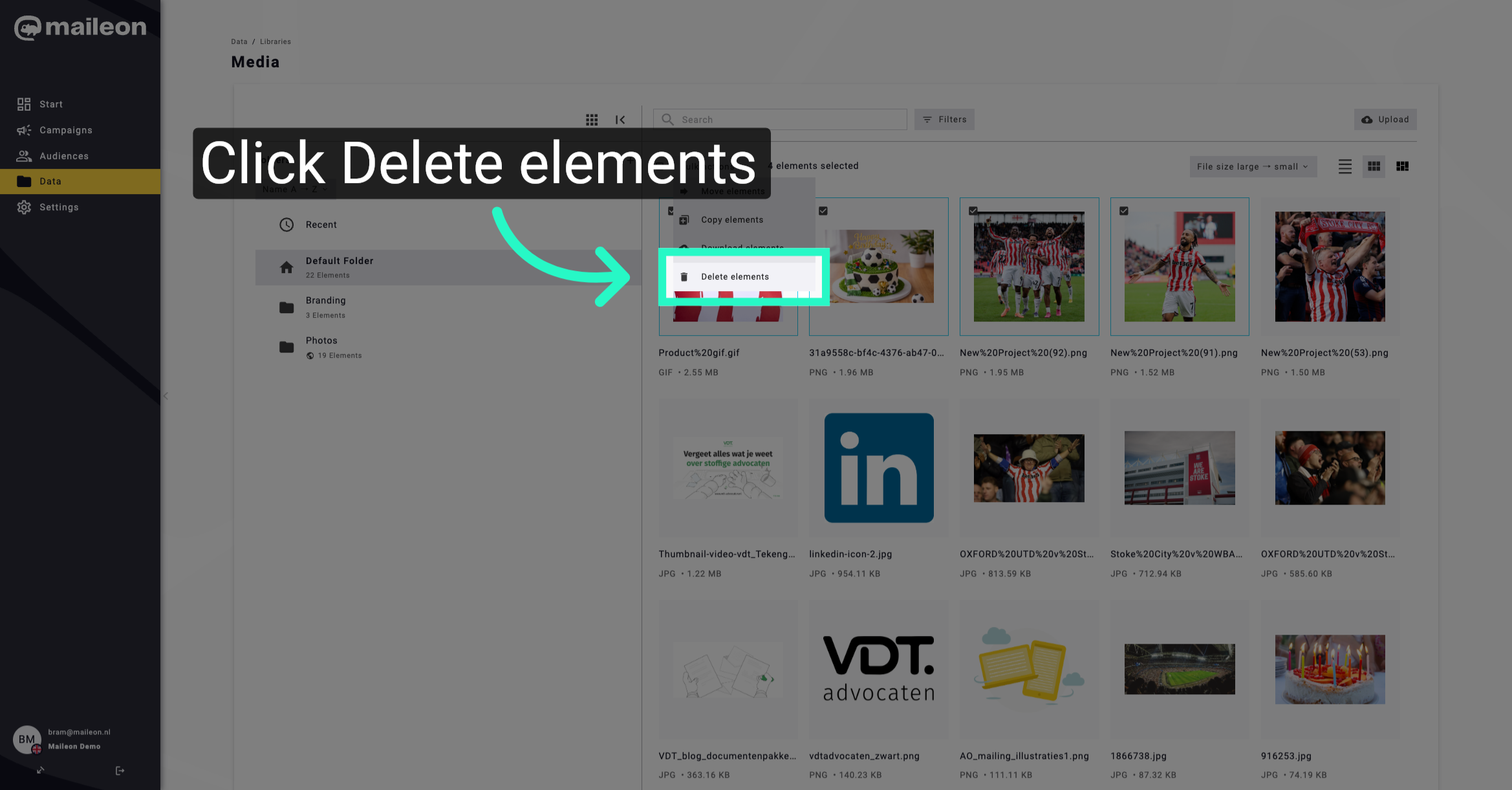
9. Choose Delete Elements Option
Select the option to delete the chosen media elements from your library.
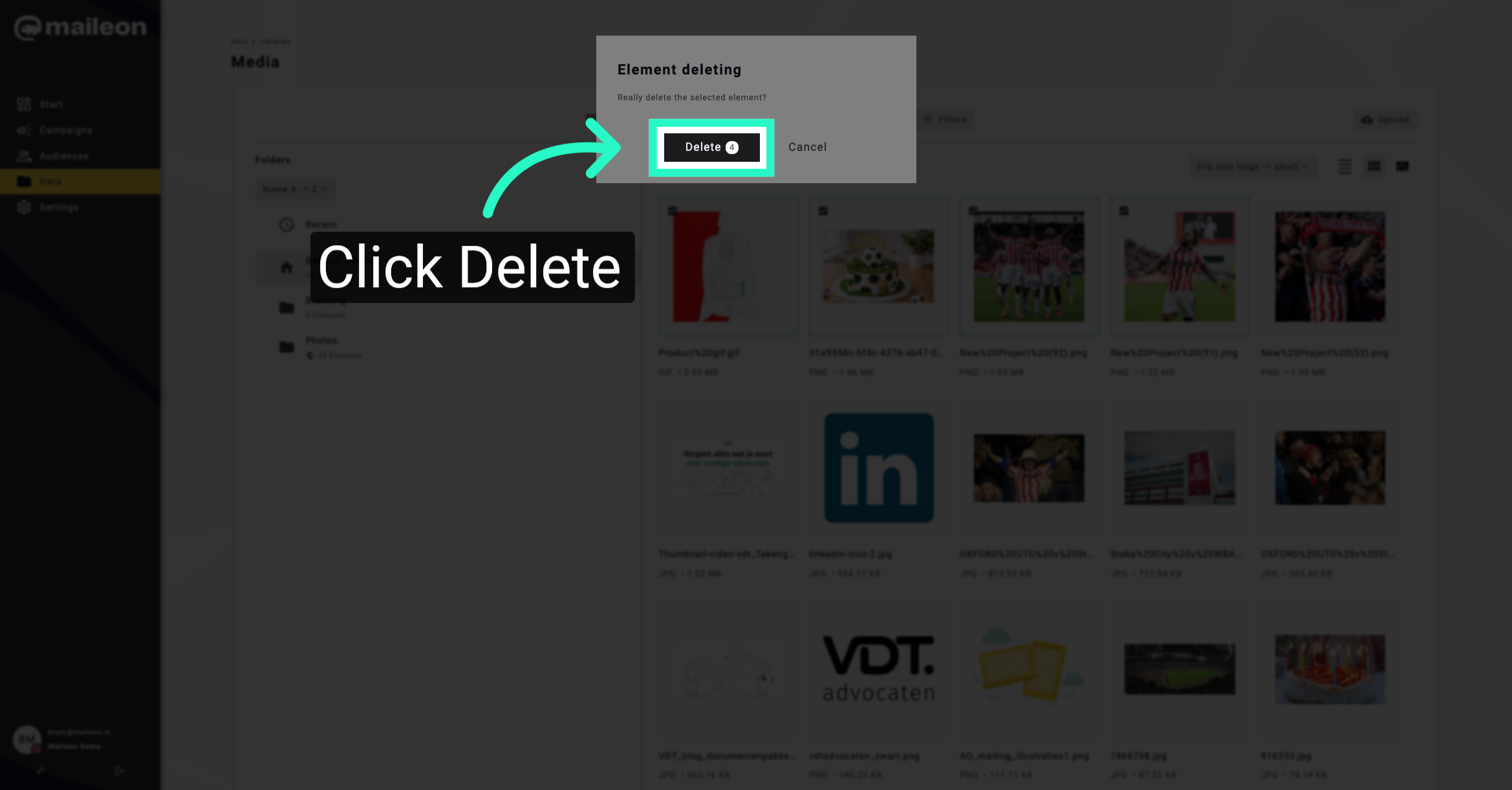
10. Confirm Deletion
Confirm the deletion to permanently remove the selected media files from Maileon.
You have successfully deleted selected media files from your Maileon account by sorting, selecting, and applying bulk deletion actions. This process helps maintain an organised media library. For further management, explore additional media organisation features within Maileon.