
This tutorial guides you through enabling synchronization and managing email template settings in Maileon. You will learn how to access and configure key features to optimise your email campaigns.
1. Open Maileon Main Interface
Open the Maileon main interface to begin managing your email marketing settings.
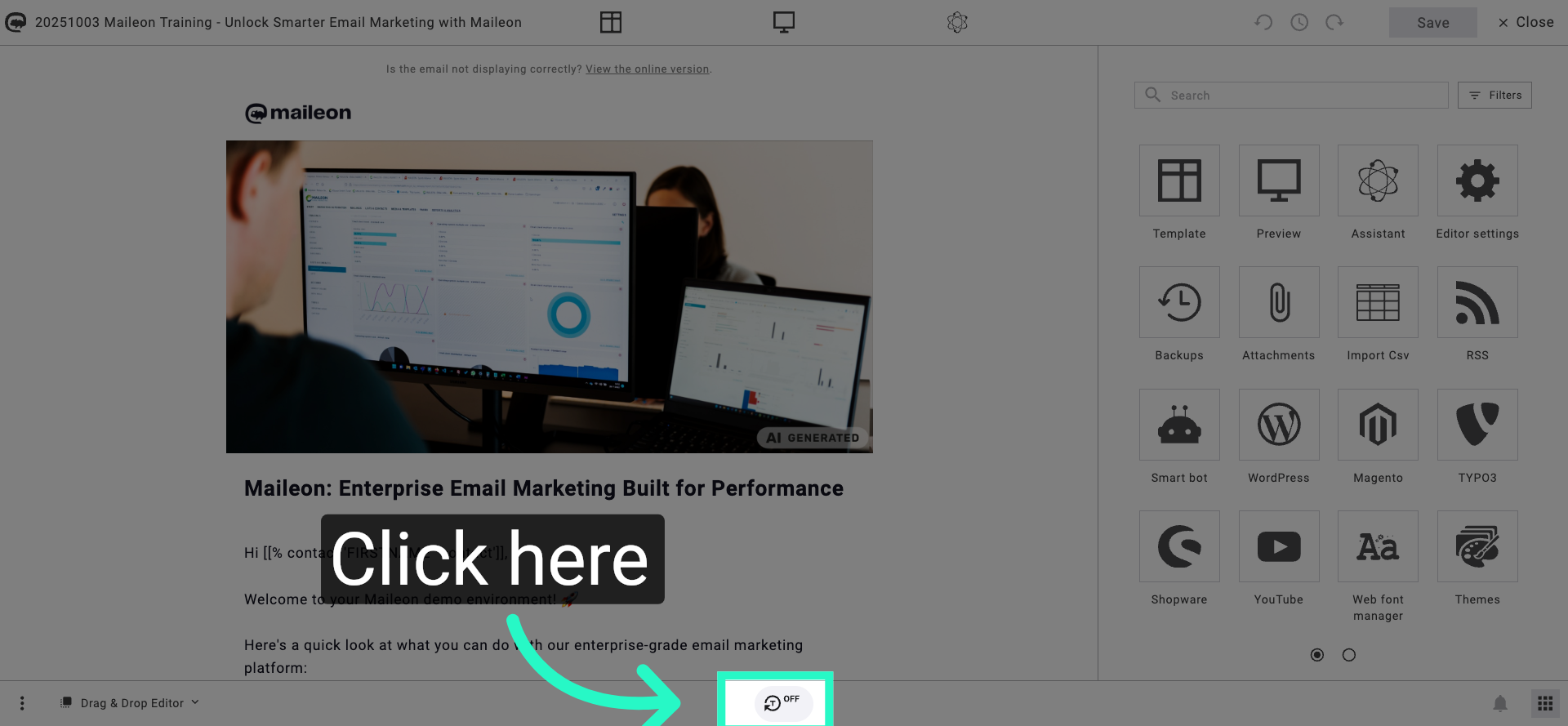
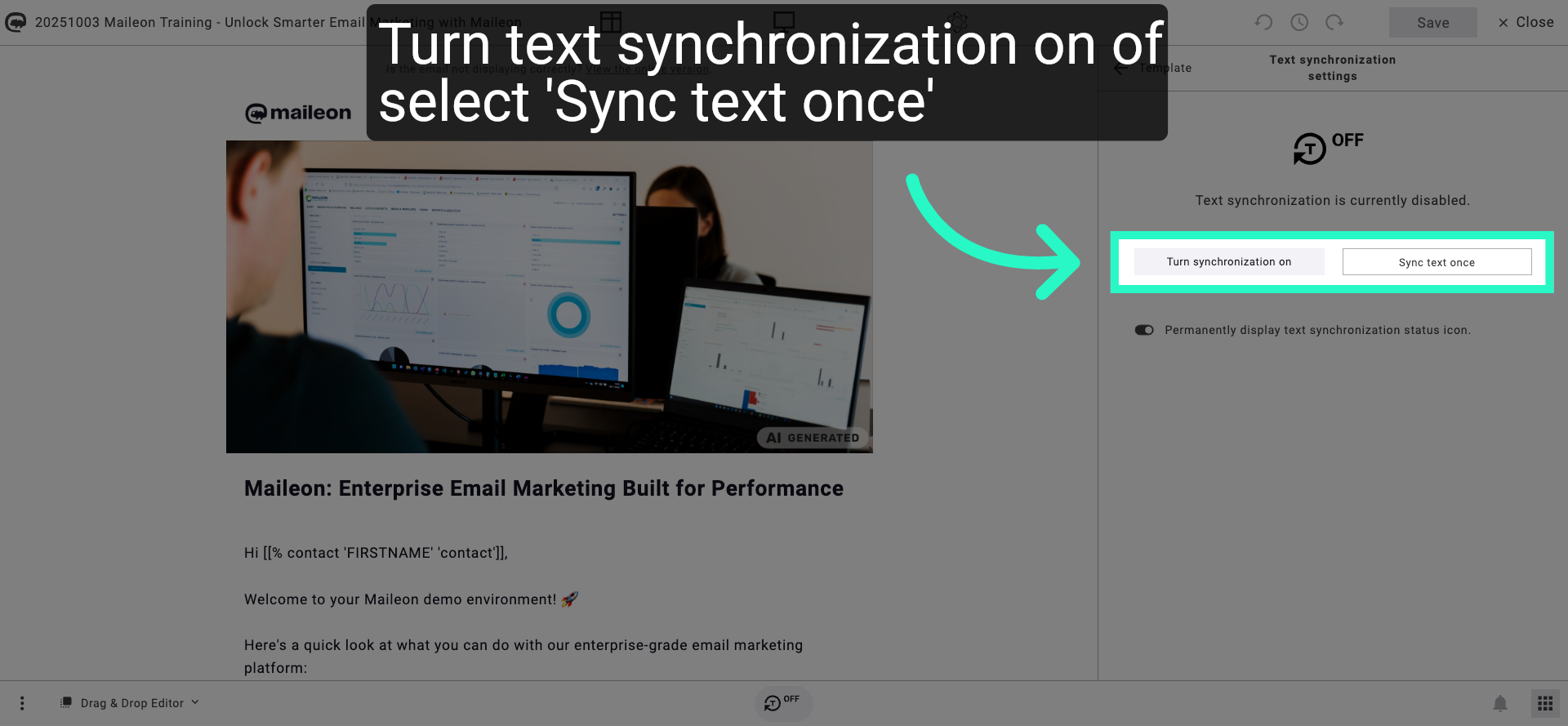
2. Enable Synchronization Feature
Enable synchronization to keep your email data up to date across platforms.
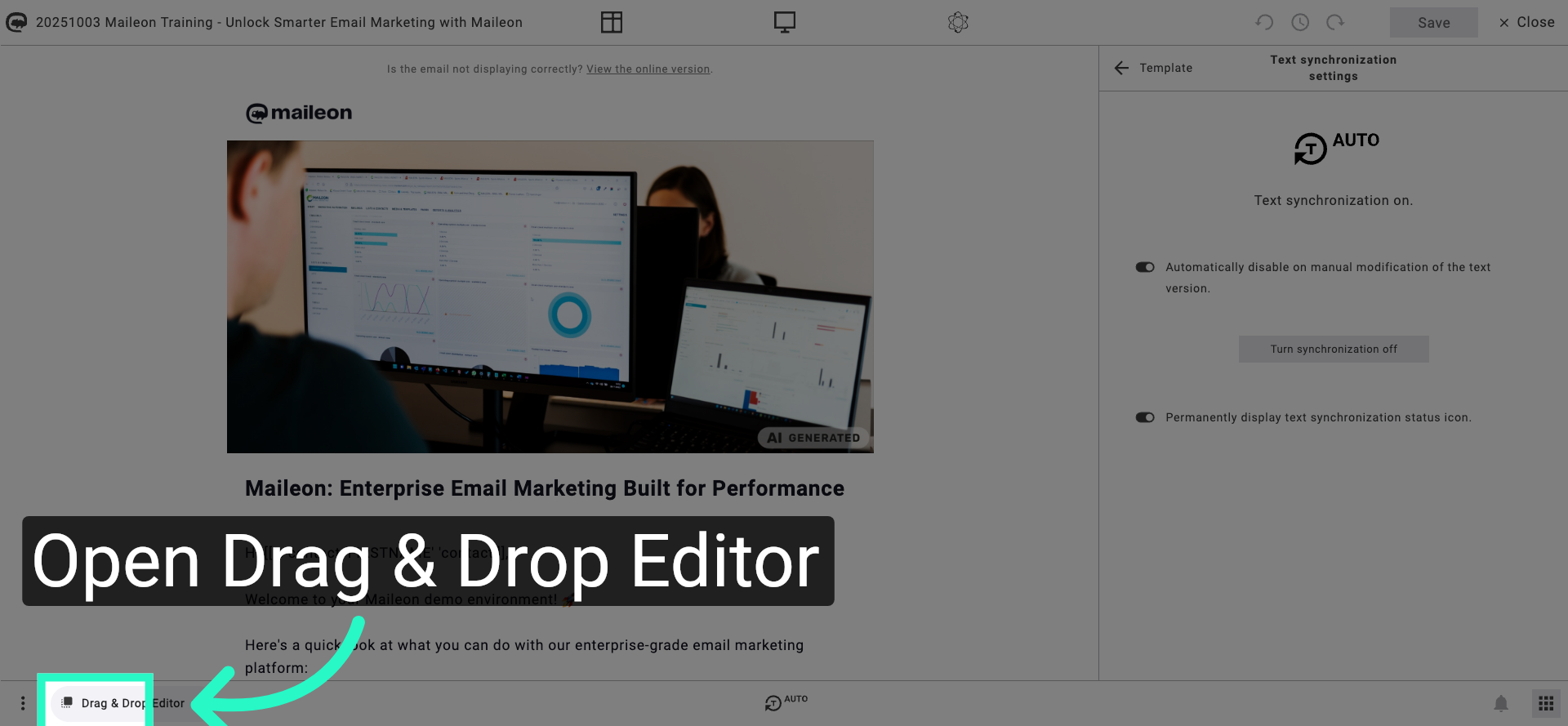
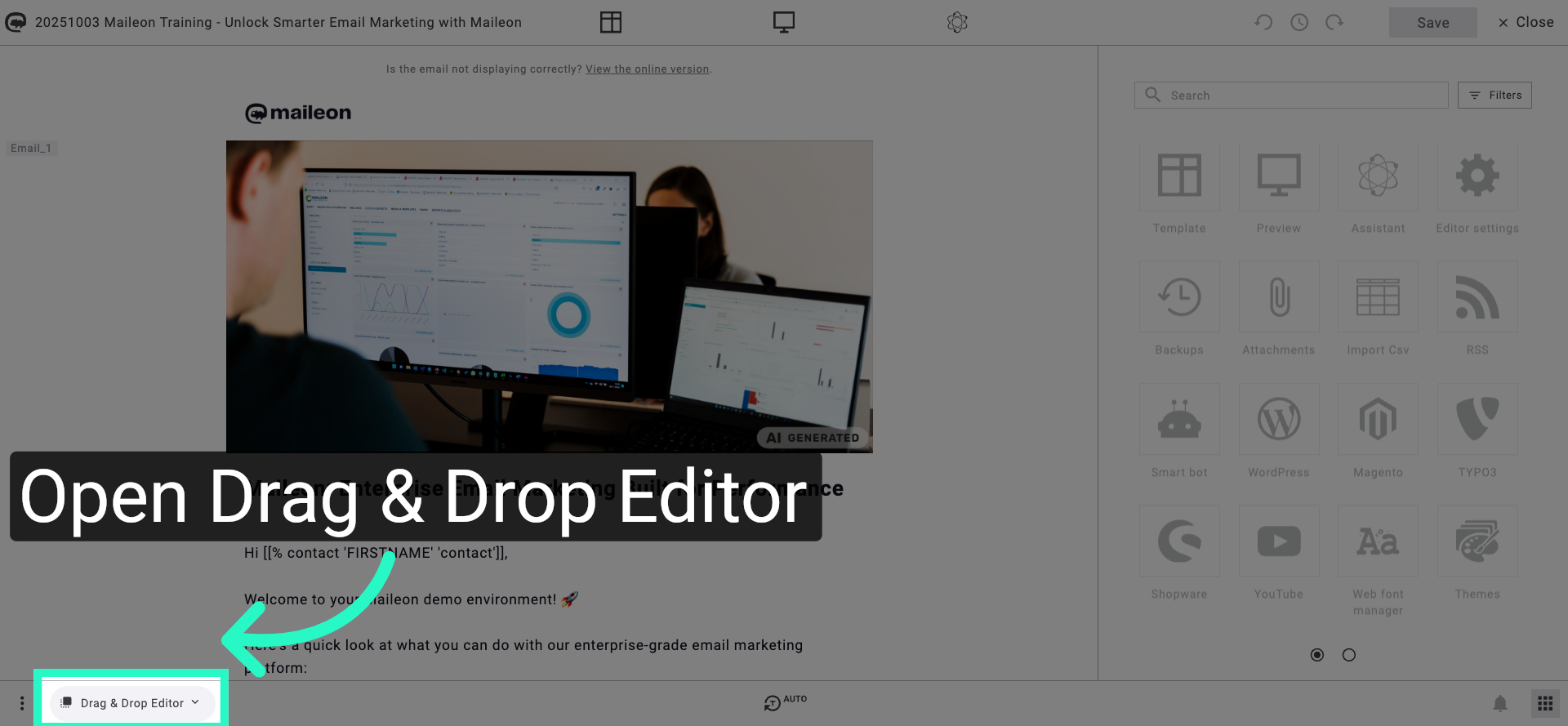
3. Access Drag & Drop Editor
Access the Drag & Drop Editor to customise your email templates visually.
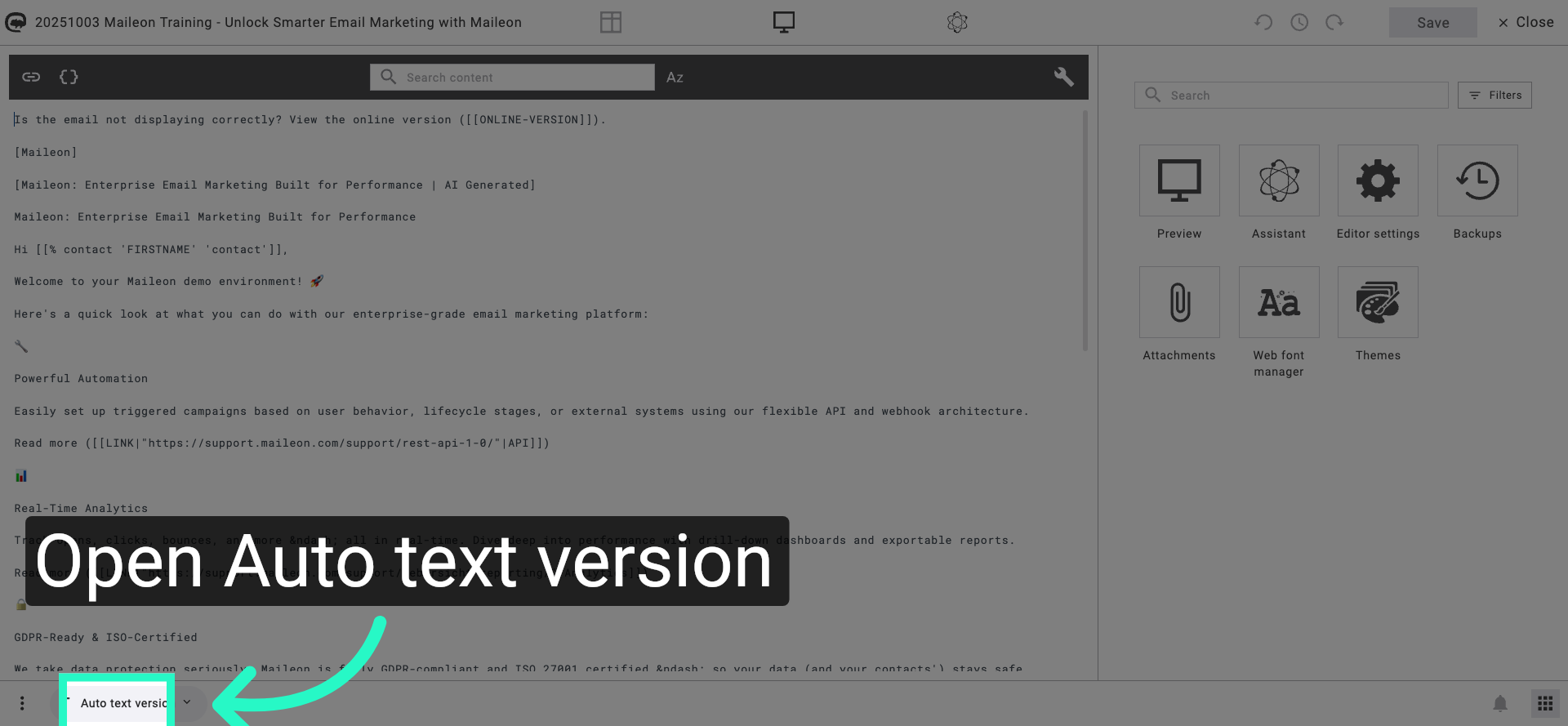
4. Revisit Auto Text Version Section
Return to the Auto text version section to review or adjust your text version settings.
5. Return to Drag & Drop Editor
Return to the Drag & Drop Editor to continue editing your email content visually.
You have enabled synchronization and configured the auto text version settings within Maileon. This ensures your email templates are up to date and accessible in multiple formats.