
This tutorial guides you through setting up contact jobs to manage tracking consent within Maileon.
1. Introduction
You will learn how to create and configure a contact job to handle change tracking permissions effectively.
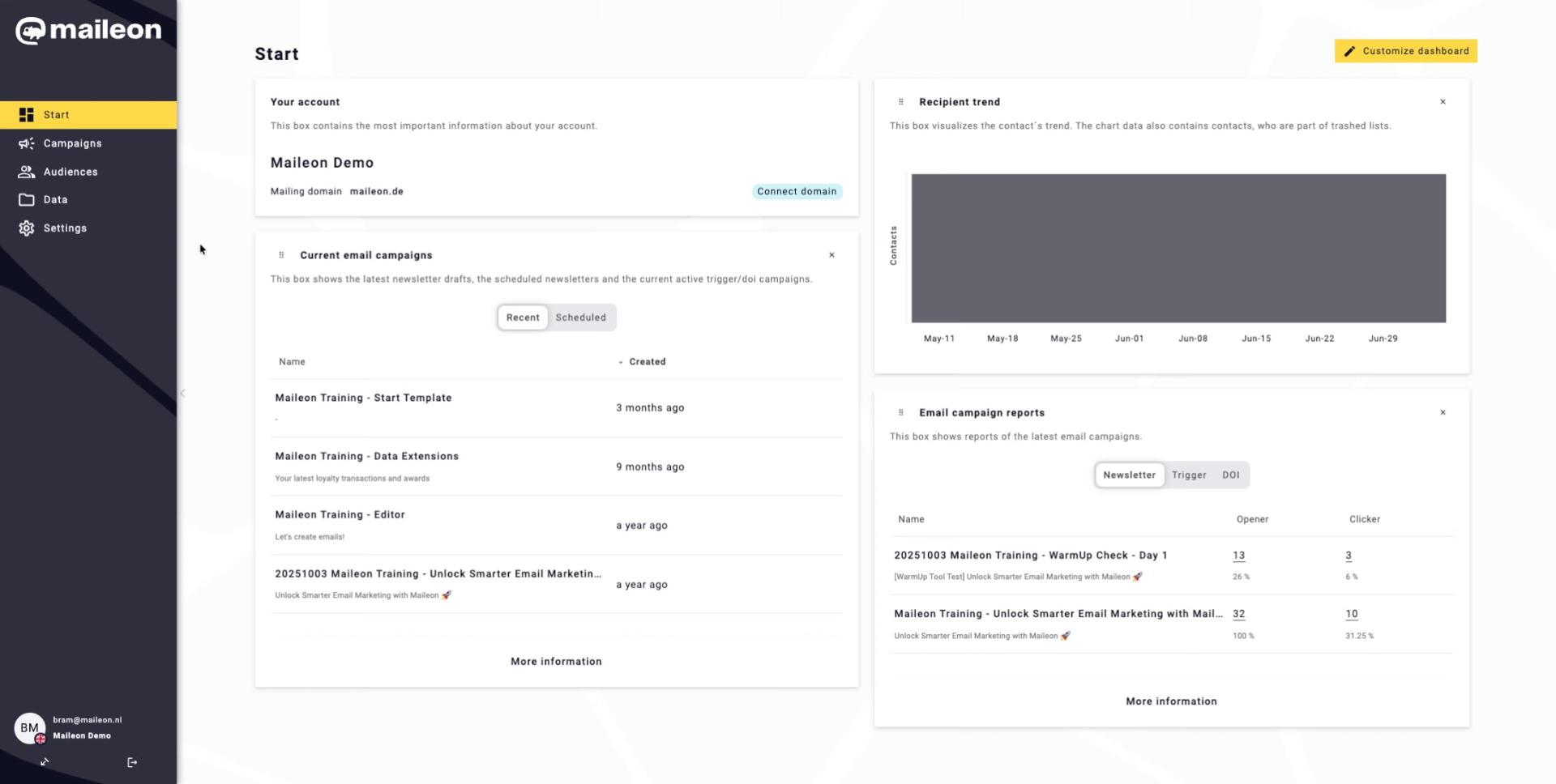
2. Access Audiences Section
Click "Audiences" to open the audience management area in Maileon.
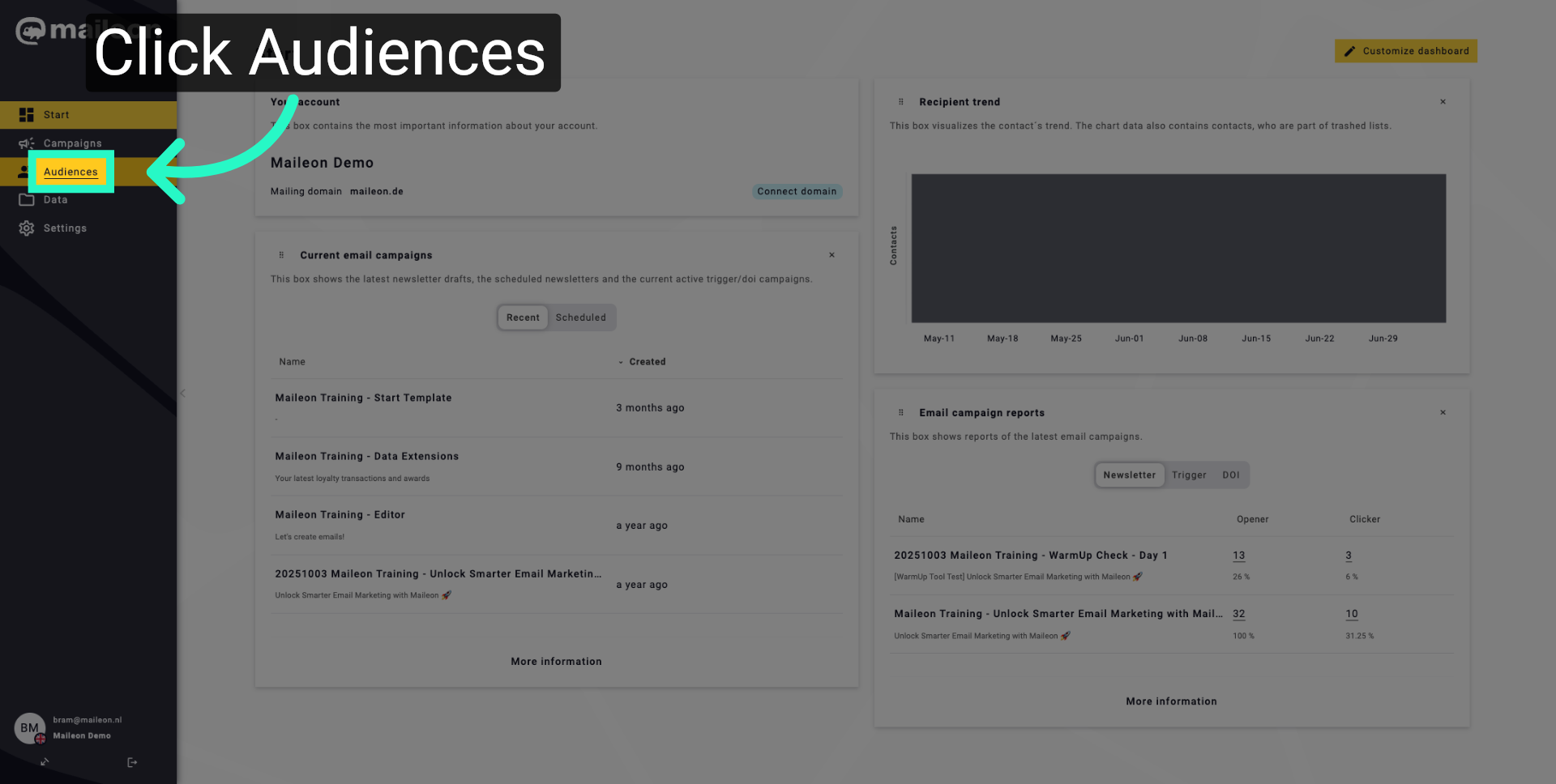
3. Open Contact Jobs
Click "Contact jobs" to view and manage existing contact jobs.
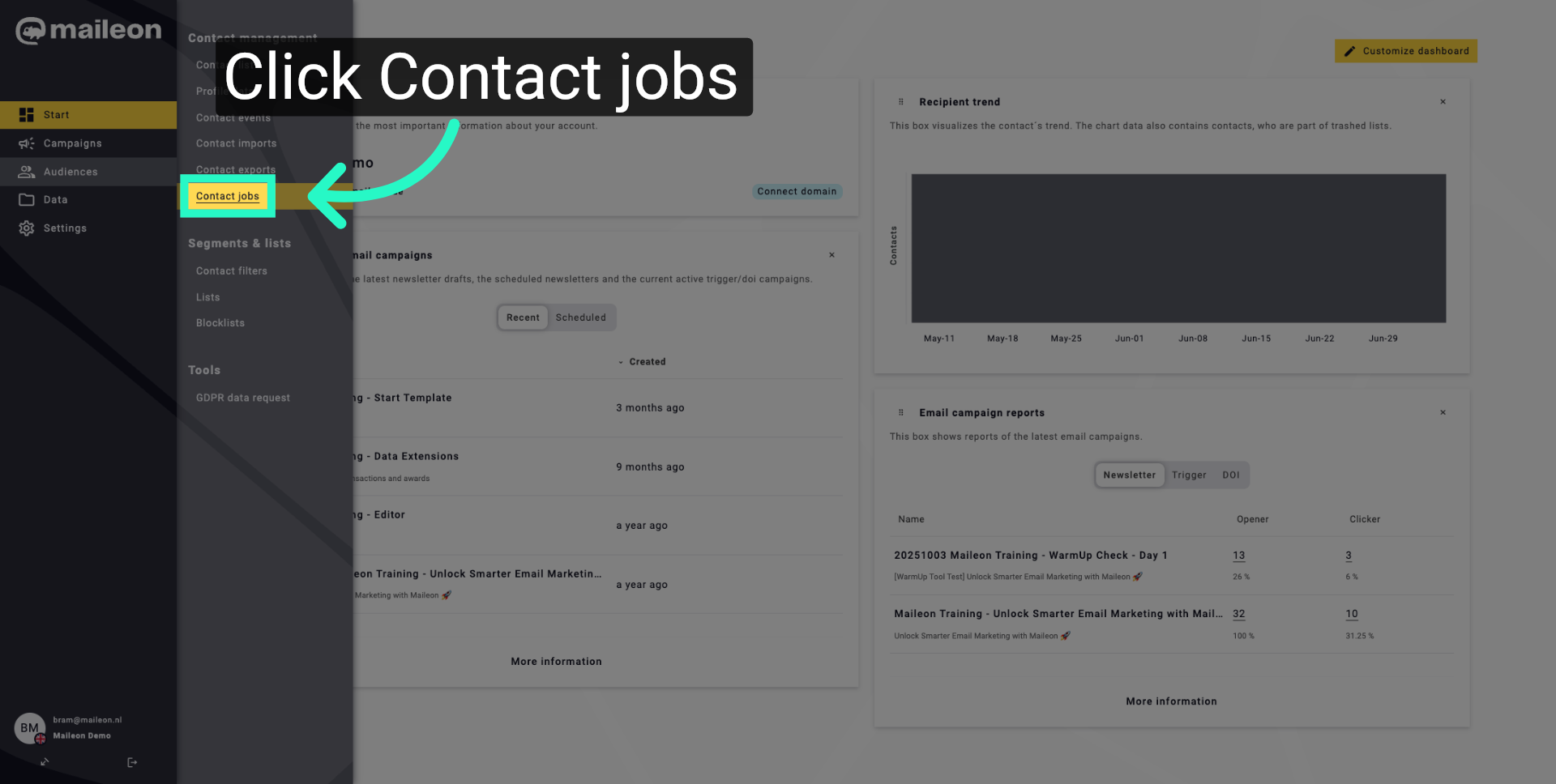
4. Add New Contact Job
Click "Add contact job" to start creating a new contact job for tracking consent.
5. Select Name Field
Click "Name" to specify the name field for the new contact job.
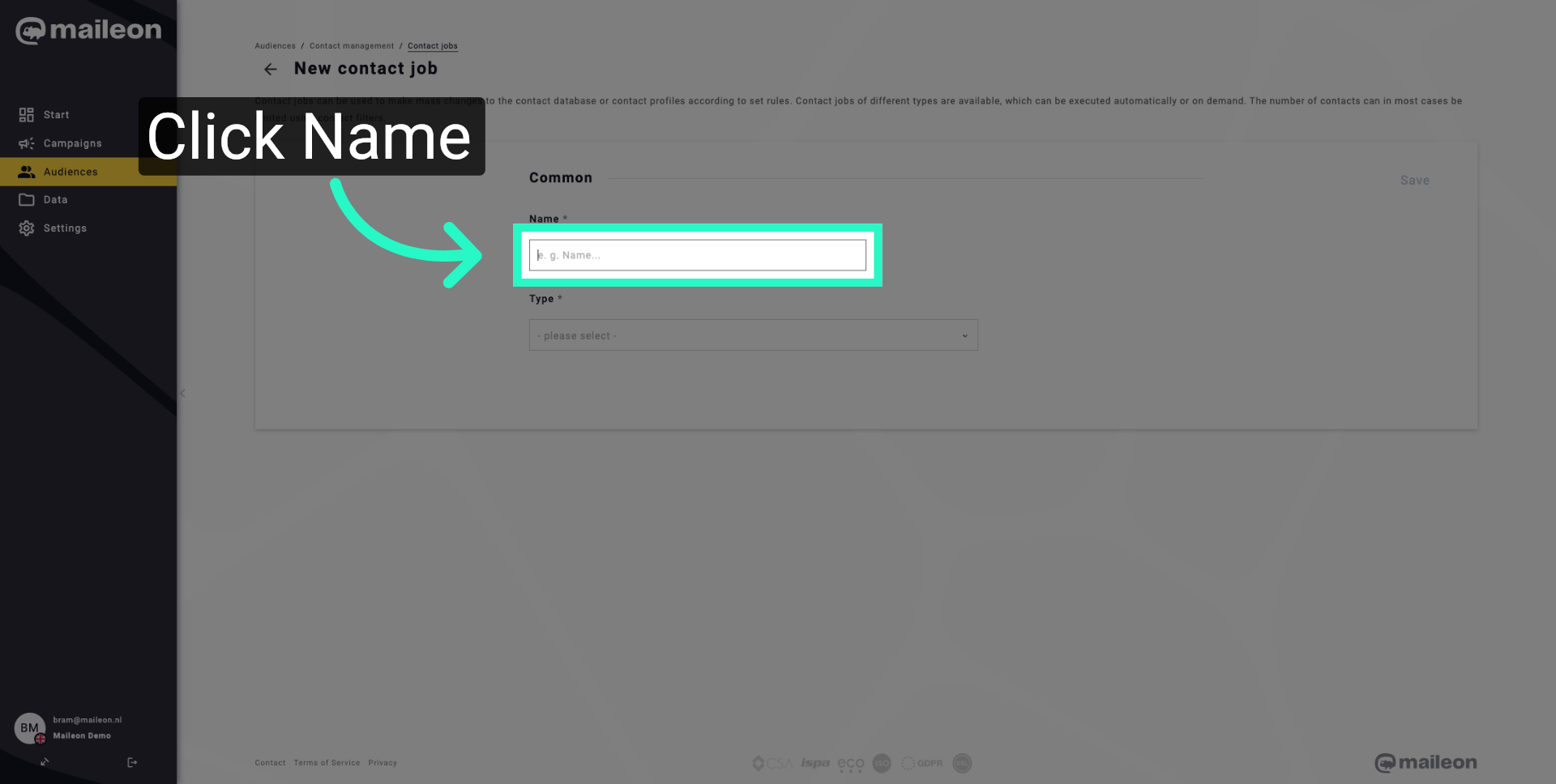
6. Enter Tracking Consent Name
Fill "Change Tracking Consent" as the name to identify the tracking consent job.
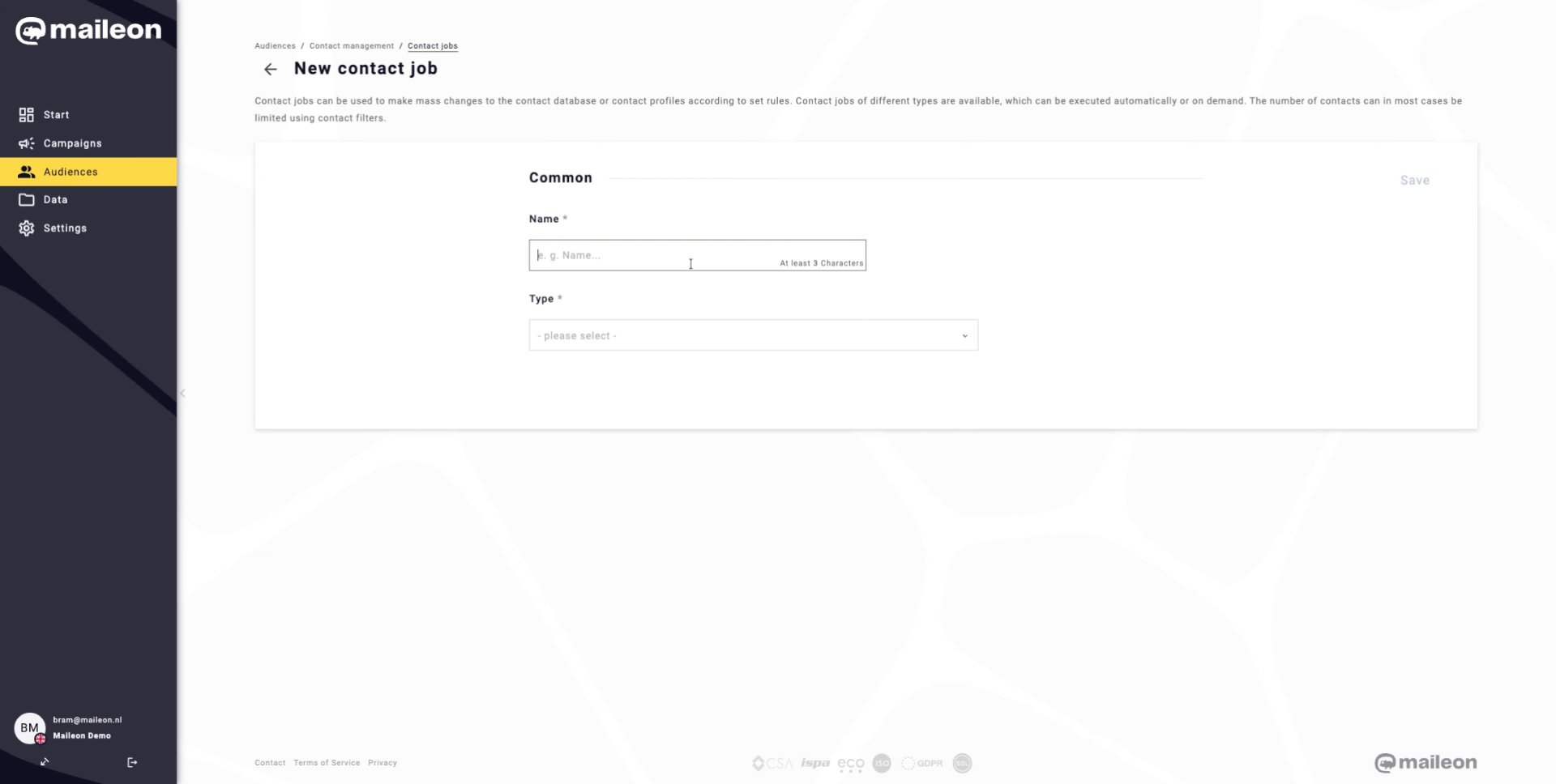
7. Open Selection Menu
Click "- please select -" to open the dropdown menu for job type selection.
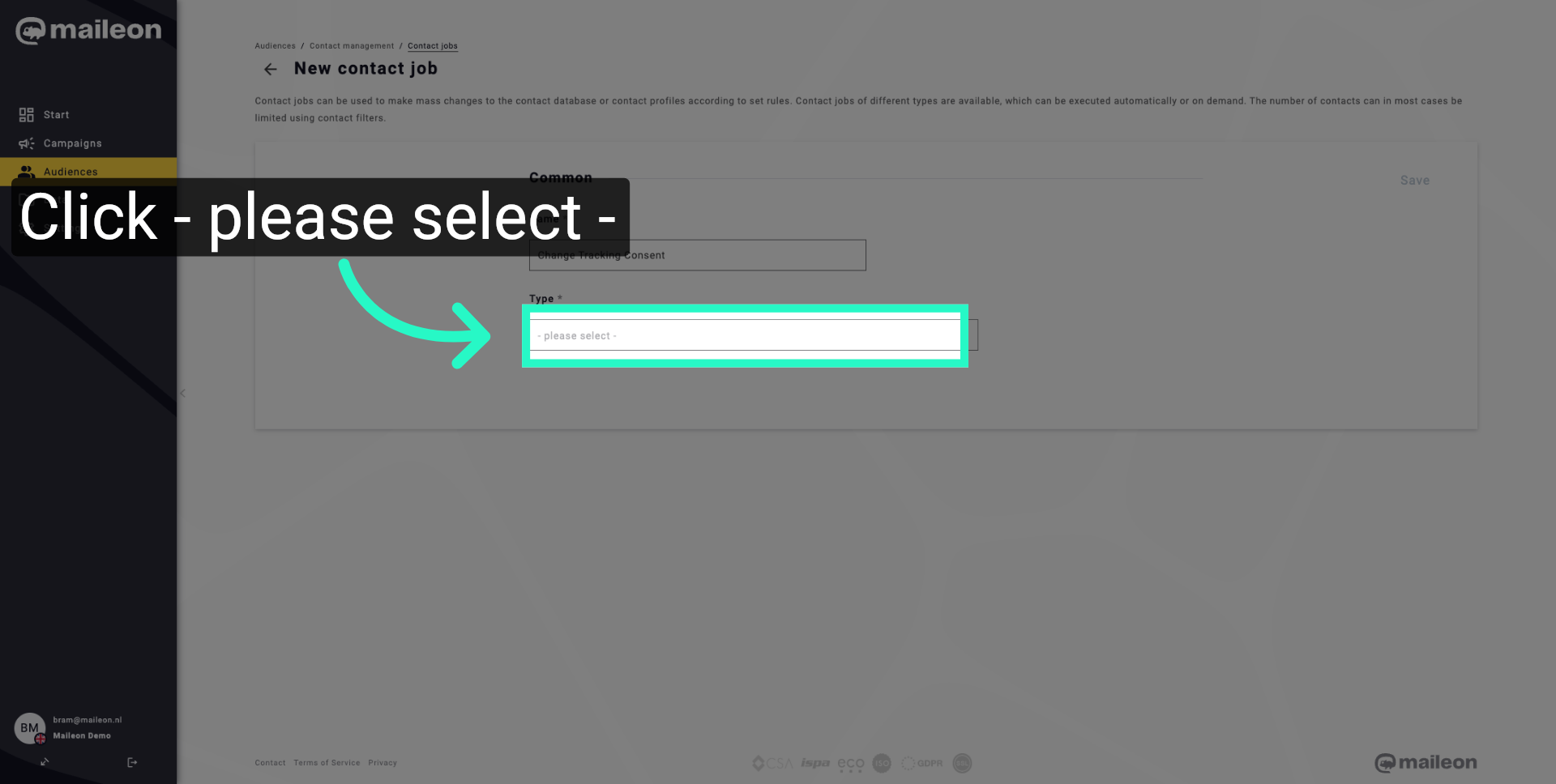
8. Select Change of permission
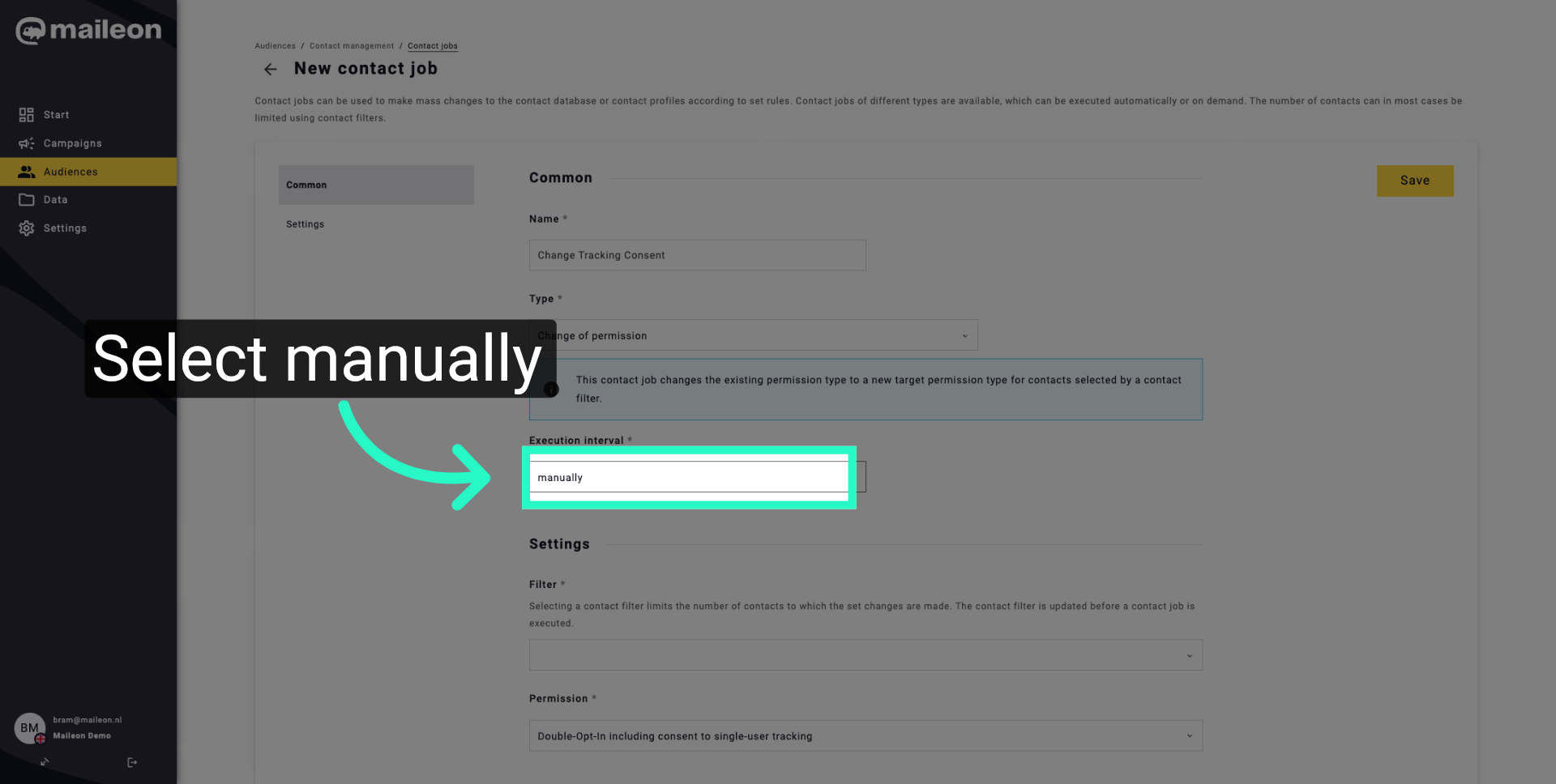
Click "manually" to specify that the job will be triggered manually.
9. Select Manual Option
Click "manually" to specify that the job will be triggered manually.
10. Set Daily Frequency
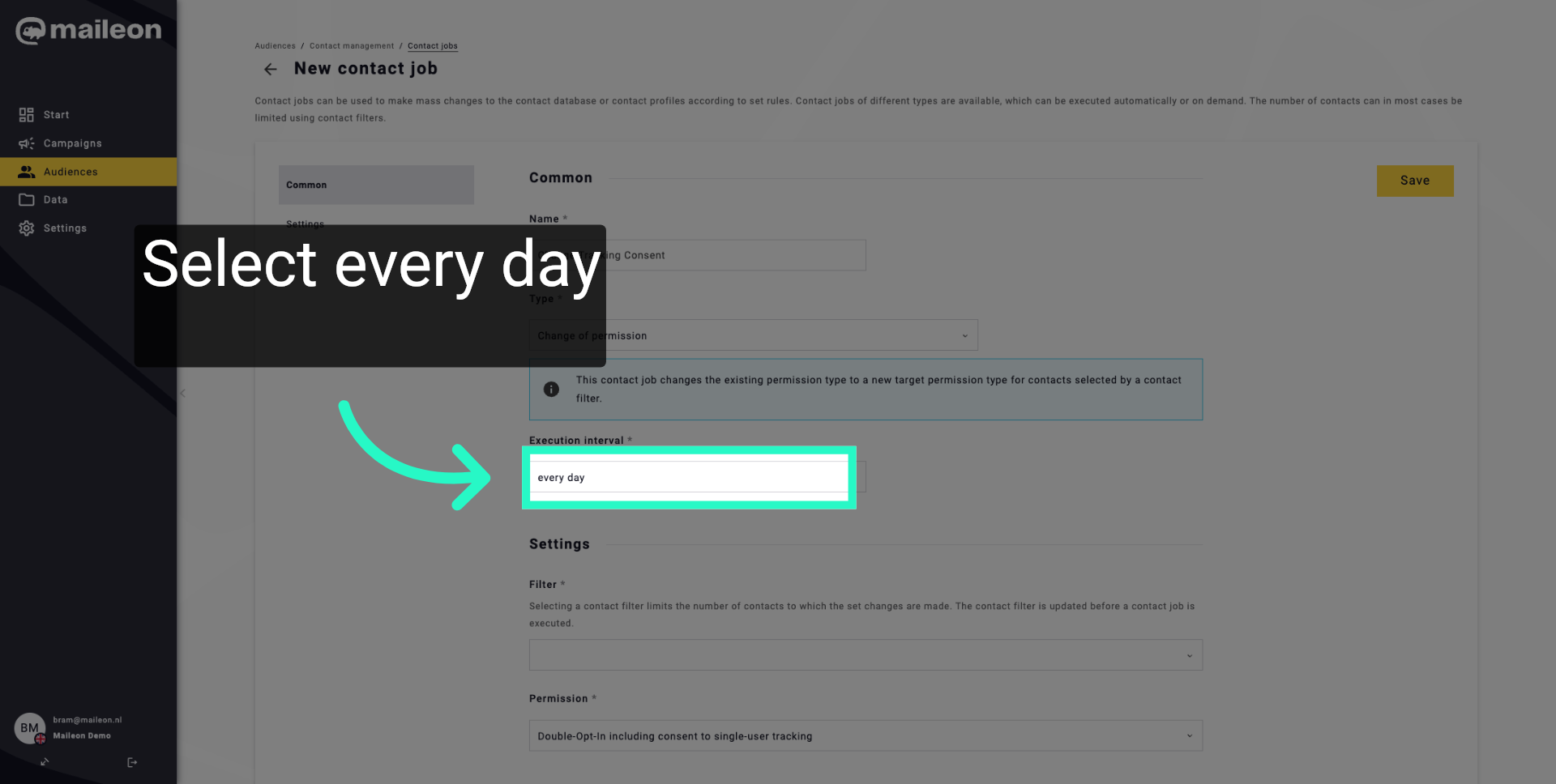
Click "every day" to schedule the job to run daily.
11. Proceed To Next Step
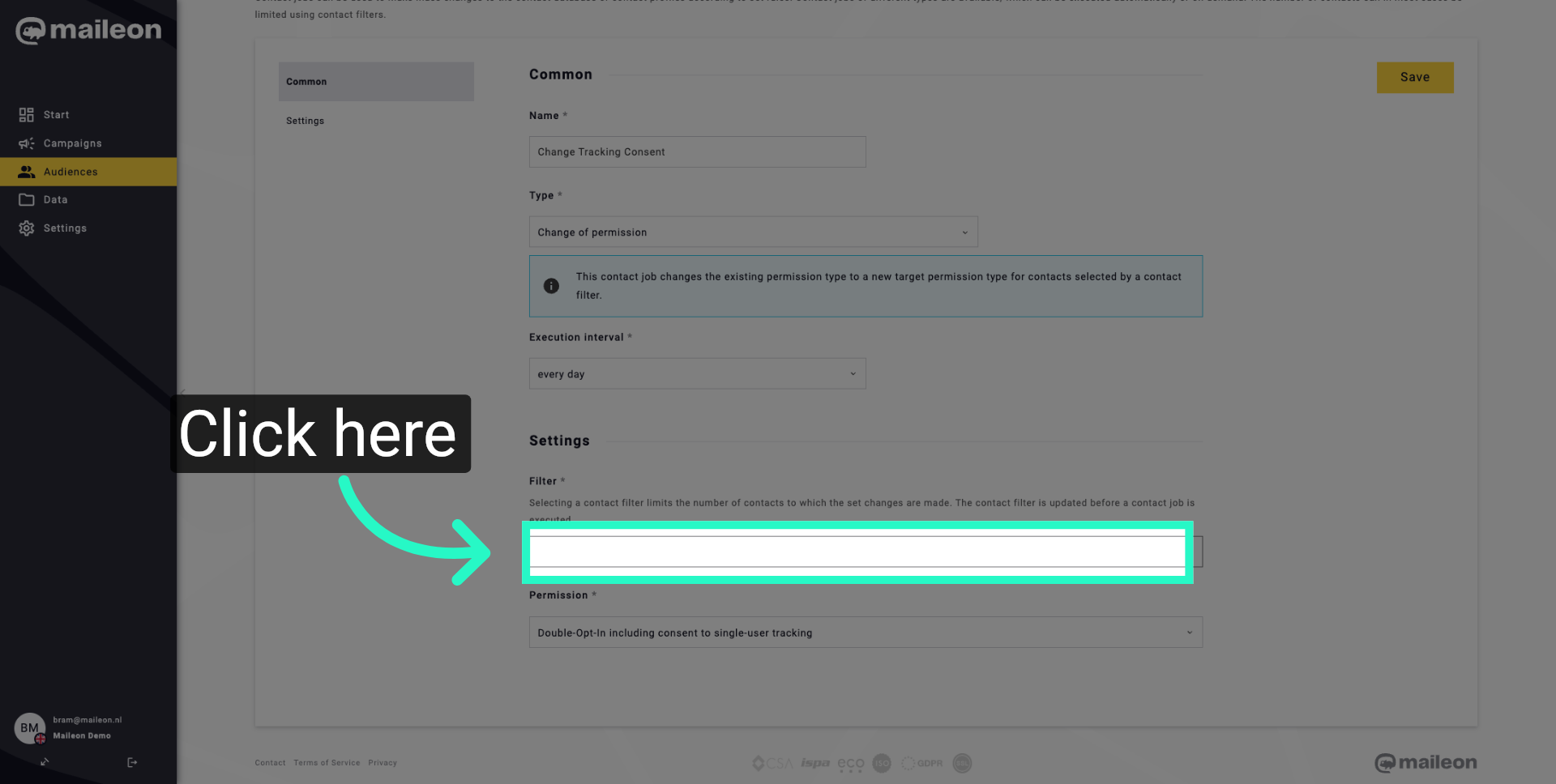
Click here to continue to the next configuration step.
12. Enter Tracking Details
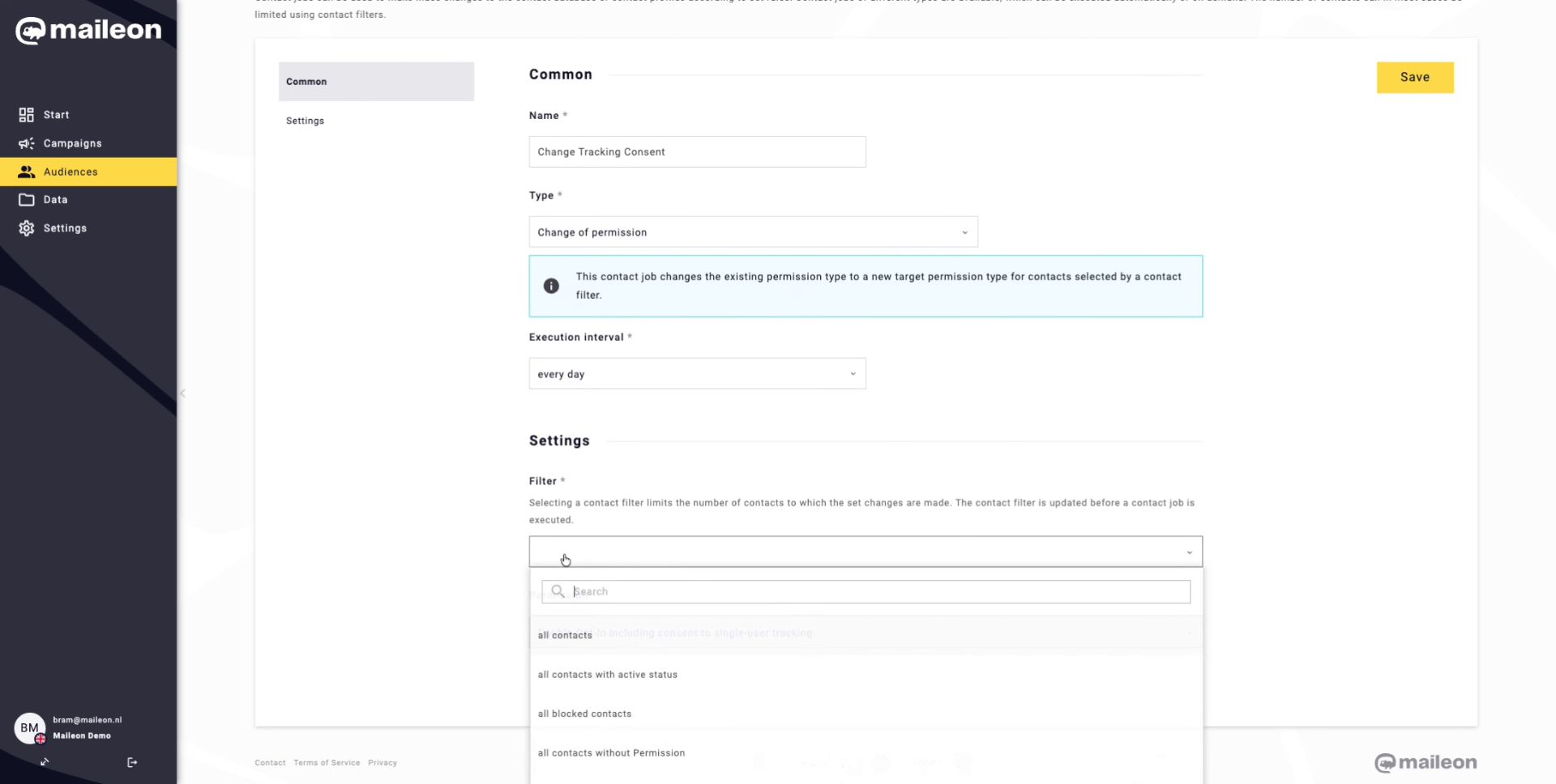
Fill "Tracking" to provide the necessary tracking information for the job.
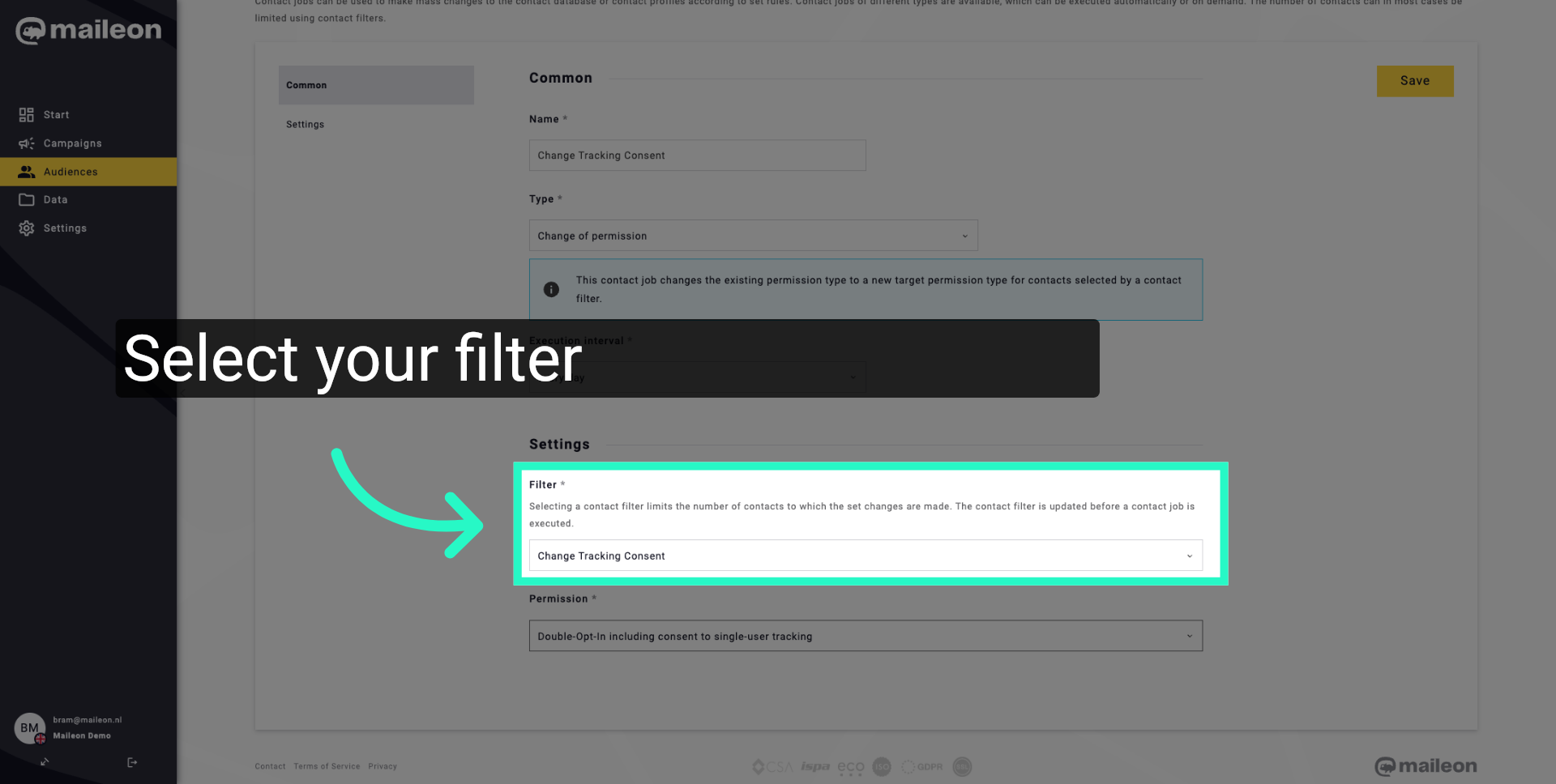
13. Select Tracking Consent
Click "Double-Opt-In including consent to single-user tracking" to enable this option.
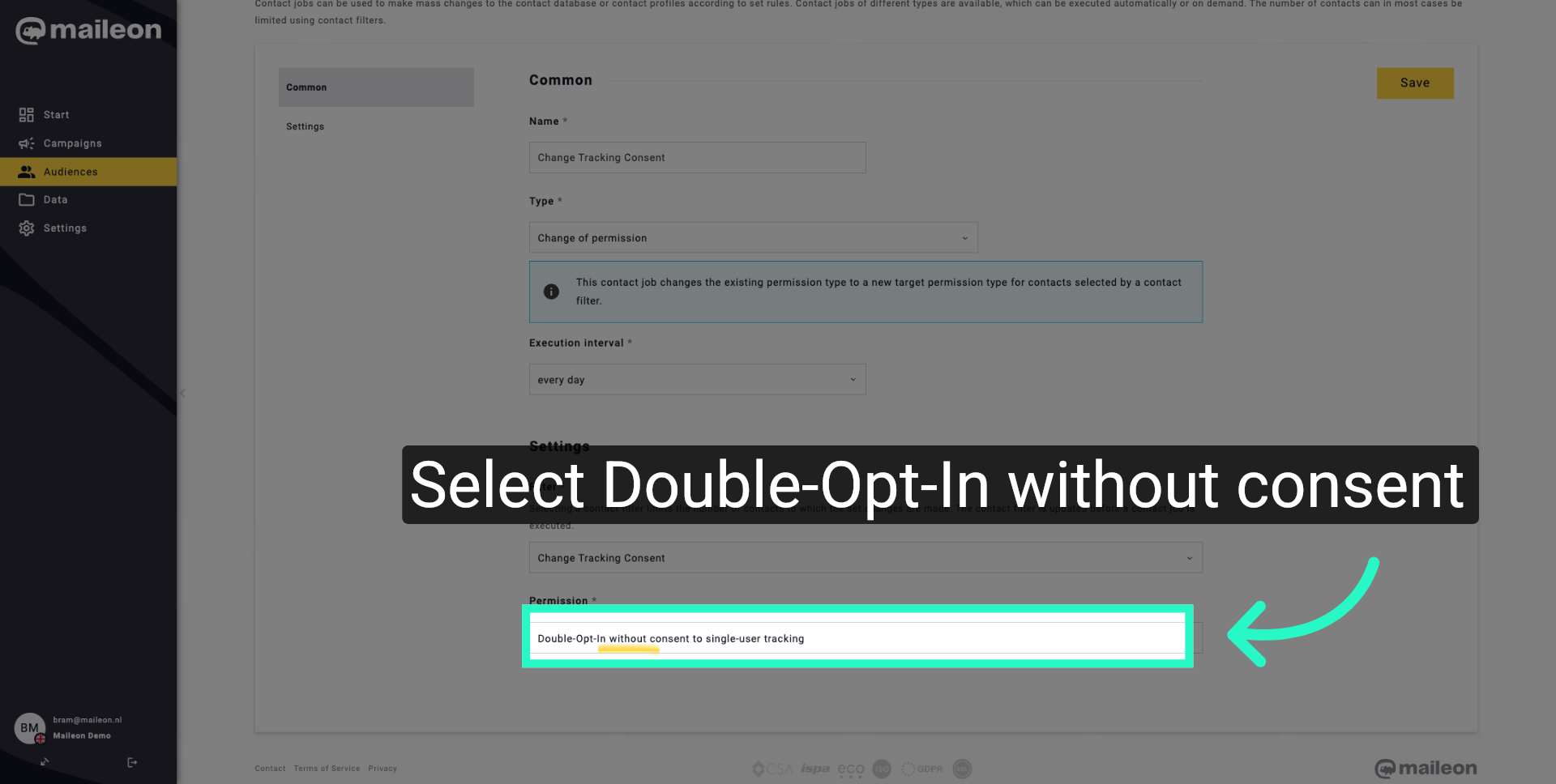
14. Choose Double-Opt-In Without Consent
Click "Double-Opt-In without consent to single-user tracking" to select this alternative.
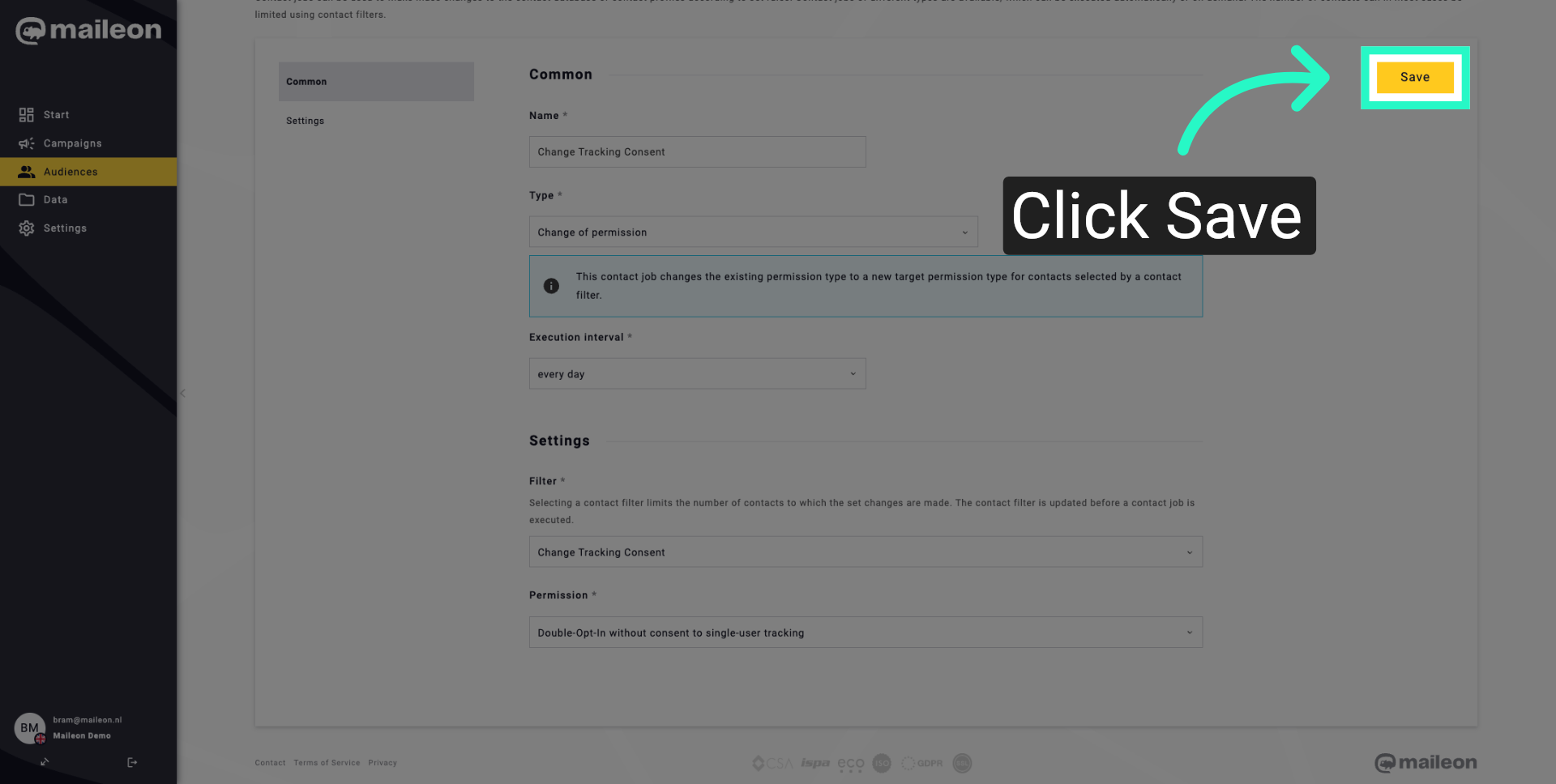
15. Save Contact Job
Click "Save" to store the new contact job configuration.
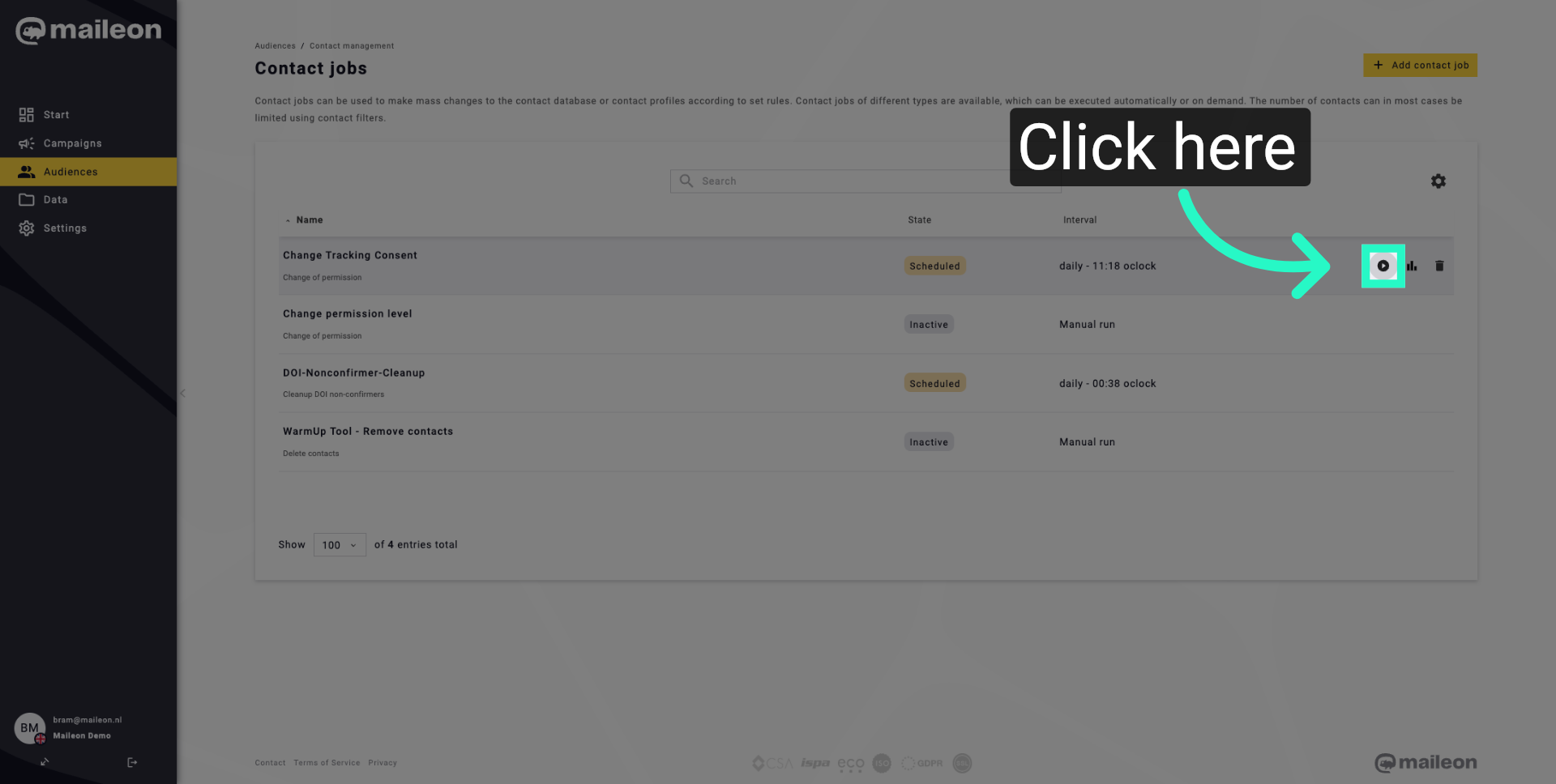
16. Continue To Confirmation
Click here to proceed to the confirmation screen.
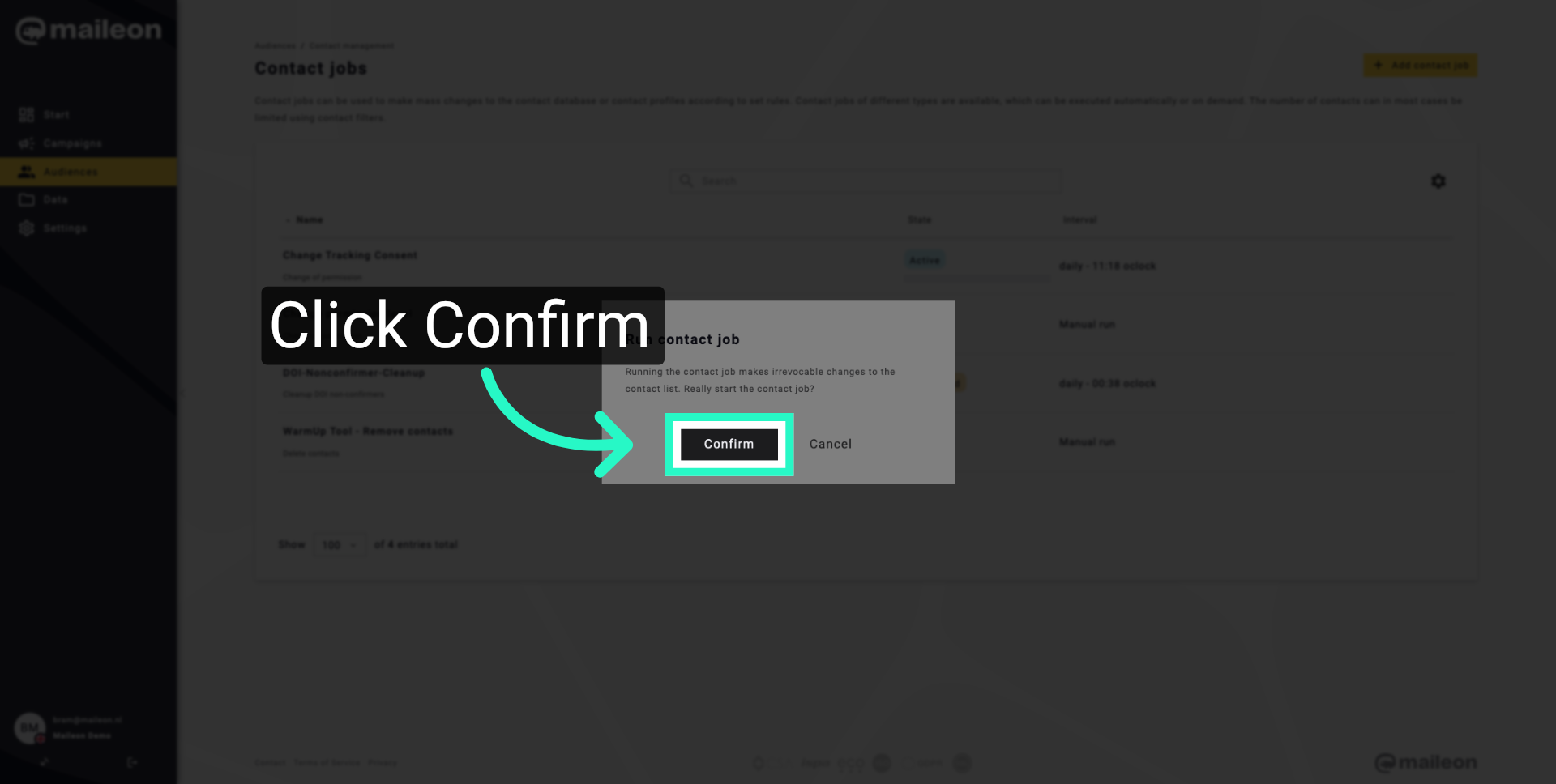
17. Confirm Contact Job Setup
Click "Confirm" to finalise and activate the contact job setup.
You have successfully configured a contact job in Maileon to manage tracking consent changes. This setup ensures that tracking permissions are handled efficiently and updated regularly.