
This tutorial explains how to add an AI label to an image within the Maileon platform to get compliant with new EU AI regulations.
1. Introduction
You will learn the steps to comply with legal transparency requirements by labelling AI-created or modified images.
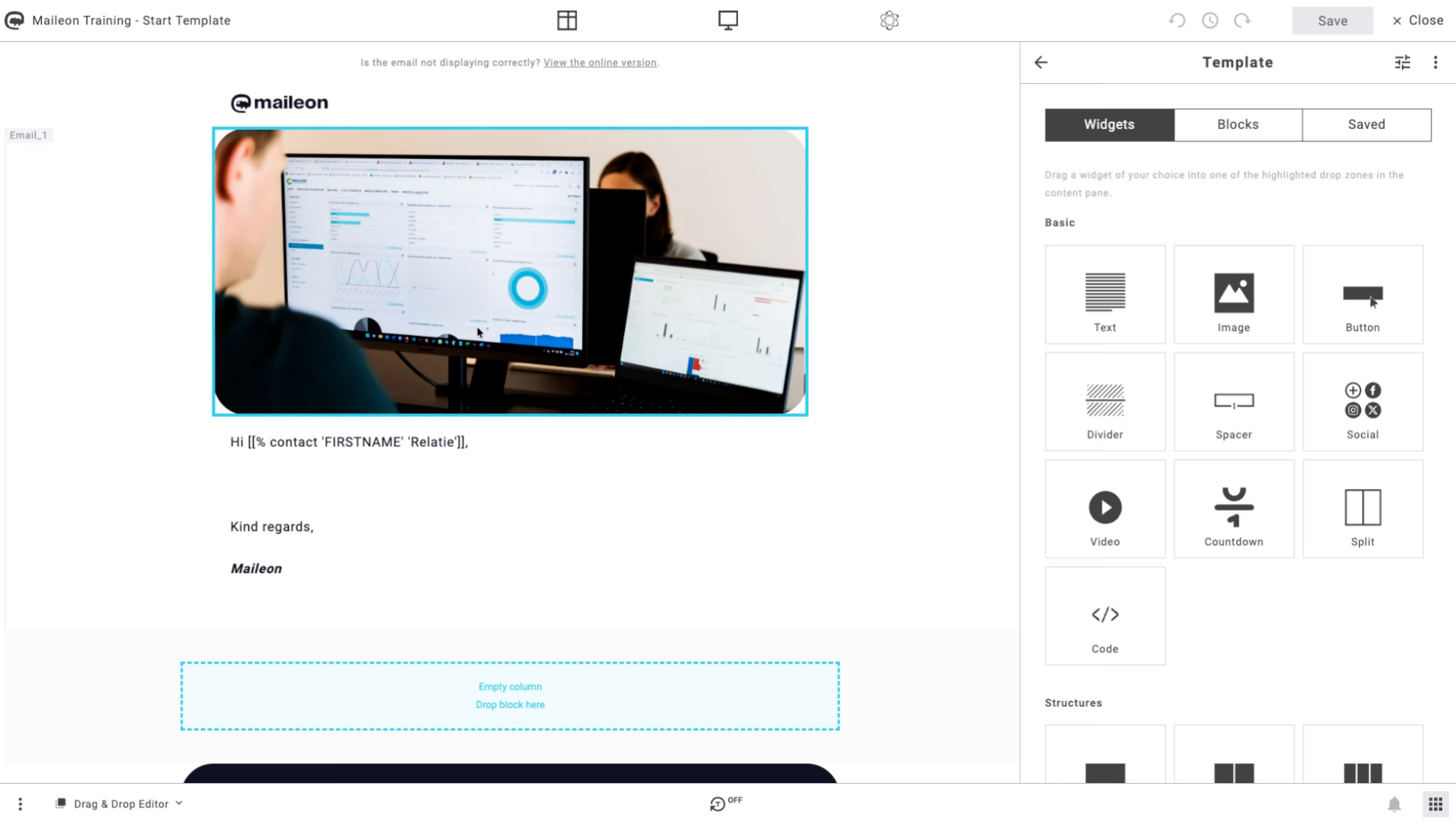
2. Access AI Label Options
Click here to open the AI label options within the Maileon interface.
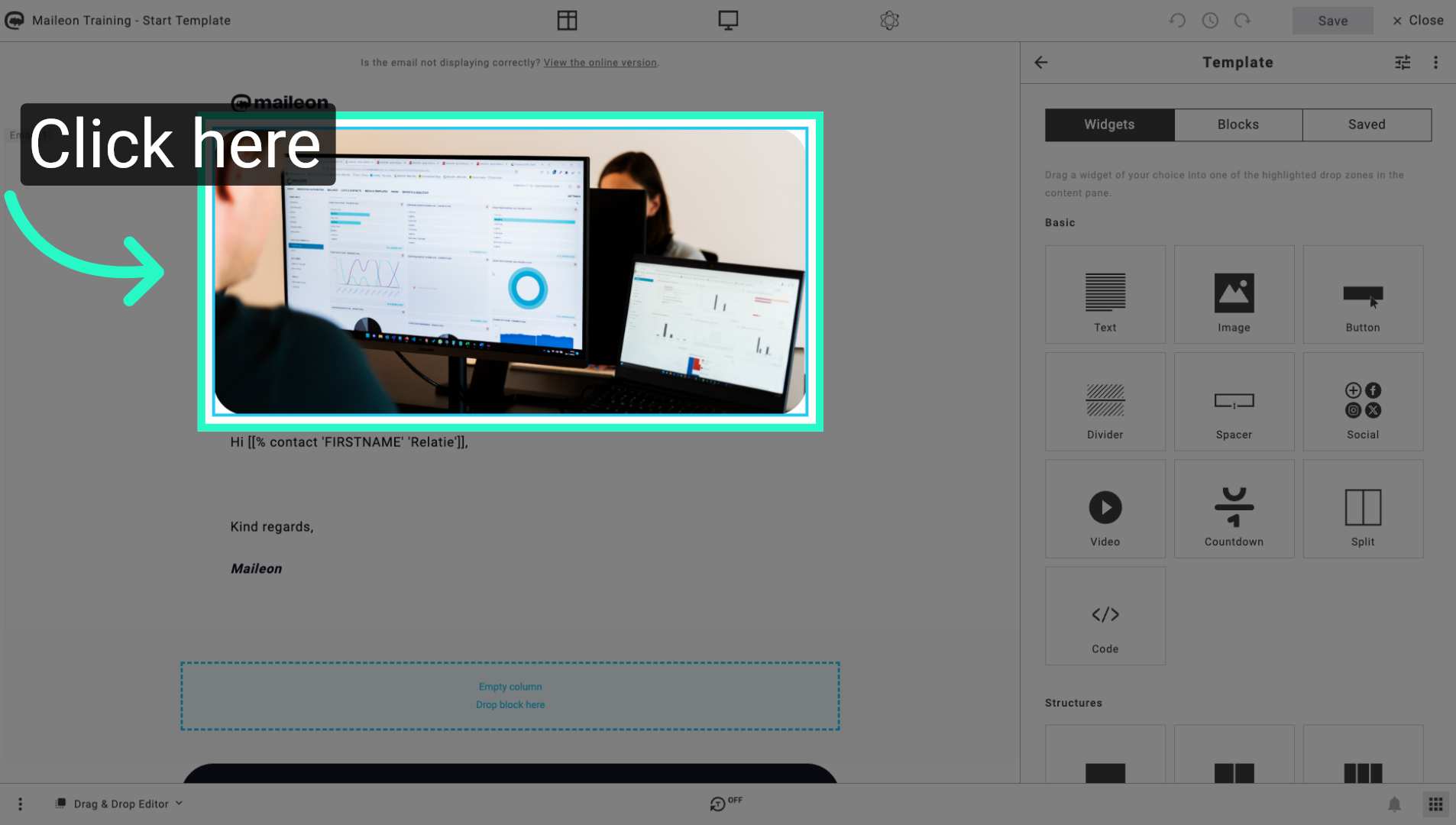
3. Review AI Label Prompt
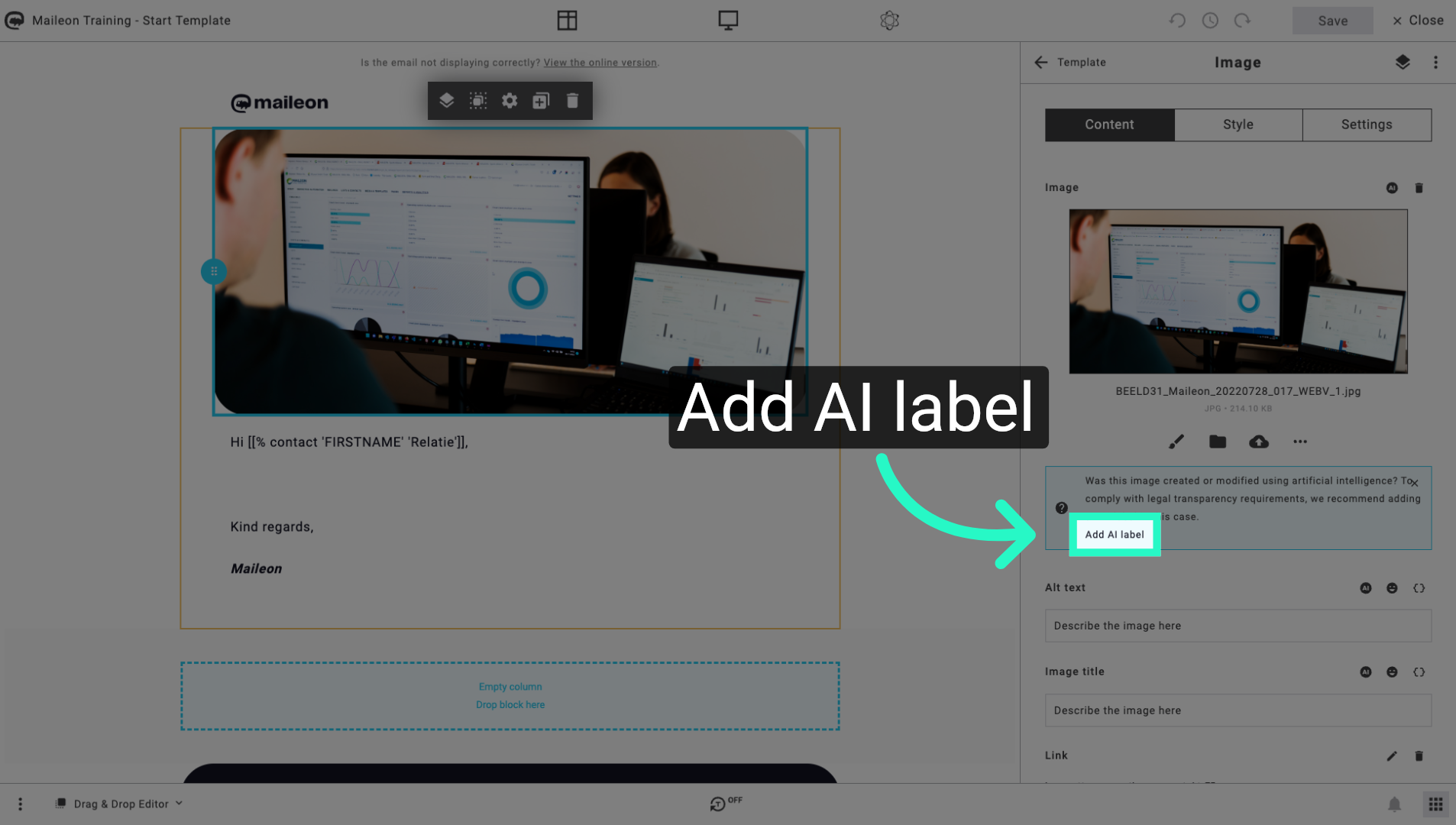
Click "Was this image created or modified using artificial intelligence? To comply with legal transparency requirements, we recommend adding an AI label in this case.Add AI label" to proceed with labelling.
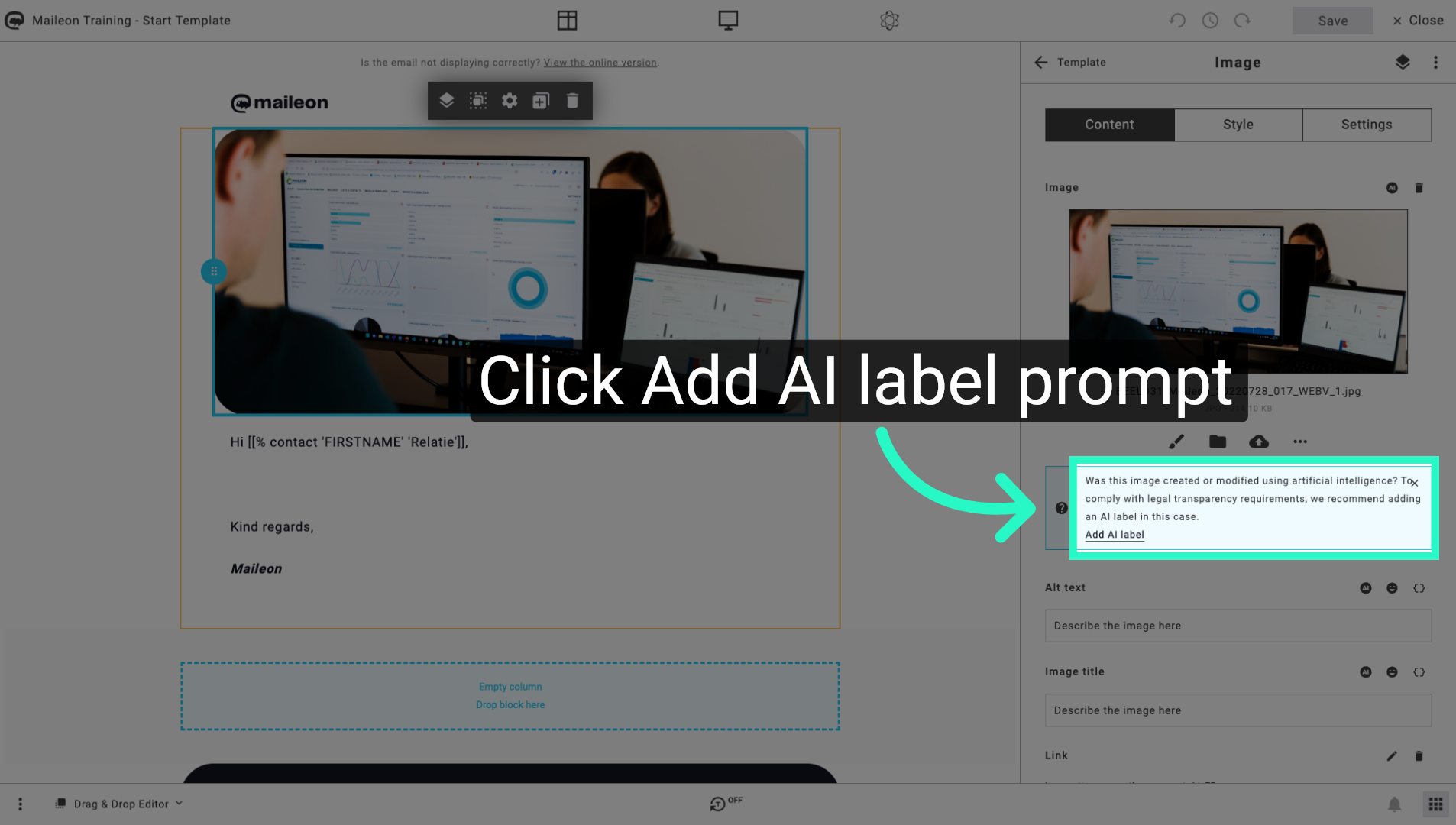
4. Confirm AI Label Selection
Click "Was this image created or modified using artificial intelligence? To comply with legal transparency requirements, we recommend adding an AI label in this case.Add AI label" again to confirm your choice.
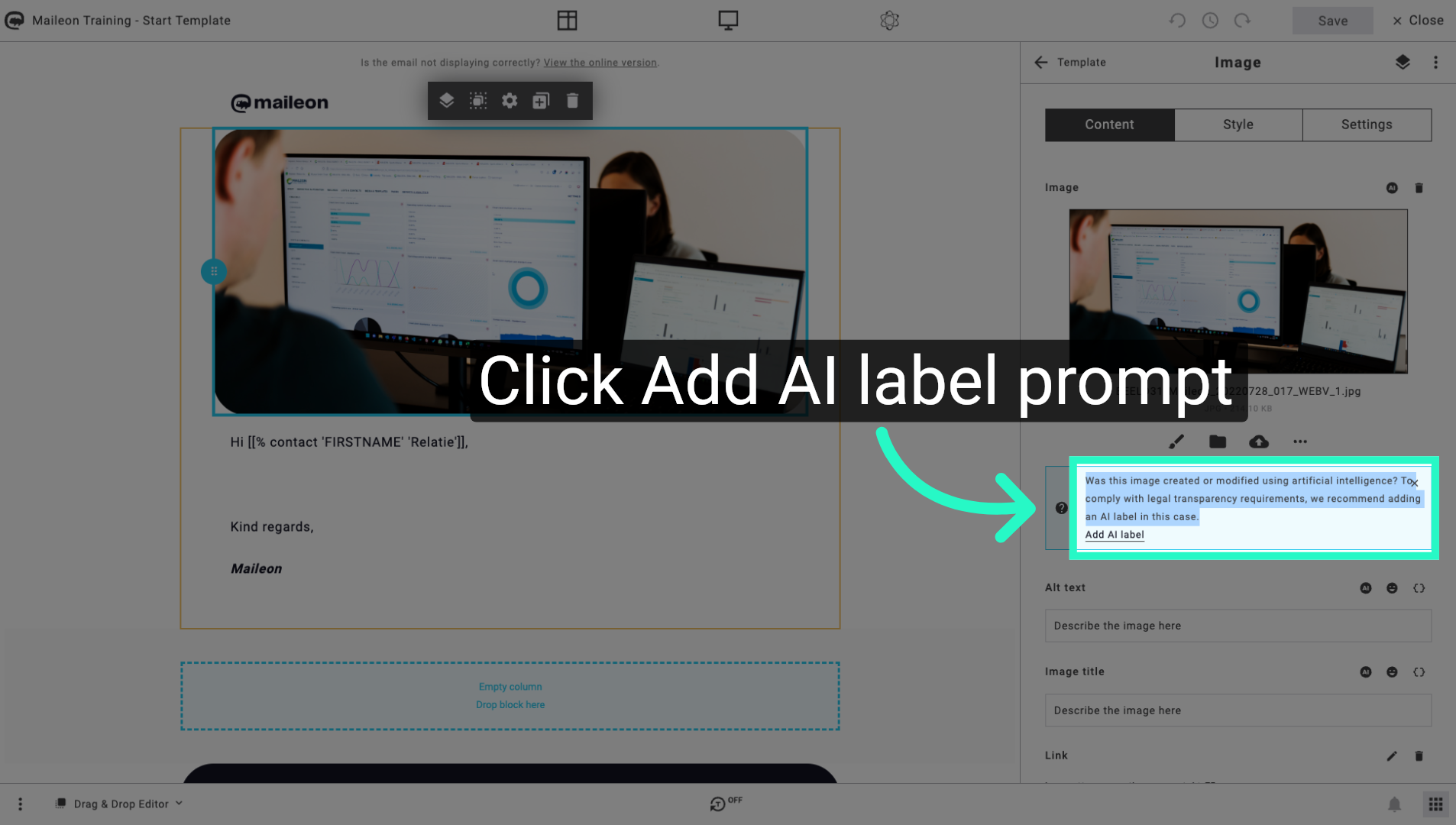
5. Add AI Label To Image
Click "Add AI label" to apply the AI label to the selected image.
6. Save Label Changes
Click "Save" to save the changes and finalise the AI label addition.
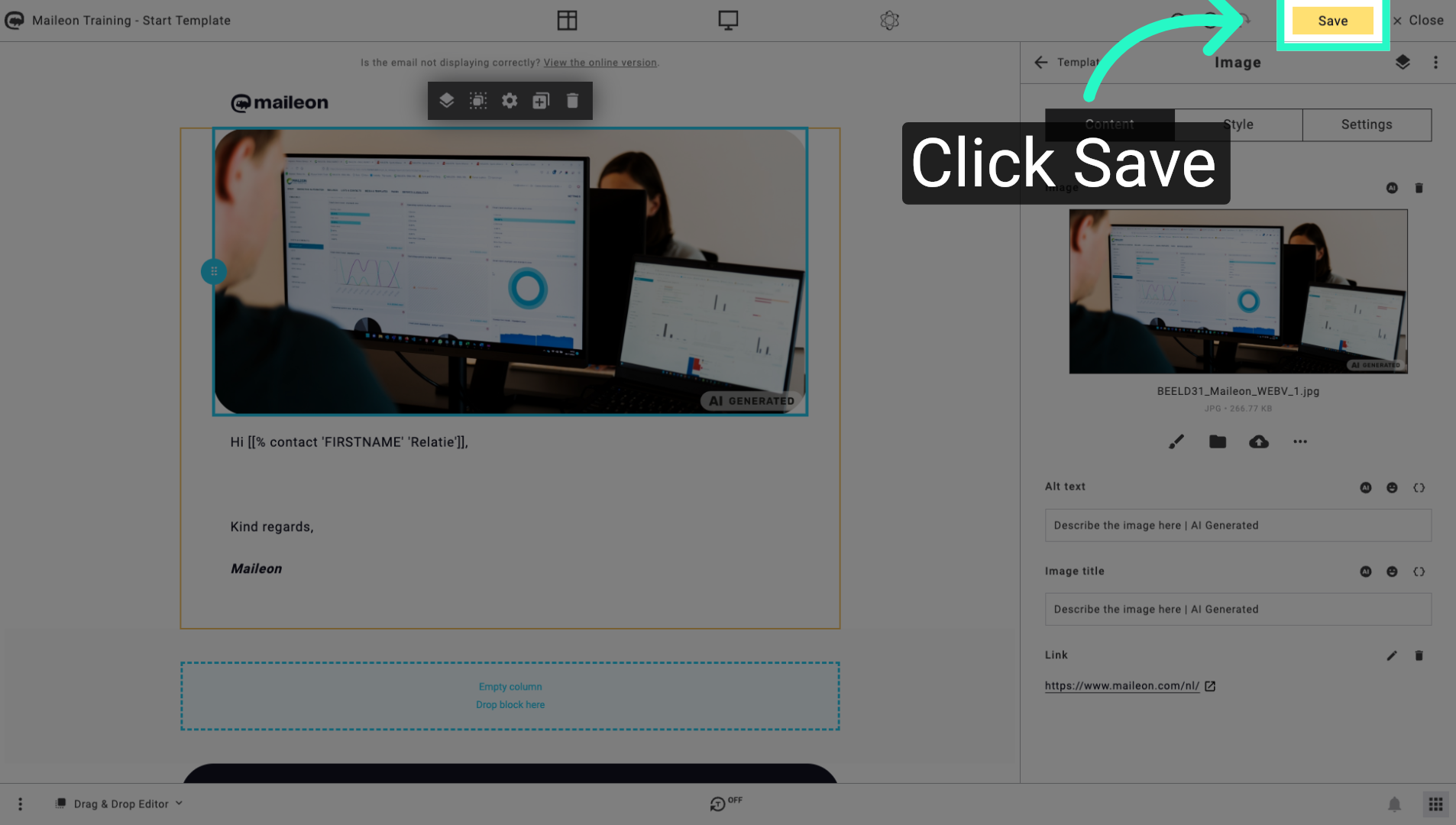
You have successfully added and saved an AI label to an image in Maileon, ensuring compliance with legal transparency requirements. You can now proceed to label other images or manage your content settings as needed.