
This tutorial guides you through configuring unsubscribe preferences within the Maileon platform.
Go to maileon-benelux-maileon-de.maileon.com
1. Introduction
You will learn how to update tracking and permission settings to manage user consent effectively.
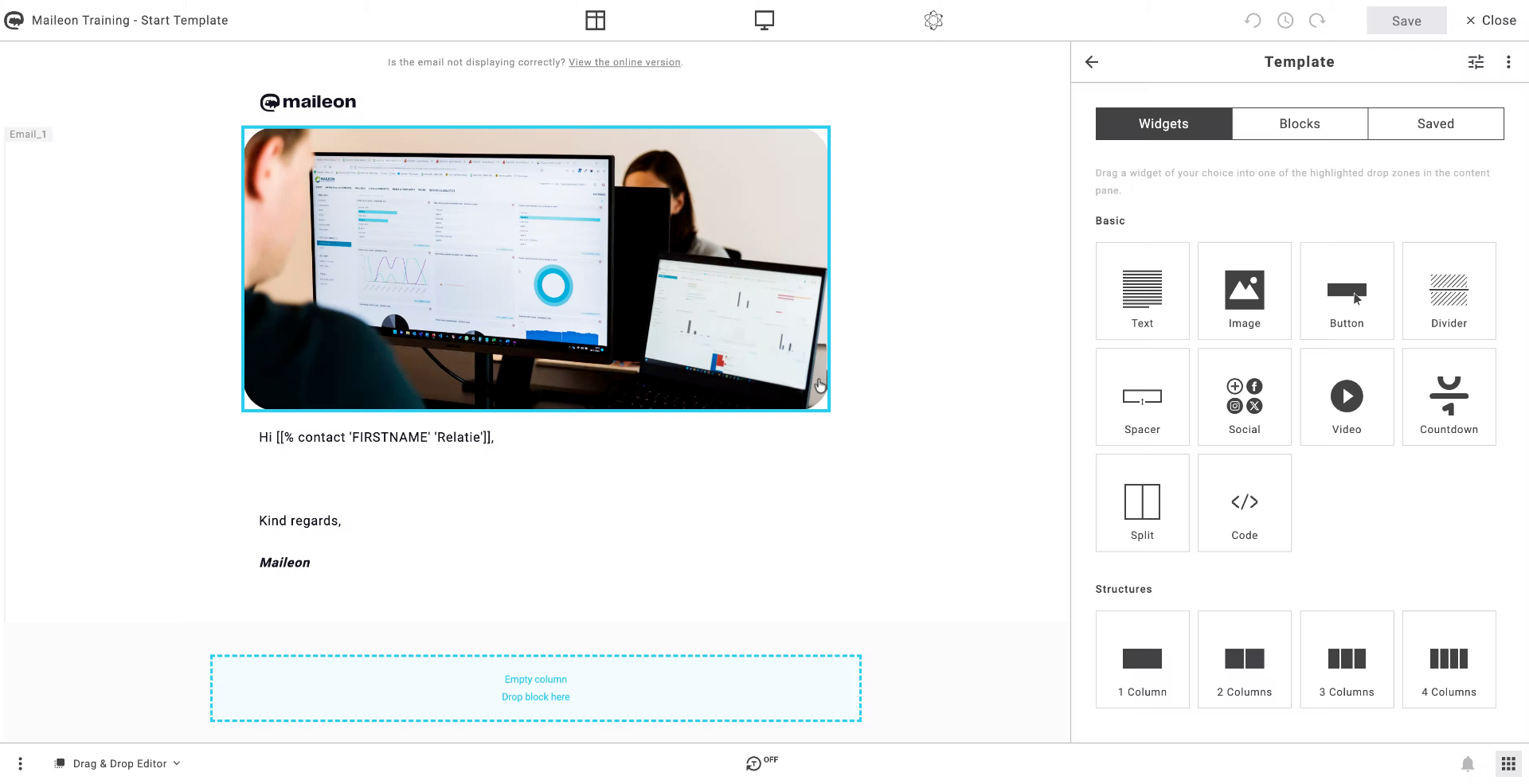
2. Open Unsubscribe Preferences Again
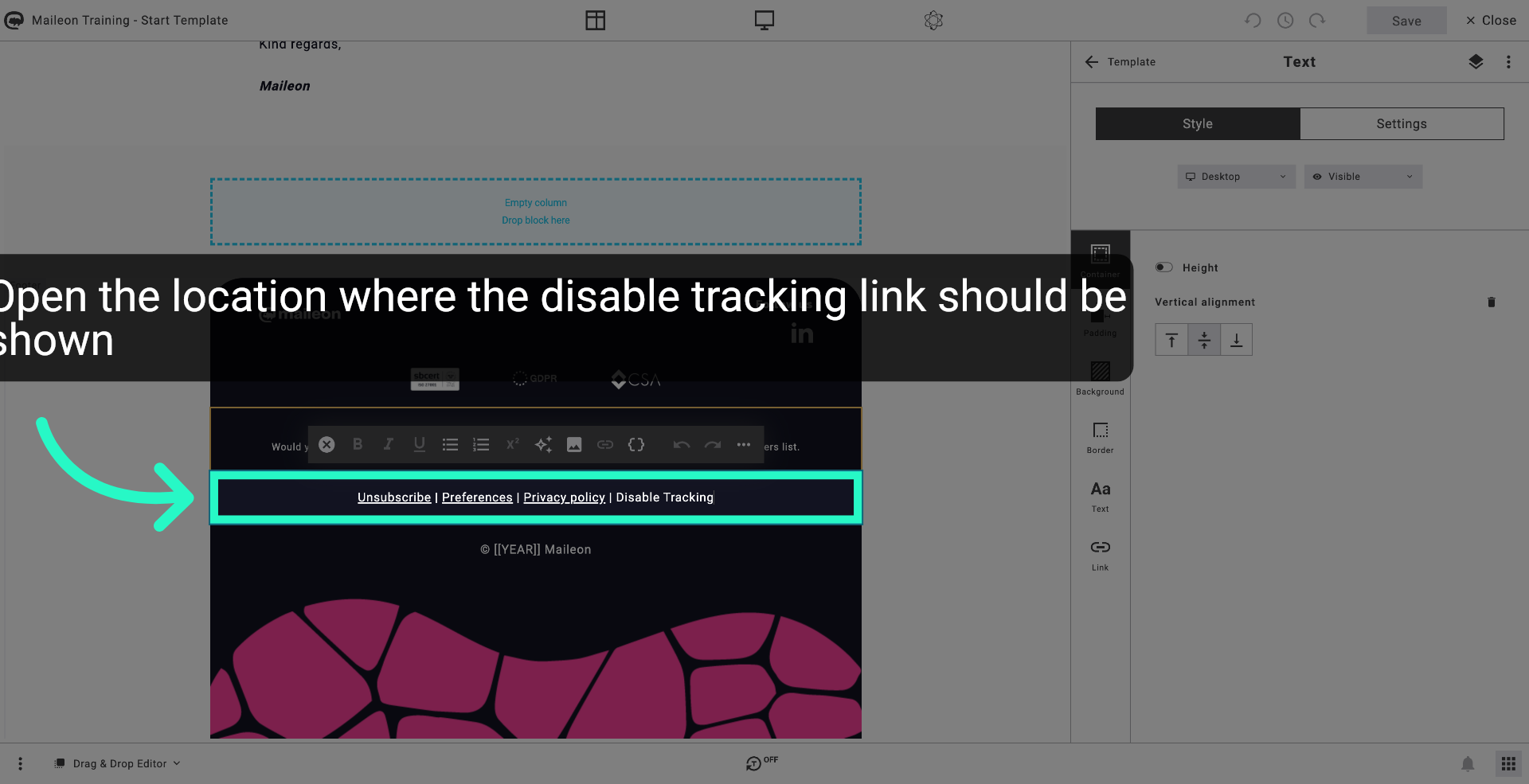
Click "Unsubscribe Preferences | Privacy policy | Disable Tracking" once more to ensure the settings page is fully loaded.
3. Proceed to Next Option
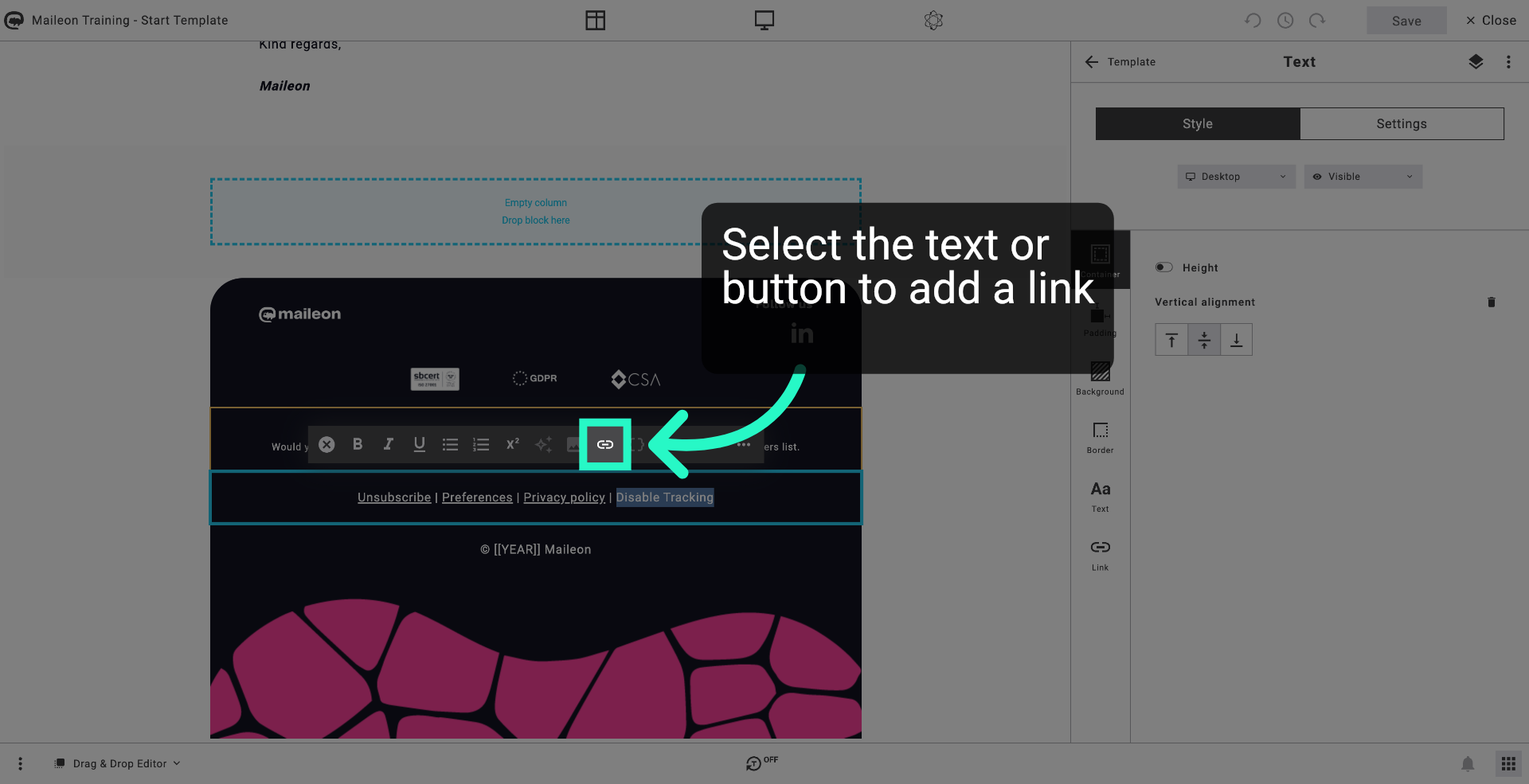
Click here to continue to the next configuration step within the unsubscribe preferences.
4. Select Standard Links Settings
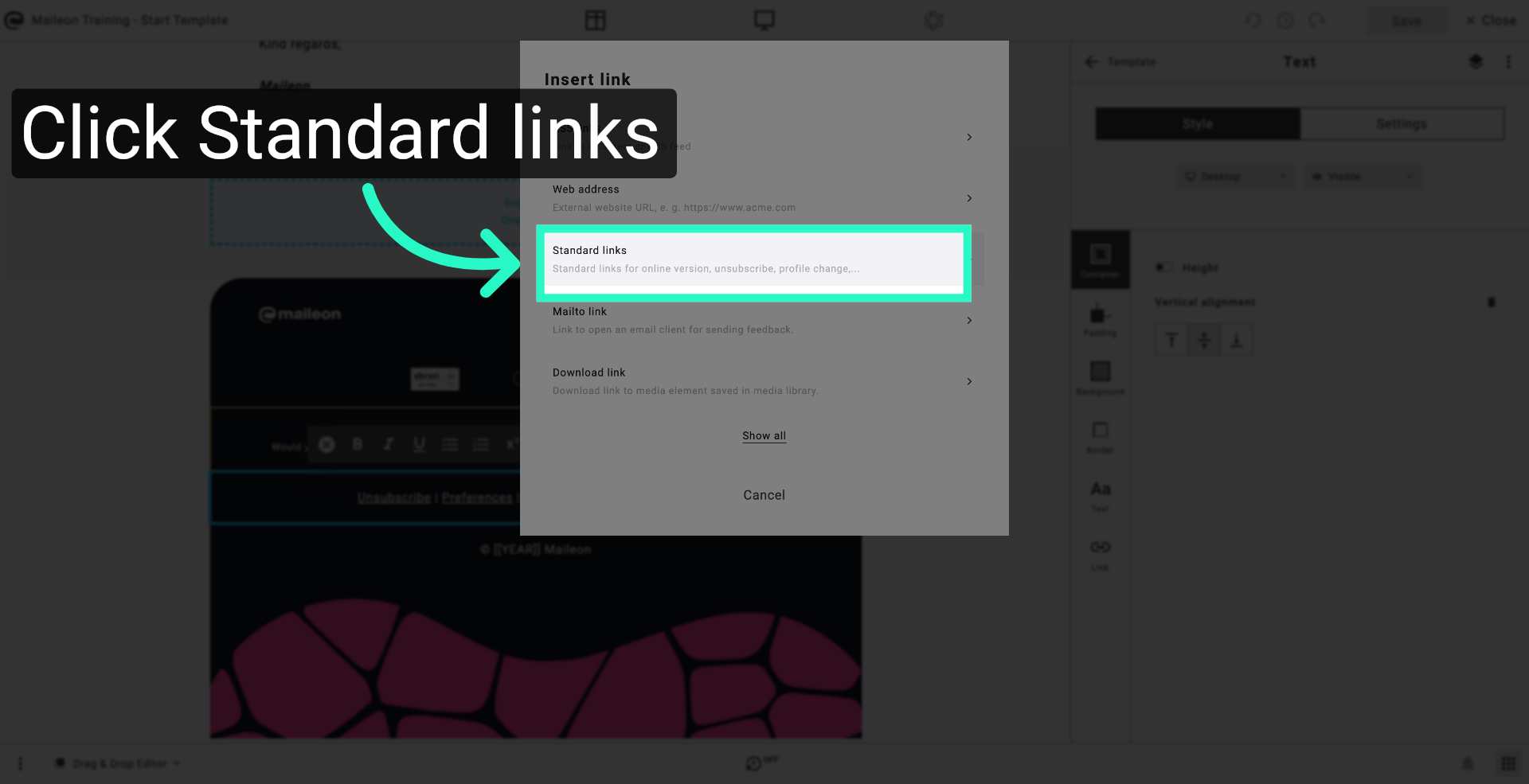
Click "Standard linksStandard links for online version, unsubscribe, profile change,..." to access the standard link options for email communications.
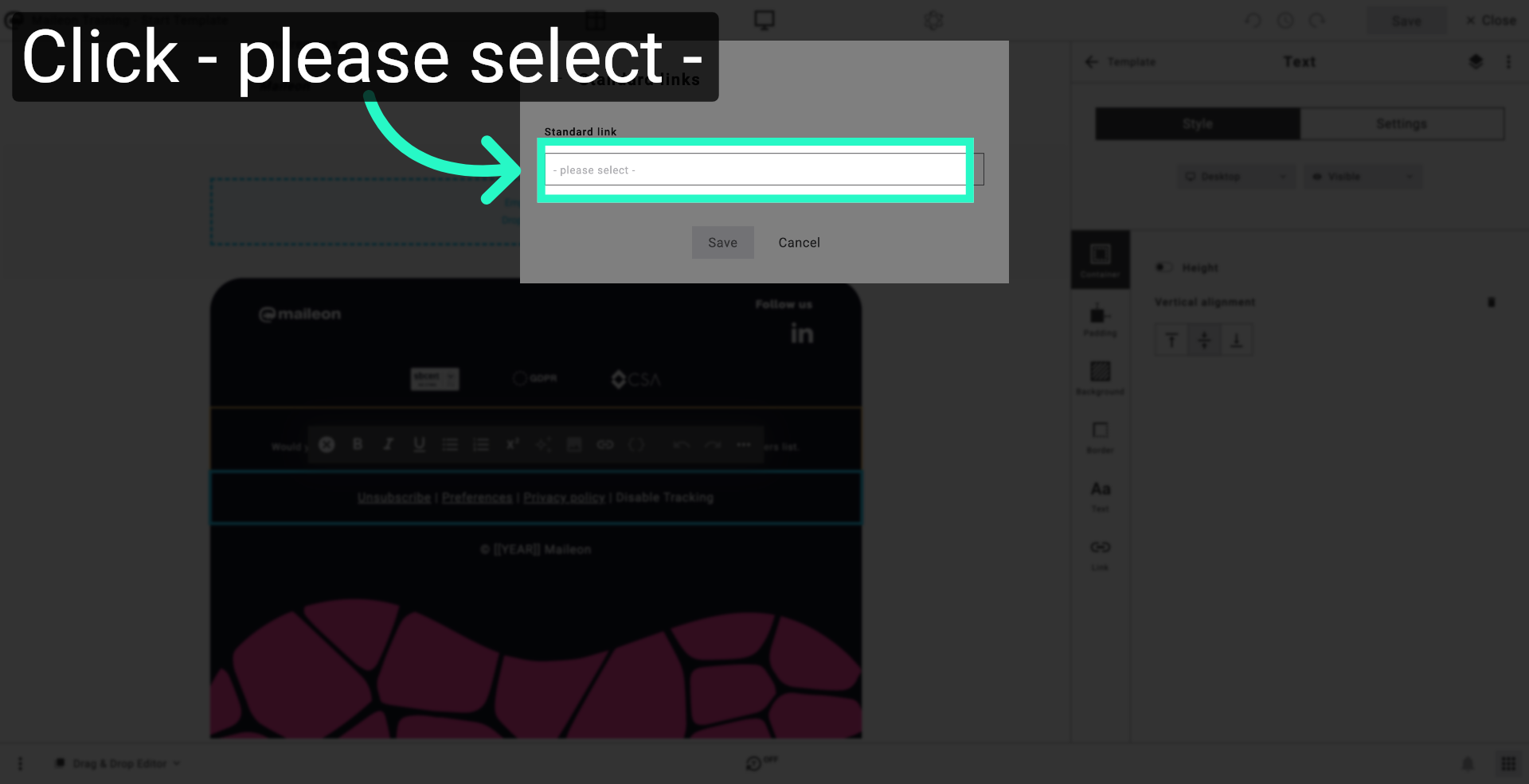
5. Open Selection Dropdown
Click "- please select -" to open the dropdown menu for choosing a specific standard link setting.
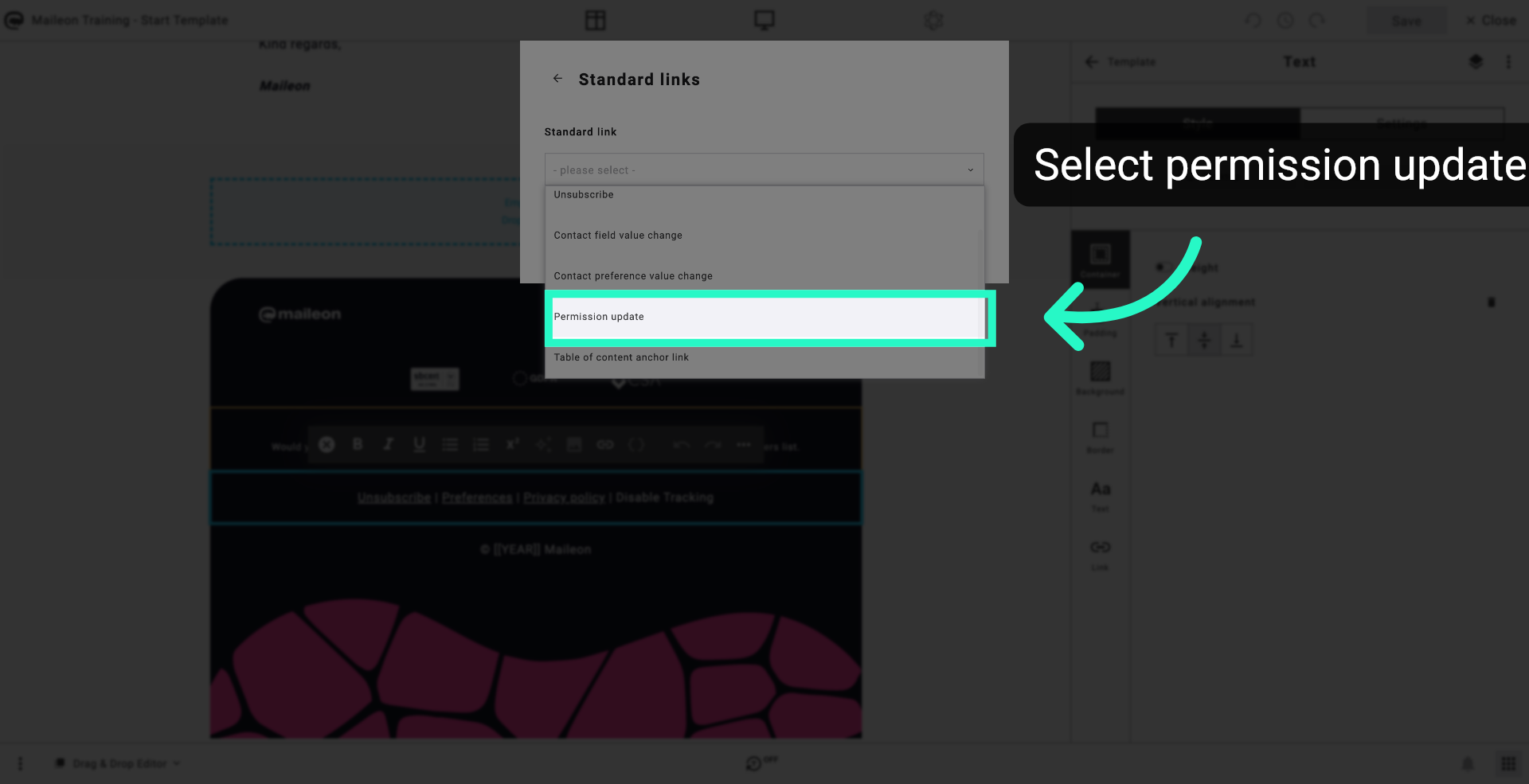
6. Choose Permission Update Option
Click "Permission update" to select the permission update setting for managing user consent.
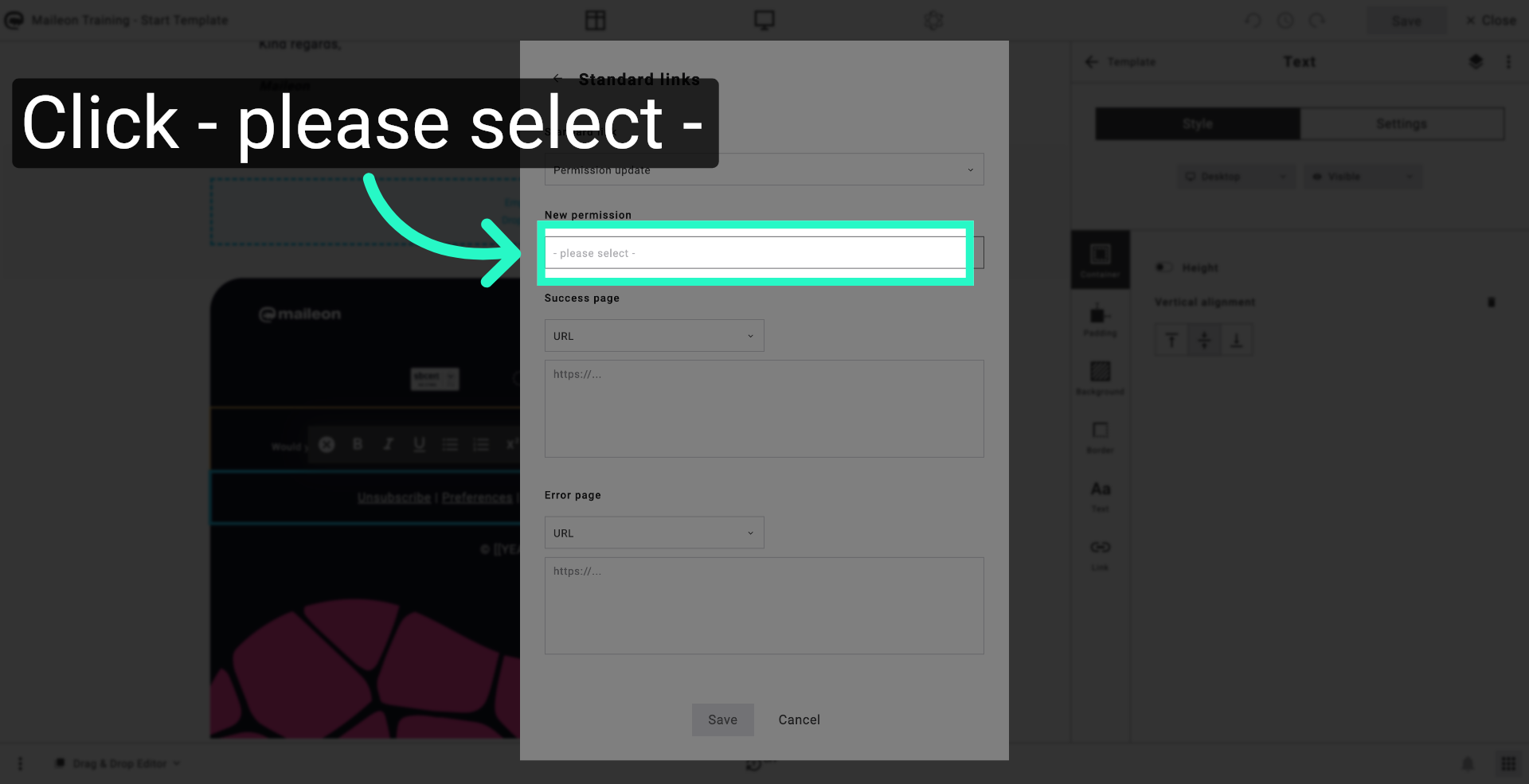
7. Open Another Dropdown Menu
Click "- please select -" to reveal additional options related to permission settings.
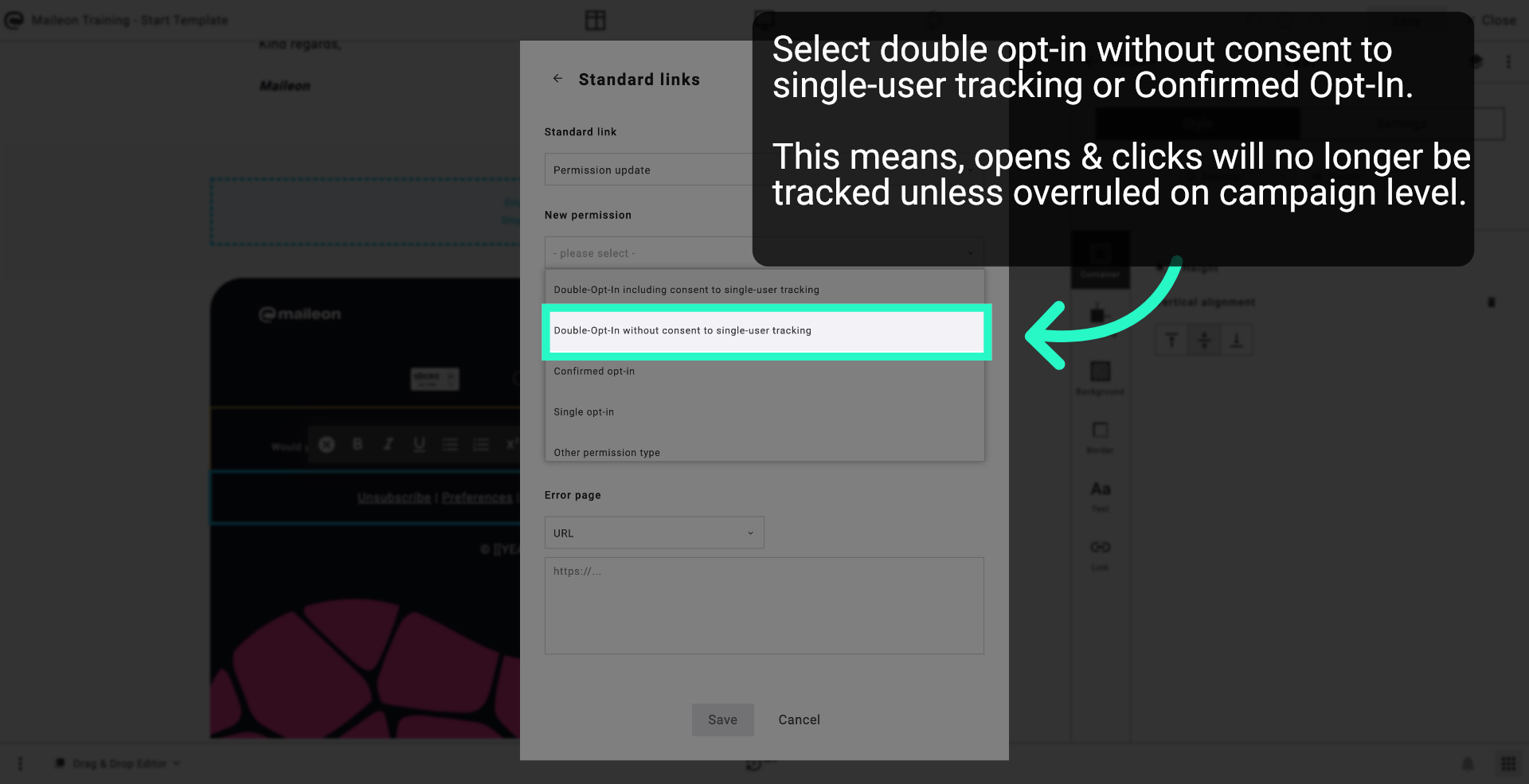
8. Select Double-Opt-In Setting
Click "Double-Opt-In without consent to single-user tracking" to configure the double opt-in process without tracking consent.
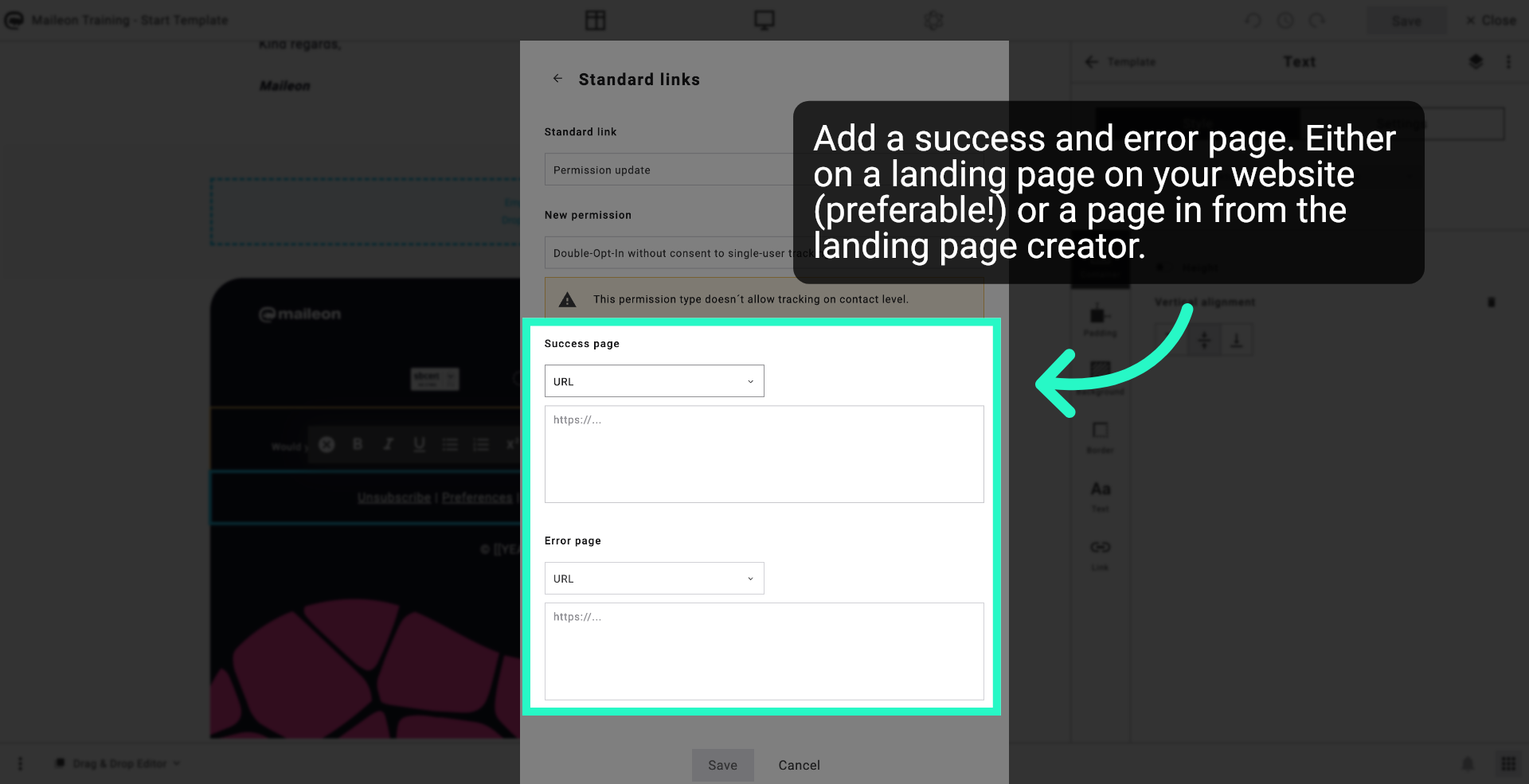
9. Choose URL Option
Click "URL" to specify the URL setting associated with the unsubscribe preferences.
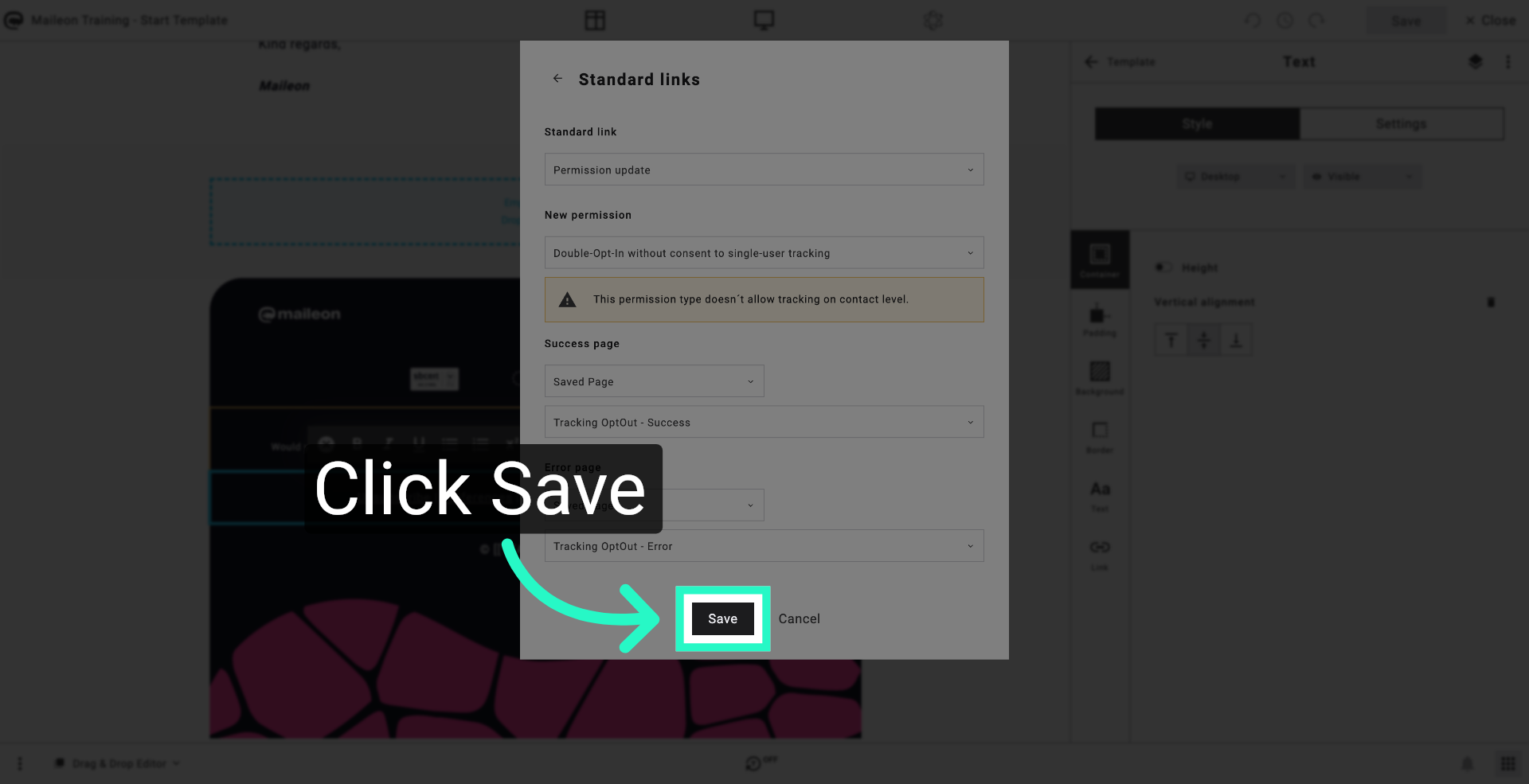
10. Save Configuration Changes
Click "Save" to apply and save all changes made to the unsubscribe preferences and tracking settings.
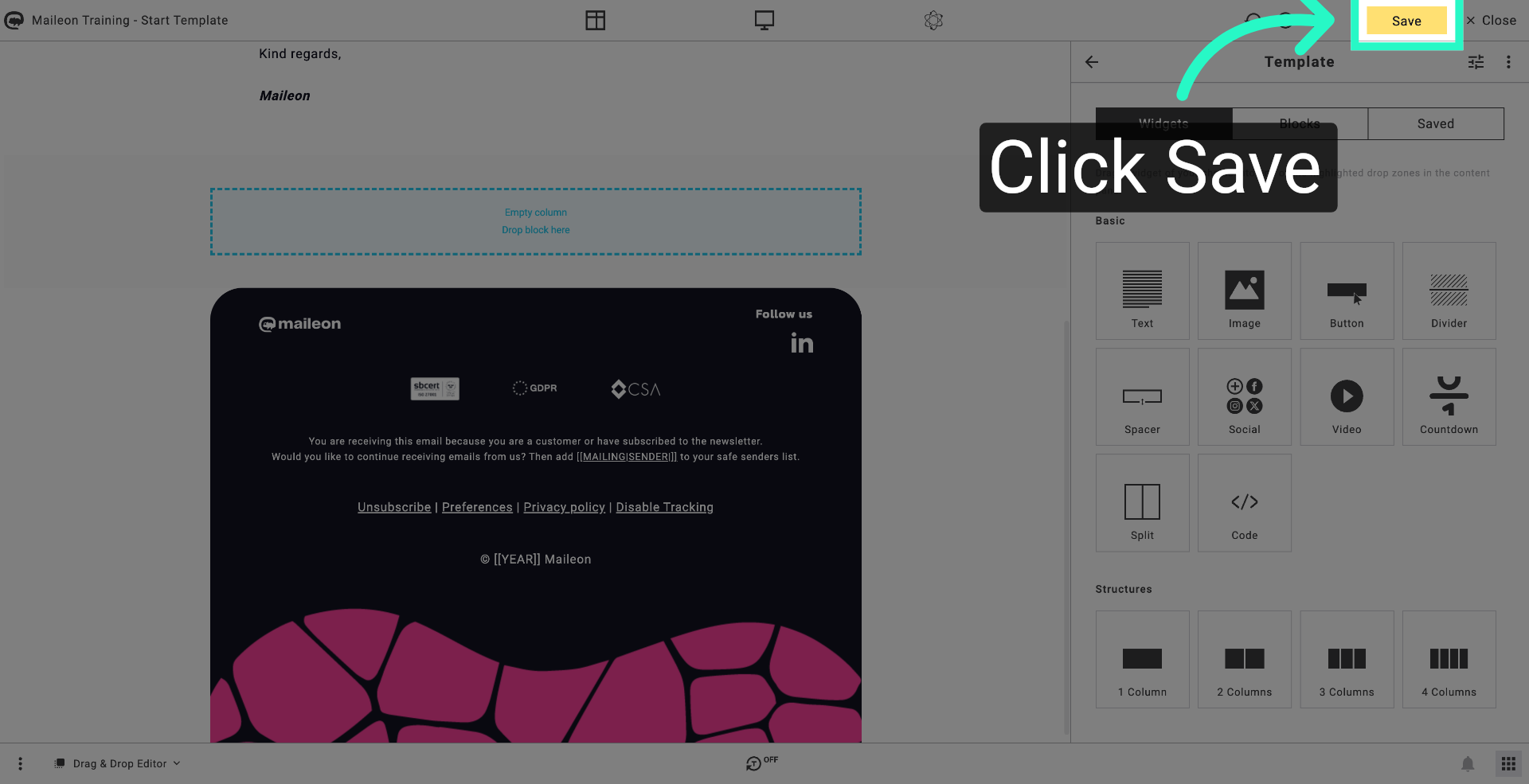
11. Finalise and Save
Click "Save" to finalise the configuration and ensure all updates are stored correctly.
You have successfully configured the unsubscribe preferences and tracking settings within Maileon. These changes ensure proper management of user consent and improve email communication compliance. For further customisation, explore additional Maileon settings or consult the support resources.