
How to create an Anchor Link
Learn how to create anchor links efficiently in Maileon.
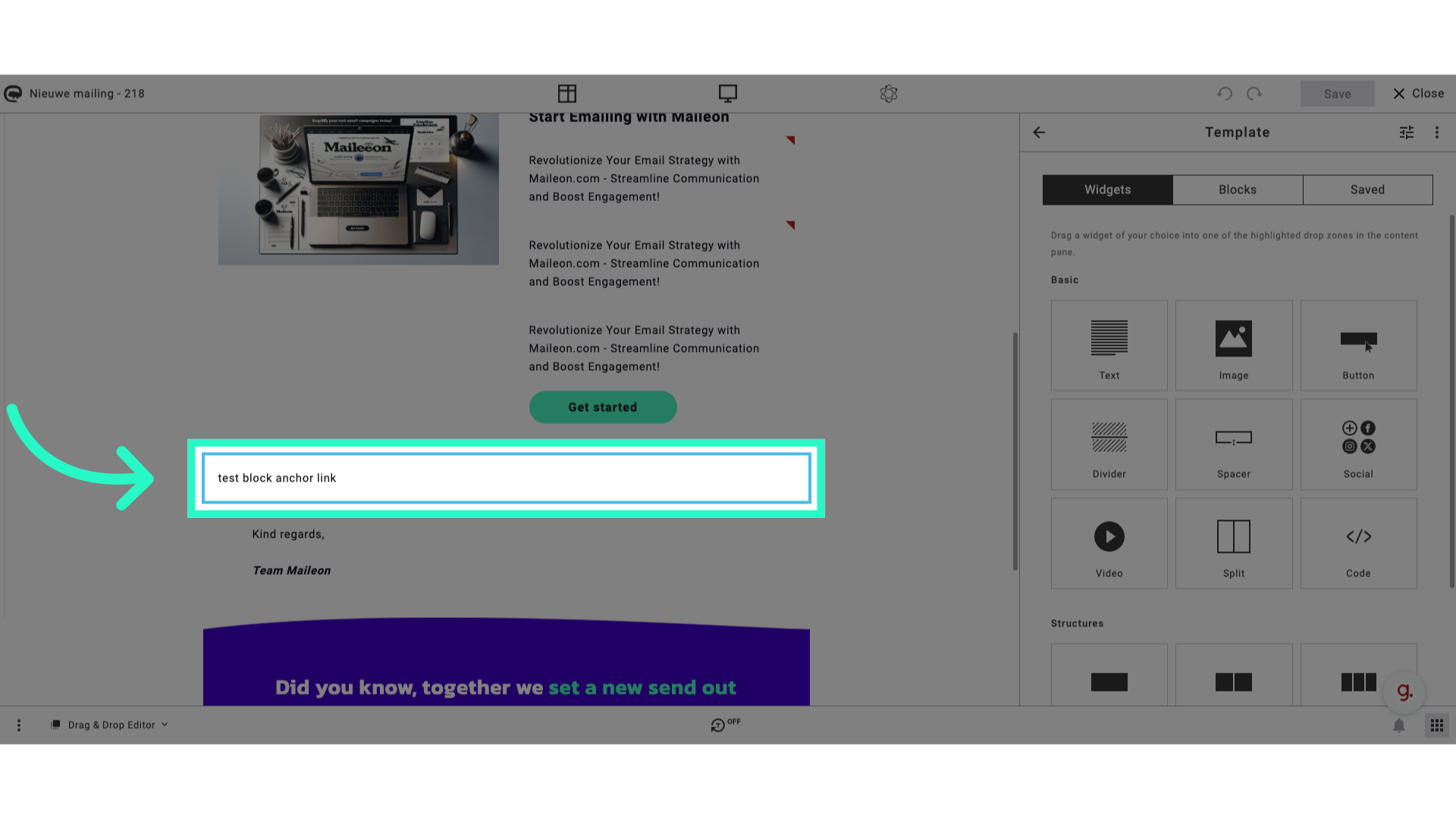
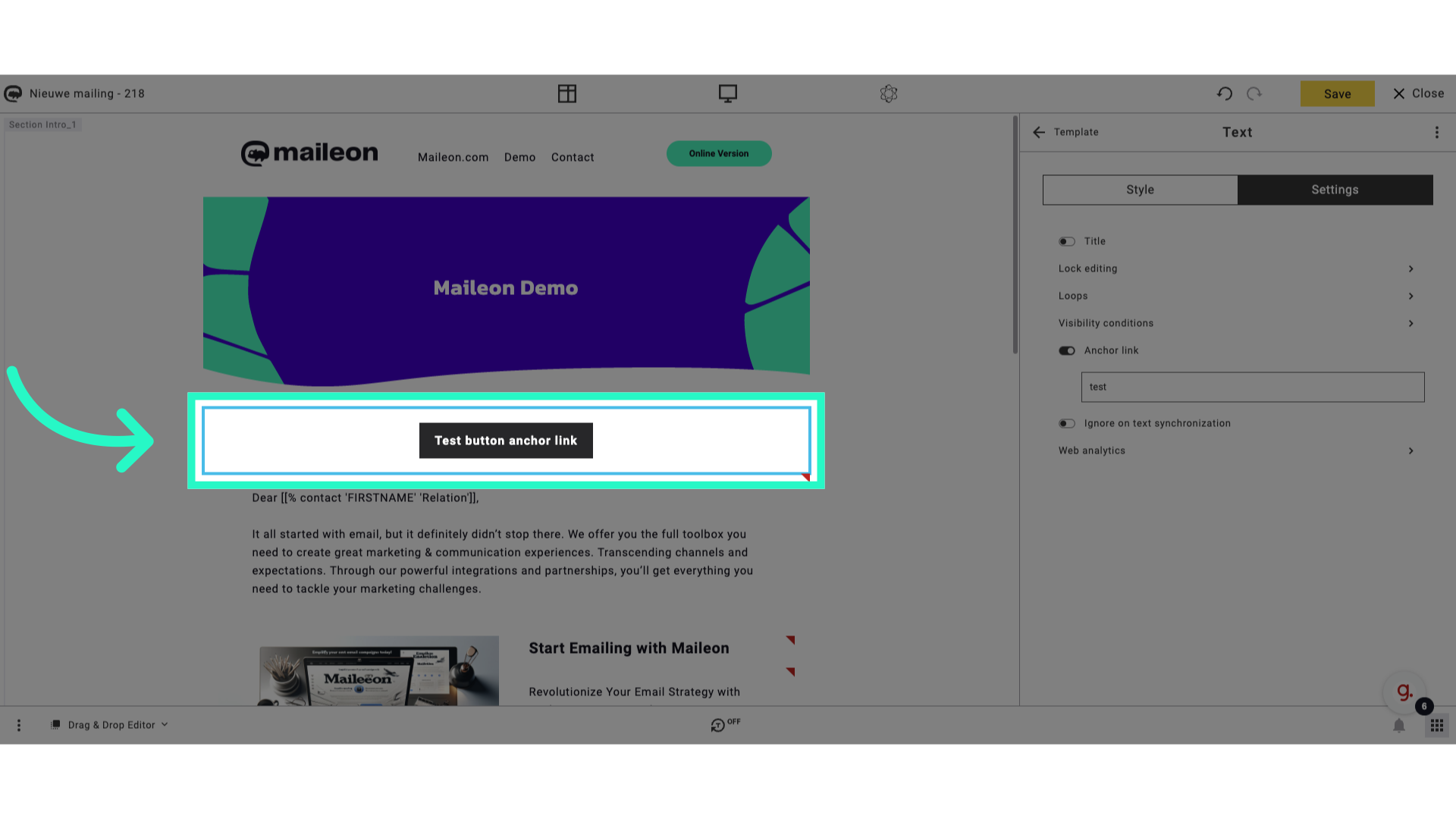
1. Click "test block anchor link"
Create a new block on the email template to insert the anchor link.
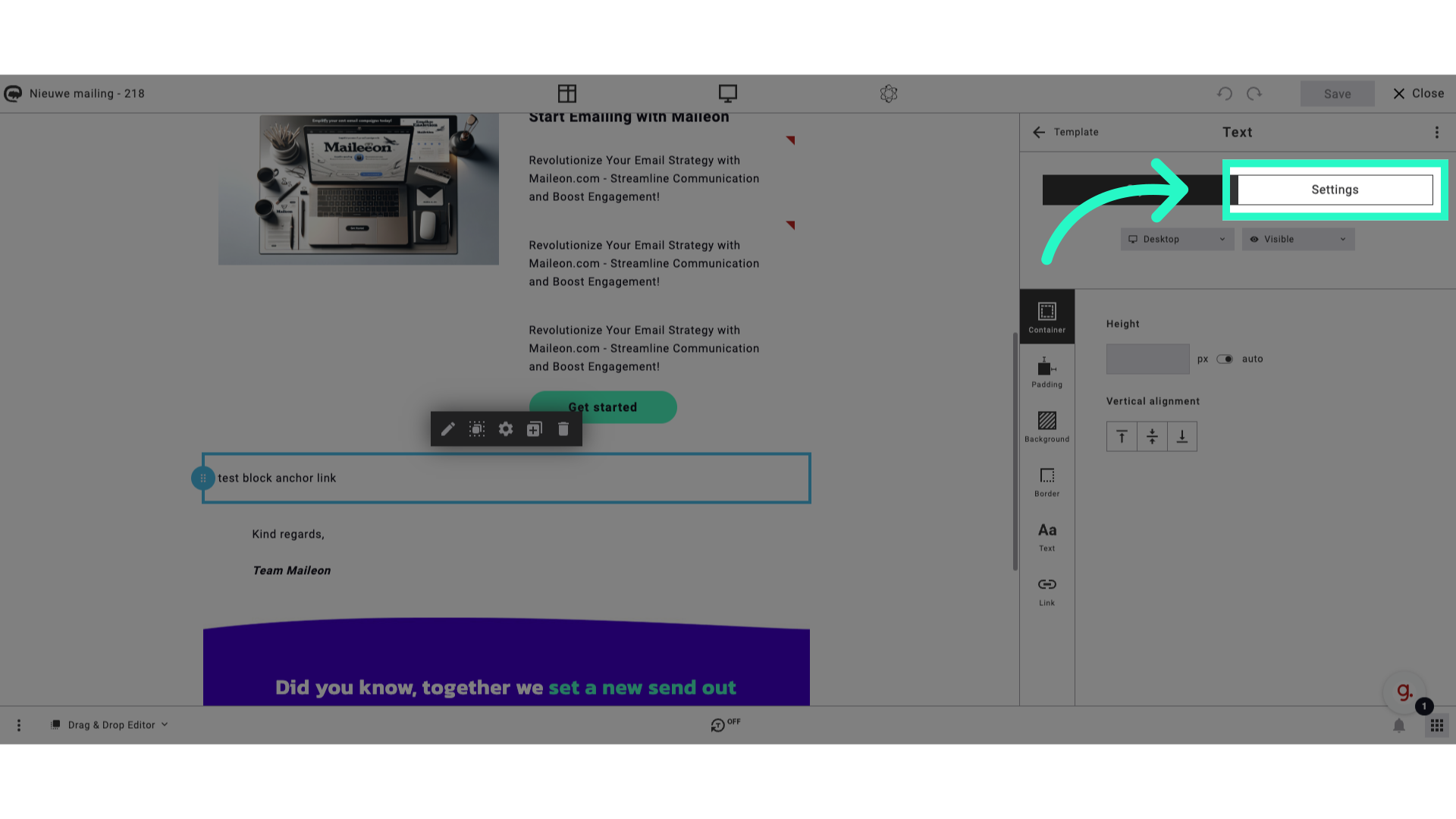
2. Click "Settings"
Navigate to "Settings"
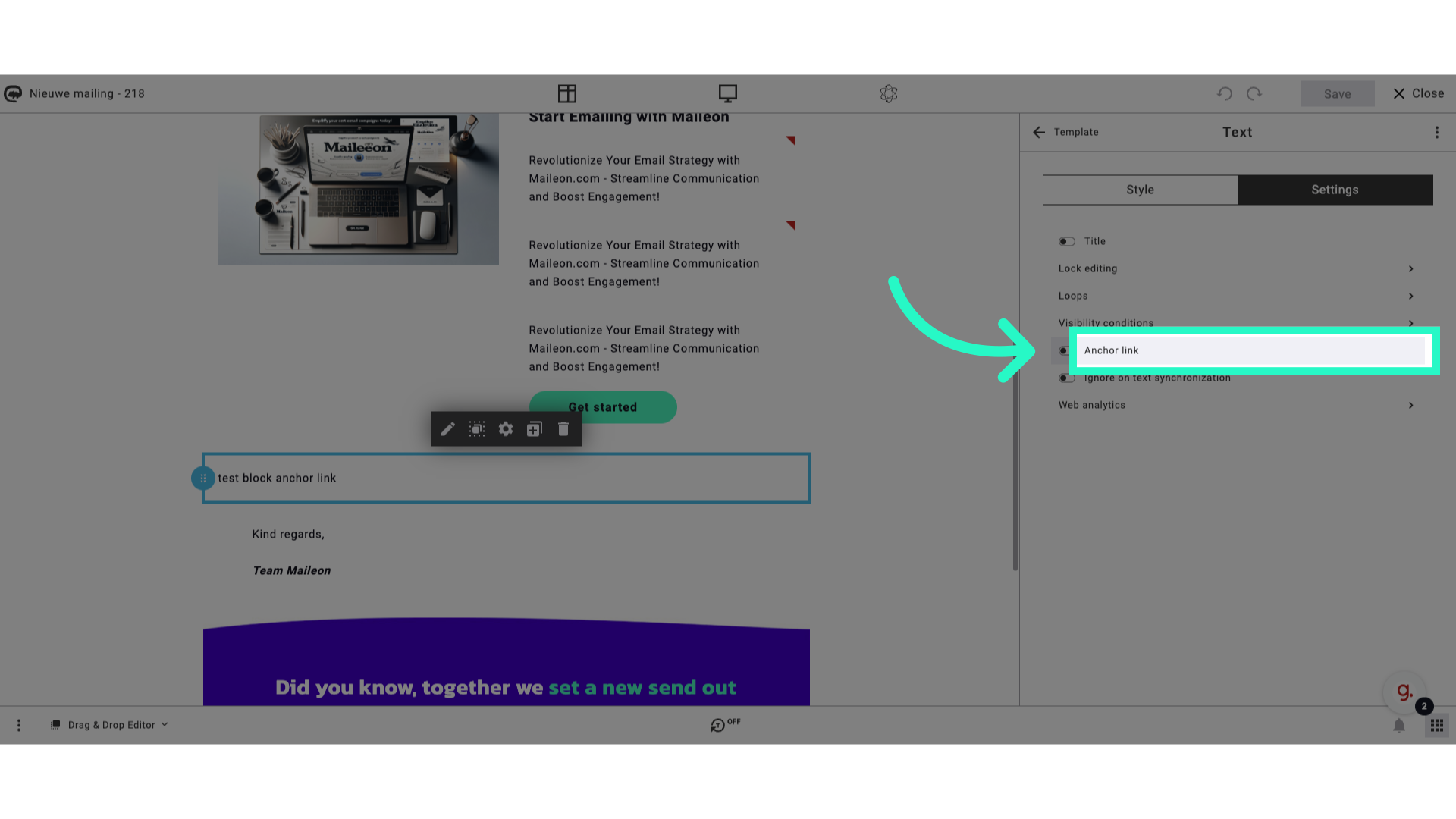
3. Click "Anchor link"
Select the option to insert an anchor link on the email template.
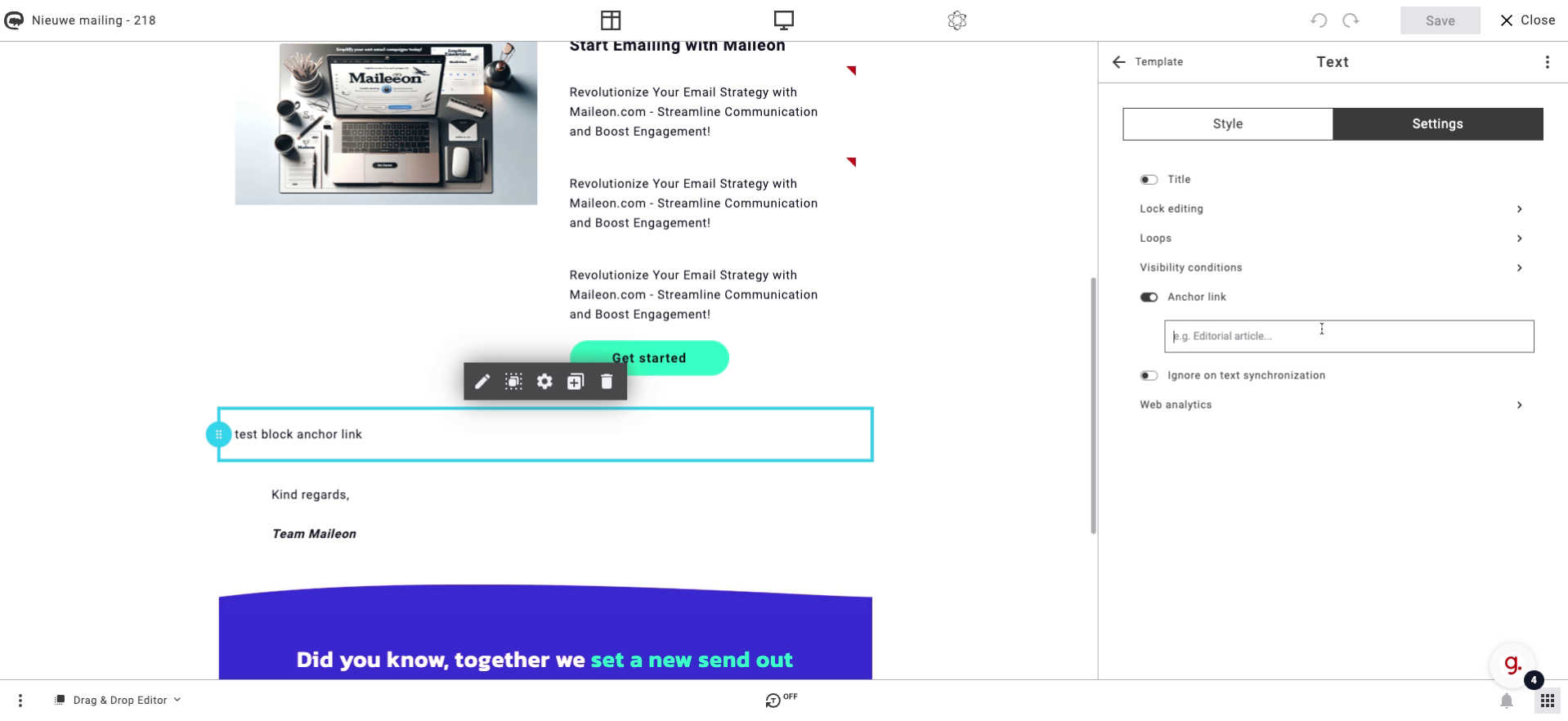
4. Fill "test"
Fill in "test"
5. Add the anchor link to a button or textlink
Create a button to test the anchor link functionality.
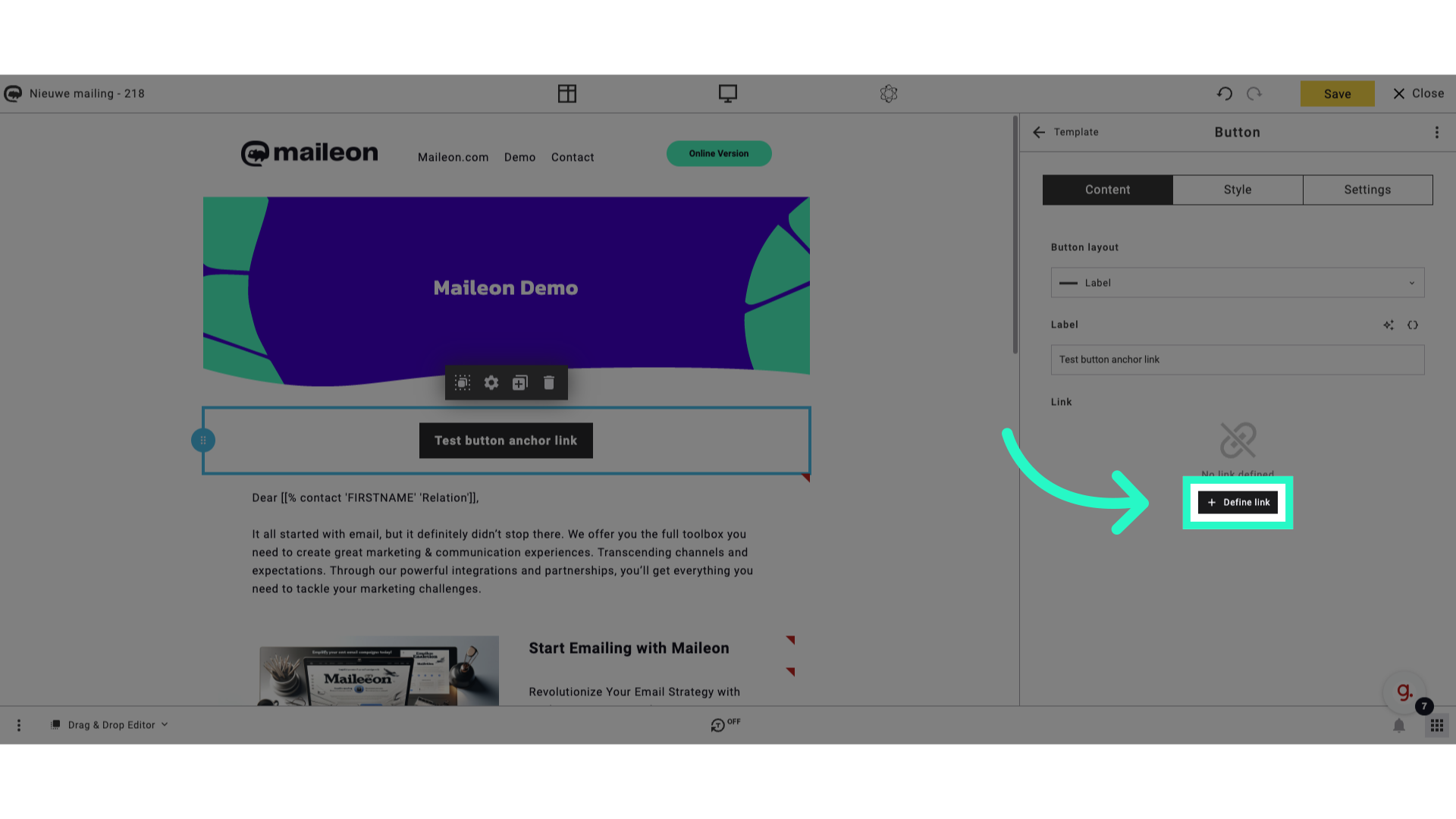
6. Click "Define link"
Specify the destination of the anchor link.
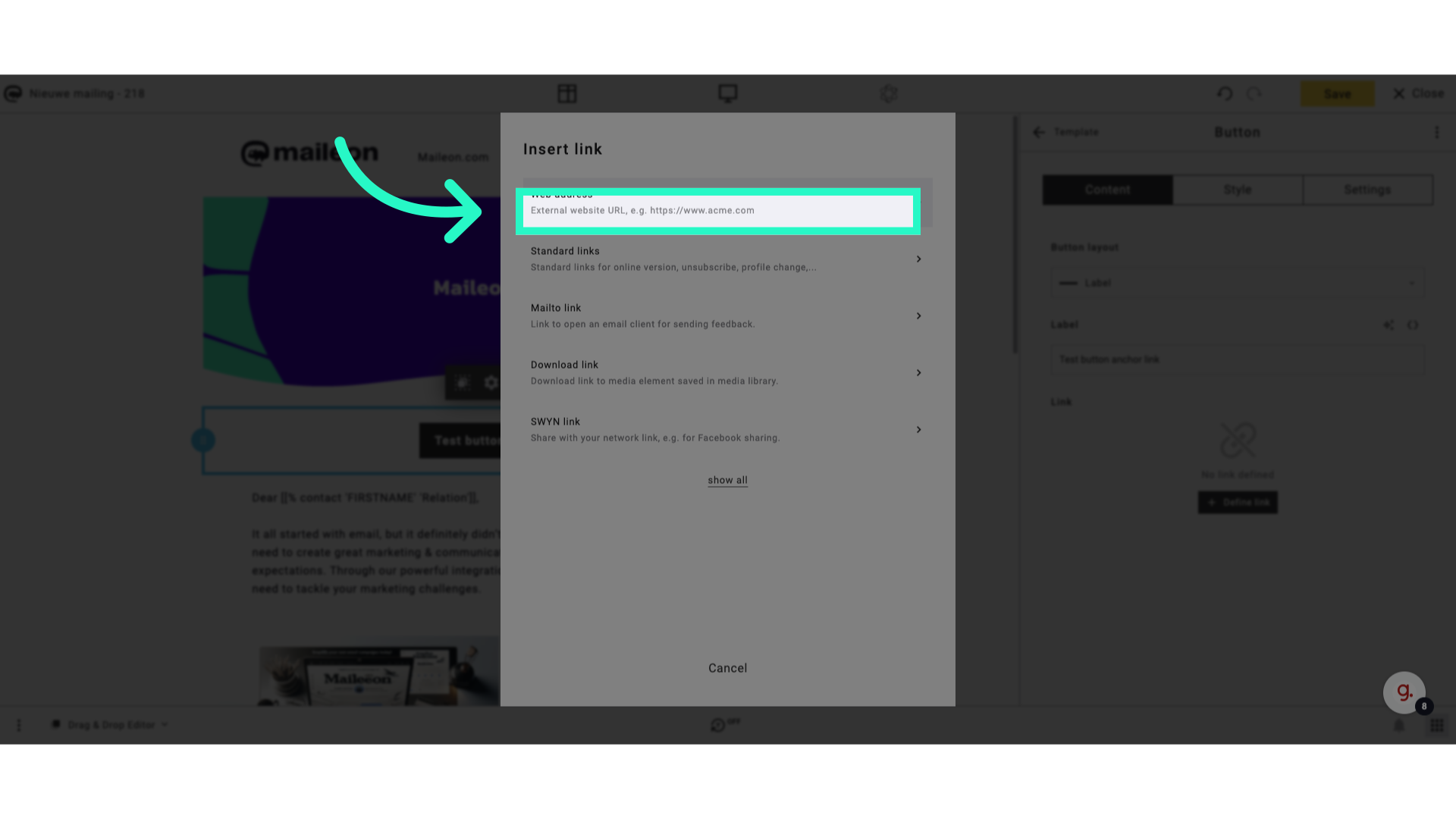
7. Select web address
Enter the URL of the external website to link to.
8. Click "https://..."
Insert the URL link for the anchor.
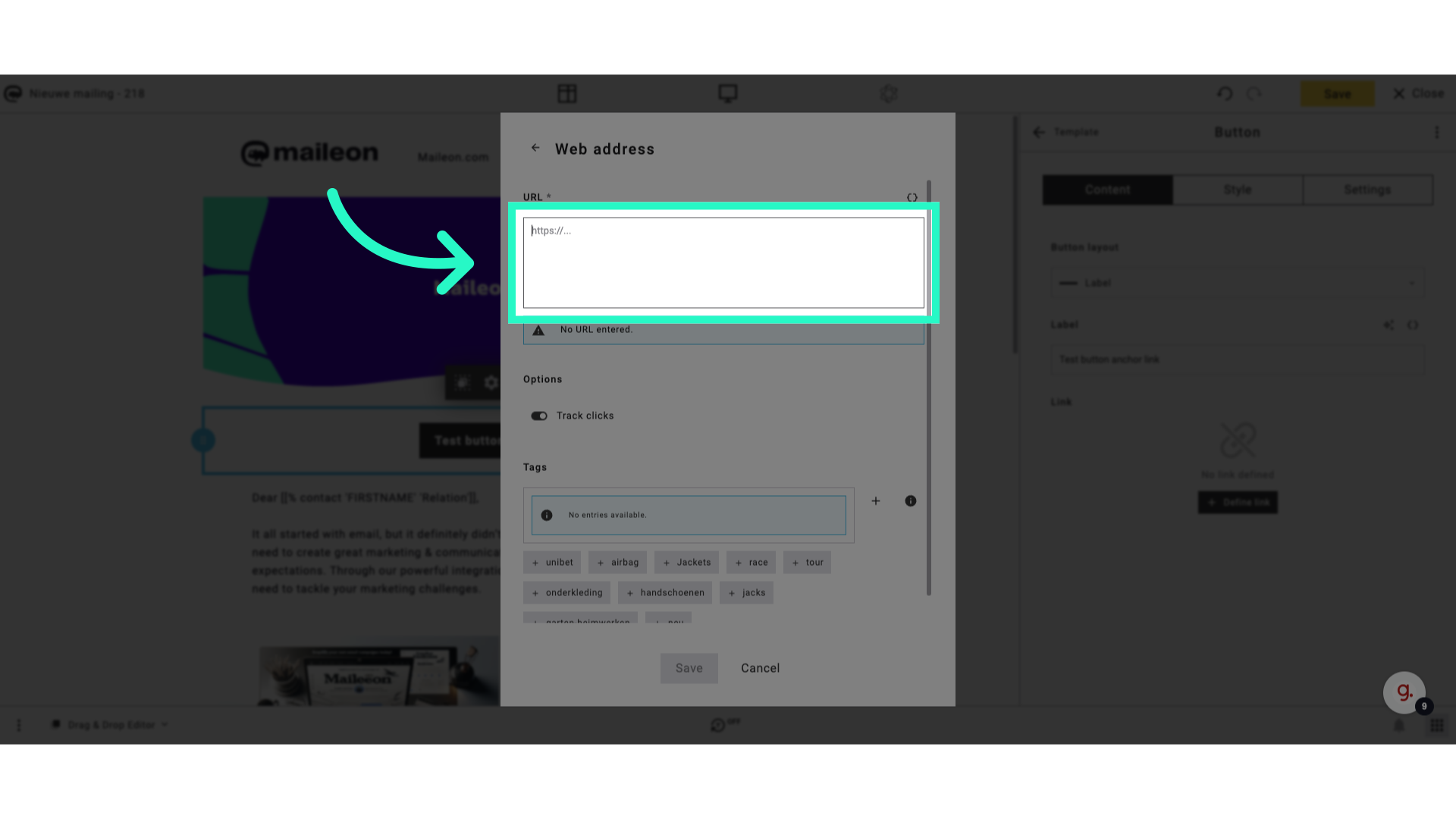
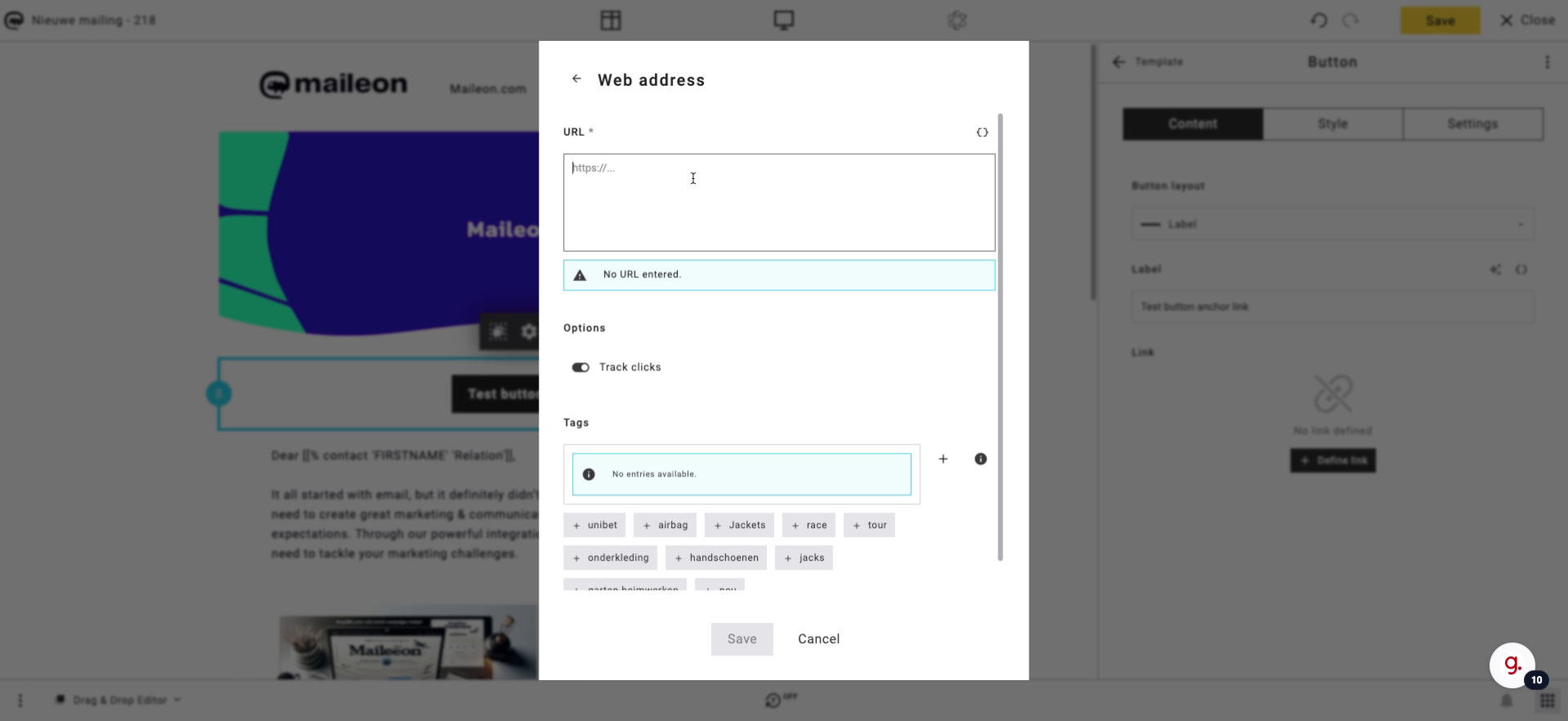
9. Fill "#test"
Enter "#test" in the provided field
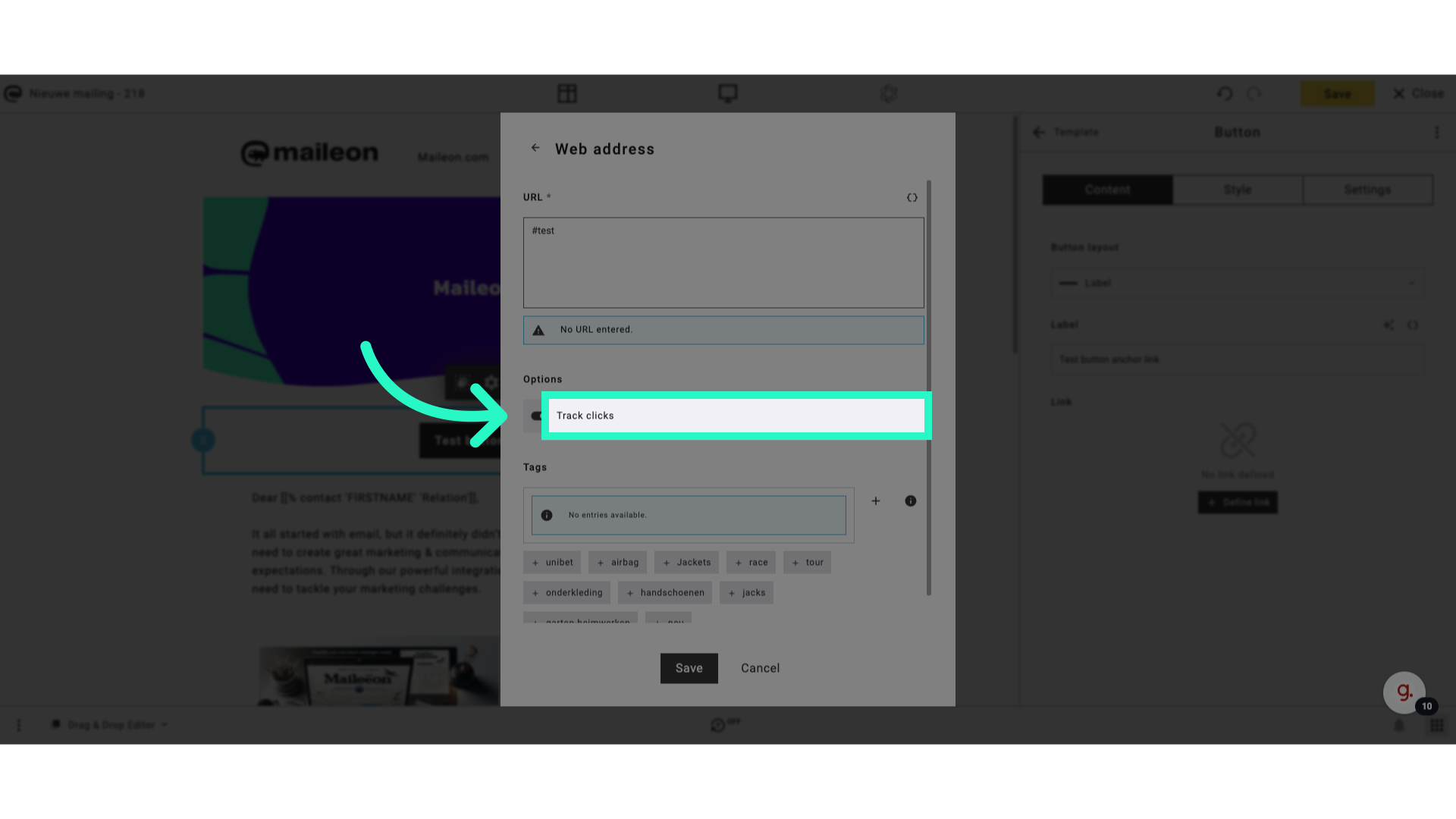
10. Click "Track clicks"
Enable click tracking for the anchor link.
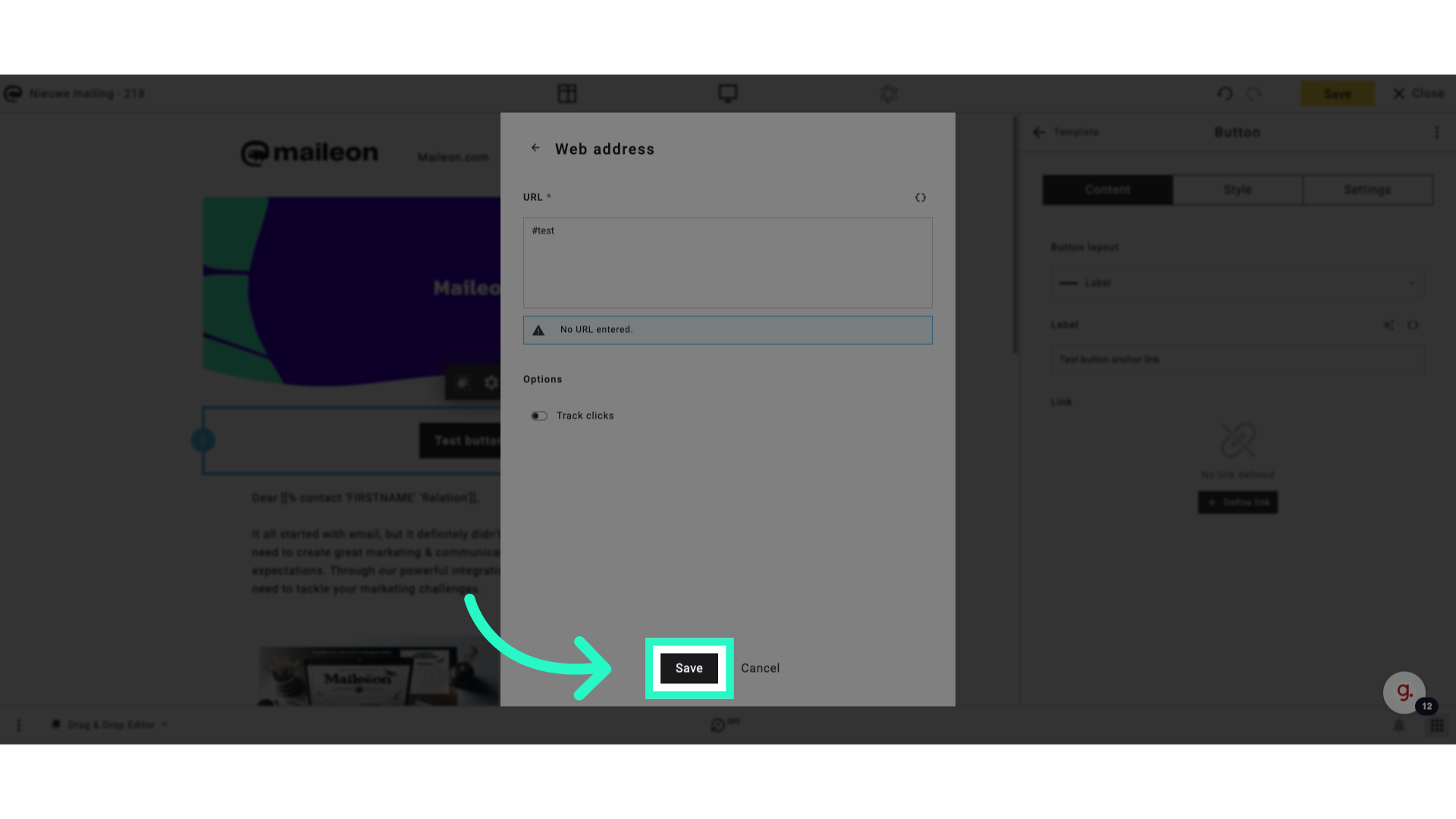
11. Click "Save"
Save the changes made to the anchor link.
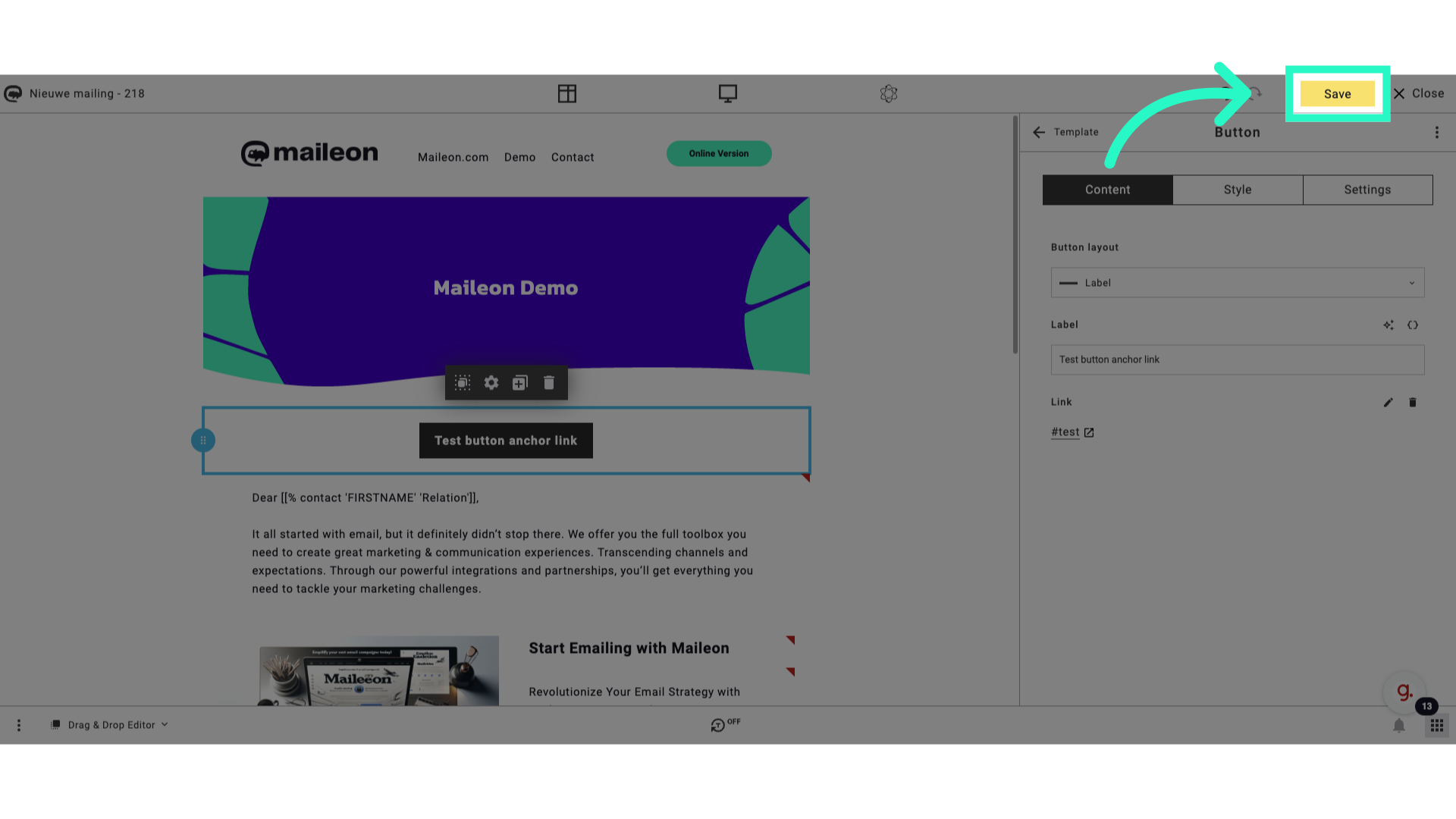
12. Click "Save"
Save the overall changes to the email template.
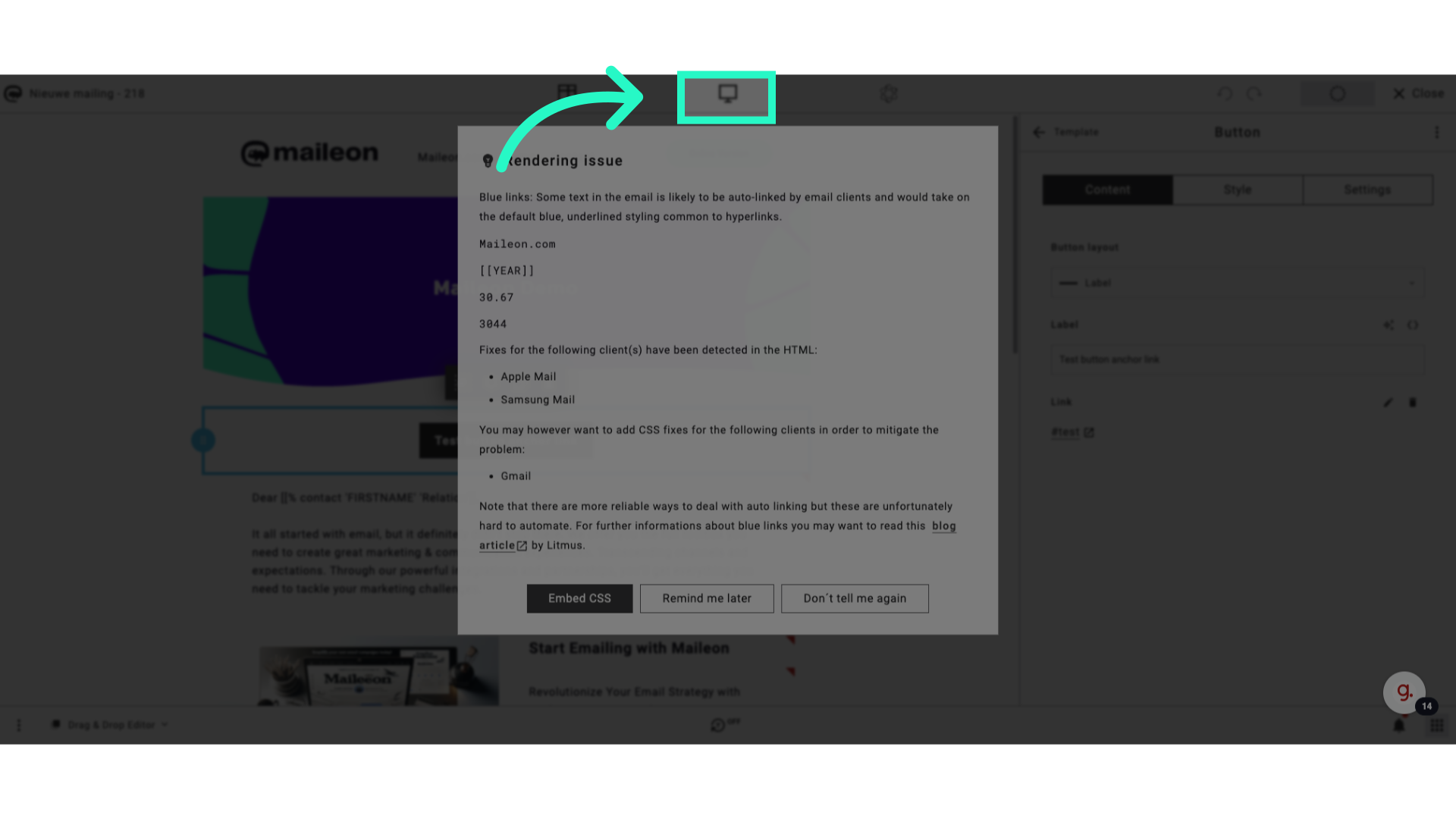
13. Click "Rendering issueBlue links: Some text in the email is likely to be auto-linked by email clients and would take on the default blue, underlined styling common to..."
Address any rendering issues related to the anchor link styling.
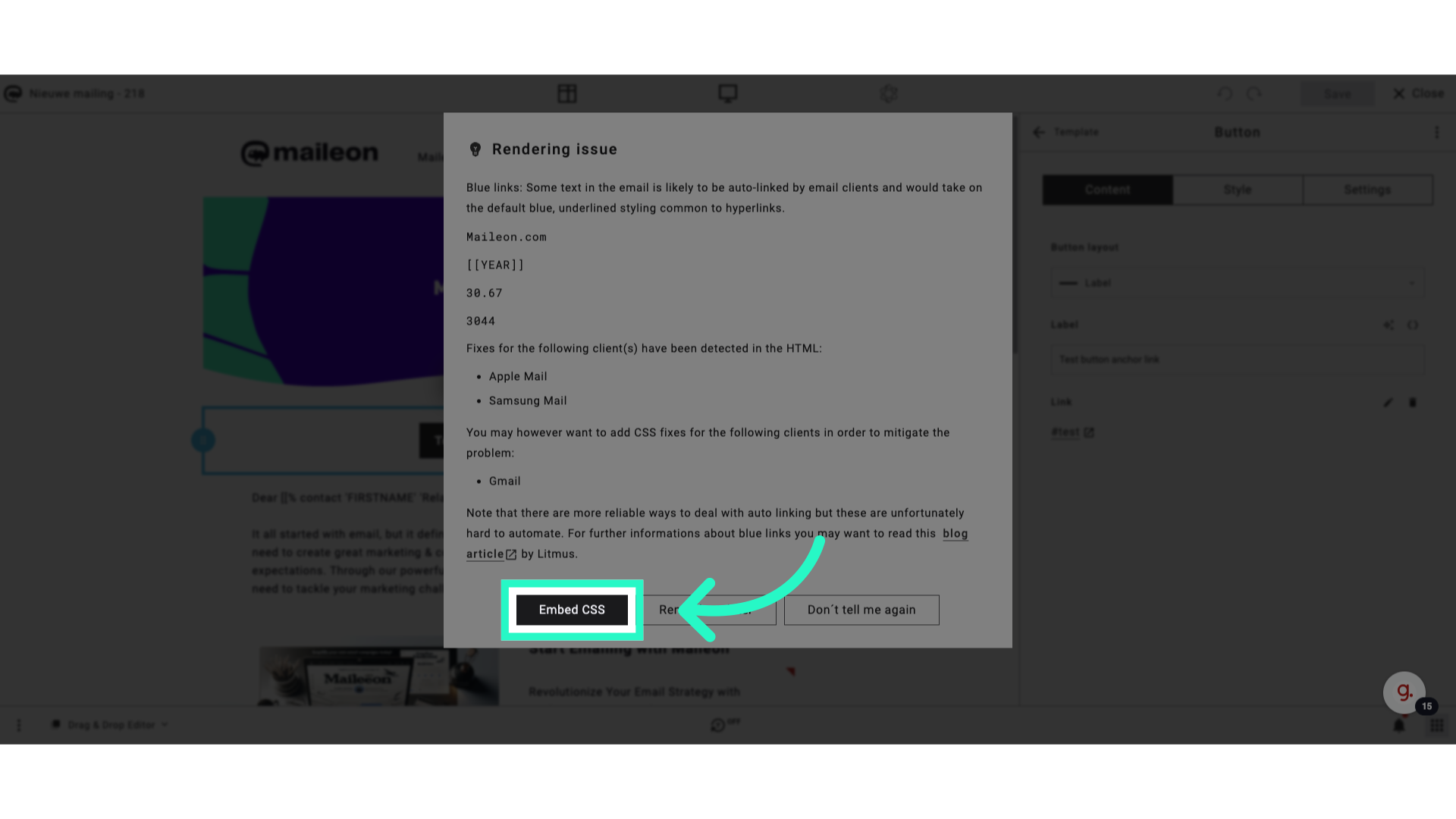
14. Click "Embed CSS"
Include custom CSS styles for the anchor link if needed.
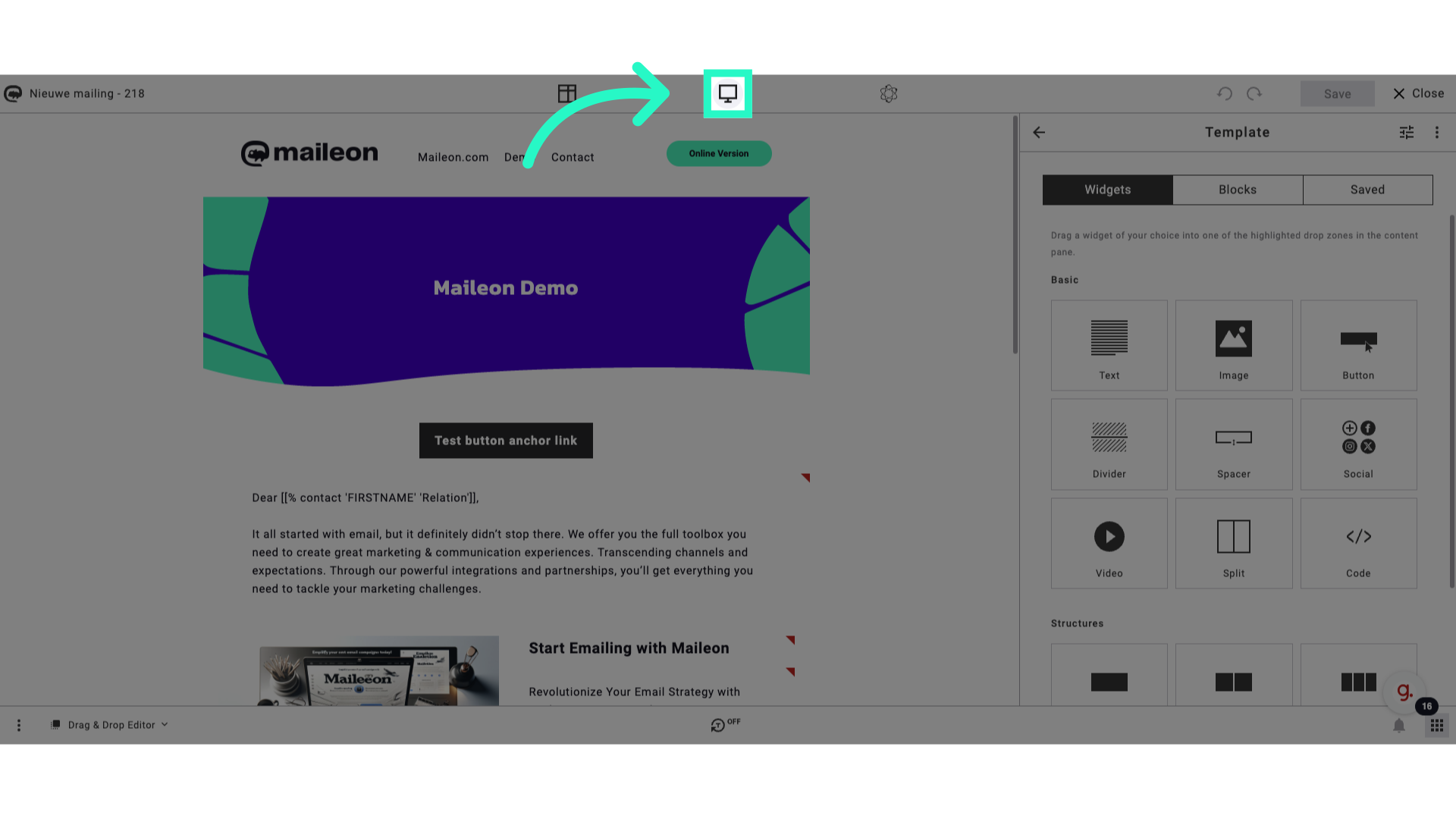
15. Click here
Finalize the creation of the anchor link.
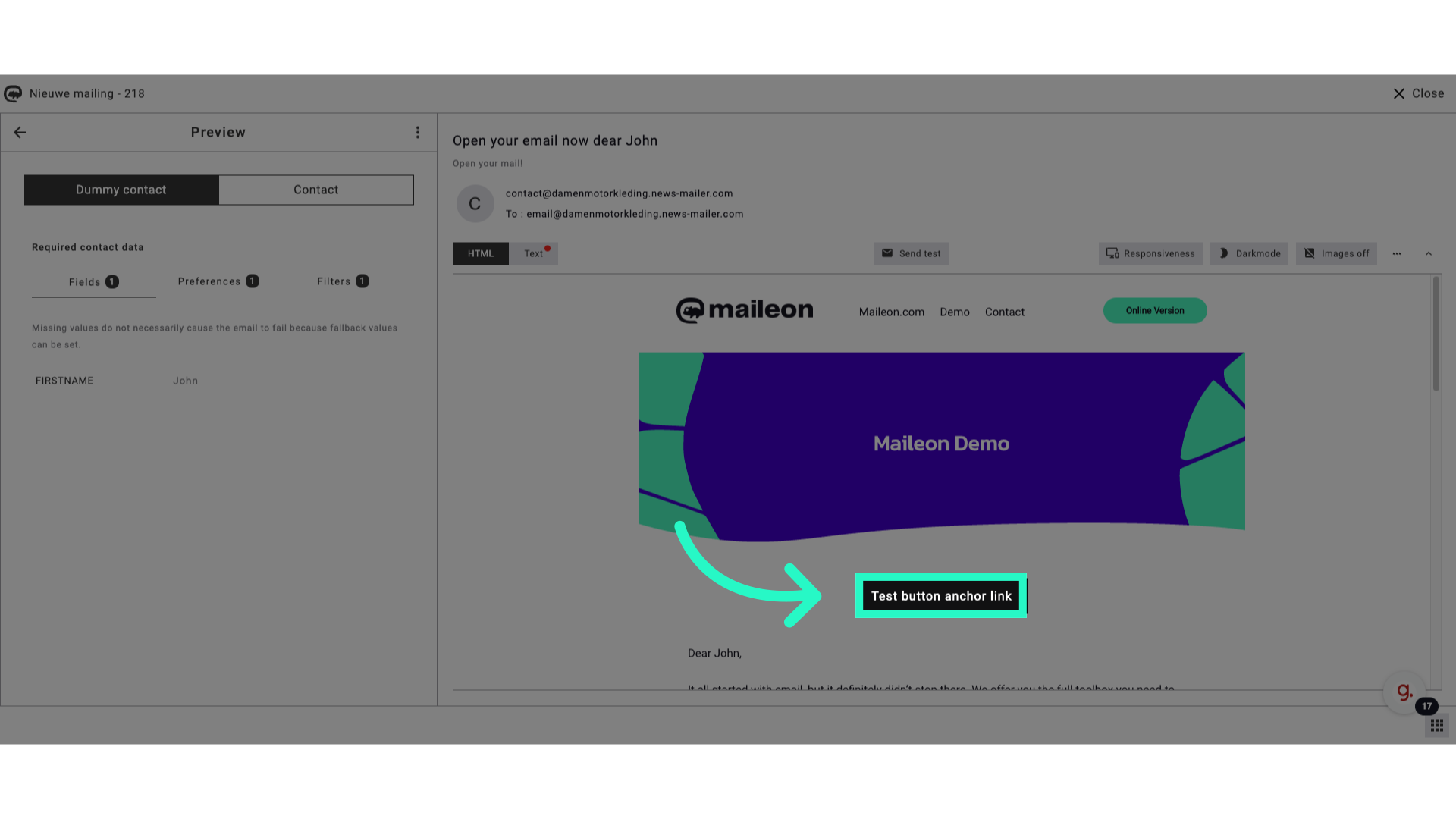
16. Click "Test button anchor link"
Test the functionality of the button linked to the anchor.
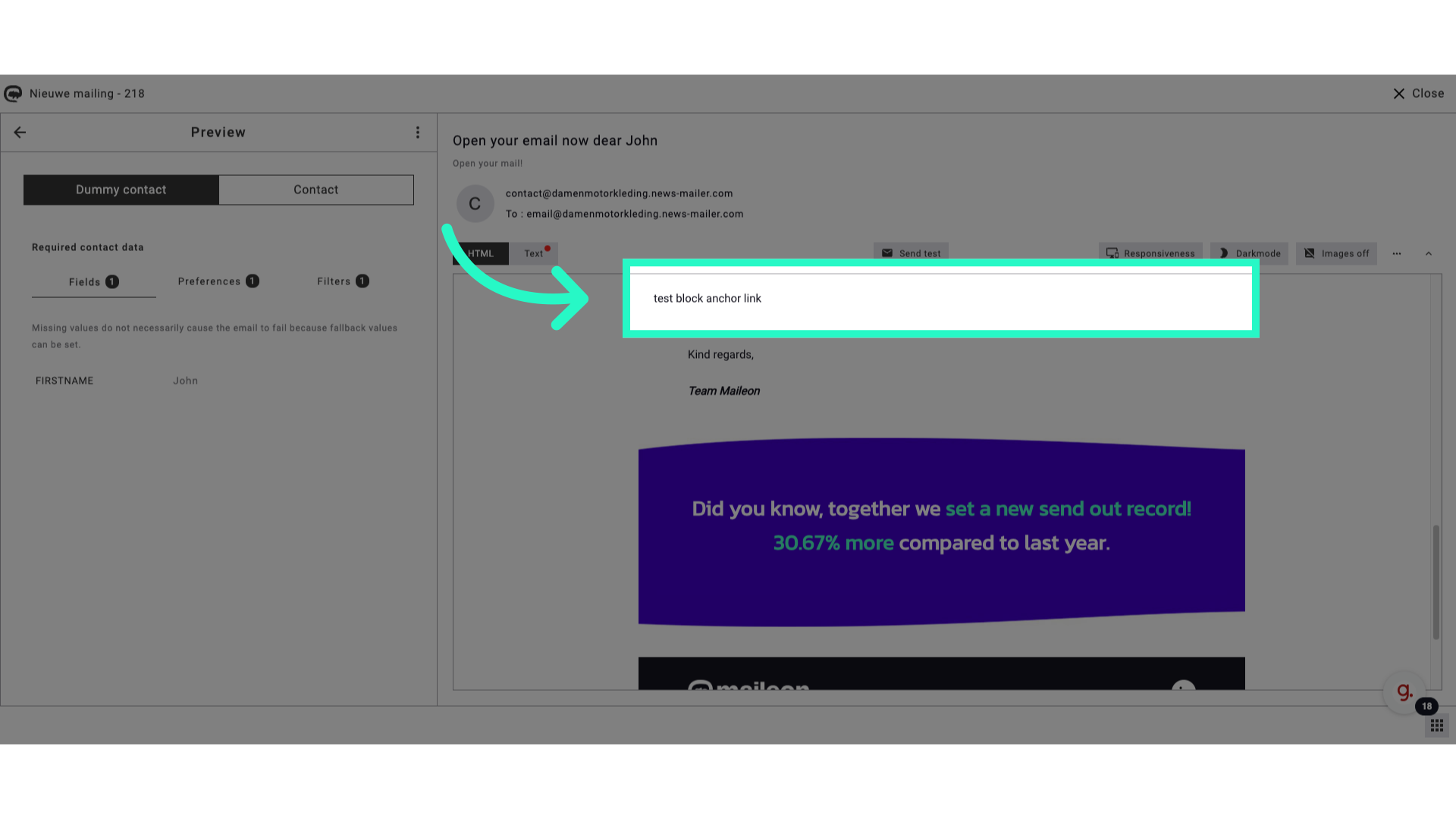
17. Click "test block anchor link"
Verify the successful creation of the block anchor link.
This guide detailed the process of creating anchor links in Maileon, covering steps from defining the link destination to testing and saving the changes.