
This tutorial guides you through managing and editing email content within Maileon.
1. Introduction
You will learn how to access saved items, modify global content, and finalise your email setup efficiently.
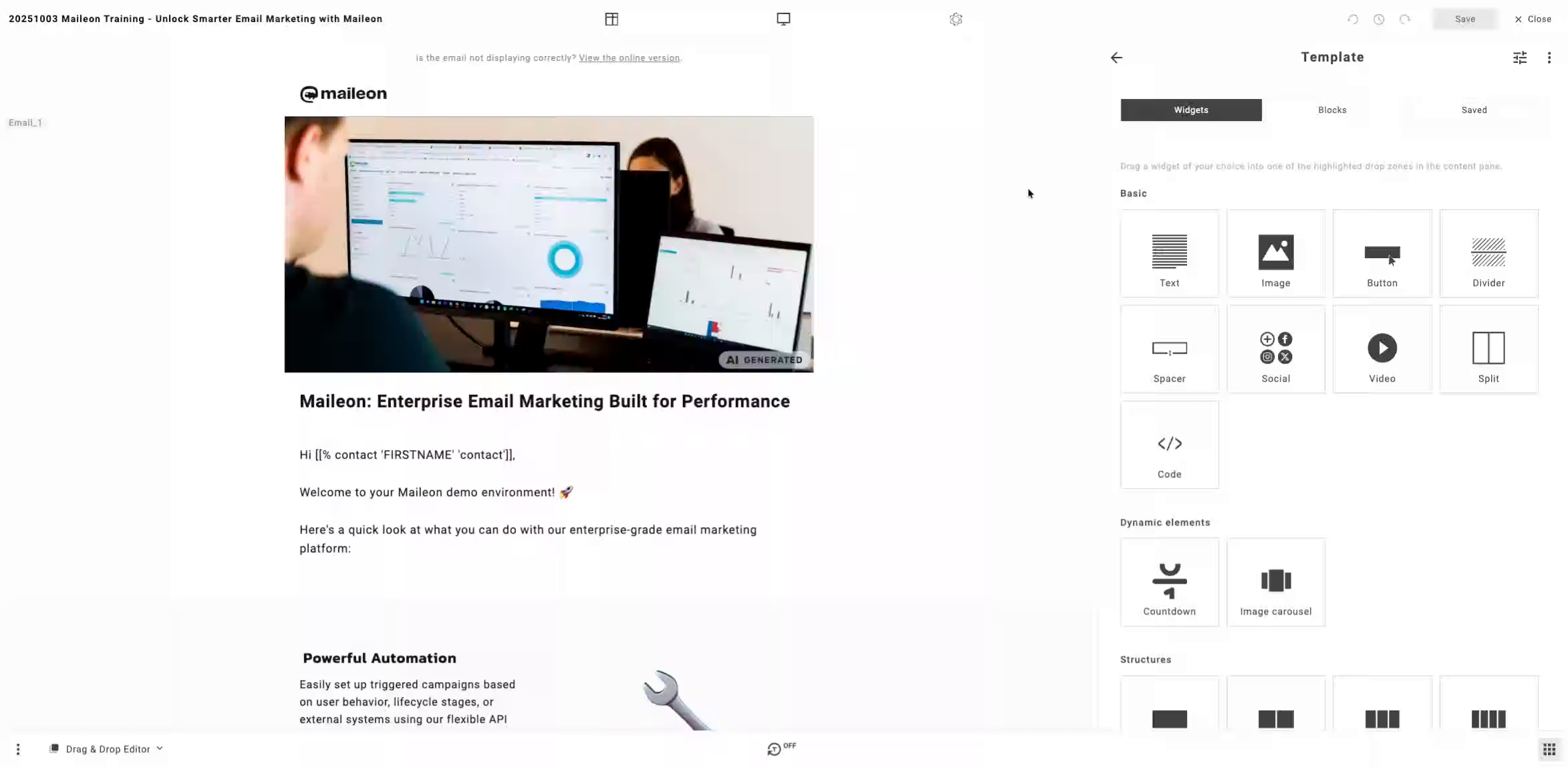
2. Access Saved Items Section
Open the saved items section to view your stored content for further editing or review.
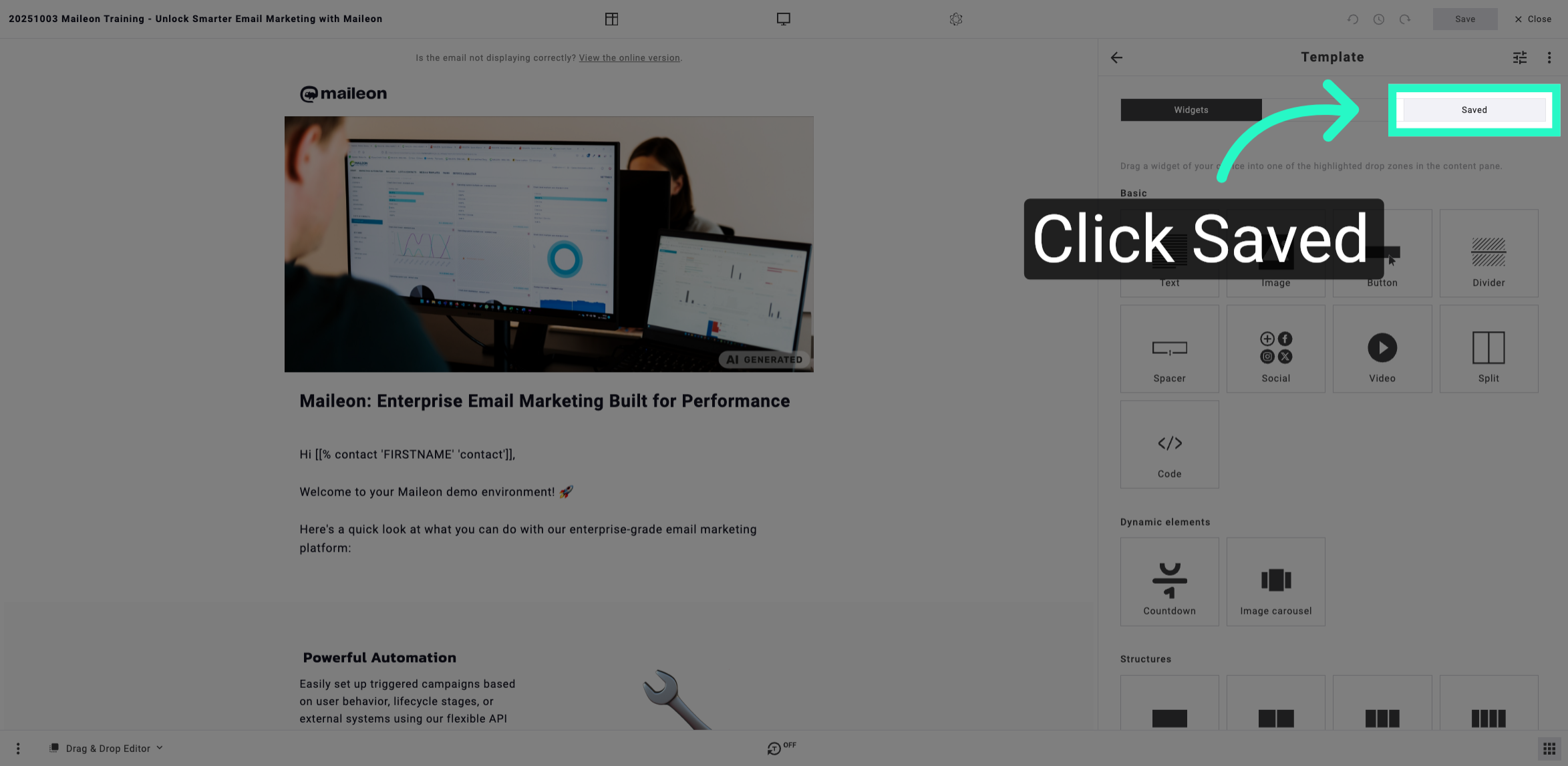
3. Navigate to Global Content Area
Go to the global content area where you can manage shared templates and resources.
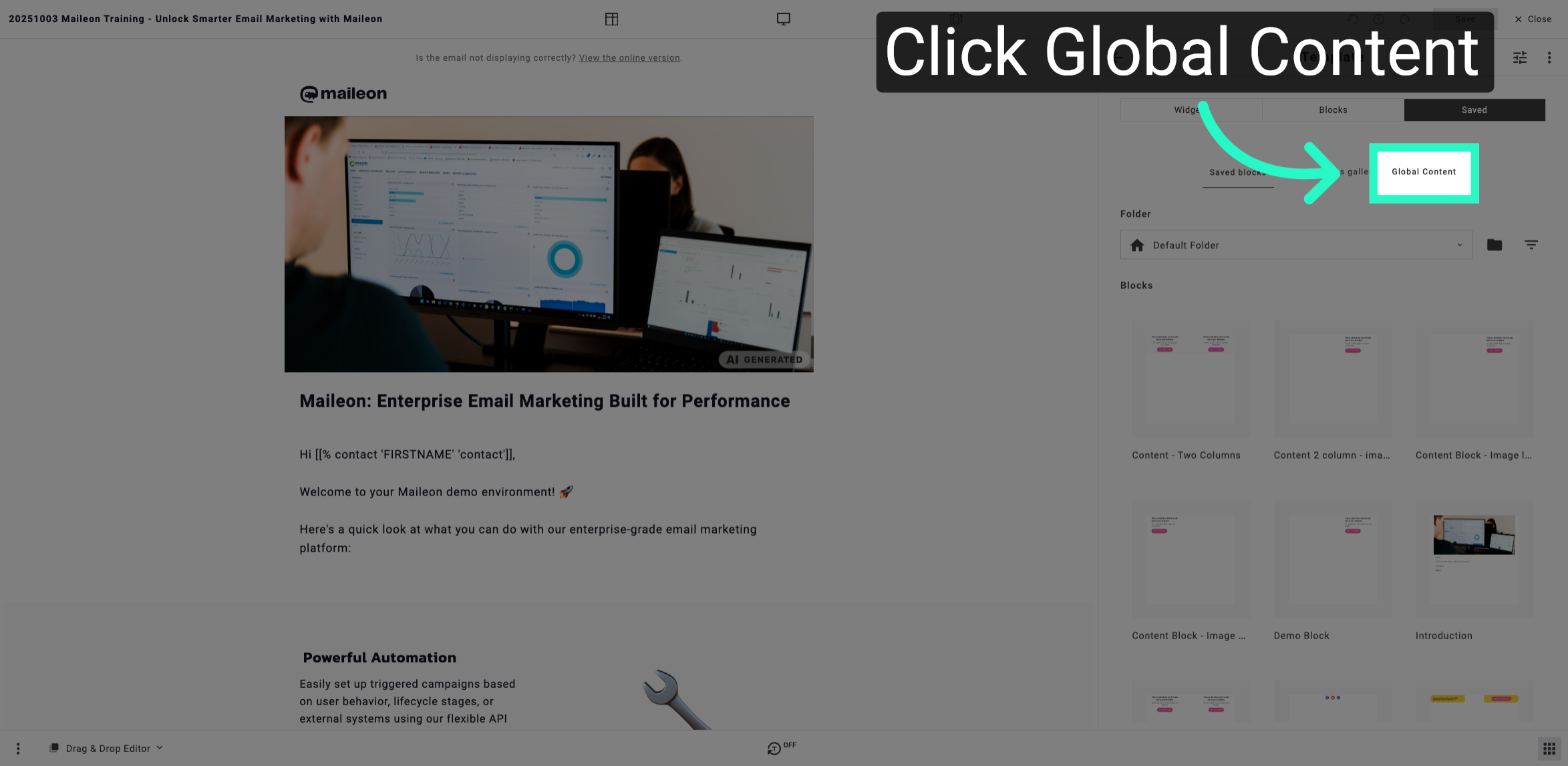
4. Open Content Editing Options
Access the content editing options to modify or update your selected template or message.
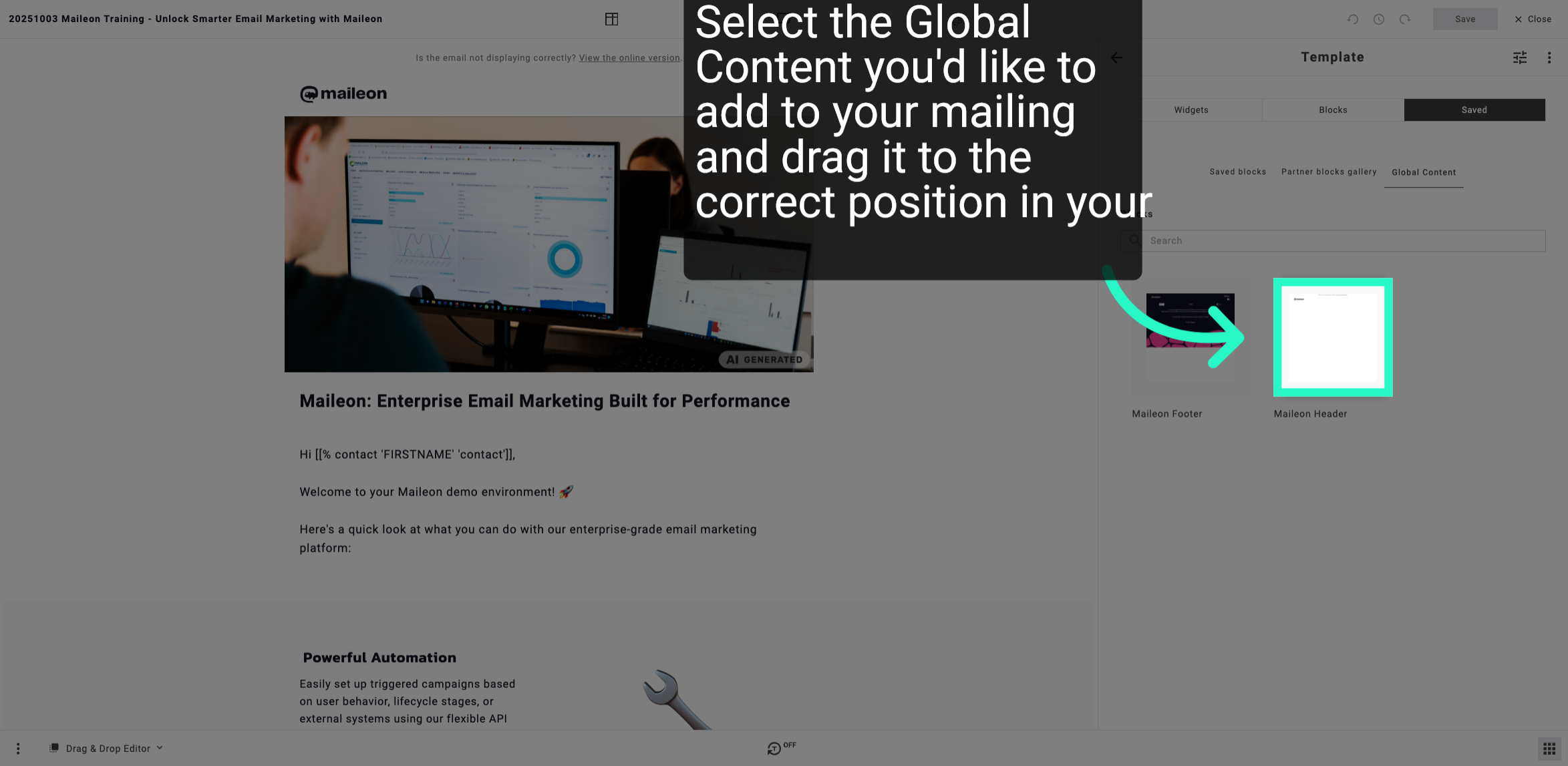
5. View Online Email Version Link
Locate the link to view the online version of the email if it is not displaying correctly in the client.
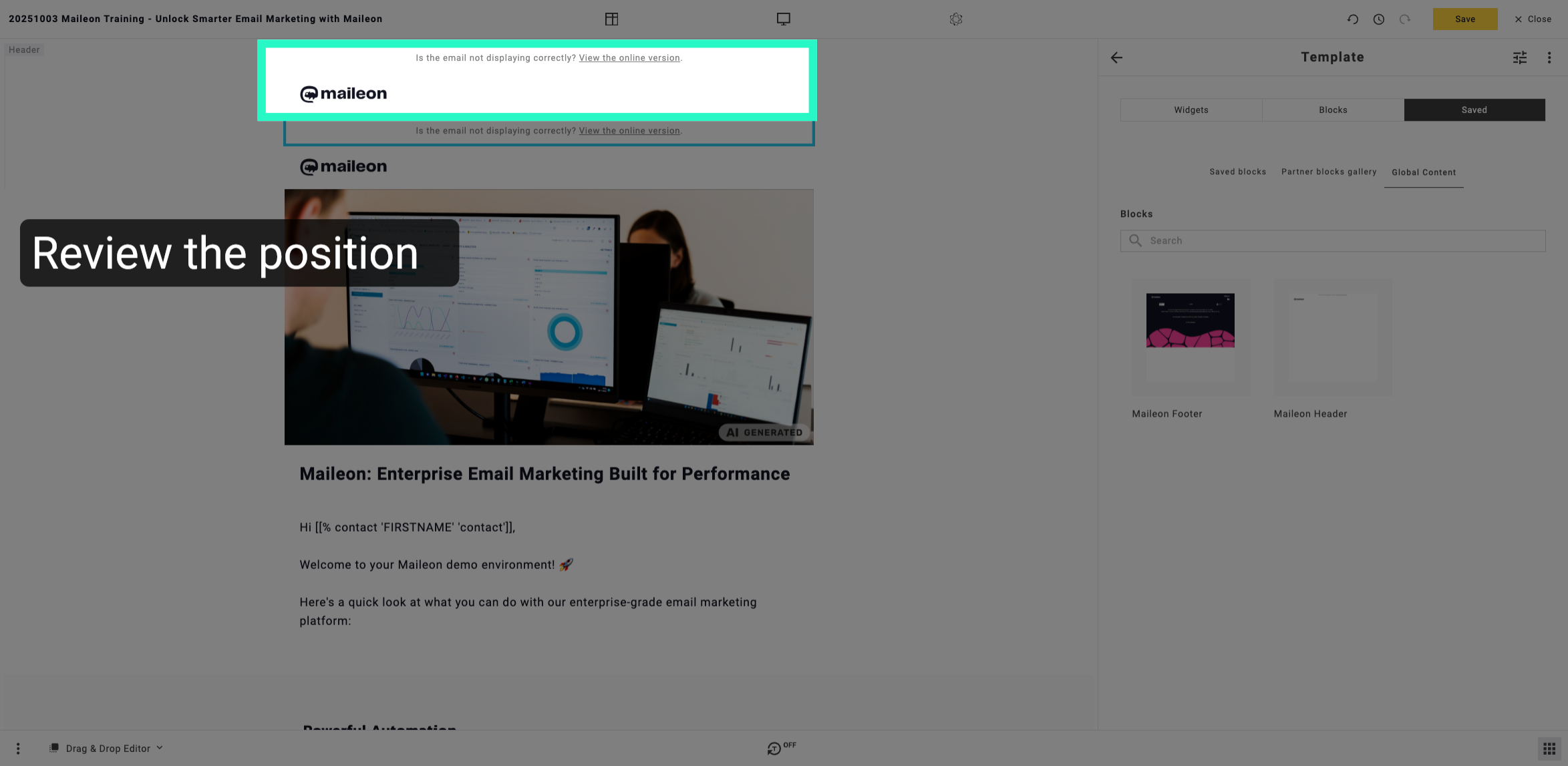
6. View Online Email Version Link
Locate the link to view the online version of the email if it is not displaying correctly in the client.
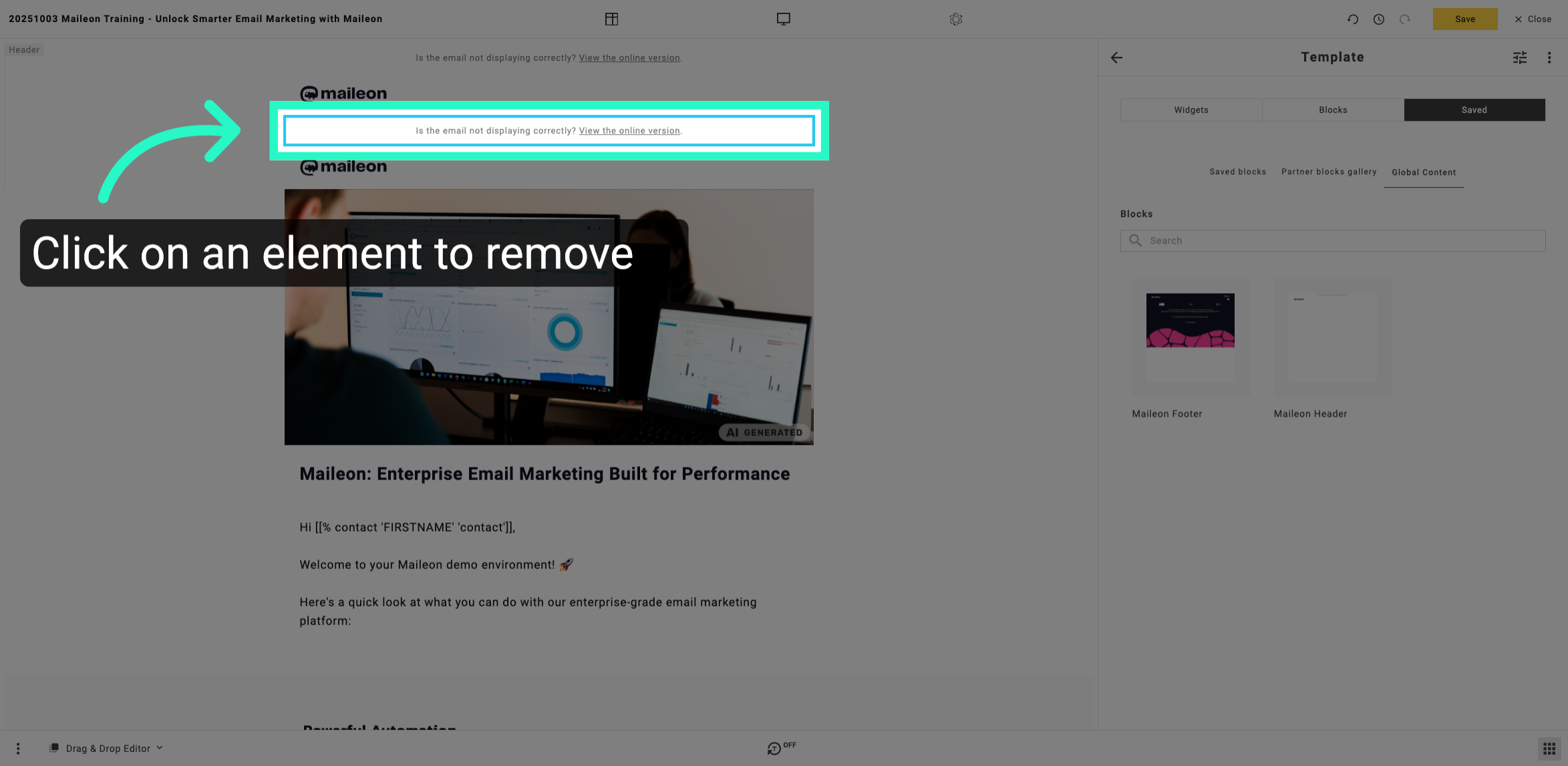
7. Advance Through Editing Workflow
Move forward in the editing workflow to apply additional changes or review your email setup.
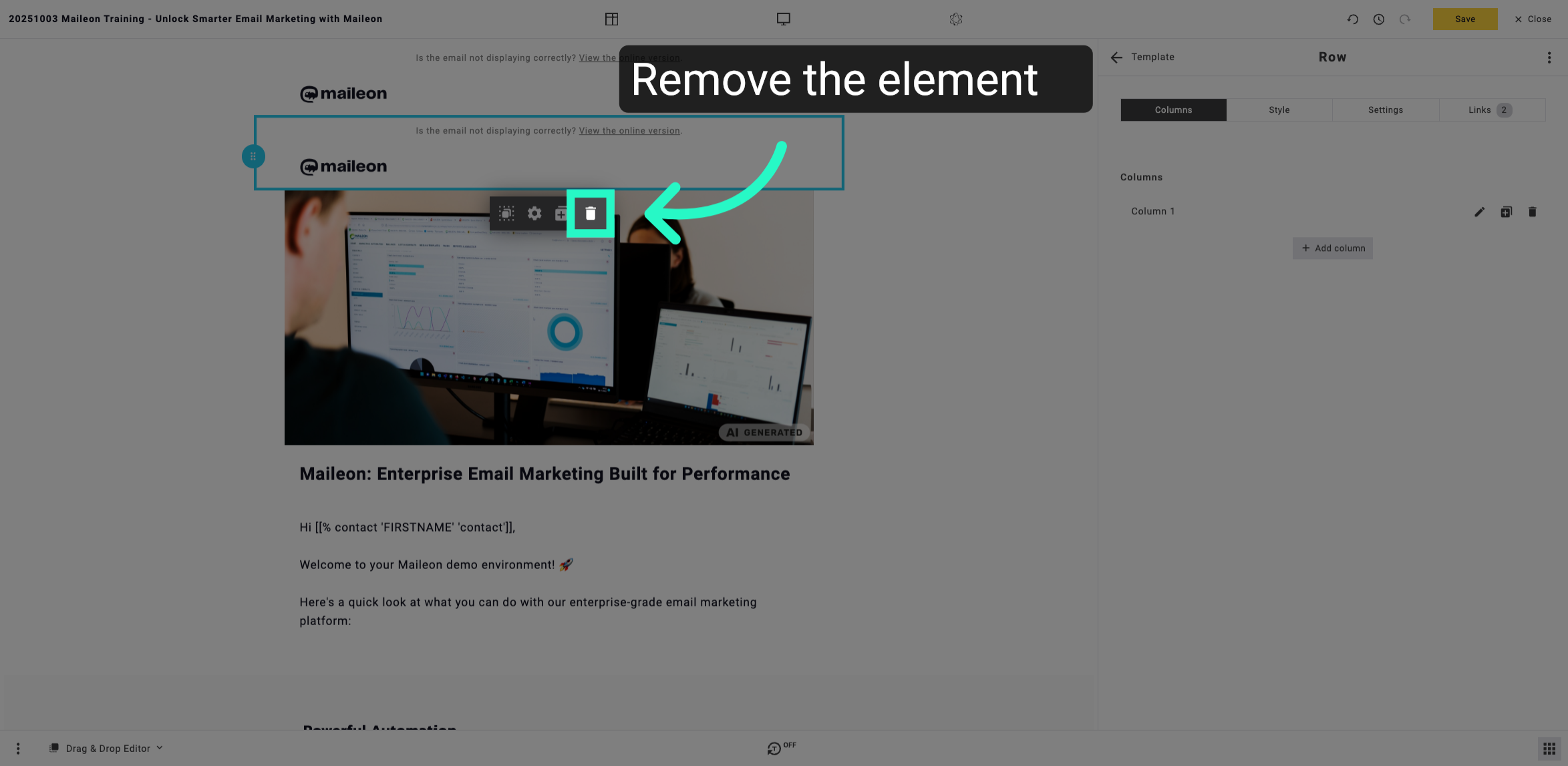
8. Continue Editing Sequence
Proceed with the editing sequence to finalise the email content before saving your changes.
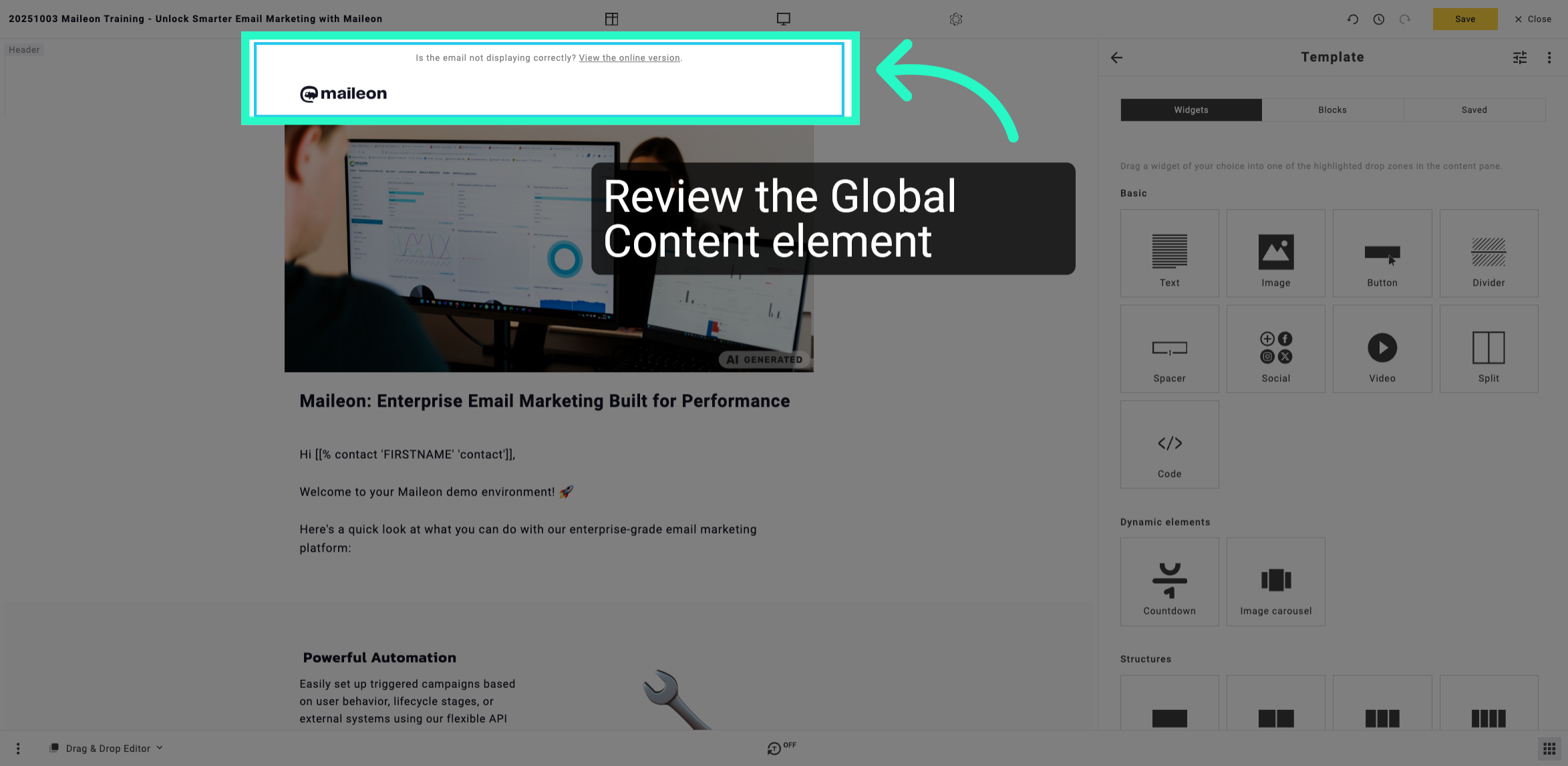
9. Save Email Configuration
Save all your changes to ensure the email configuration is updated and ready for deployment.
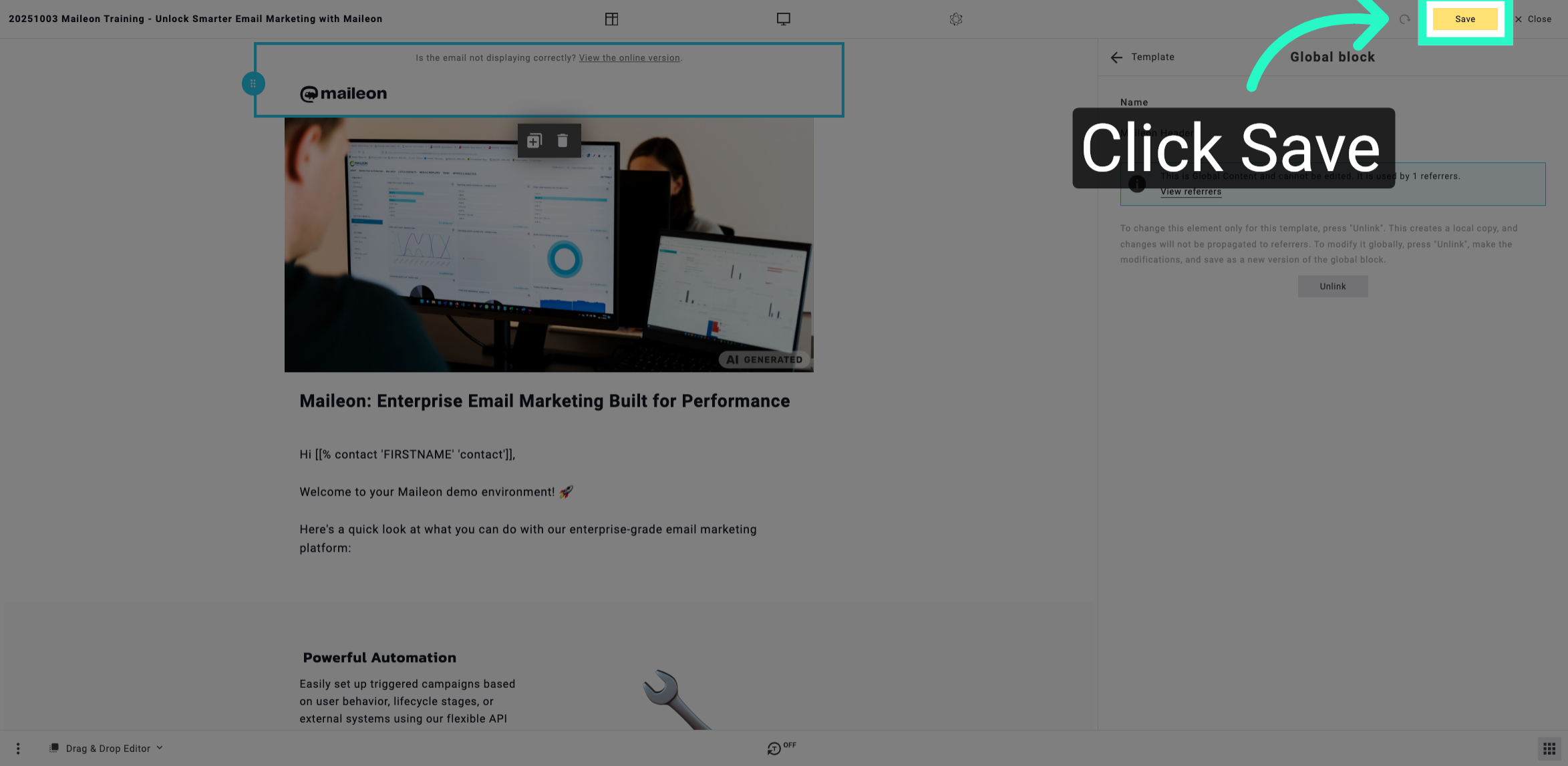
You have successfully navigated through the email content management process in Maileon, culminating in saving your updated configuration. This ensures your email templates are correctly set up for future campaigns.