
This tutorial guides you through saving content as global within the Maileon platform.
1. Introduction
You will learn how to name your content and assign keywords to make it accessible across your account.
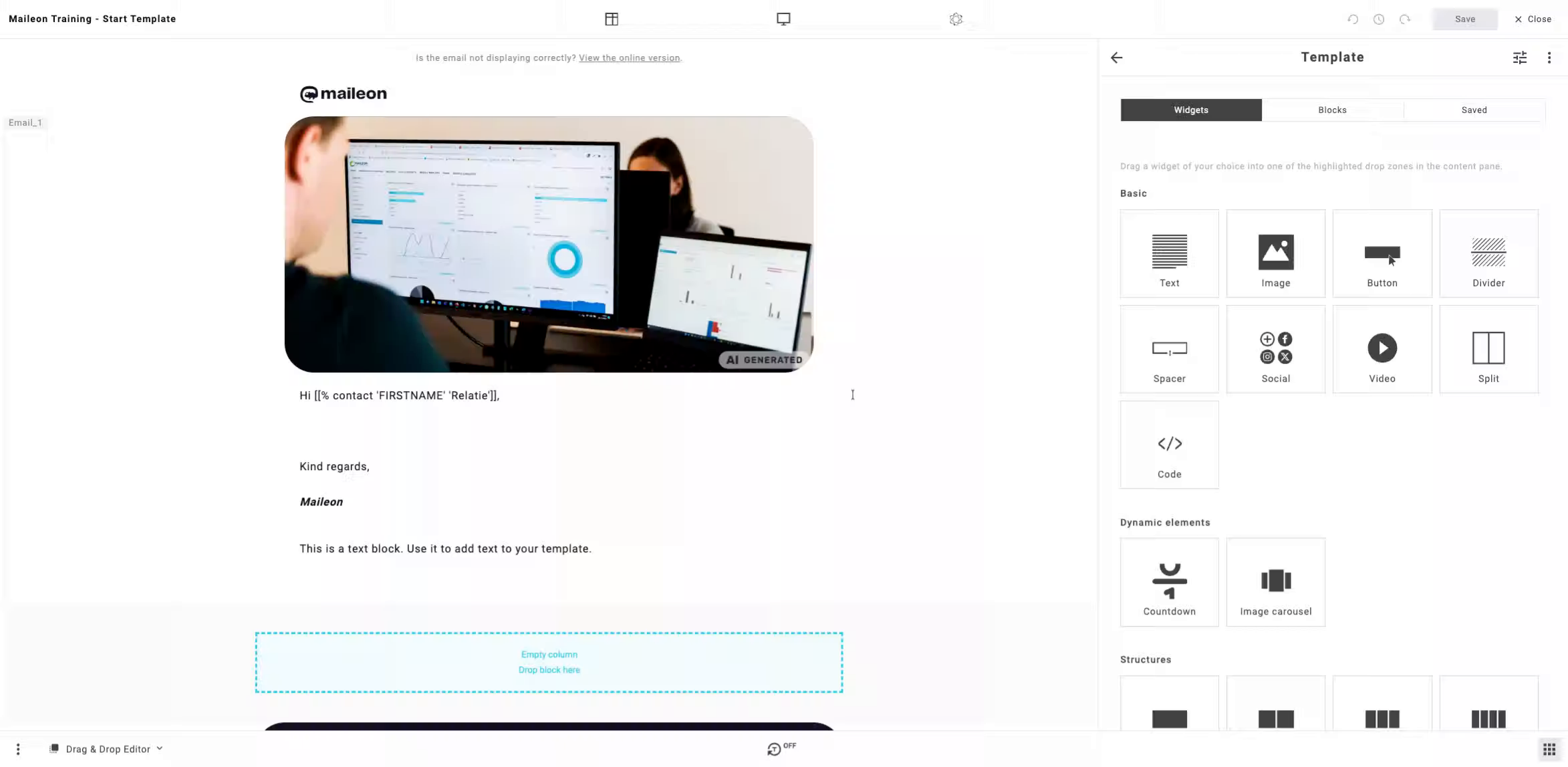
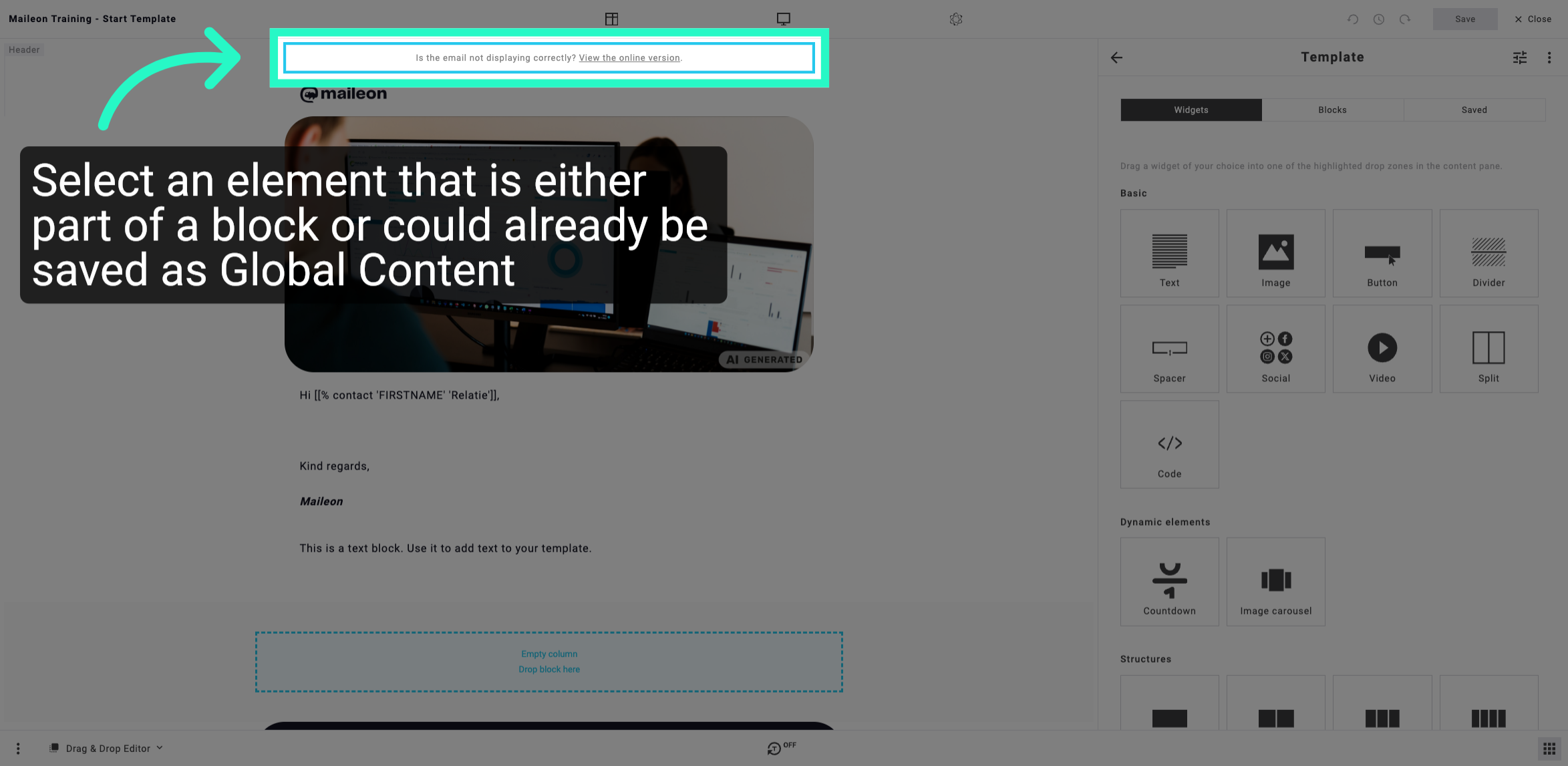
2. Access Online Email Version
Click the link to view the online version of the email if it is not displaying correctly.
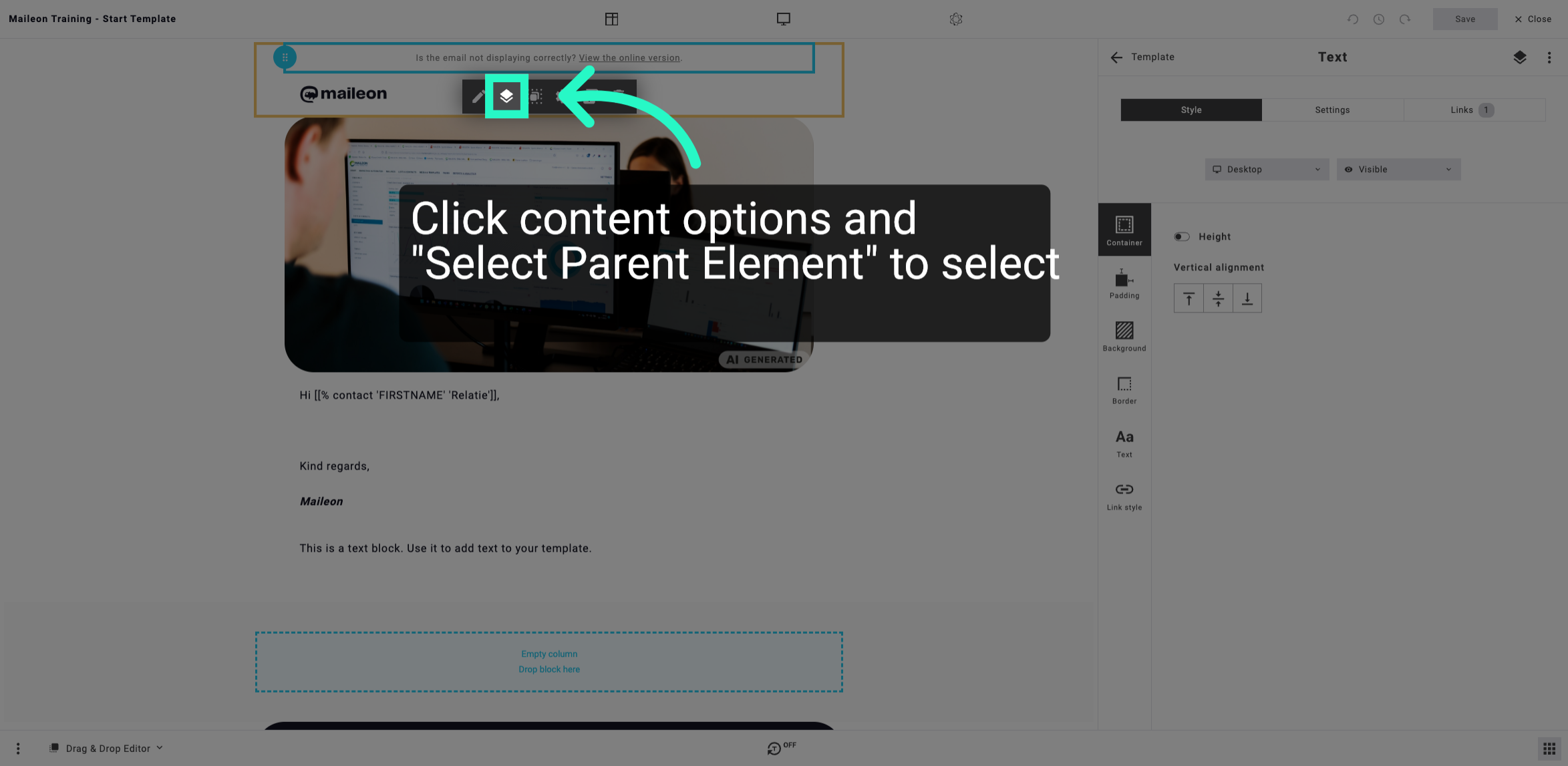
3. Open Content Options
Click the indicated area to open the content options menu.
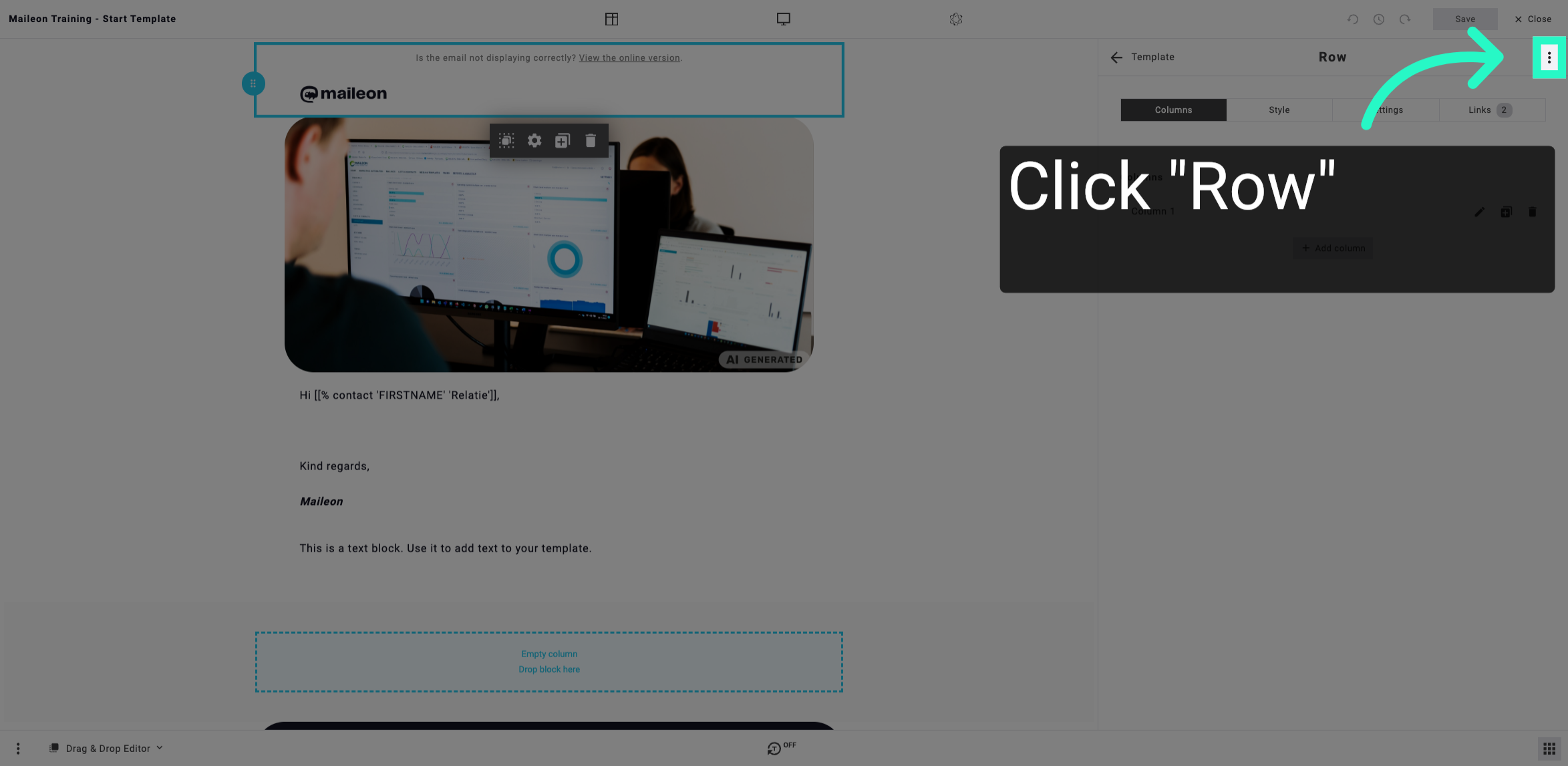
4. Access Save Options
Click the designated area to access the save options for your content.
5. Save Content as Global
Click Save as Global Content to make the content available globally across your account.
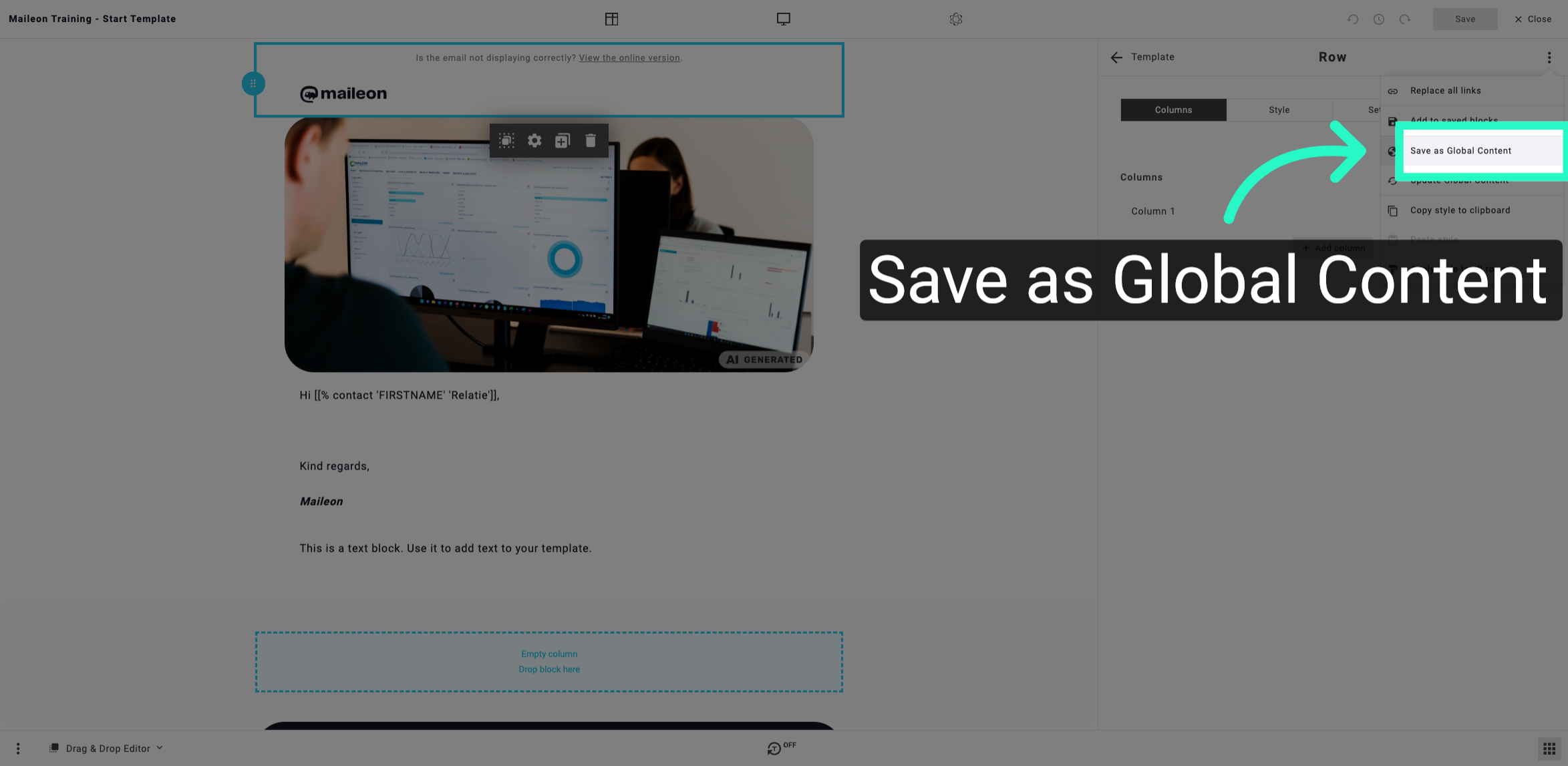
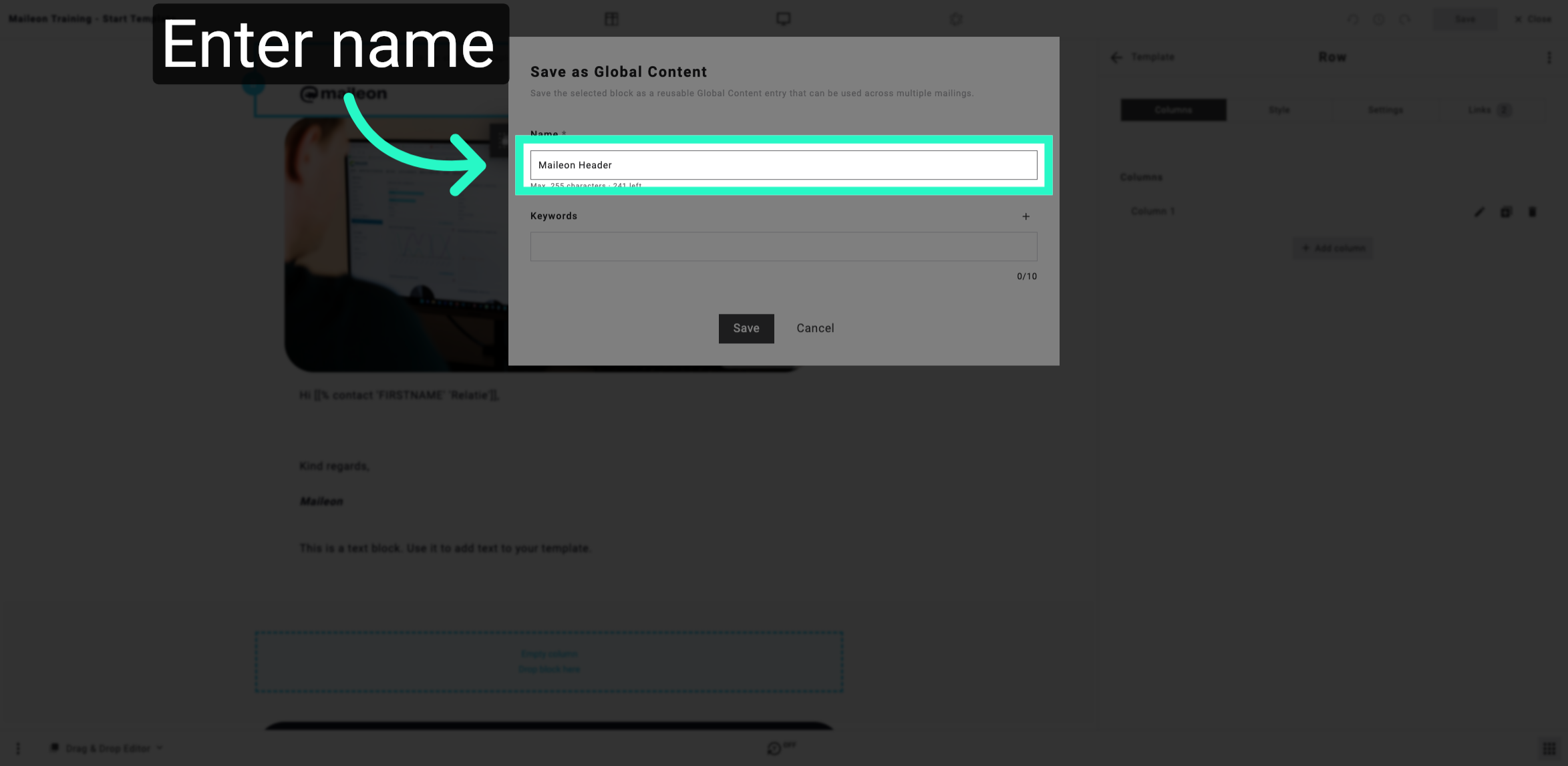
6. Name the Global Content
Click the name field and enter a title for the global content to identify it clearly.
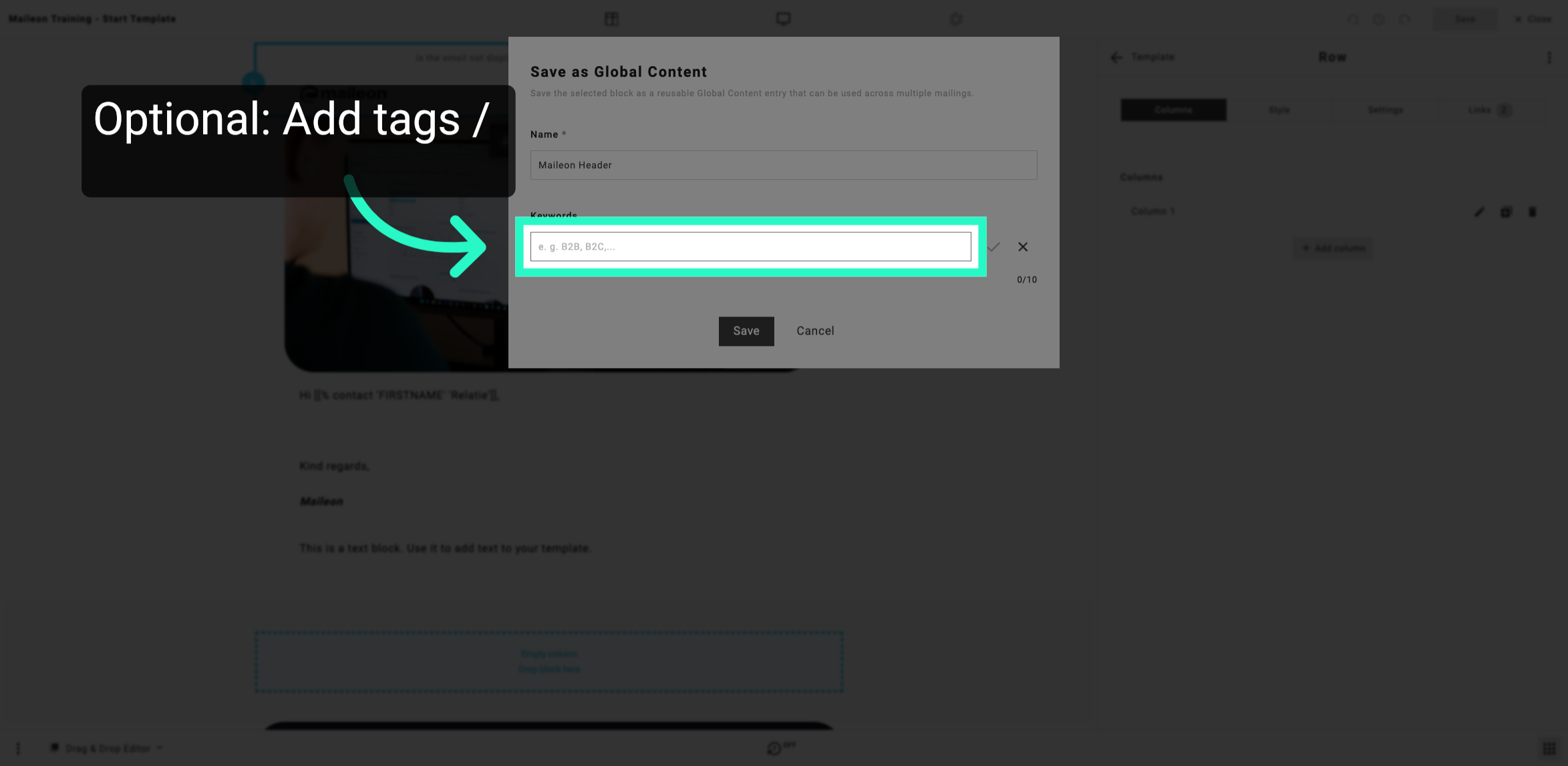
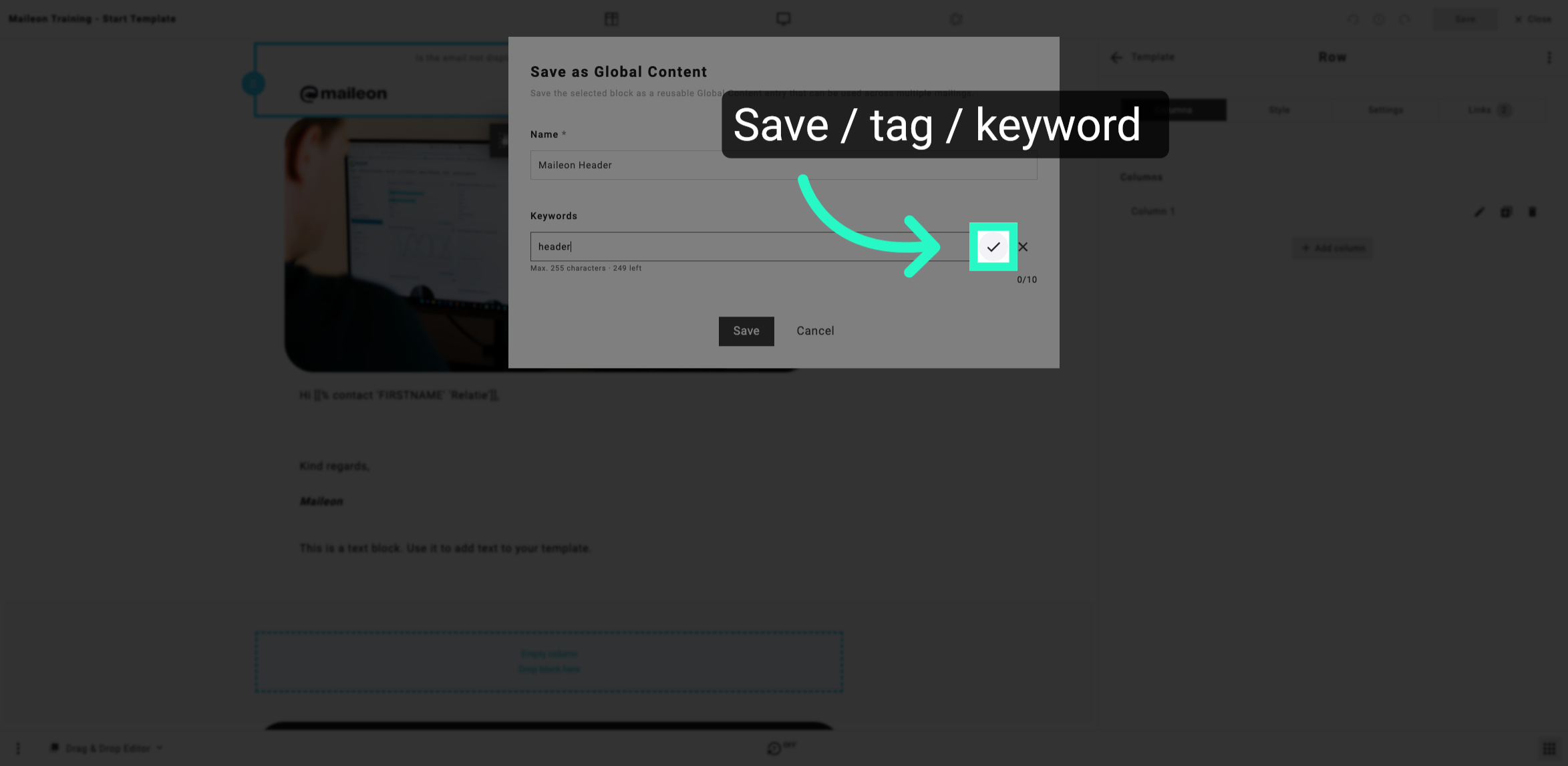
7. Optional: Add tags / keywords
Click to open the keyword selection, then choose the appropriate keywords to tag your content effectively.
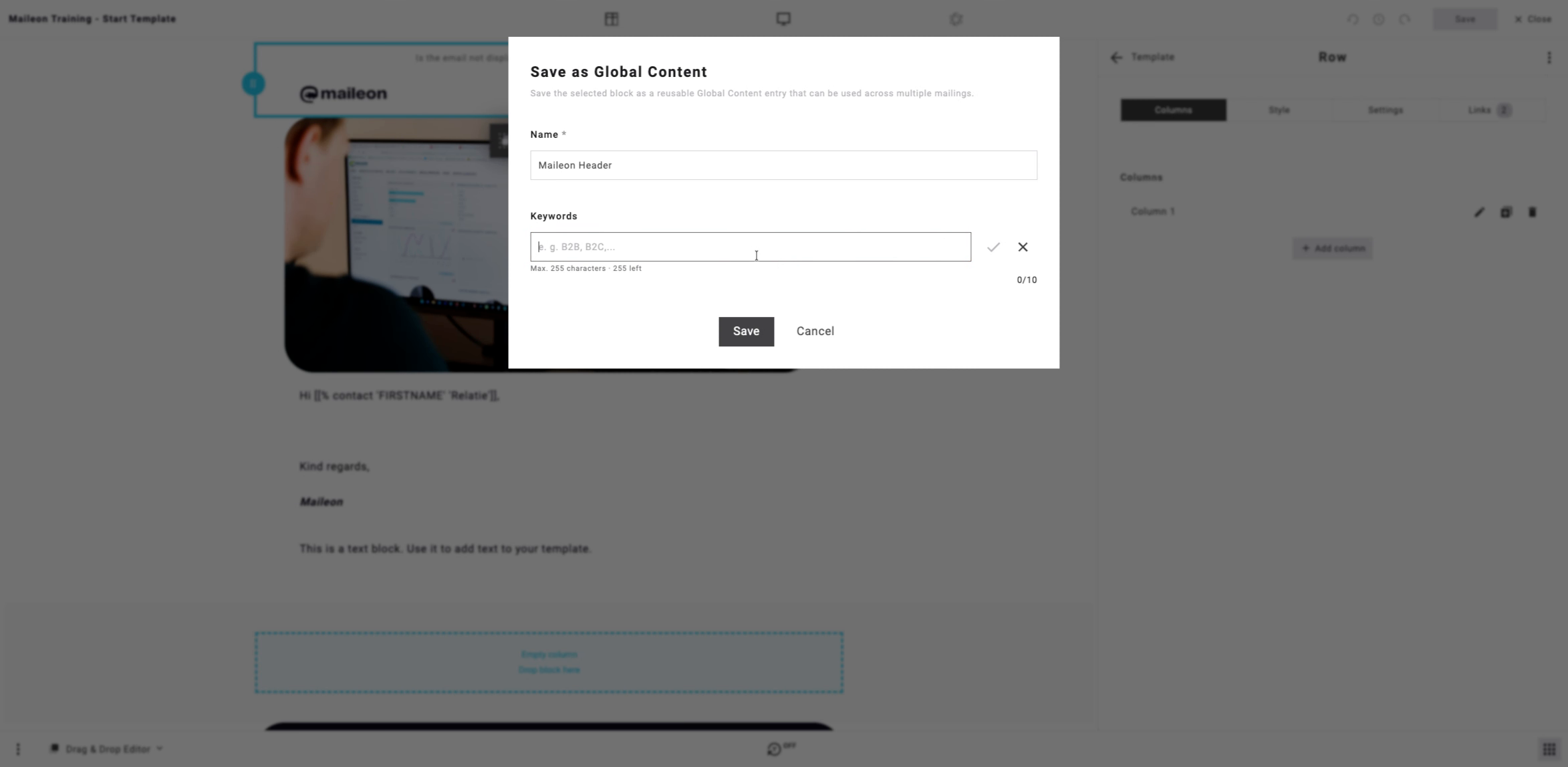
8. Enter Keyword Search Term
Fill in the search field with the keyword to filter and find relevant tags quickly.
9. Choose Keyword from List
Click the desired keyword from the list to associate it with your global content.
10. Save Global Content
Click Save to finalise and store your global content with the selected name and keywords.
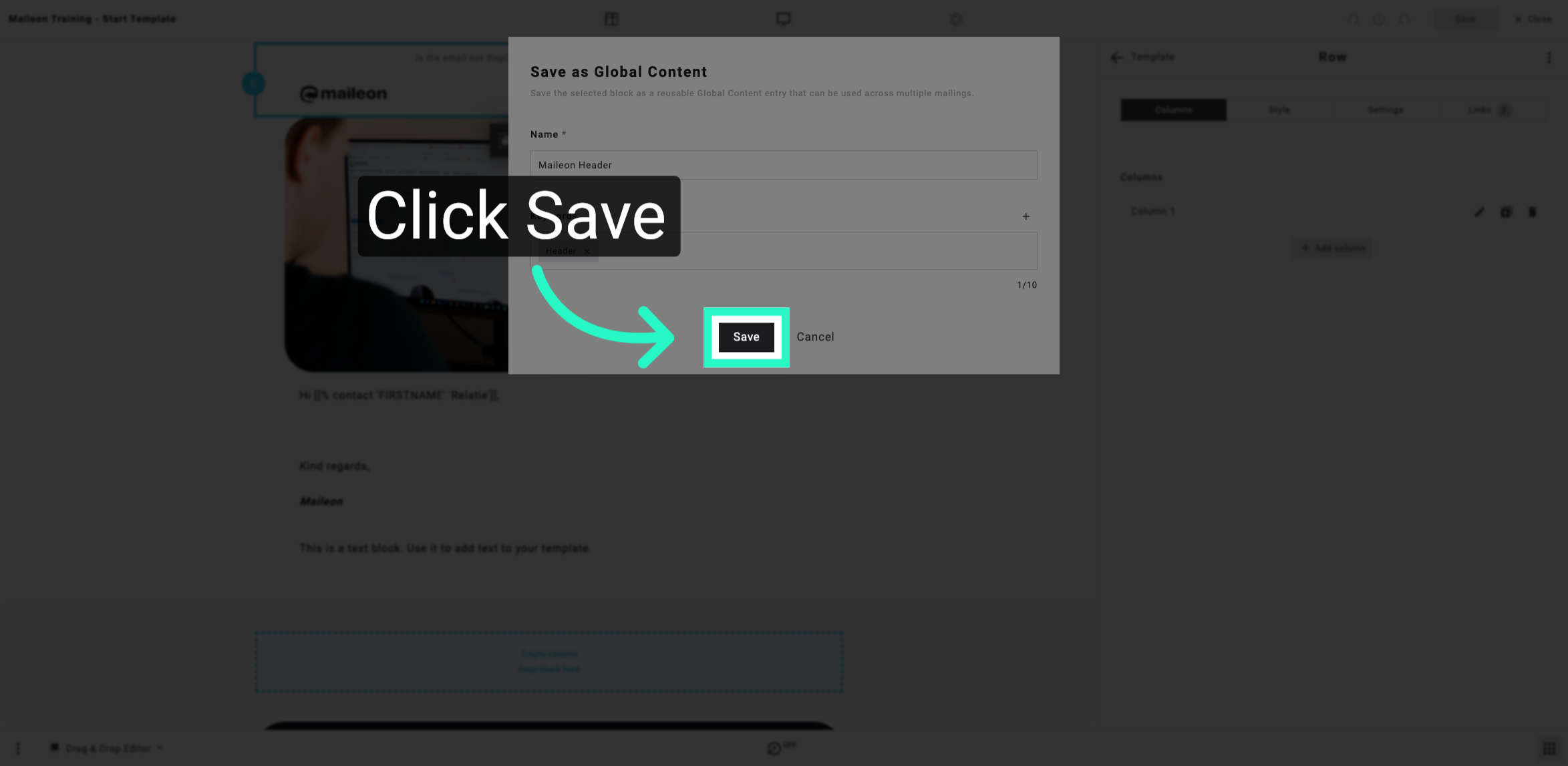
You have successfully saved content as global by naming it and assigning relevant keywords. This allows you to reuse the content across your account efficiently. For further customisation, explore additional content management features.