The Reply Inbox
Every marketing email is an invitation to a conversation, and recipients increasingly expect to be able to simply hit "reply." Beyond customer experience, this has a legal dimension. Under the GDPR, organisations must make it easy for people to exercise their rights, such as requesting access to their data, asking for erasure, or objecting to direct marketing (Articles 12 and 21). Recipients often do this by replying directly to an email they received. A "no-reply" address doesn't remove the obligation to handle such requests. It only makes it more likely they get lost, while the one-month response deadline still applies. National ePrivacy rules, such as the Dutch Telecommunicatiewet, also require that every commercial message include a valid way for recipients to object to further mailings.
A monitored reply address also helps your sending reputation. Replies are a positive engagement signal for mailbox providers, and a reachable sender builds trust with subscribers.
This article explains how to configure reply addresses in Maileon and how to handle the replies that come in, so that every reply reaches the right place and is dealt with in time.
Configuring reply addresses
The reply address of a mailing is determined at two levels. The header settings of your account define the default, and each mailing has its own reply-to option, which you can change per mailing.
Account level: header settings
The manual reply address in the header settings is currently only available in the classic UI, via Settings > Header Settings. It can be set up in three ways.
Automatic (VERP) – default
This is the default header setting. It enables the automatic reply option, which uses a unique ID in the reply address.

Defined with a placeholder

Here the reply address is defined with the placeholder [[MAILING|SENDER]]. In practice, mailings behave exactly as with the automatic setting: the mailing-level options described below result in the same reply addresses and the same entries in the Maileon Inbox.
Defined email address

When a fixed email address is set in the header settings, newly created mailings default to the custom address as configured:

You can still switch to one of the other reply-to options for an individual mailing.
Mailing level: reply-to address options
In the mailing's basic settings, under Advanced settings, you choose how the reply address of that specific mailing is set up. The three options compare as follows:
Reply-to option | Reply address | In Maileon Inbox | Linked to contact |
Personalized email address with tracking enabled (default) | Unique address per contact and mailing (reply-…@your sending domain) | Yes | Yes, to contact and mailing; counted in campaign statistics |
Personalized email address without tracking | The sender address of the mailing | Yes | Where possible |
Custom address without tracking | The address you enter | No, replies go straight to that address | No |
Personalized email address with tracking enabled (default)
Mailing setting
This is the default option in the basic mailing settings > Advanced settings:

Reply address
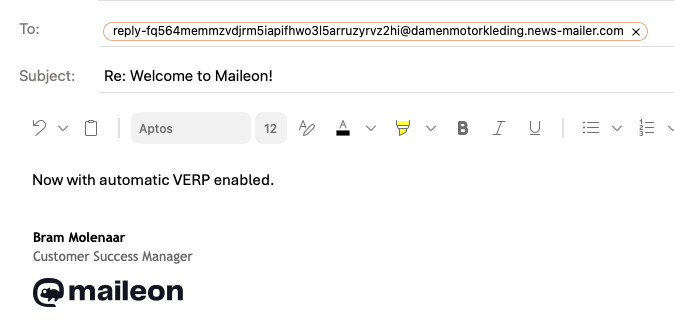
The reply address contains a unique ID, so every reply can be traced back to the contact who sent it and the mailing they replied to.
Maileon Inbox
This is how the reply is shown in the Maileon Inbox:

Personalized email address without tracking
Mailing setting
In the basic mailing settings > Advanced settings, select 'Personalized email address without tracking':

Reply address
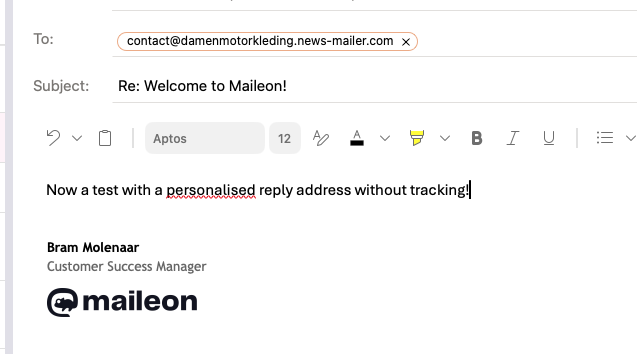
The reply address doesn't contain a unique ID. Instead, it uses the sender address configured in the basic mailing settings (sender name + (sub)domain):
Maileon Inbox
Replies still land in the Maileon Inbox and, where possible, are linked to the contact:

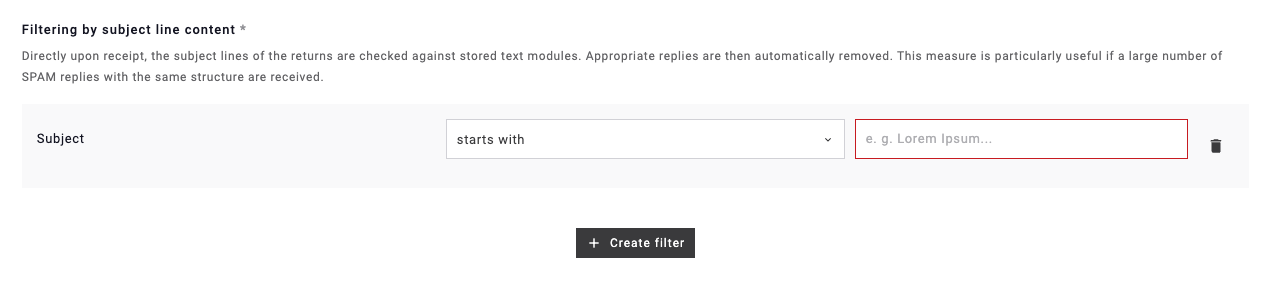
Filtering replies
To keep the Inbox from being flooded, you can set up filters for incoming replies:
Autoreply & forwarding
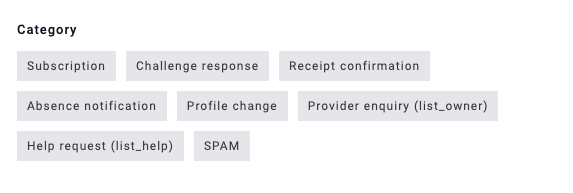
In the new UI, under Settings > Account Settings > Inbox, you can set up automatic replies and forwards per category of reply, such as subscription requests, absence notifications or spam:
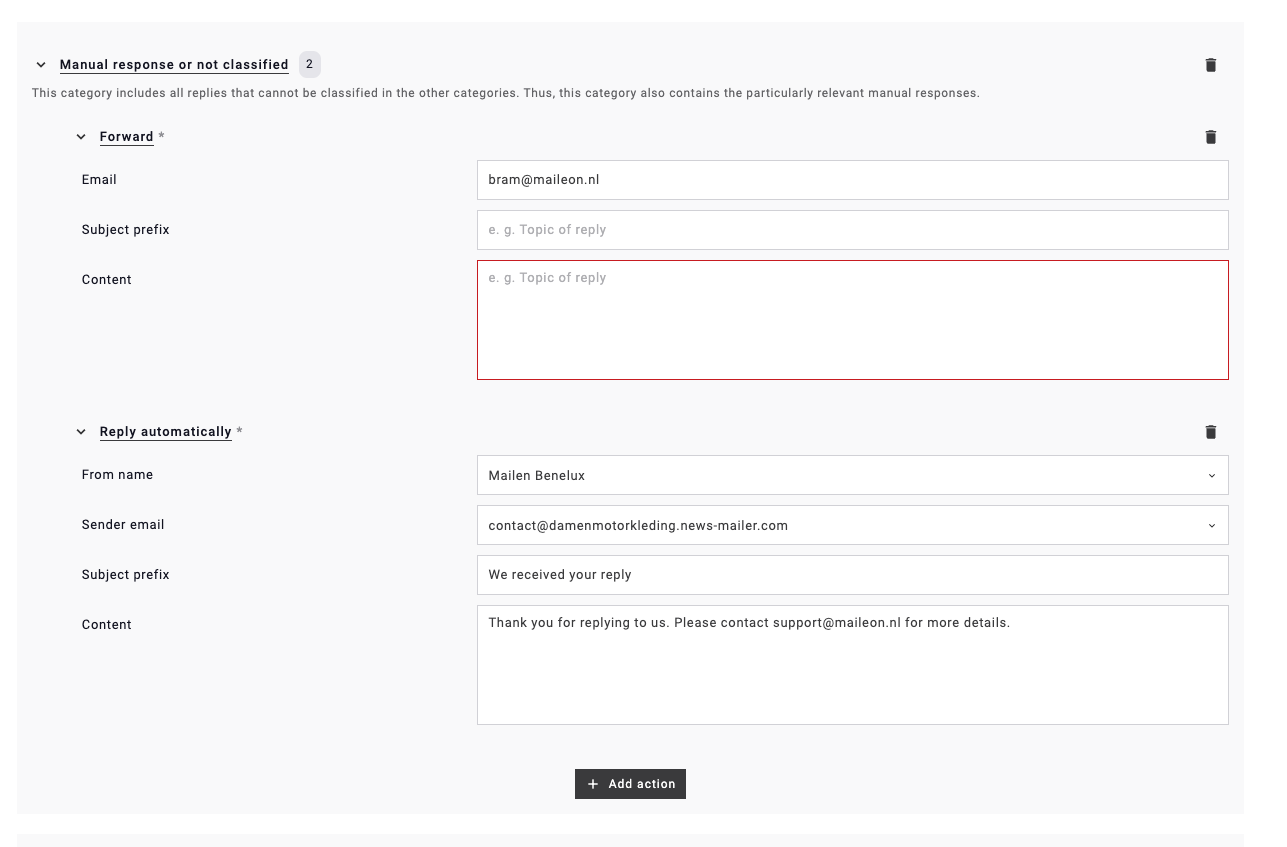
For each category, you then enter the email address to forward to and a message:
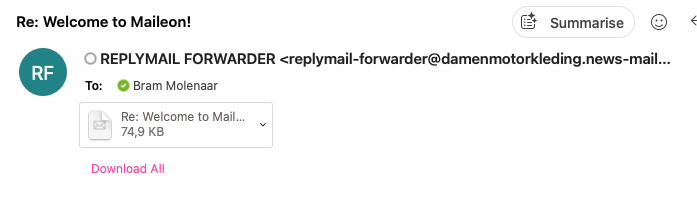
Forwarded replies are sent with the original email as an attachment, so the original message and its content stay intact:
Autoreply
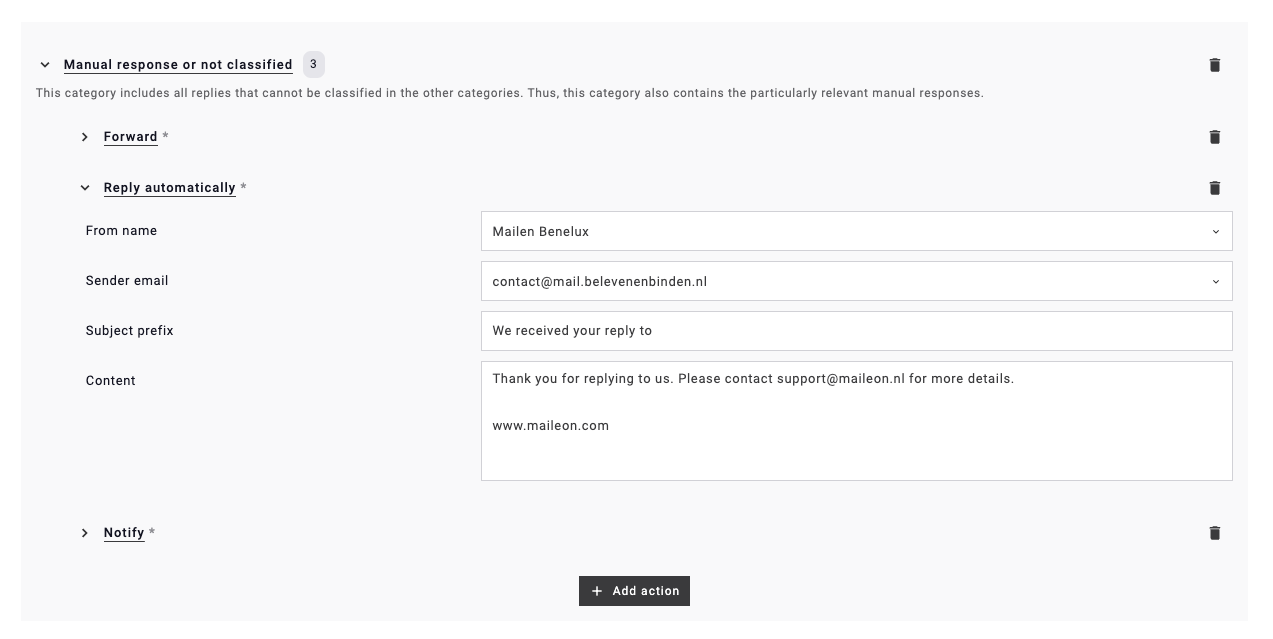
Autoreplies are sent as plain text emails, without images or other elements.
Maileon automatically appends the mailing's subject line to the autoreply subject, so make sure to end your subject line with a space:
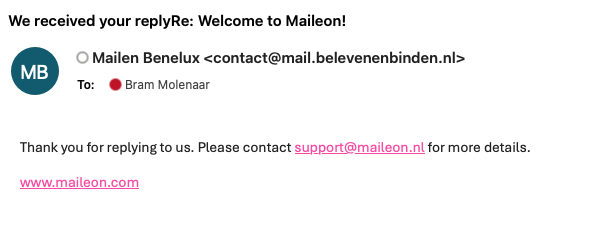
Note: it takes about 5–10 minutes before the autoreply is sent.
Notification
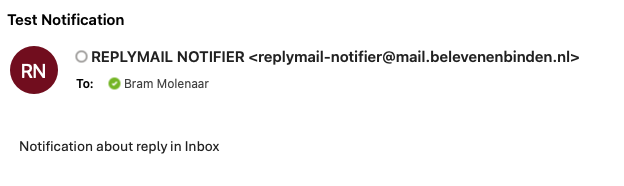
Want someone to be notified when a reply lands in the Maileon Inbox? Use the 'Notify' option: enter the email address, subject line and content, and a message is sent whenever a reply comes in.
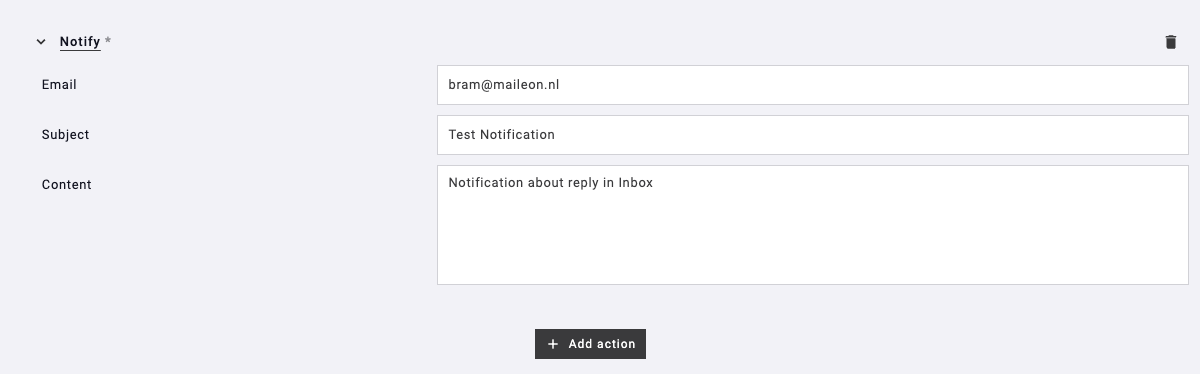
This is how the notification arrives: